Feature Summary
The Background Picture or Texture Fill feature is used to set a picture or texture as the background for slides, supporting built-in texture presets and user-provided images.
Feature Description
| Feature Dimension | Description |
|---|---|
| Membership Restriction | No membership restriction |
| Version Restriction | No version restriction |
Steps
Set Picture or Texture Background
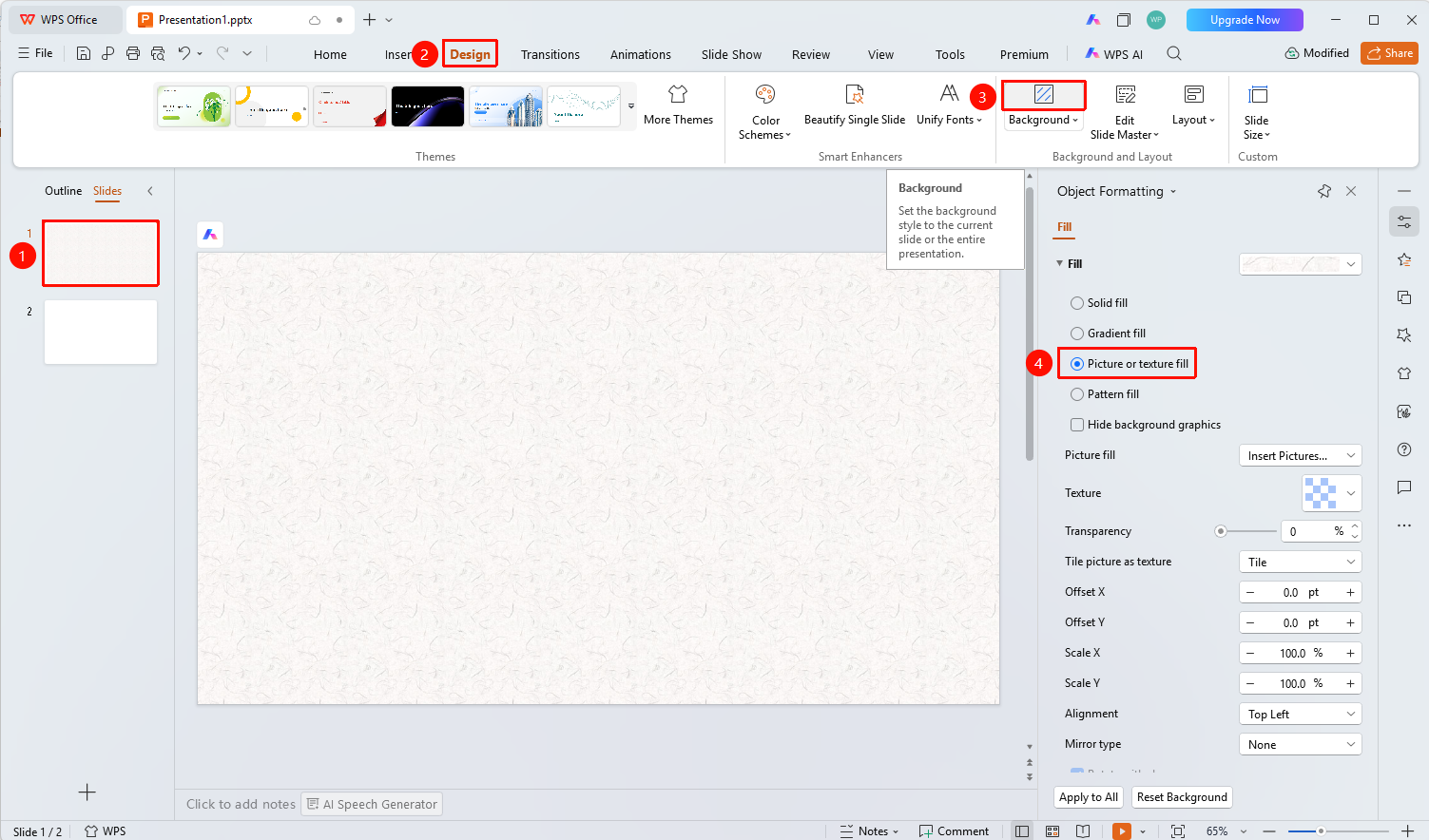
Feature Entry ①
'Design' tab → 'Background' button
- Select the slide you want to set the background for
- Click the "Design" tab at the top
- Click the "Background" button to expand the "Object Properties" panel on the side
- Select "Picture or Texture Fill" in the Object Properties panel on the right
- Set the following options
- "Picture Fill" : Click the dropdown to select the picture source
- "Texture Fill" : Click the texture preview image to select a texture style
- "Transparency" : Drag the slider or enter a percentage to adjust transparency
- "Placement" : Choose Tile or Stretch
- "Offset X" / "Offset Y" : Enter values to adjust picture position offset
- "Scale X" / "Scale Y" : Enter percentages to adjust picture scaling
- "Alignment" : Select picture alignment
- "Mirror Type" : Select mirror effect (None/Horizontal/Vertical, etc.)
- "Rotate with Shape" : Check to make the picture rotate with the shape
Feature Entry ②
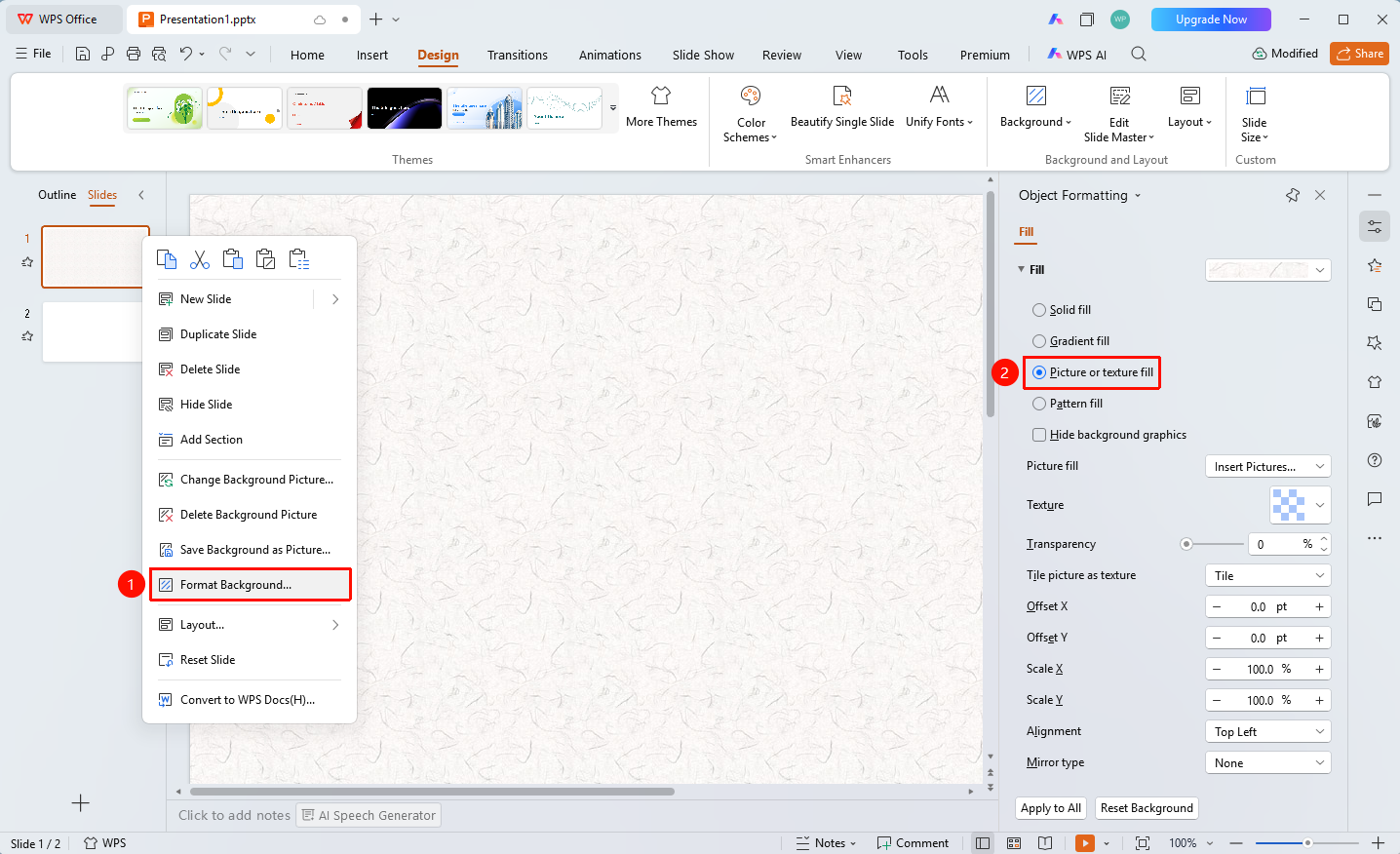
Right-click menu on left slide thumbnails → "Format Background"
- Right-click the slide you want to set the background for in the left slide thumbnails
- Select the "Format Background" option
- The Object Properties panel pops up on the right, select "Picture or Texture Fill"
- Set the picture or texture parameters mentioned above
Feature Entry ③
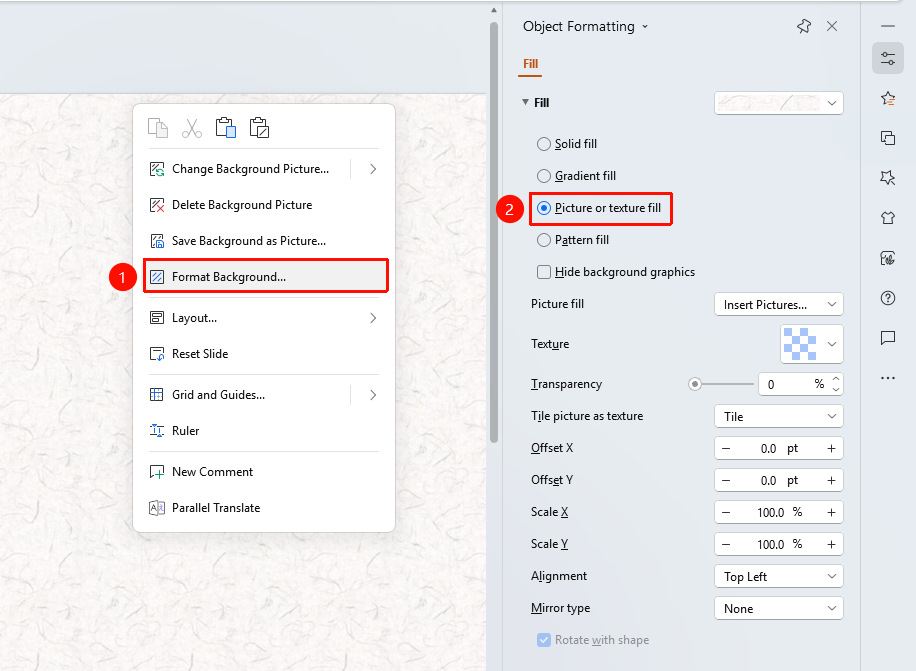
Right-click menu in slide editing area → "Format Background"
- Right-click on a blank area in the slide editing area
- Select the "Format Background" option
- The Object Properties panel pops up on the right, select "Picture or Texture Fill"
- Set the picture or texture parameters mentioned above
FAQ
Q1: Where can I set Picture or Texture Fill?
- Solution: Click the "Design" tab →"Background" button, or right-click on the left thumbnails/editing area and select "Format Background".
Q2: How to use a local picture as the background?
- Solution: In the "Picture or Texture Fill" settings, click the "Picture Fill" dropdown and select a local picture.
Q3: What preset textures are available?
- Solution: Click the "Texture Fill" preview image to see various texture presets such as canvas, marble, wood grain, water droplets, etc.
Notes
- Using high-resolution pictures as backgrounds may increase file size
- Texture fill is suitable for presentation scenarios that require a sense of texture