Feature Summary
The Background Solid Fill feature is used to set a single-color background for slides, quickly unifying the visual style of the presentation.
Feature Description
| Feature Dimension | Description |
|---|---|
| Membership Restriction | No membership restriction |
| Version Restriction | No version restriction |
Steps
Set a Solid Color Background
Feature Entry ①
"Design" tab → "Background" button
- Select the slide for which you want to set the background
- Click the "Design" tab at the top
- Click the "Background" button to expand the side "Object Properties" panel
- In the Object Properties panel on the right, select "Solid Fill"
- Click the "Color" button to choose a fill color
- Adjust the "Transparency" slider to set the background transparency
To apply the solid fill to all slides, click the "Apply to All" button at the bottom of the "Object Properties" panel

Feature Entry ②
Right-click menu on the left slide thumbnail pane → "Format Background"
- In the left slide thumbnail pane, right-click the slide for which you want to set the background
- Select the "Format Background" option
- The Object Properties panel pops up on the right, select "Solid Fill"
- Set the fill color and transparency

Feature Entry ③
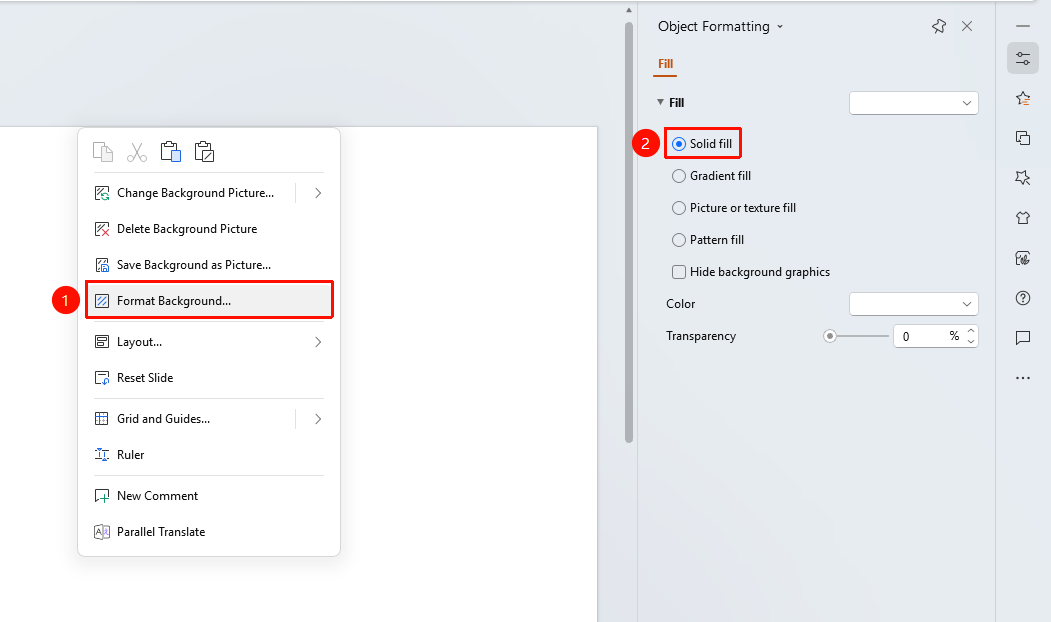
Right-click menu in the slide editing area → "Format Background"
- Right-click on a blank area in the slide editing area
- Select the "Format Background" option
- The Object Properties panel pops up on the right, select "Solid Fill"
- Set the fill color and transparency
FAQ
Question 1: How to apply the background to all slides
- Solution: After completing the settings in the "Object Properties" panel, click the "Apply to All" button to apply to all slides.
Notes
- Solid fill is suitable for occasions that require a simple background
- It is recommended to select the target slide before making settings