Feature Summary
The WordArt feature allows users to insert decorative text with special visual effects, supporting a variety of preset styles and custom effects. It is commonly used to create titles, slogans, logos, and other text content that requires visual impact.
Feature Description
| Feature Dimension | Description |
|---|---|
| Membership Restriction | Some preset WordArt styles require a WPS Premium subscription |
| Version Restriction | No version restrictions |
Steps
Insert WordArt via the Ribbon
Feature Entry
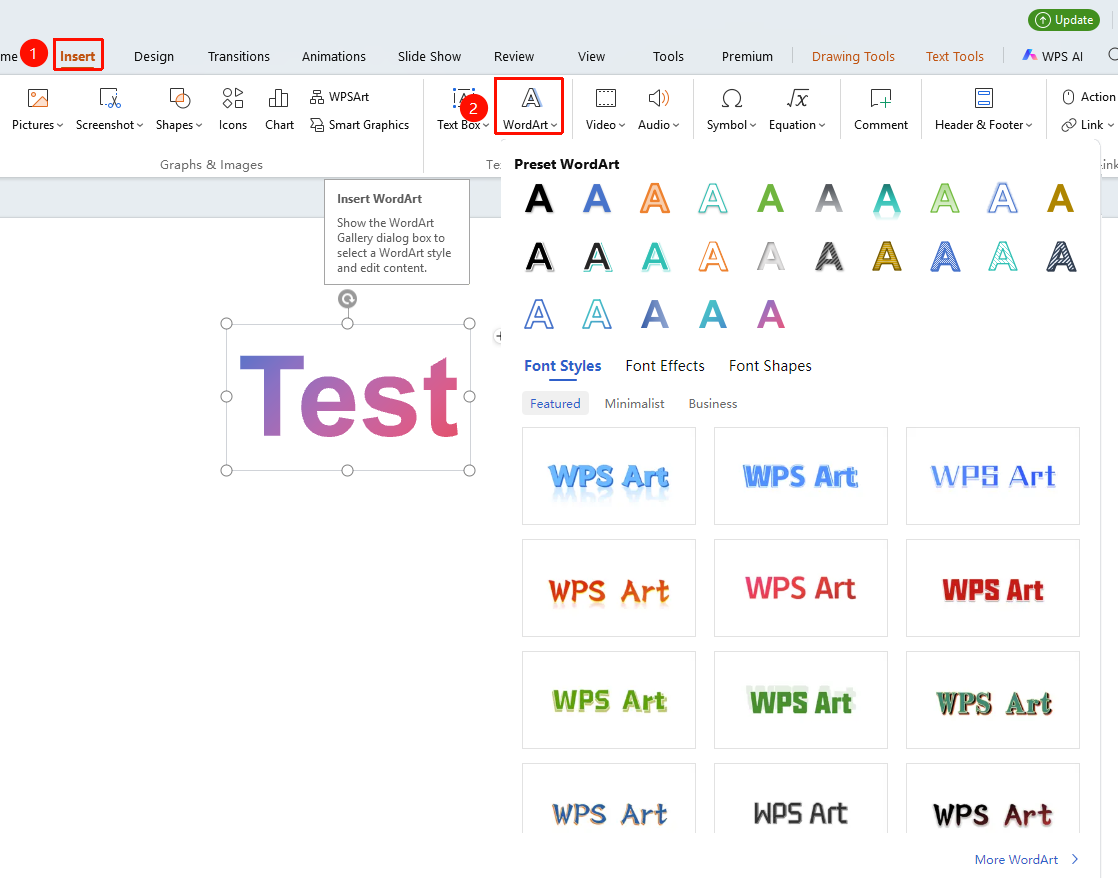
"Insert" tab → "WordArt" button
- Click the Insert tab on the ribbon
- Click the "WordArt" button
- Select a WordArt style from the WordArt Presets area
- Enter text content in the pop-up text box
Modify an Existing WordArt Style
Feature Entry
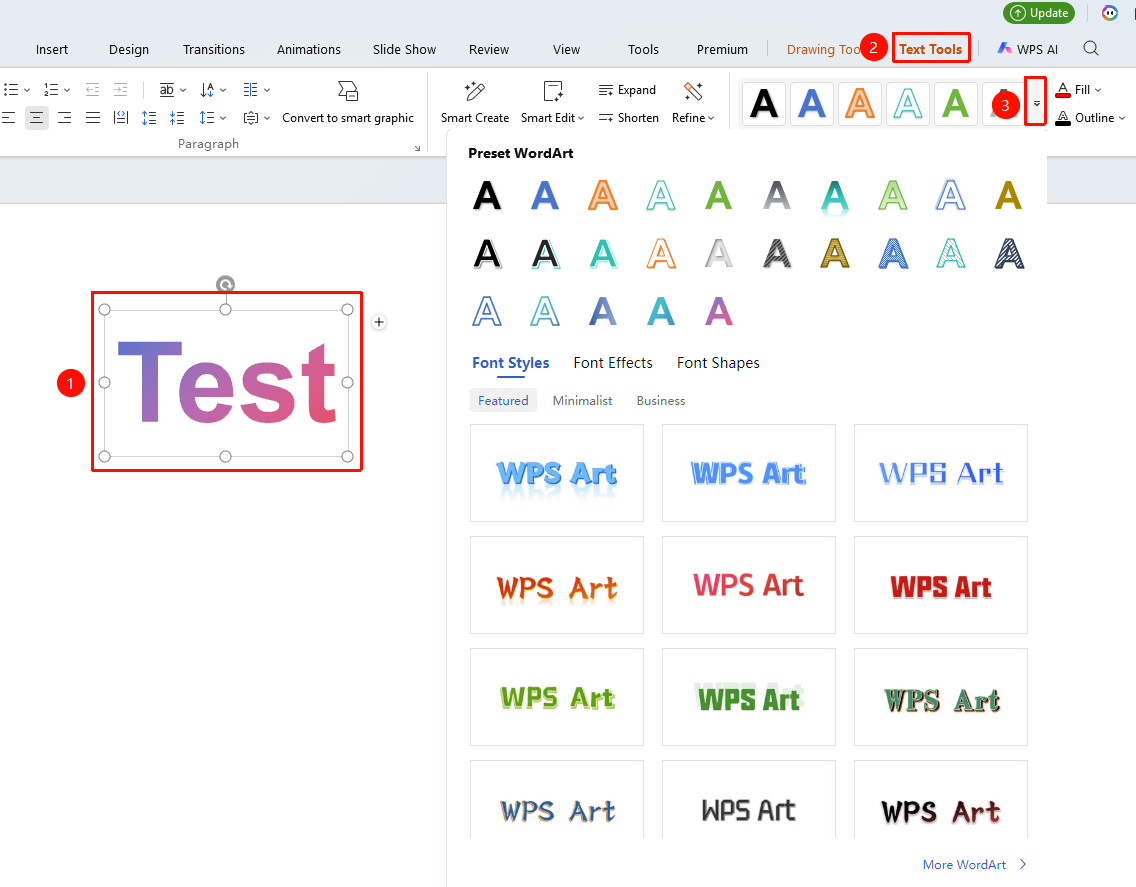
Select the inserted WordArt text box, then go to the "Text Tools" tab → "Dropdown arrow on the right side of the WordArt Styles area"
- Select the inserted WordArt text box
- Click the Text Tools tab on the ribbon
- Click the "Dropdown arrow" option on the right side of the WordArt Styles area
- Select a WordArt style from the list
FAQ
Q1: Can I change the font of WordArt?
- Solution: Yes. After selecting the WordArt, you can change the font, font size, and other properties through the font settings in the "Home" / "Text Tools" tab. The font settings for WordArt are the same as for regular text and support all fonts installed on the system.
Q2: How to make WordArt follow the slide master?
- Solution: WordArt is an independent graphic object by default and is not controlled by the slide master. If you need a unified title style, it is recommended to set the title format directly in the slide master instead of using WordArt. WordArt is more suitable for one-time decorative titles.
Notes
- WordArt is inserted in the center of the slide by default and can be repositioned by dragging
- WordArt supports free scaling, but excessive scaling may cause blurry effects