Feature Summary
The Set Background Format feature is used to open the background format settings panel, allowing you to centrally manage all fill options for slide backgrounds, including colors, pictures, and patterns.
Feature Description
| Feature Dimension | Description |
|---|---|
| Membership Restriction | No membership restriction |
| Version Restriction | No version restriction |
Steps
Open Background Format Settings
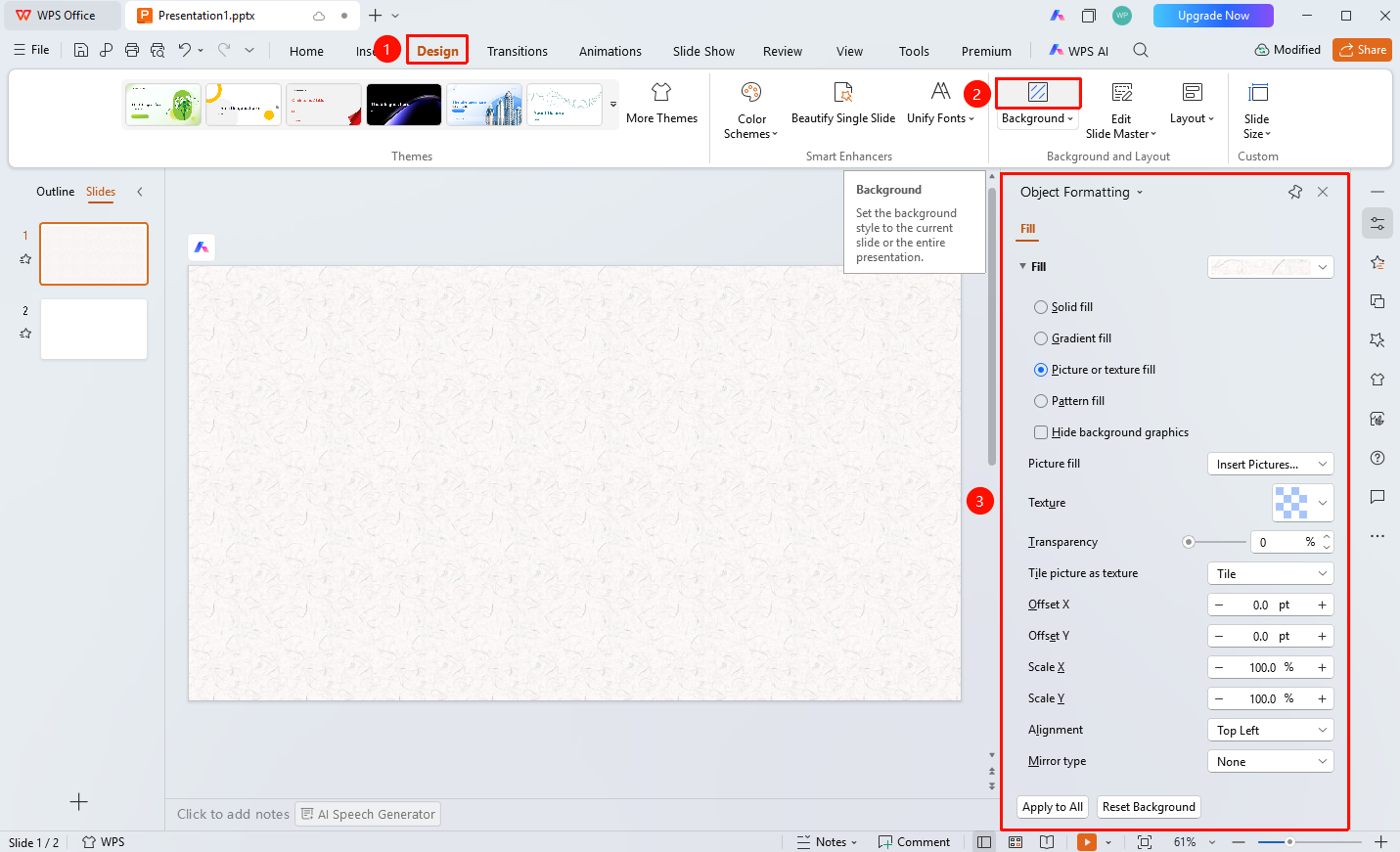
Feature Entry ①
'Design Tab' → 'Background Button'
- Select the slide you want to set the background for
- Click the "Design" tab at the top
- Click the "Background" button, and the "Format Pane" opens on the right
- In the 'Format Pane', you can make the following settings
- "Solid Fill" : Set a single-color background
- "Gradient Fill" : Set a gradient color background
- "Picture or Texture Fill" : Use a picture or texture as the background
- "Pattern Fill" : Use a pattern as the background
- "Hide Background Graphics" : Hide background graphics from the master
- "Color" : Set the fill color
- "Transparency" : Adjust background transparency
- "Apply to All" : Apply settings to all slides
- "Reset Background" : Restore default background settings
Feature Entry ②
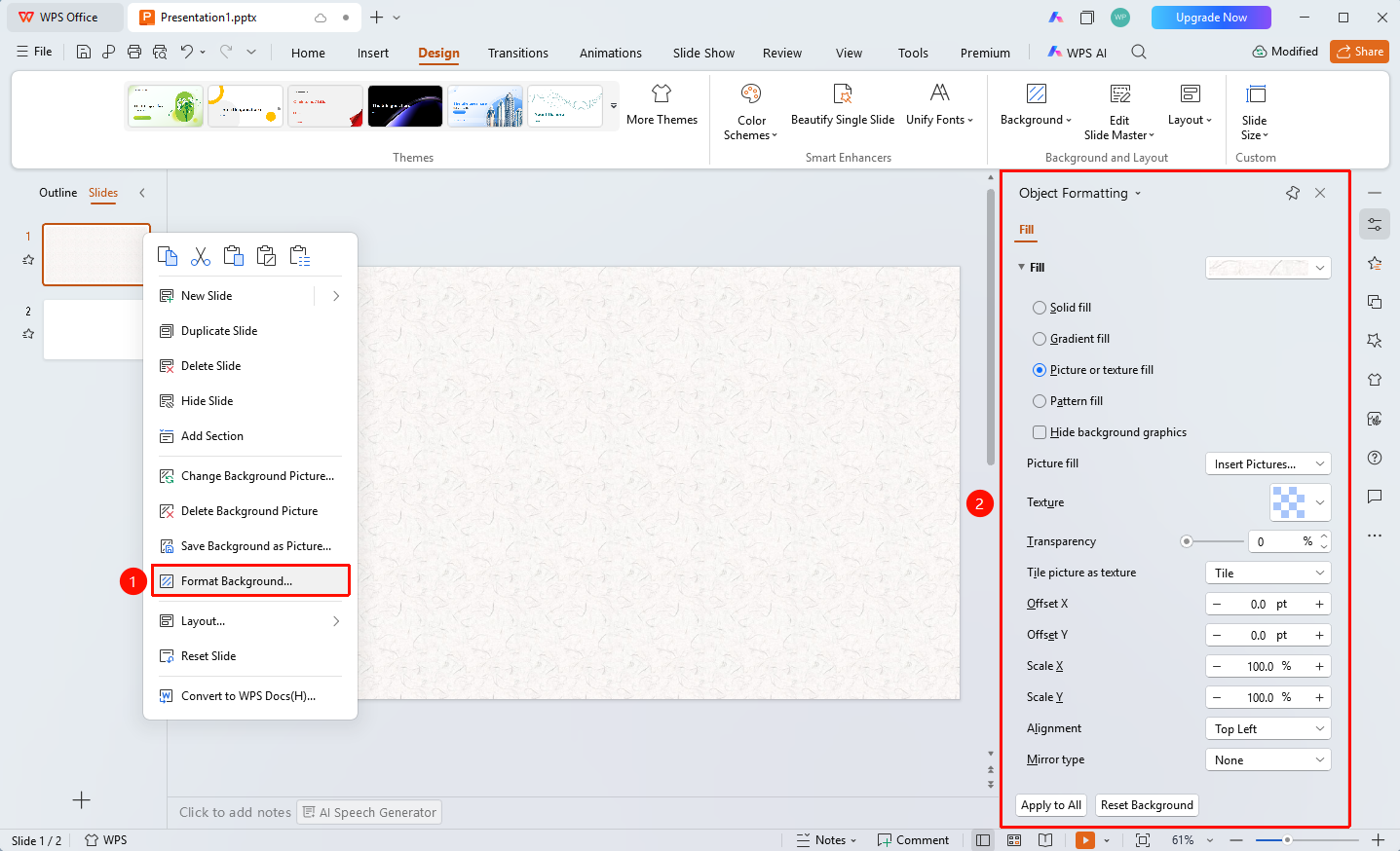
Right-click menu on left slide thumbnails → "Set Background Format"
- Right-click the slide you want to set the background for in the left slide thumbnail pane
- Select the "Set Background Format" option
- The 'Format Pane' will pop up on the right
Feature Entry ③
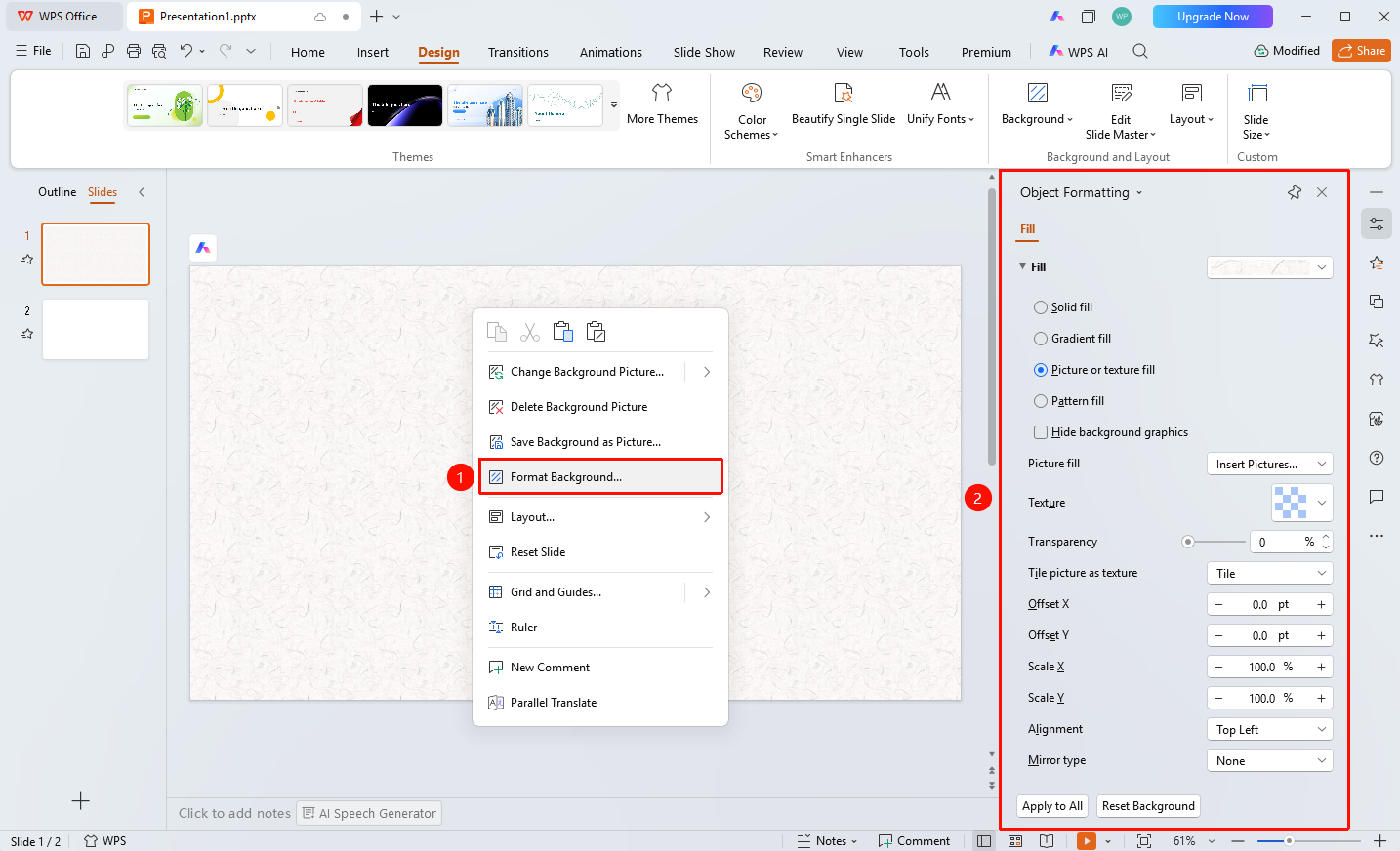
Right-click menu in slide editing area → "Set Background Format"
- Right-click on a blank area in the slide editing area
- Select the "Set Background Format" option
- The Object Properties panel will pop up on the right
FAQ
Q1: How to quickly apply to all slides
- Solution: Click the "Apply to All" button in the background format panel.
Q2: How to restore the default background
- Solution: Click the "Reset Background" button to restore the default background settings.
Notes
- Background format settings affect the current slide
- Please confirm the settings are correct before using "Apply to All"