Feature Summary
The Convert to Smart Graphics feature can quickly convert selected text into SmartArt graphics, automatically organizing text content into the graphic according to hierarchical relationships. This makes the content display of presentations more intuitive and professional, greatly enhancing the effect of information visualization.
Feature Description
| Feature Dimension | Description |
|---|---|
| Membership Restriction | Membership required |
| Version Restriction | No version restriction |
Operation Steps
Change Smart Graphics
Feature Entry
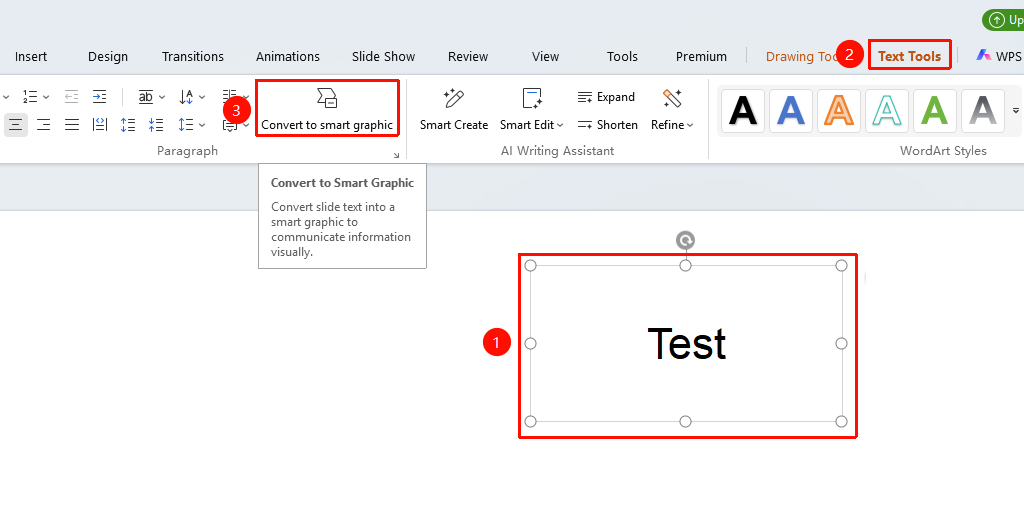
"Text Tools" tab → "Convert to Smart Graphics" button
- Select the text to be converted into Smart Graphics
- Click the top "Text Tools" tab
- Click the "Convert to Smart Graphics" button
- The text will be automatically converted into the corresponding Smart Graphics. Wait for the conversion to complete before confirming the application.
- Click "Change Style" to open the Smart Graphics library and select a suitable graphic style
FAQ
Q1: After converting to Smart Graphics, how do I modify the text in the graphic?
- Solution: Directly double-click the text area in the Smart Graphics to enter Read Mode and modify the text content.
Q2: What kind of text content is suitable for conversion to Smart Graphics?
- Solution: List text with hierarchical relationships is most suitable for conversion, such as content containing titles and sub-items. After conversion, it will automatically be distributed to different levels of the graphic based on the text's indentation level.
Notes
- Before conversion, it is recommended to set appropriate indentation for the text to ensure the correct hierarchical relationship after conversion.
- WPSArt graphics support custom colors and styles. After conversion, they can be adjusted in Object Properties.
- If the text content is too extensive, the converted graphic may need to be manually resized to ensure readability.