Feature Summary
The Rearrange Windows feature is used to rearrange and adjust the display of multiple Presentation Documents. It can arrange windows horizontally or vertically, facilitating side-by-side comparison and interactive window management.
Feature Description
| Feature Dimension | Description |
|---|---|
| Membership Restriction | No membership restriction |
| Version Restriction | No version restriction |
Steps
Rearrange Windows
Feature Entry
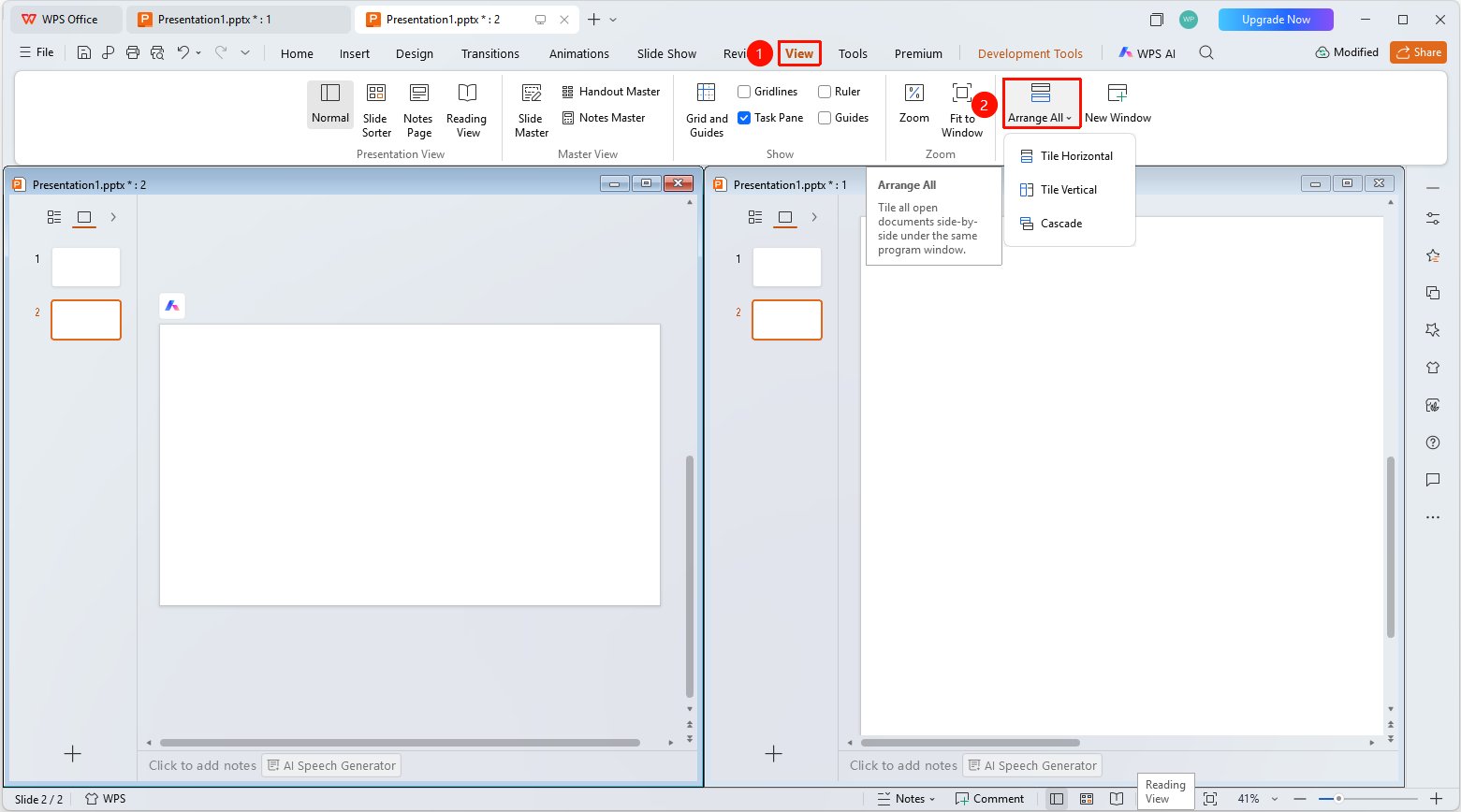
"View" tab → "Rearrange Windows"
- Open multiple presentation windows
- Click the "View" tab at the top
- Locate and click the "Rearrange Windows" button
- Select an arrangement method:
- "Tile Horizontally": All windows are arranged horizontally
- "Tile Vertically": All windows are arranged vertically
- "Cascade": Windows are arranged in a cascading manner
FAQ
Q1: Where is Rearrange Windows
- Solution: Click the "View" tab → "Rearrange Windows", and select the desired arrangement method.
Notes
- Rearrange Windows requires creating a new window first
- It facilitates comparison and copying of content across multiple Presentation Documents