Feature Summary
The Reading View feature is used to preview presentations in full-screen mode within a window, allowing you to view slide effects. It is suitable for reviewing and checking presentation content.
Feature Description
| Feature Dimension | Description |
|---|---|
| Membership Restriction | No membership restriction |
| Version Restriction | No version restriction |
Operation Steps
Switch to Reading View
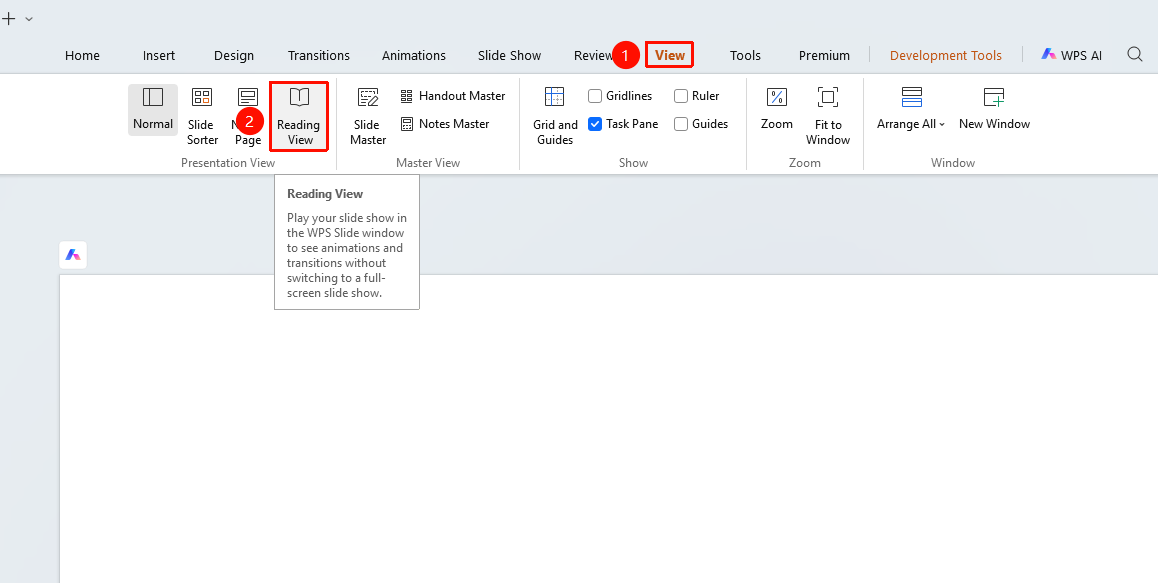
Feature Entry ①
"View" tab → "Reading View"
- Click the top "View" tab
- Find and click the "Reading View" button
- Slides are displayed in full-screen mode within the window
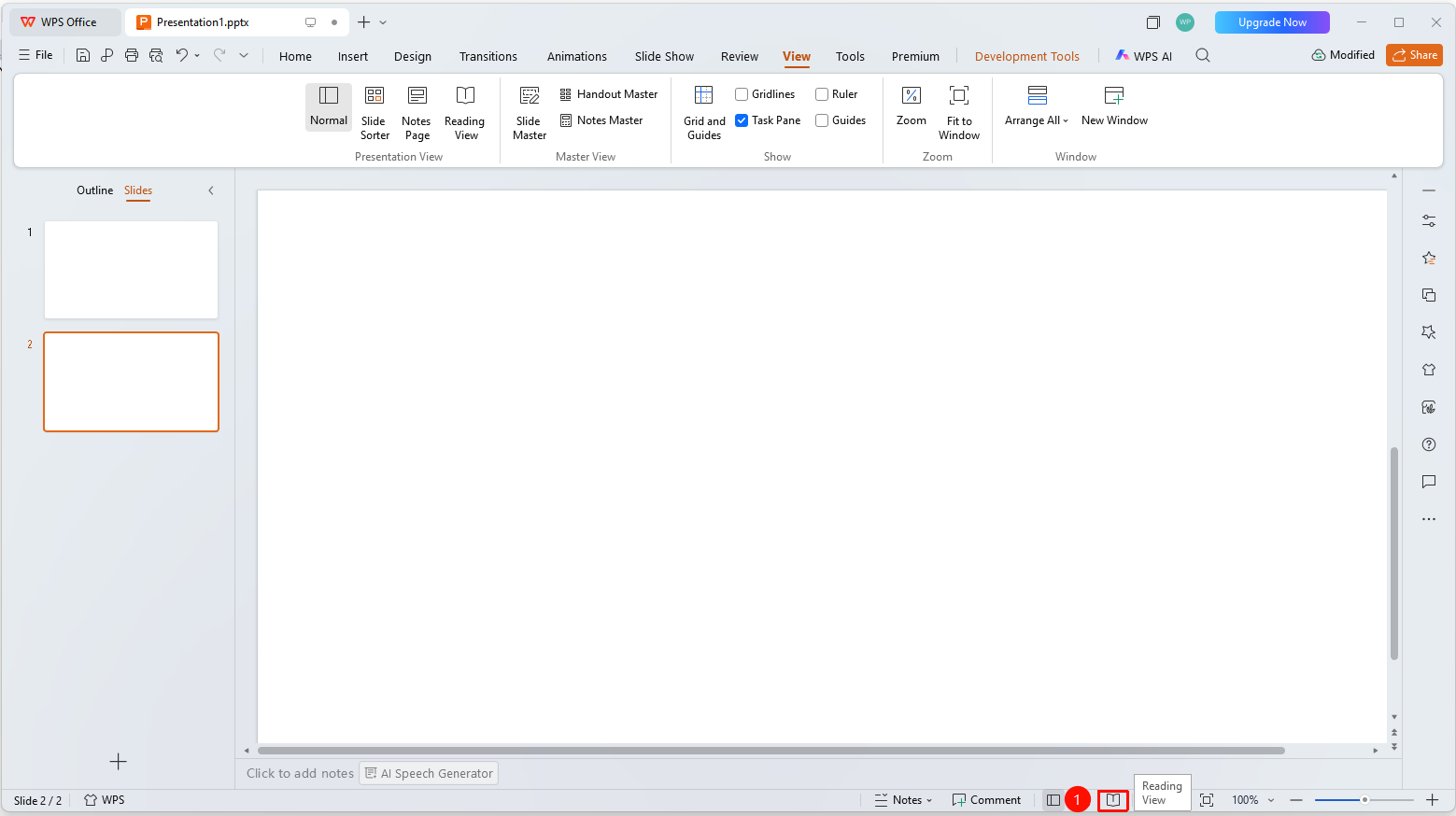
Feature Entry ②
Status bar at the bottom of the screen → "Reading View"
- Find and click the "Reading View" button on the status bar at the bottom of the screen
- The slide is displayed in full screen within the window
Operating in Reading View
- "Page Turning": Click the left mouse button or press the Space key to turn pages
- "Exit": Press the Esc key to exit Reading View
Frequently Asked Questions
Question 1: What is the difference between Reading View and Slide Show
- Solution: Reading View retains the title bar and taskbar, playing slides within the WPS Slides window to view animations and transition effects without switching to full-screen slide show. Slide Show is displayed in full screen.
Question 2: How to exit Reading View
- Solution: Press the Esc key or click the "Normal View" button on the bottom status bar to exit.
Question 3: Can I edit content in Reading View
- Solution: Reading View is a preview mode and does not allow content editing. You need to exit and edit in Normal View.
Notes
- Reading View is suitable for quickly previewing presentation effects
- You can view slides without entering full-screen presentation mode