Feature Summary
Slide Size is a core feature under the Slide category, helping users complete related operations conveniently and efficiently.
Feature Description
| Feature Dimension | Description |
|---|---|
| Membership Restriction | No membership restriction |
| Version Restriction | No version restriction |
Operation Steps
Using Preset Slide Sizes
Feature Entry
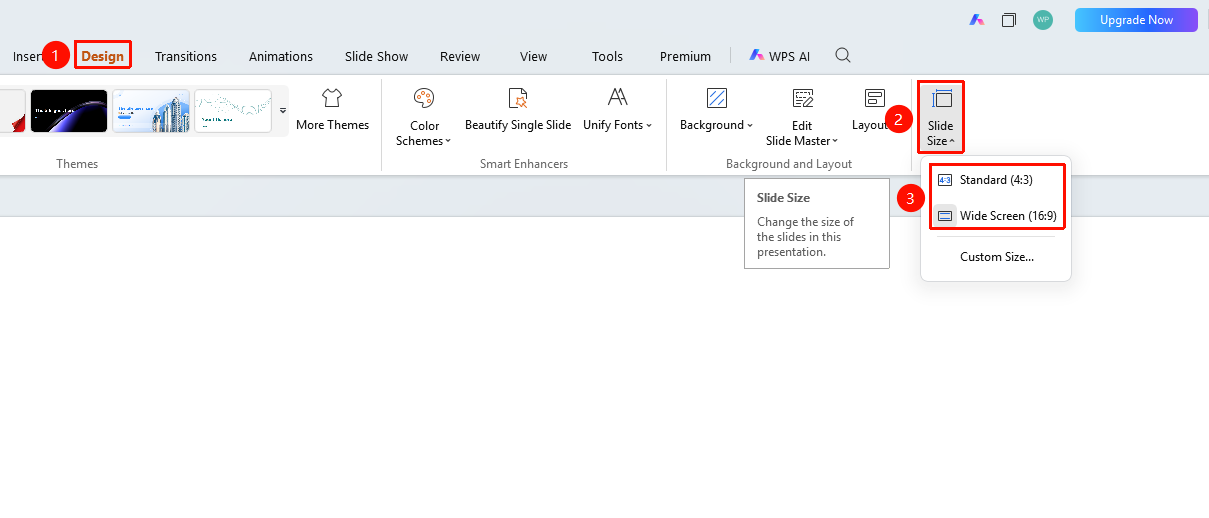
"Design" tab → "Slide Size" button
- Open the target presentation
- Click the top "Design" tab
- Locate and click the "Slide Size" button
- In the pop-up panel, select "Standard" / "Widescreen"
Customizing Slide Size
Feature Entry
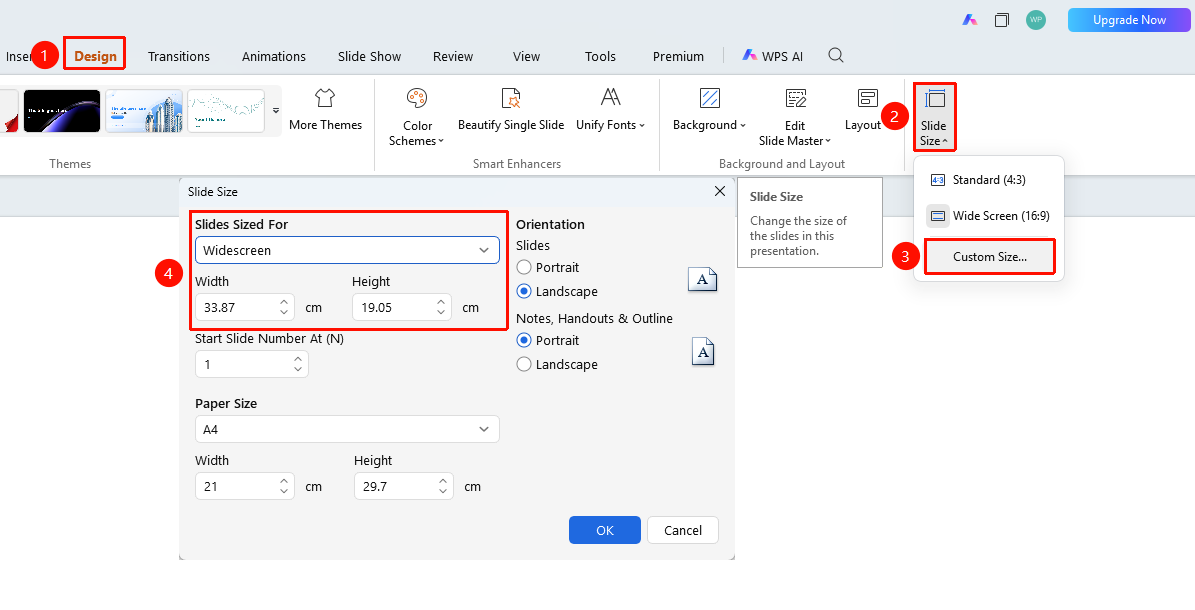
"Design" tab → "Slide Size" → "Custom Size"
- Open the target presentation
- Click the top "Design" tab
- Locate and click the "Slide Size" button
- In the pop-up panel, click "Custom Size" to expand the settings menu
- In the "Slide Size" area, select more preset sizes, or enter "Width" / "Height" for precise adjustment
FAQ
Q1: How to undo a slide size operation?
- Solution: Use the shortcut
Ctrl+Z(mac:⌘+Z) to undo immediately, or click the "Undo" button on the Quick Access Toolbar to revert.
Notes
- Modifications take effect on the current document immediately; it is recommended to save before making changes
- Before important presentations, please test the effect on the actual device