Feature Summary
The image printing feature is used to directly print images from slides. It supports custom image sizes and layouts, offers multiple printing scenarios (general, exam paper, invoice printing, ID photo, long image, etc.), and also supports advanced features such as AI Sharpening and AI Removal.
Feature Description
| Feature Dimension | Description |
|---|---|
| Membership Restriction | Premium feature |
| Version Restriction | No version restriction |
Steps
Print Image
Premium feature. Please note the membership indicator before use.
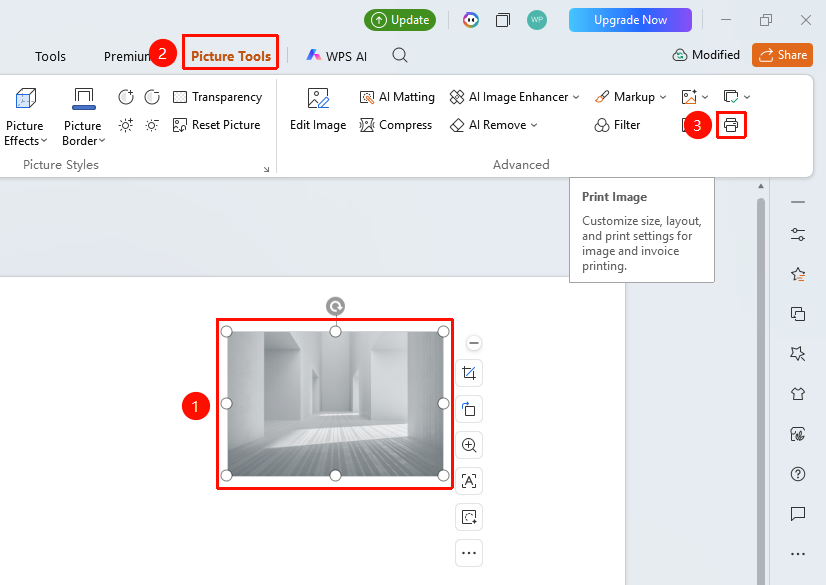
Feature Entry ①
"Picture Tools" tab → "Image Printing"
- Select the image you want to print
- Click the "Picture Tools" tab at the top
- Find and click the "Image Printing" button
- Open the image printing page
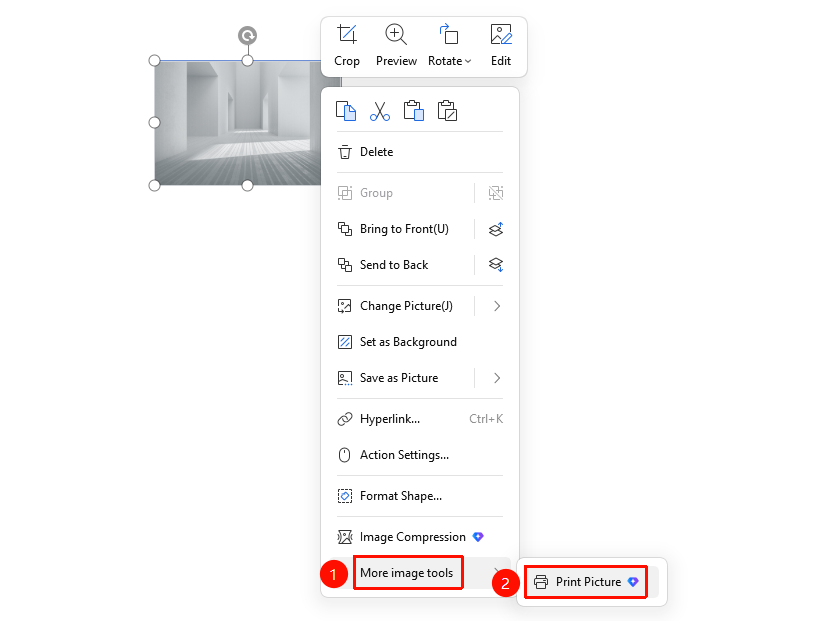
Feature Entry ②
Image right-click menu → "More Picture Features" → "Image Printing"
- Select the image and right-click
- Select "More Picture Features"
- Click "Image Printing"
- Open the image printing page
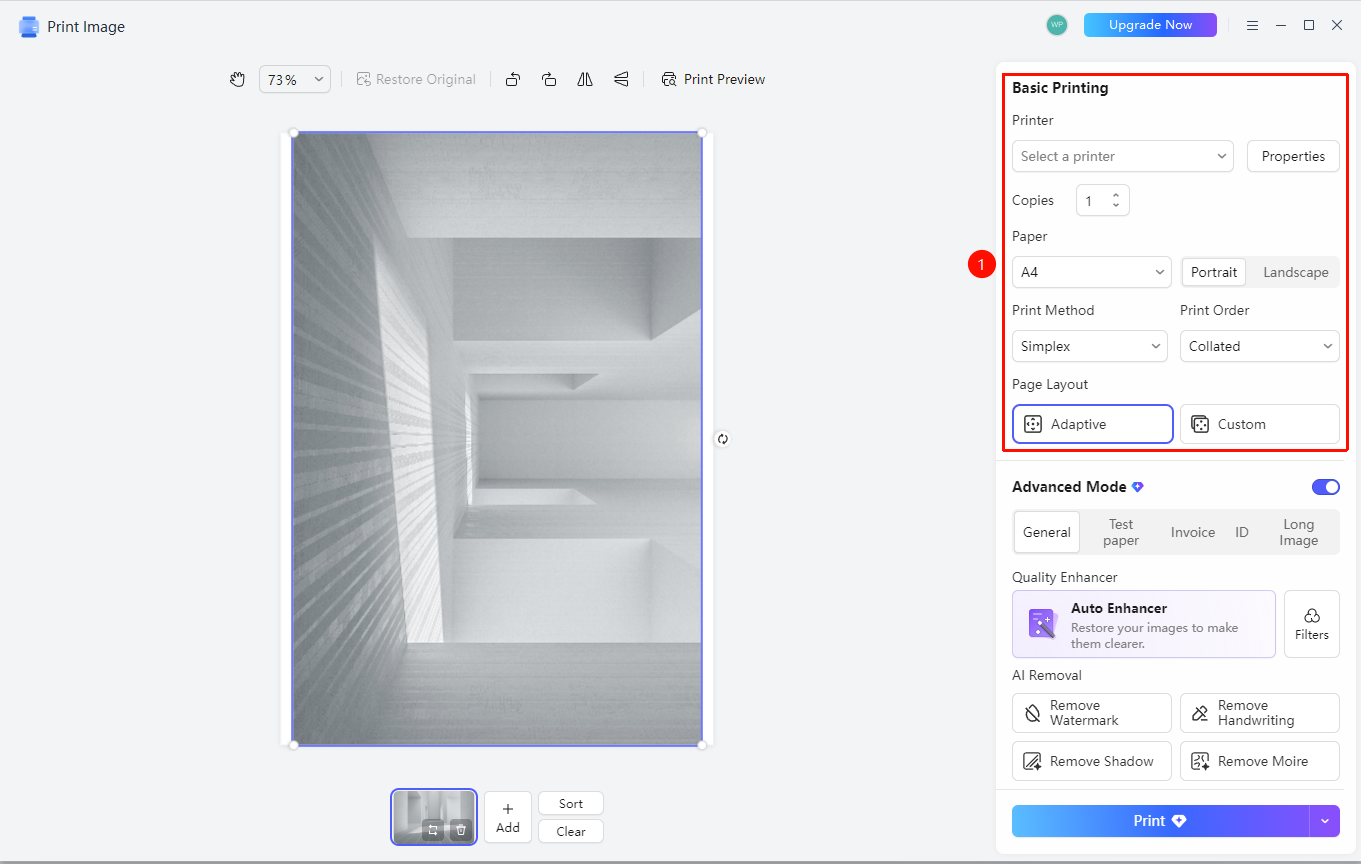
Set Print Parameters
Feature Entry
Image printing page
- Set the following parameters on the image printing page
- "Printer": Select the printer to use
- "Copies": Set the number of copies
- "Paper": Select the paper size (e.g., A4)
- "Portrait/Landscape": Set the paper orientation
- "Print Mode": Select single-sided or double-sided printing
- "Print Order": Select collated printing
- "Page Layout": Select fit-to-page or custom layout
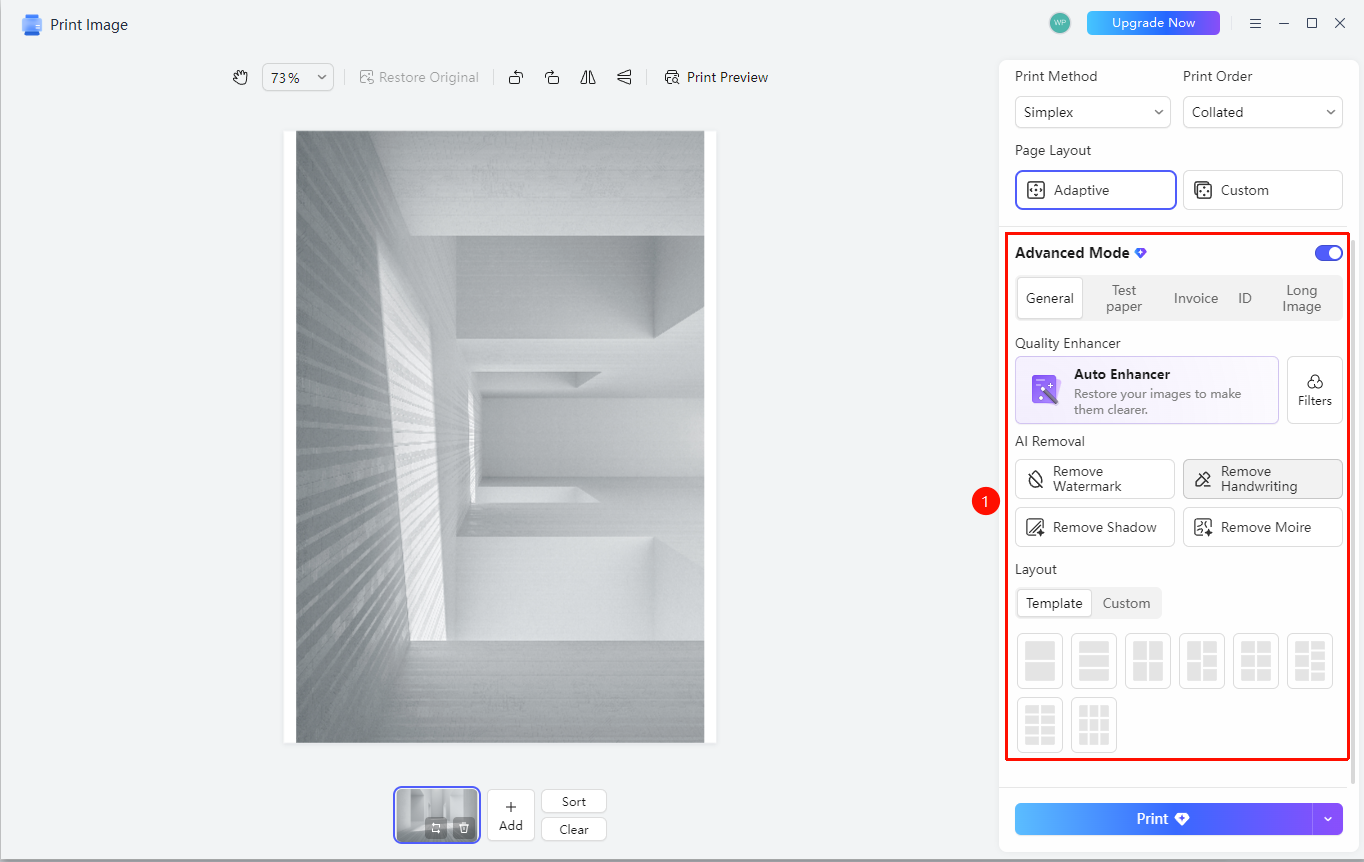
Use Advanced Mode
Feature Entry
Image printing page → "Advanced Mode" toggle
- Turn on the "Advanced Mode" toggle on the image printing page
- Select a printing scenario:
- "General": General printing mode
- "Exam Paper": Exam paper printing mode
- "Invoice": Invoice printing mode
- "ID Photo": ID photo printing mode
- "Long Image": Long image printing mode
FAQ
Q1: Is image printing a Premium feature?
- Solution: Yes, image printing is a Premium feature. You need to subscribe to Premium to use it.
Q2: How do I adjust the paper size for printing?
- Solution: Select the desired paper size from the "Paper" drop-down menu on the image printing page.
Q3: What does the AI Sharpening feature do?
- Solution: AI Sharpening can perform ultra-high-definition restoration on blurry images, making them look brand new and improving print quality.
Notes
- Image printing is a Premium feature
- It is recommended to preview the print effect before printing
- AI features in Advanced Mode require an internet connection