Feature Summary
WPS Slides local mode supports printing slides to paper, including single-page, multi-page, and handout printing.
Feature Description
| Feature Dimension | Description |
|---|---|
| Membership Restriction | No membership restriction |
| Version Restriction | No version restriction |
Operation Steps
Print via File Menu
Feature Entry
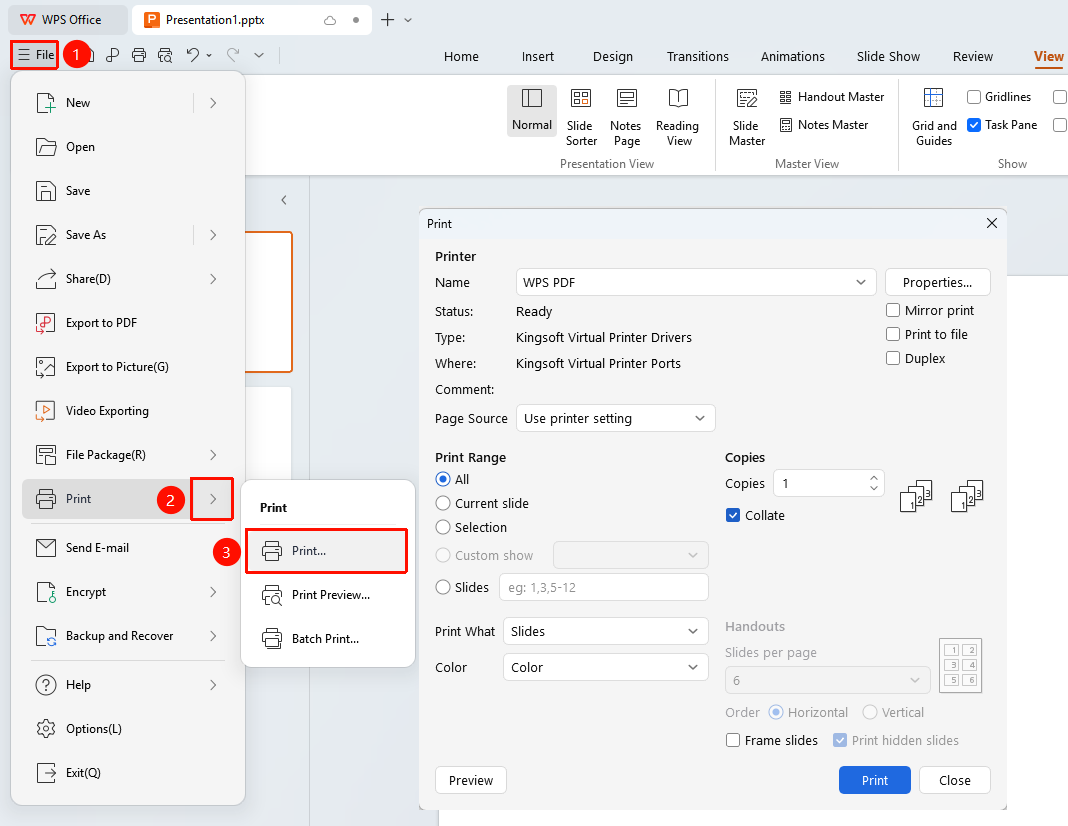
"File" menu → "Print" button (Shortcut: Ctrl+P)
- Click the "File" menu
- Click the "Print" button, and select "Print"
- Set print parameters (printer, copies, range, etc.)
- Click the "Print" button to start printing
Set Print Preview
Feature Entry
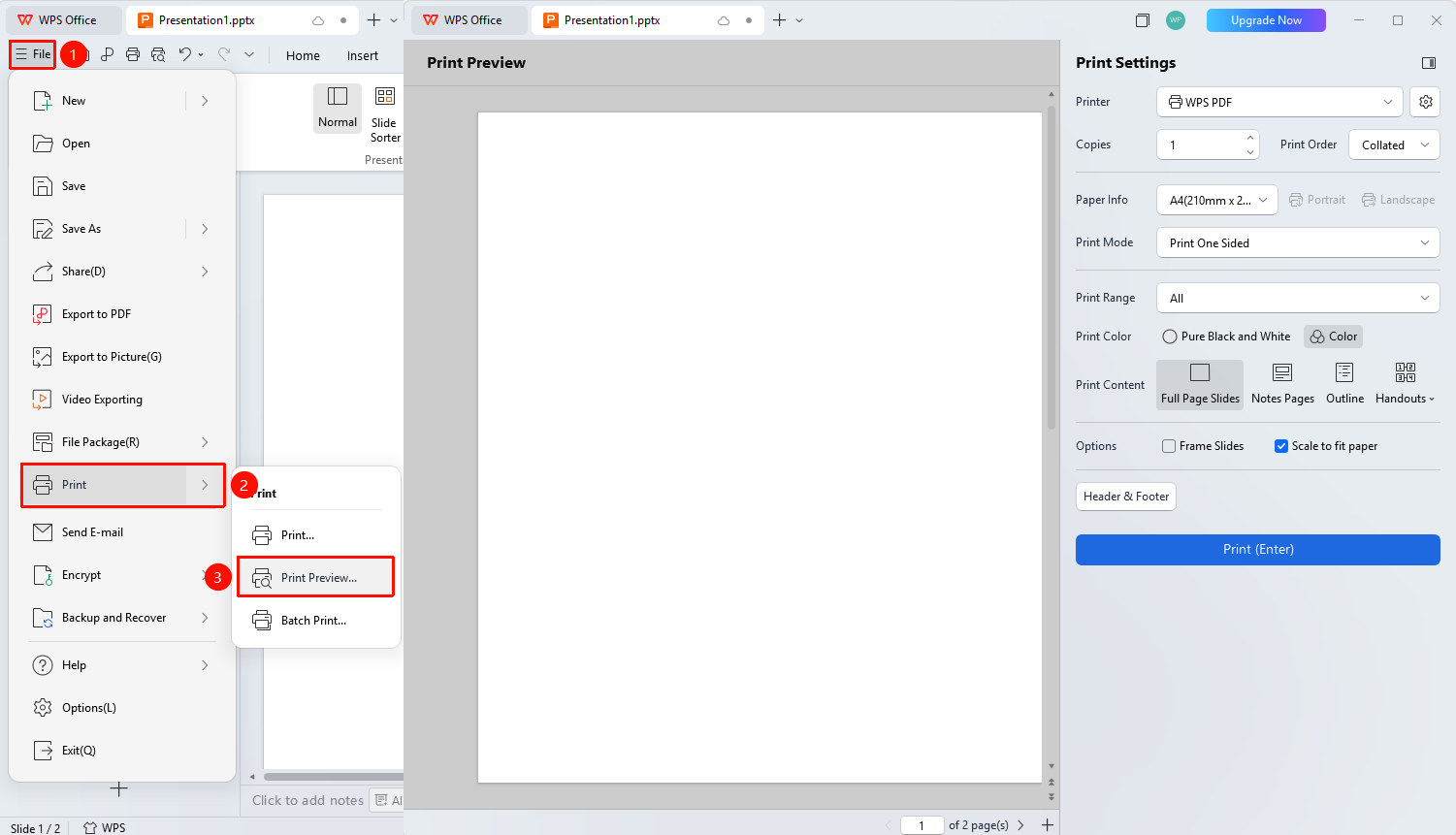
"File" menu → "Print" → "Print Preview"
- Click the "File" menu
- Click the "Print" button, and select "Print Preview"
- Go to the print preview page
- You can view the print effect of each page
- The preview will automatically update after adjusting print settings
- Execute printing after confirming everything is correct
FAQ
Q1: How to print the current slide?
- Solution: Select the "Current Slide" option in the print range.
Q2: How to print notes pages?
- Solution: Select the "Notes Pages" option in the print content.
Q3: What should I do if the printed content is cut off?
- Solution: Adjust the page margins or scaling ratio to ensure the content fits within the print area.
Notes
- It is recommended to preview before printing to confirm the effect