Feature Summary
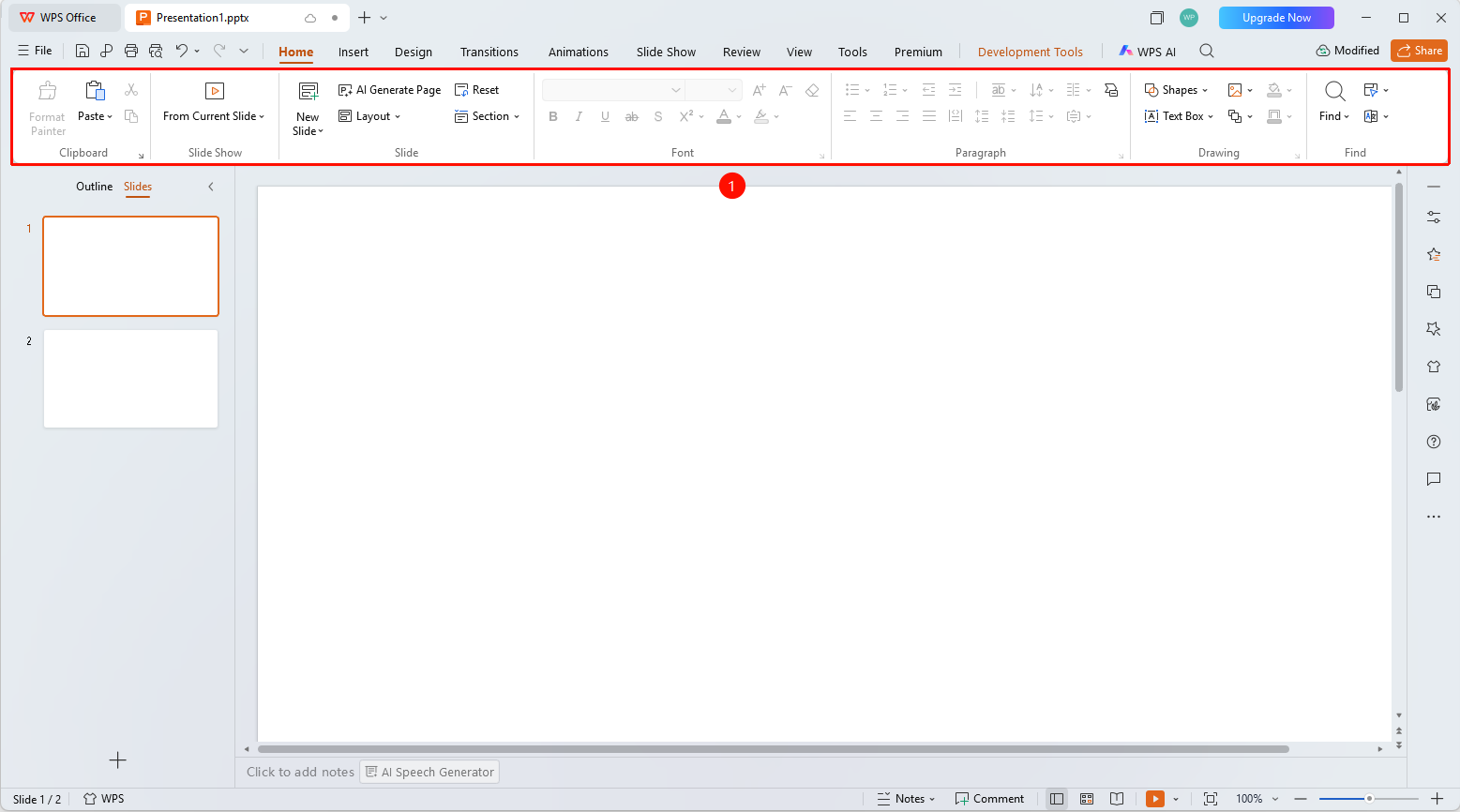
The local mode ribbon in WPS Slides is located below the menu bar, displaying all feature buttons and tools for the current tab.
Feature Description
| Feature Dimension | Description |
|---|---|
| Membership Restrictions | No membership restrictions |
| Version Restrictions | No version restrictions |
Operation Steps
Using the Ribbon
Feature Entry
Below the menu bar
- The ribbon displays all tool buttons for the currently selected tab
- Buttons are arranged in functional groups, such as Font, Paragraph, Drawing, etc.
- Some buttons have a dropdown arrow; click to expand more options
Frequently Asked Questions
Q1: What should I do if there are too many buttons on the ribbon and I can't find one?
- Solution: Use the search box to enter keywords and quickly locate feature buttons.
Q2: How do I resize the ribbon?
- Solution: You can collapse or expand the ribbon by double-clicking the tab name.
Q3: Can the ribbon be customized?
- Solution: You can customize the ribbon in the Options settings and add frequently used buttons to the Quick Access Toolbar.
Notes
- The ribbon automatically switches to display relevant tools based on the selected object
- Proficiency in using shortcut keys can improve operational efficiency