Feature Summary
The local mode of WPS Slides provides backup and recovery features, allowing you to restore historical versions and repair damaged documents.
Feature Description
| Feature Dimension | Description |
|---|---|
| Membership Restriction | No membership restriction |
| Version Restriction | No version restriction |
Operation Steps
Access Backup Center via File Menu
Feature Entry
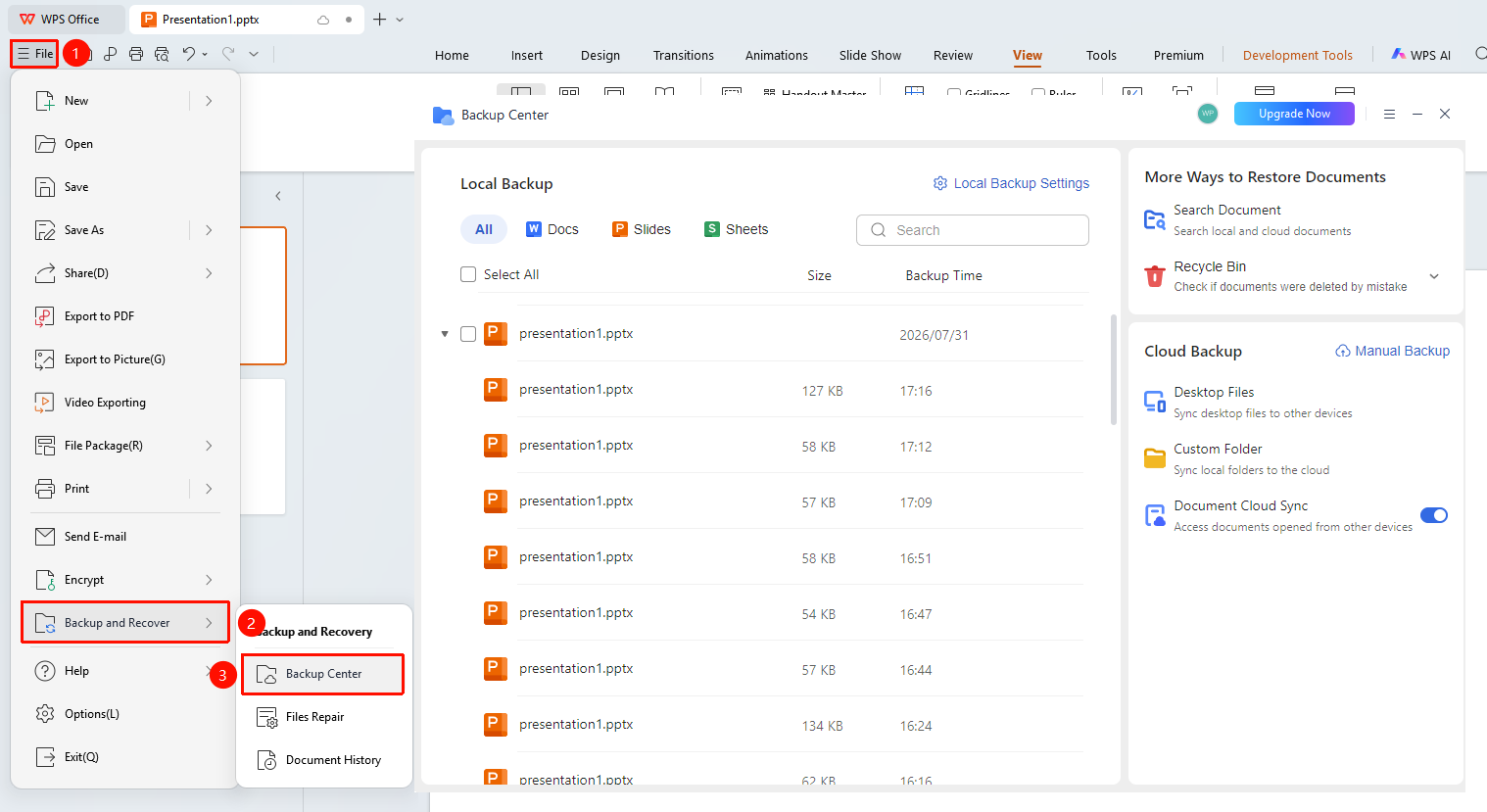
"File" menu → "Backup and Recovery" → "Backup Center"
- Click the "File" menu
- Select the "Backup and Recovery" option
- Click the "Backup Center" button
- You can view and restore historical backups
View Historical Versions
Feature Entry
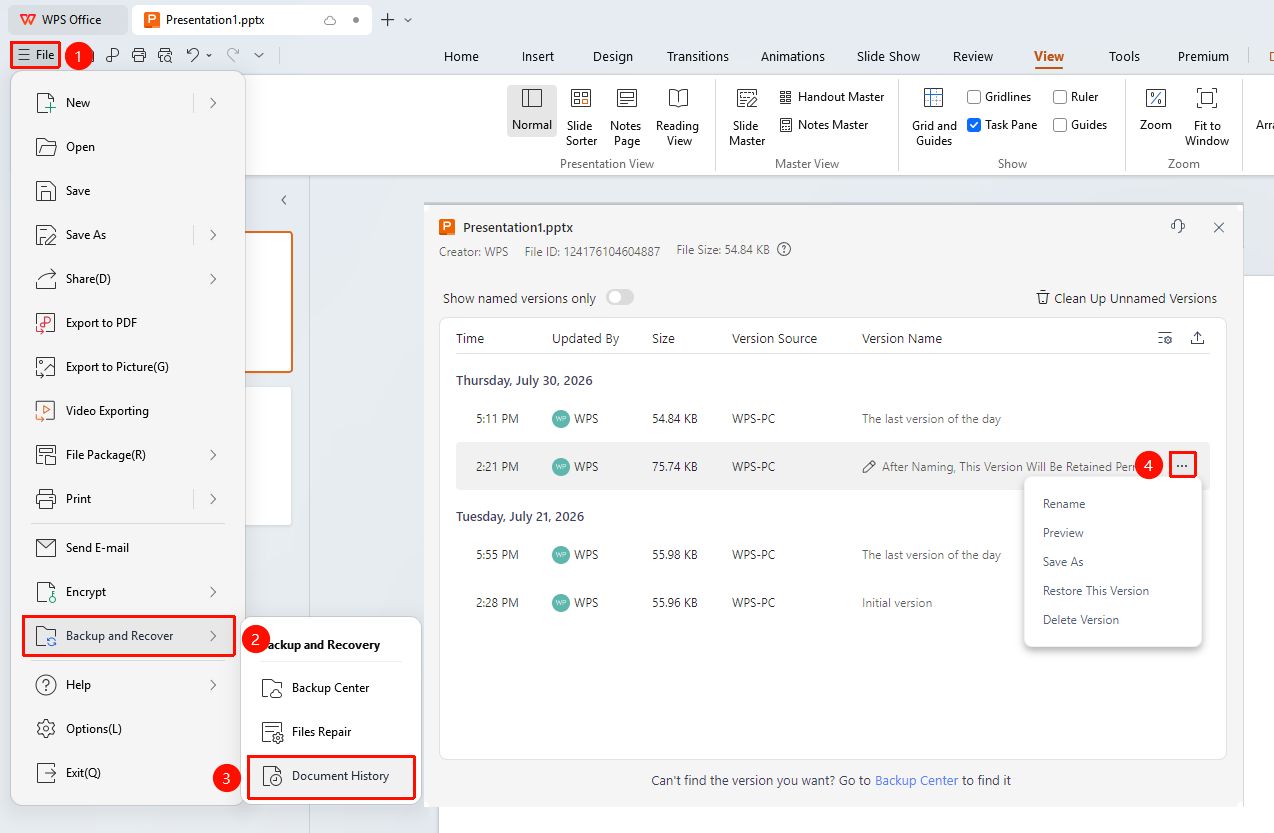
"File" menu → "Backup and Recovery" → "Historical Versions"
- Click the "File" menu
- Select the "Backup and Recovery" option
- Click the "Historical Versions" button
- Select the version you need to restore
- Click the "Restore" button
Repair Damaged Documents
Feature Entry
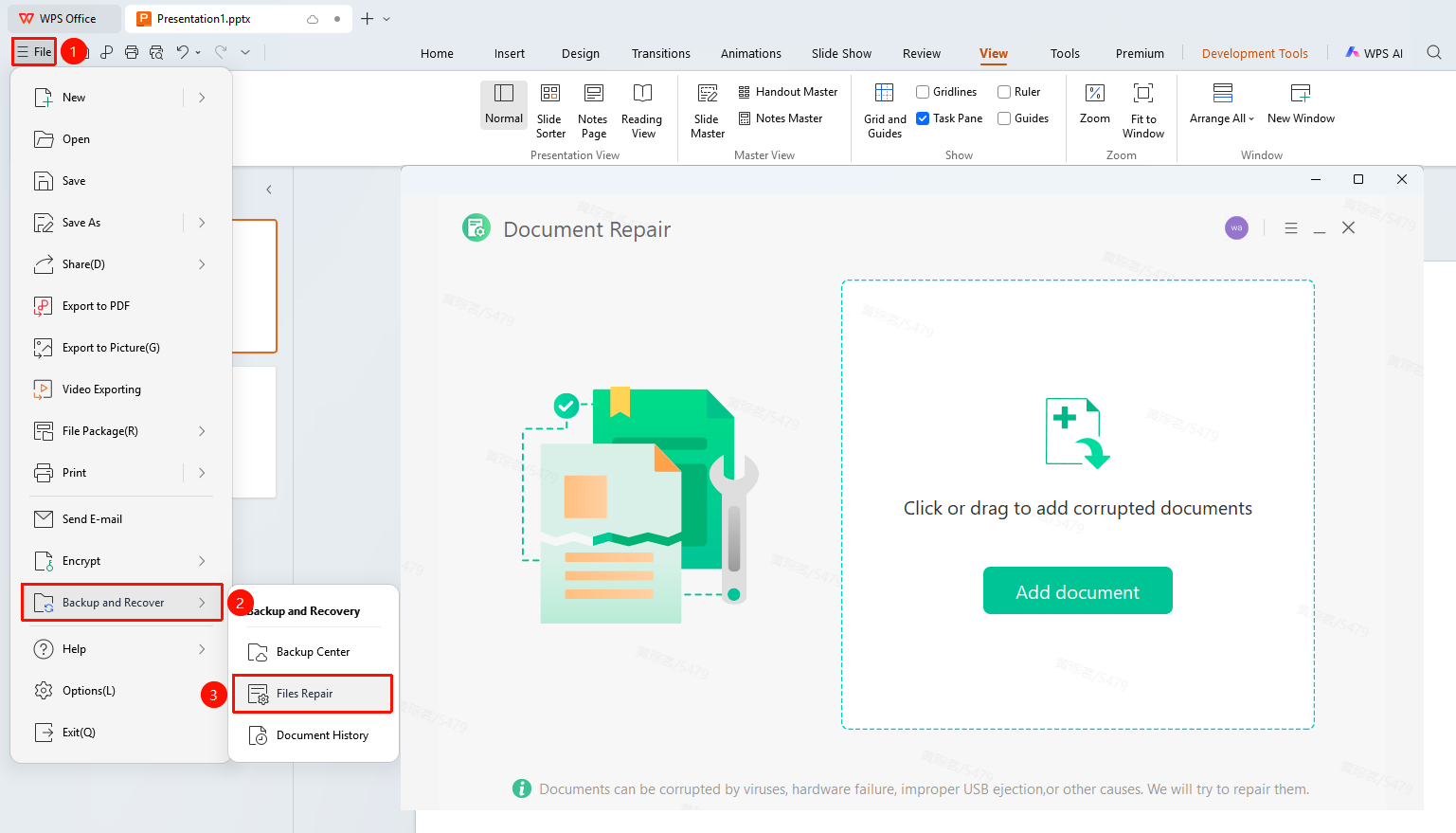
"File" menu → "Backup and Recovery" → "Document Repair"
- Click the "File" menu
- Select the "Backup and Recovery" option
- Click the "Document Repair" button
- Select the document you need to repair
- Wait for the repair to complete
Frequently Asked Questions
Question 1: Where are the backup files saved?
- Solution: They are saved in the default WPS backup folder. You can view the path in the Backup Center.
Question 2: How to set up automatic backup?
- Solution: You can set the automatic backup time interval in the Backup Center.
Question 3: What should I do if a document is damaged and cannot be opened?
- Solution: Try using the Document Repair feature to recover it, or restore a historical version from the backup.
Notes
- Regularly backing up important documents can prevent data loss
- The Document Repair feature can recover partially damaged content