Feature Summary
WPS Slides local mode supports multiple ways to create a new presentation, either from a blank file or using templates.
Feature Description
| Feature Dimension | Description |
|---|---|
| Membership Restriction | Presentation templates require a membership subscription |
| Version Restriction | No version restriction |
Operation Steps
Create via the Home Tab
Feature Entry
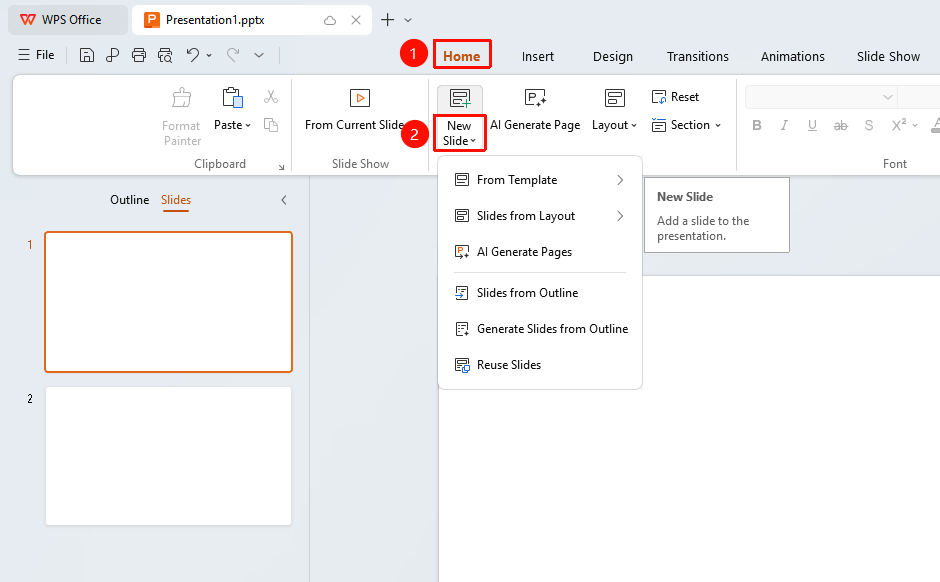
"Home" tab → "New Slide" button
- Click the "Home" tab in the top menu bar
- Click the "New Slide" button
- Select a slide layout from the drop-down menu
- The new slide will be added at the current position
Create via the File Menu
Feature Entry
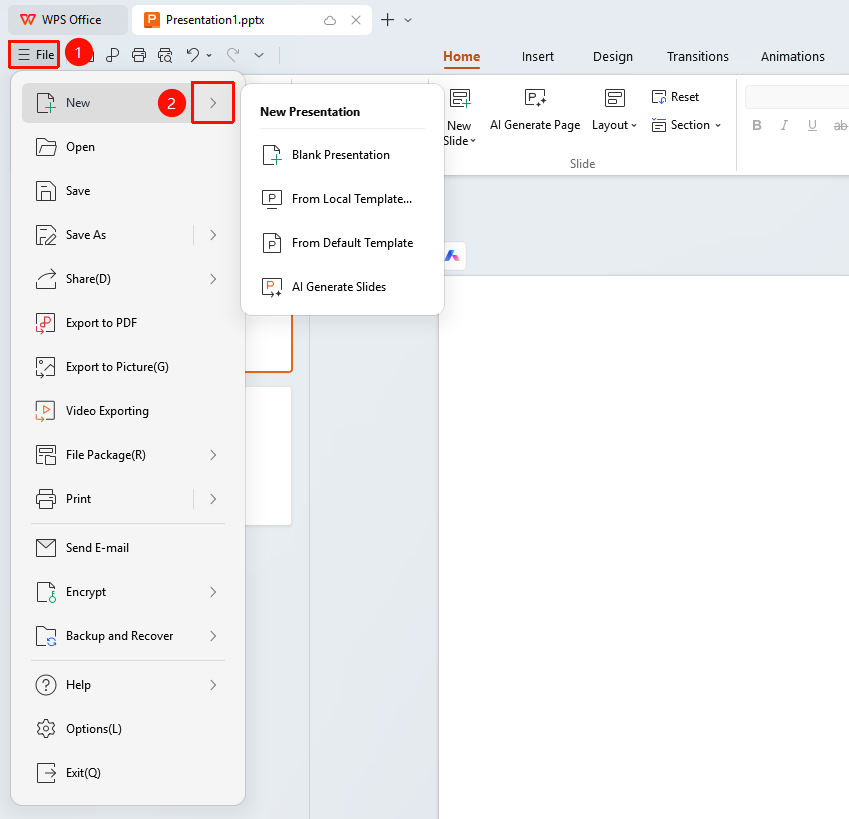
"File" menu → "New" button
- Click the "File" menu
- Click the "New" button
- You can choose a blank presentation or an online template
- Click a template preview to create a new document
Frequently Asked Questions
Question 1: How to create a slide with a specific layout?
- Solution: Click the drop-down arrow next to the New Slide button and select the desired layout.
Question 2: Can I create a presentation from a template?
- Solution: On the New page in the File menu, you can browse and select online templates.
Question 3: How to duplicate an existing slide?
- Solution: Right-click the slide in the left thumbnail pane and select Duplicate Slide.
Notes
- Using slide layouts appropriately can improve creation efficiency
- It is recommended to plan the slide structure before starting production