Feature Summary
WPS Slides local mode supports exporting slides to image formats for use in other scenarios.
Feature Description
| Feature Dimension | Description |
|---|---|
| Membership Restriction | Some features require a membership |
| Version Restriction | No version restriction |
Operation Steps
Export via File Menu
Feature Entry
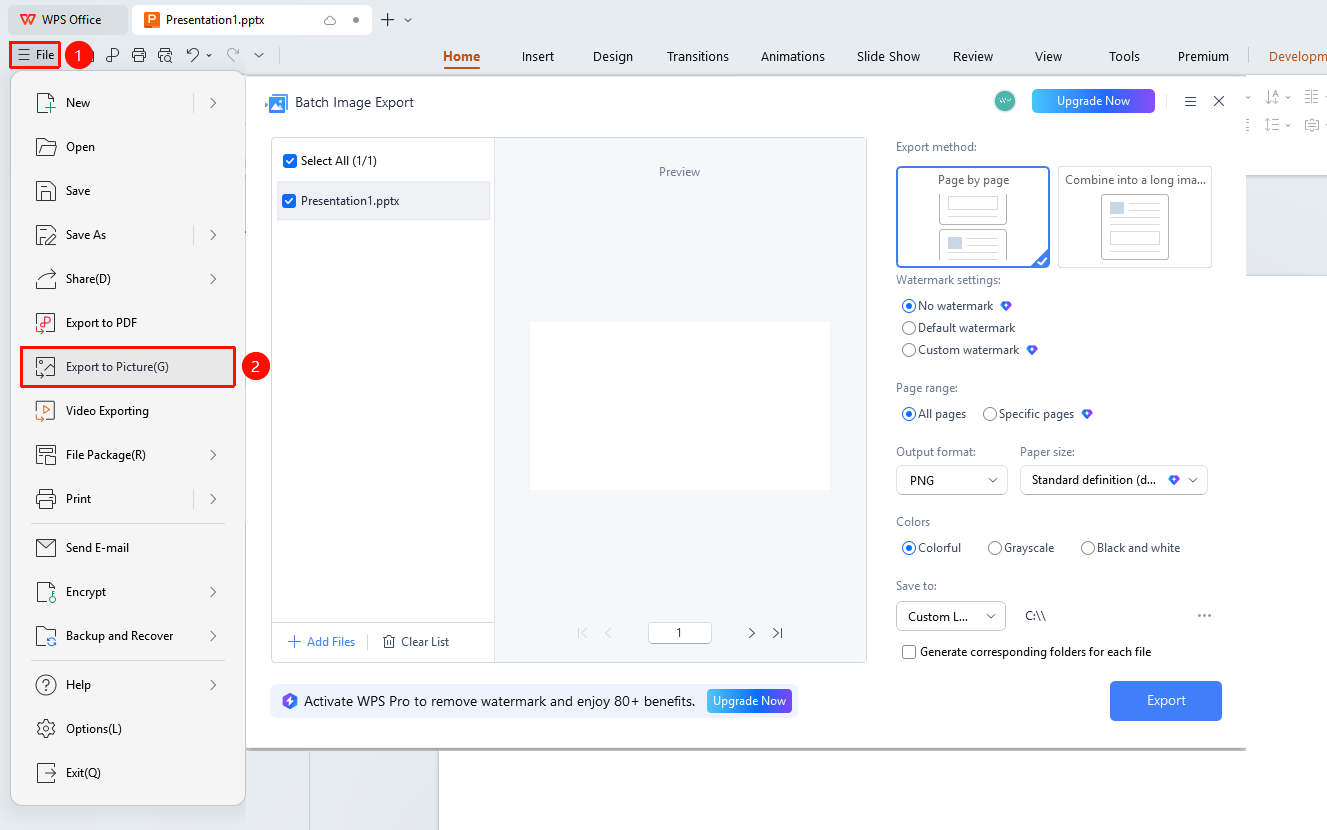
"File" menu → "Export to Image" button
- Click the "File" menu
- Click the "Export to Image" button
- Select the output directory
- Set the image format (PNG/JPG, etc.)
- Click the "Export" button
Frequently Asked Questions
Q1: What should I do if the exported image is not clear?
- Solution: Select high-quality output in the export settings to improve image clarity.
Q2: How do I export only the current slide?
- Solution: Select the current slide option in the export range.
Q3: Where are the exported images saved?
- Solution: The images are saved in the selected output directory and can be accessed via the path.
Notes
- PNG format is suitable for scenarios requiring a transparent background
- JPG format results in smaller files but with slight quality loss