Feature Summary
The Go To feature is used to quickly jump to a specified slide during a presentation, enabling flexible slide navigation during a presentation.
Feature Description
| Feature Dimension | Description |
|---|---|
| Membership Restriction | No membership restriction |
| Version Restriction | No version restriction |
Operation Steps
Right-Click Menu Navigation
Feature Entry
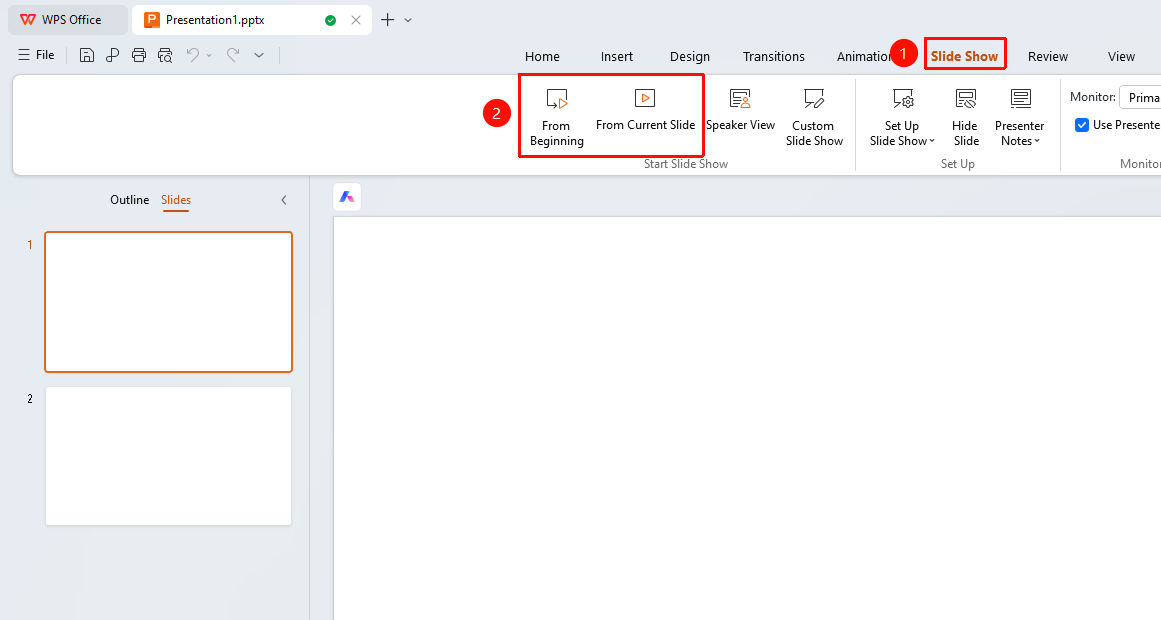
"Slideshow" tab → "From Beginning" / "From Current Slide" → Right-click menu → "Navigation"
- Click the top "Slideshow" tab, select "From Beginning" / "From Current Slide" to enter slideshow mode
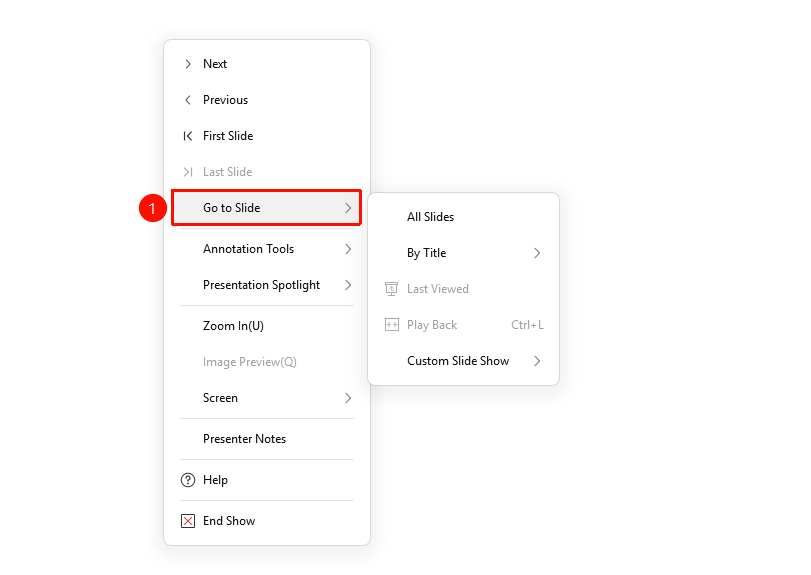
- Right-click on the slide in presentation mode
- Select "Navigation"
- Choose a navigation method
- "Slide Browser": Open the slide list
- "By Title": Jump by slide title
- "Previously Viewed": Jump to a previously viewed slide
- "Go Back": Return to the last viewed slide (Shortcut Ctrl+L)
- "Custom Show": Use a pre-configured custom show
Shortcut Navigation
- Page Up / ←: Previous slide
- Page Down / →: Next slide
- Home: First slide
- End: Last slide
- Number+Enter: Jump to the slide with the specified number
Bottom Toolbar Navigation
Feature Entry
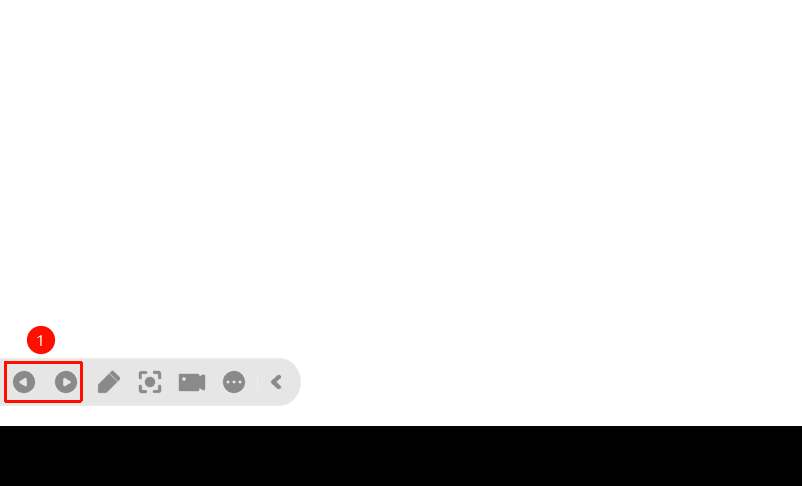
Bottom toolbar → "Previous Slide" / "Next Slide"
- Move the mouse to display the bottom toolbar
- Click the "Previous Slide" or "Next Slide" button to switch slides
FAQ
Q1: How to quickly jump to a specific slide
- Solution: Right-click → "Navigation" → "By Title" to select the target slide, or enter the slide number and press Enter.
Q2: How to return to the first slide
- Solution: Press the Home key, or right-click → "Navigation" → select the first slide.
Q3: Where is the Go To feature
- Solution: In presentation mode, right-click → "Navigation", or use the Previous/Next slide buttons on the bottom toolbar.
Notes
- The Go To feature is only available in presentation mode
- Hidden slides will not appear in the navigation list