Feature Summary
The Rehearse Timing feature is used to record the playback time of each slide during rehearsal, helping users control their presentation pace and set automatic playback timing.
Feature Description
| Feature Dimension | Description |
|---|---|
| Membership Restriction | No membership restriction |
| Version Restriction | No version restriction |
Operation Steps
Start Rehearse Timing
Feature Entry
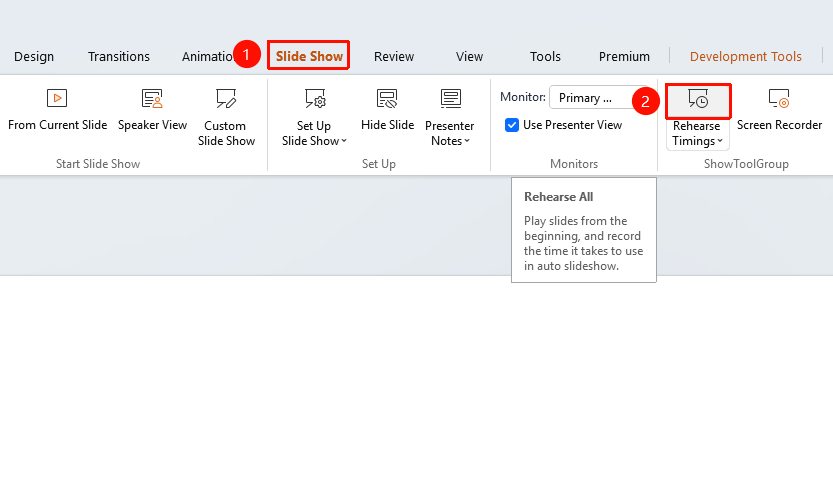
"Slide Show" tab → "Rehearse Timing"
- Click the top "Slide Show" tab
- Find and click the "Rehearse Timing" button
- Enter presentation mode and start timing simultaneously
- Present at a normal pace and click to advance to the next slide
Rehearse Timing Toolbar
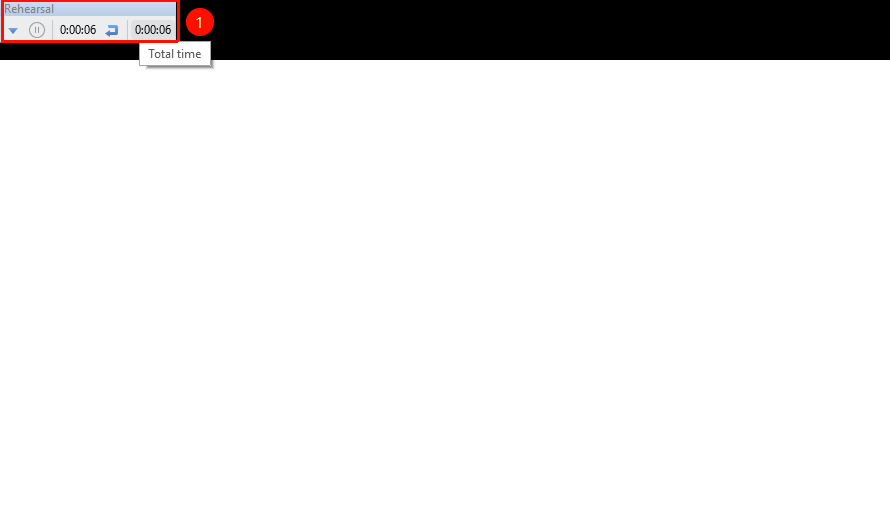
The timing toolbar is displayed during rehearsal
- "Current Slide Time" : Displays the playback time of the current slide
- "Total Time" : Displays the total playback time of all slides
- "Next" : Click to advance to the next slide
- "Pause" : Pause timing
- "Restart" : Restart timing
FAQ
Q1: Where is Rehearse Timing?
- Solution: Click the "Slide Show" tab → "Rehearse Timing" to start rehearsing and recording time.
Q2: Can rehearsal times be used for automatic playback?
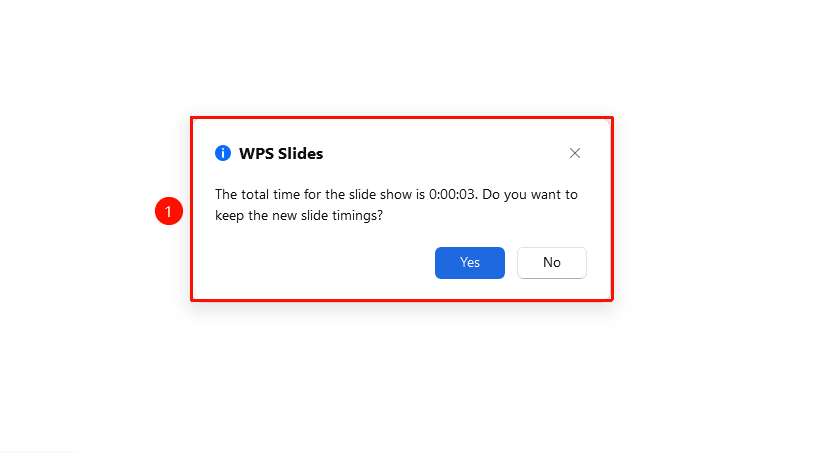
- Solution: Yes, after saving the rehearsal times, select "If rehearsal times exist, use them" in the playback settings.
Q3: How to rehearse again?
- Solution: Click the "Rehearse Timing" button again to restart timing.
Notes
- Rehearse Timing can help you control your presentation pace
- Multiple rehearsals are recommended to obtain accurate timing