Summary
The slideshow feature is used to present a presentation in full screen and serves as the foundation for all presentation operations.
Feature Description
| Feature Dimension | Description |
|---|---|
| Membership Restriction | No membership restriction |
| Version Restriction | No version restriction |
Steps
Start from Beginning
Feature Entry
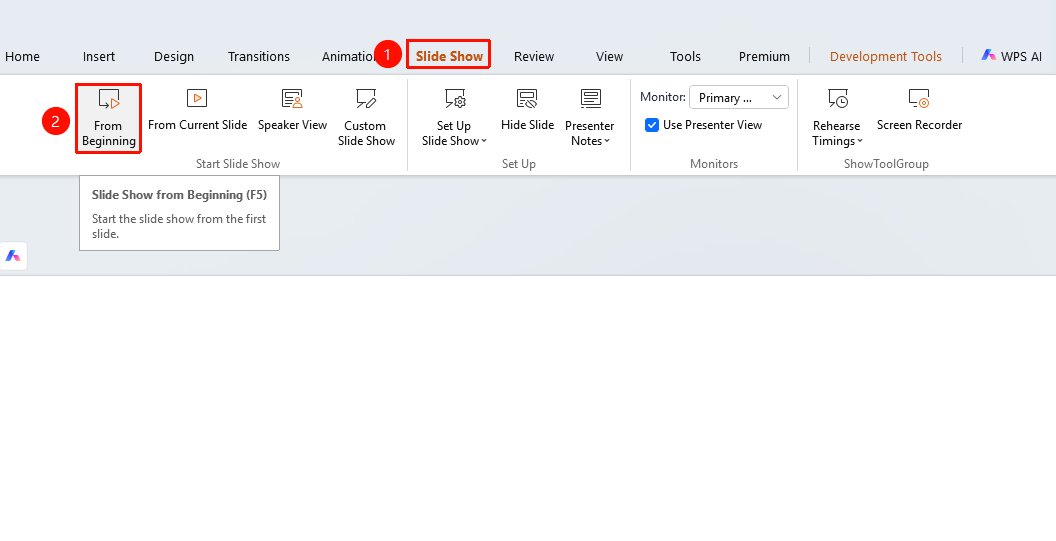
"Slide show" tab → "From Beginning"
- Click the top "Slide show" tab
- Find and click the "From Beginning" button
- Start the full-screen slideshow from the first slide
Shortcut: F5
Start from Current Slide
Feature Entry
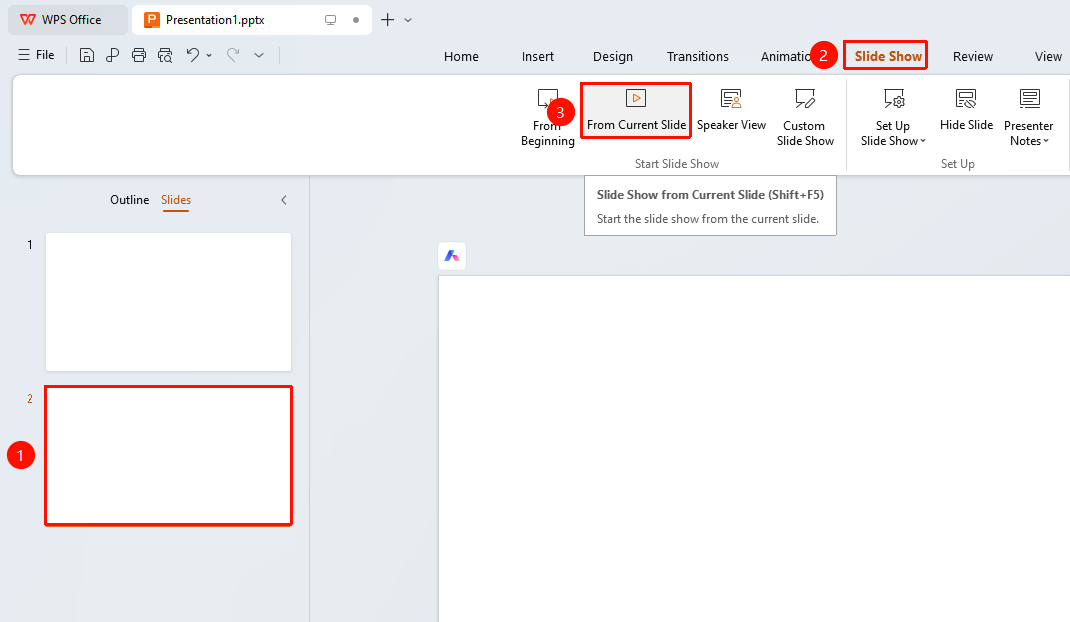
"Slideshow" tab → "From Current Slide"
- Select the slide you want to present
- Click the top "Slideshow" tab
- Find and click the "From Current Slide" button
- Start the full-screen slideshow from the current slide
Shortcut: Shift+F5
Quick Slideshow
Feature Entry ①
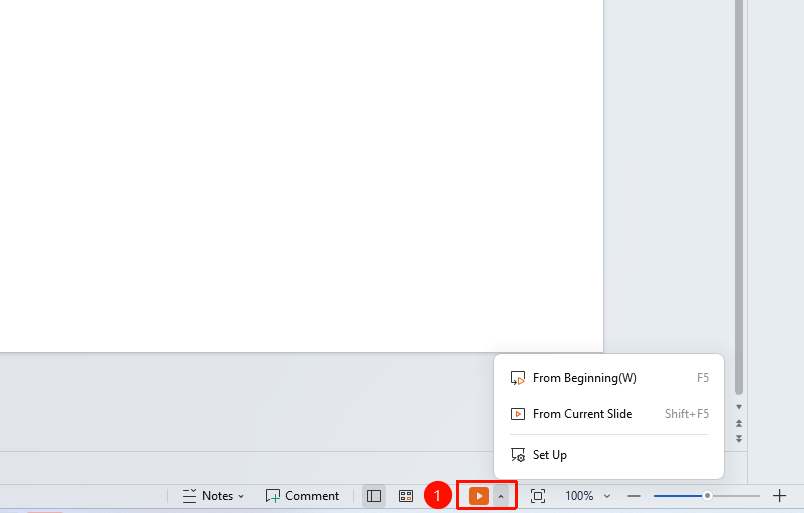
Bottom status bar → "Slideshow" dropdown button
- Click the "Slideshow" dropdown button on the bottom status bar
- Select "From Beginning" / "From Current Slide"
Feature Entry ②
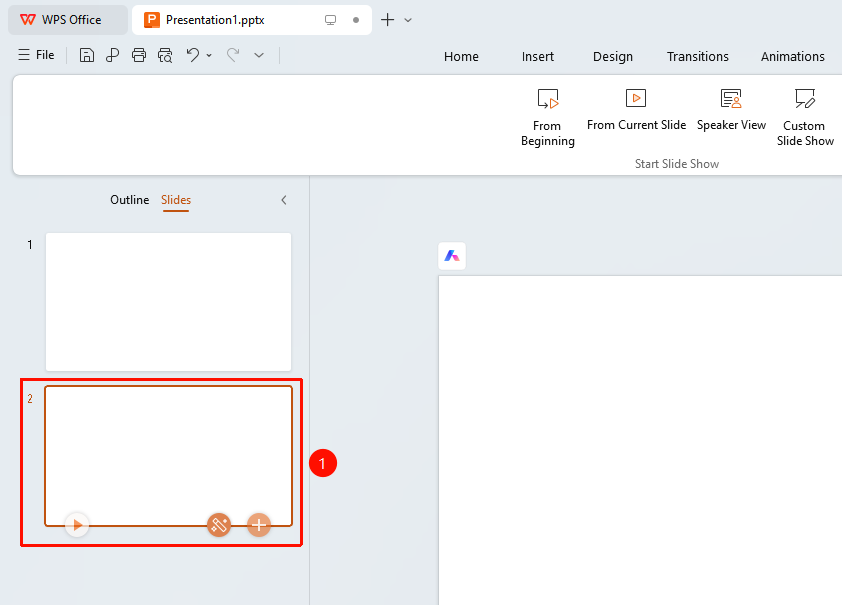
Double-click the slide thumbnail
- In Normal view, navigate to the slide from which you want to start playback
- Double-click the slide thumbnail in the sidebar to start playback from that page
FAQ
Q1: How to switch to the next slide during the slideshow
- Solution: Click the mouse, press the Spacebar, press an Arrow key, or press the Page Down key to switch to the next slide.
Q2: How to exit during the slideshow
- Solution: Press the Esc key to exit slideshow mode and return to the editing interface.
Notes
- During the slideshow, right-click to open the shortcut menu or use the bottom toolbar for control
- It is recommended to check the slide order and content before starting the slideshow