Feature Summary
The Show Settings feature is used to configure show parameters for a presentation, including show mode, show type, show options, slide advance method, etc., to control the behavior of the presentation show.
Feature Description
| Feature Dimension | Description |
|---|---|
| Membership Restriction | No membership restriction |
| Version Restriction | No version restriction |
Steps
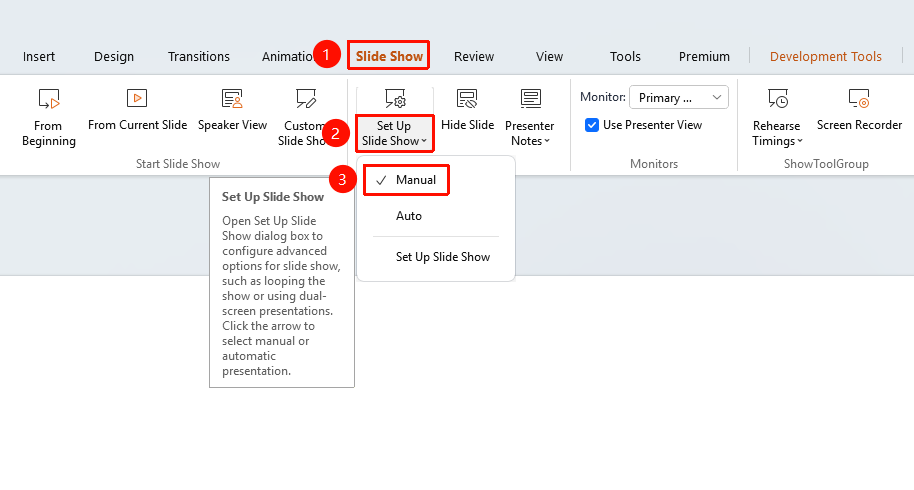
Manual Show
Feature Entry
"Slide Show" tab → "Show Settings" → "Manual Show"
- Click the top "Slide Show" tab
- Locate and click the "Show Settings" dropdown button
- Select "Manual Show"
- During the show, click the mouse or press a key manually to advance slides
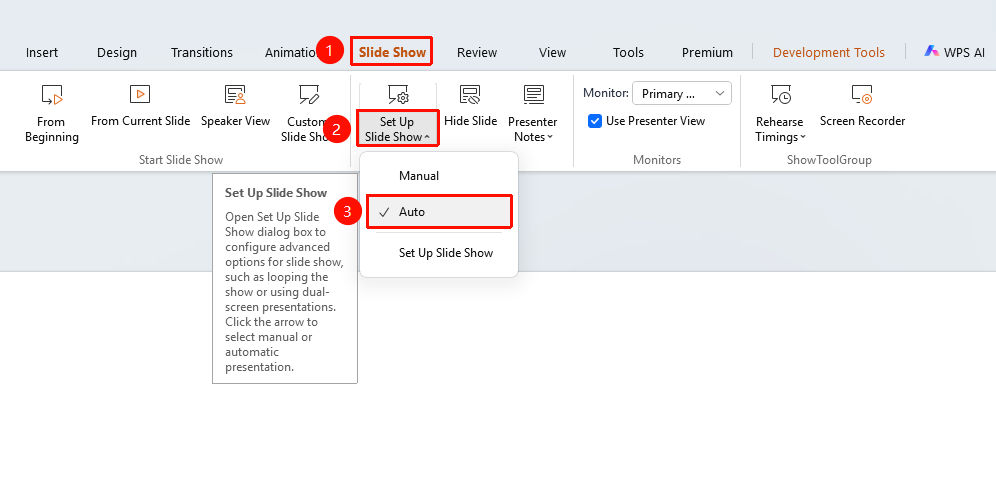
Auto Show
Feature Entry
"Slide Show" tab → "Show Settings" → "Auto Show"
- Click the top "Slide Show" tab
- Locate and click the "Show Settings" dropdown button
- Select "Auto Show"
- During the show, slides advance automatically according to the rehearsal timings
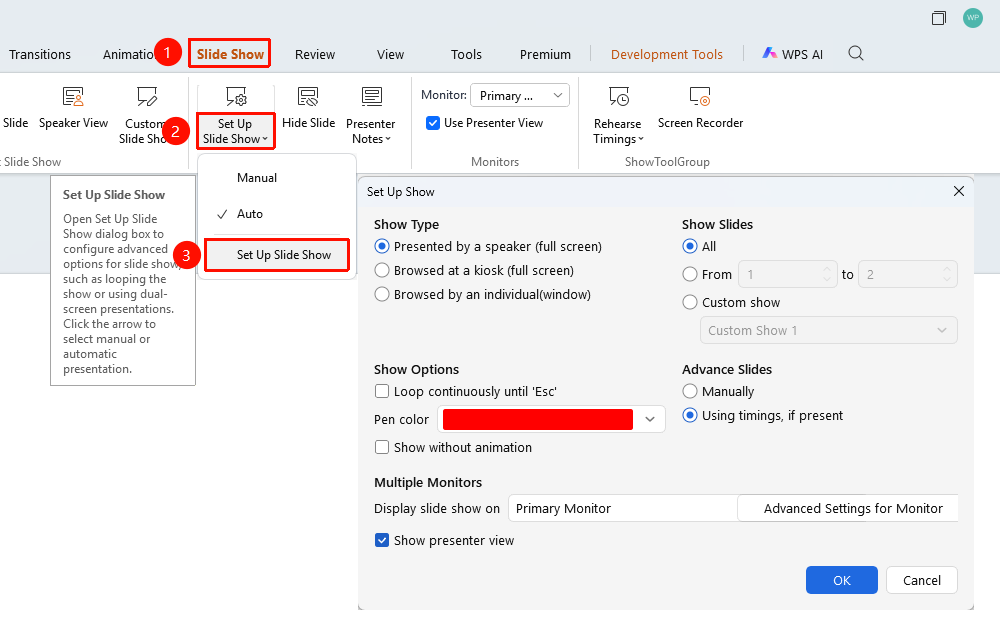
Show Settings
Feature Entry
"Slide Show" tab → "Show Settings" → "Show Settings"
- Click the top "Slide Show" tab
- Click the "Show Settings" dropdown button
- Select the "Show Settings" option
- Open the "Set Up Show" dialog box to configure show settings
- Set the show type:
-"Speaker Show (Full Screen)" : Full-screen show, controlled by the presenter
-"Kiosk Auto-Looping Show (Full Screen)」 : Full-screen automatic looping show, no manual operation required
-"Audience Browse (Window)" : Windowed show, viewers can operate on their own - Set the slide range to show:
- "All" : Show all slides
- "From... To..." : Specify the range of slides to show
- "Custom Show" : Select a previously created custom show
- Set show options:
- "Loop continuously until 'Esc'" : Automatically return to the beginning after the last slide, press Esc to exit
- "Pen color" : Set the pen color during the show
- "Show without animation" : Hide all animation effects during the show
- Set the slide advance method:
- "Manually" : Advance slides by clicking the mouse or pressing a key
- "Using timings, if present" : Advance slides automatically according to rehearsal timings
- Set multiple monitors:
- "Slide show monitor" : Select the monitor for the show
- "Show Presenter View" : When checked, display Presenter View during the show
- Click "OK" to apply the settings
FAQ
Q1: What is the difference between Manual Show and Auto Show
- Solution: Manual Show requires clicking the mouse to advance slides; Auto Show advances slides automatically according to rehearsal timings.
Q3: How to make slides loop continuously
- Solution: Select "Browsed at a kiosk (full screen)" and check the "Loop continuously until 'Esc'" option.
Notes
- Show settings only affect the current presentation
- It is recommended to check the show settings before starting the show