Feature Summary
The Slides Focus feature is used to highlight the content area currently being explained during a presentation, making it ideal for guiding the audience's attention while speaking.
Feature Description
| Feature Dimension | Description |
|---|---|
| Membership Restriction | No membership restriction |
| Version Restriction | No version restriction |
Operation Steps
Using Slides Focus via Right-Click Menu
Feature Entry
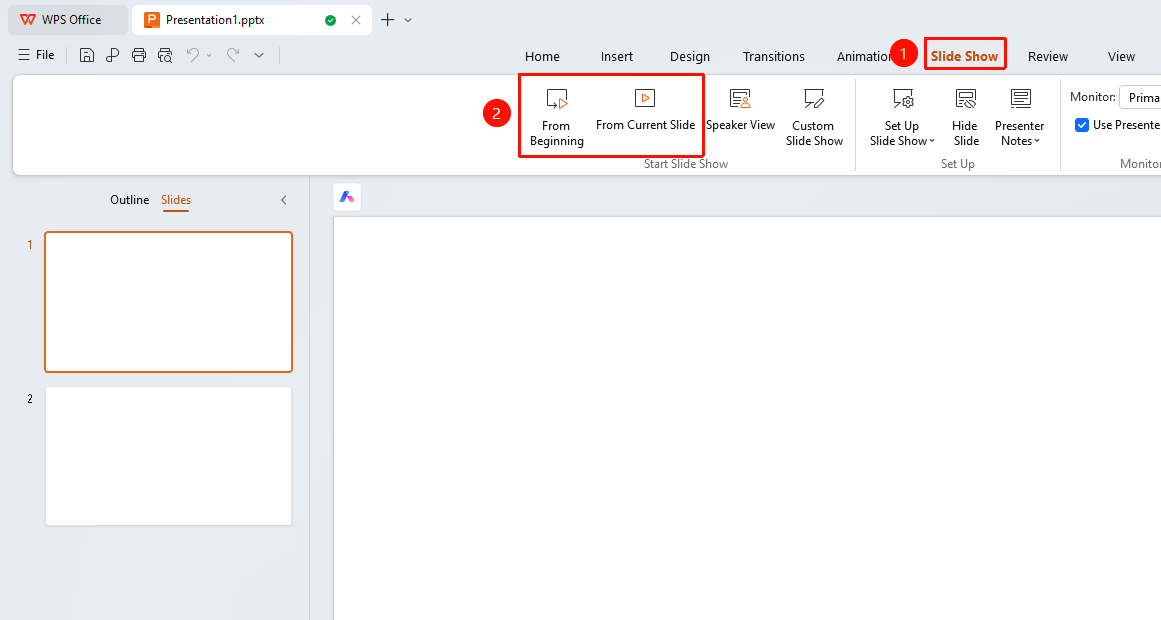
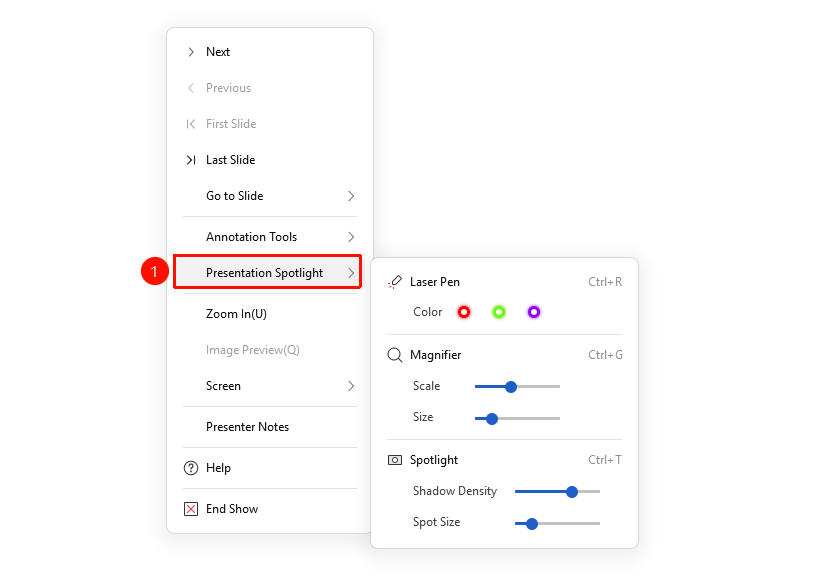
"Slideshow" tab → "From Beginning" / "From Current Slide" → Right-click menu → "Slides Focus"
- Click the top "Slideshow" tab, select "From Beginning" / "From Current Slide" to enter slideshow mode
- Right-click on the slide in presentation mode
- Select "Slides Focus"
- Choose the desired focus type
- "Laser Pointer" : Displays a laser pointer effect (Shortcut Ctrl+R )
- Color: Red, Green, Purple
- "Magnifier" : Displays a magnifier effect (Shortcut Ctrl+G )
- Zoom: Adjust magnification level
- Size: Adjust magnifier size
- "Spotlight" : Displays a spotlight effect (Shortcut Ctrl+T )
- Mask: Adjust mask opacity
- Size: Adjust spotlight size
Using Slides Focus via Bottom Toolbar
Feature Entry
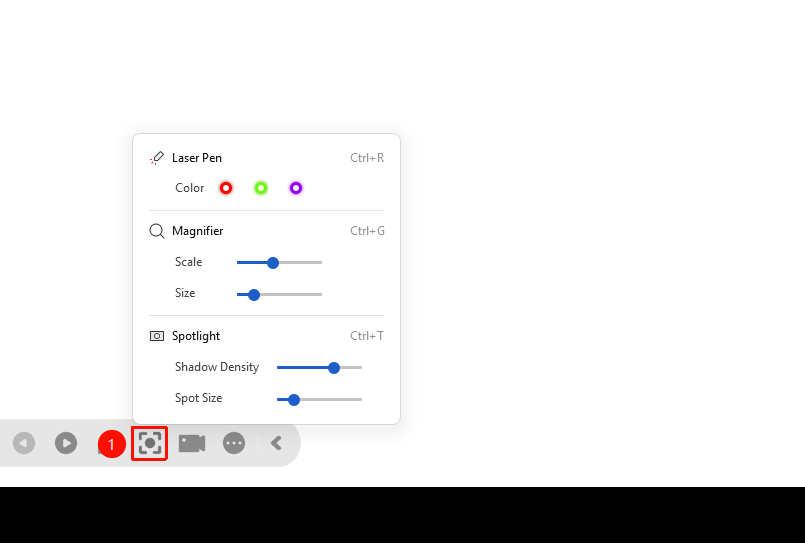
Bottom toolbar → "Slides Focus" button
- Move the mouse in presentation mode to reveal the bottom toolbar
- Click the "Slides Focus" button
- Click to select the desired focus type
Exiting Slides Focus
- Press the Esc key to exit Slides Focus
- Or switch to another pointer option
Frequently Asked Questions
Q1: How to adjust the size of the magnifier or spotlight
- Solution: Drag the "Size" slider in the menu to adjust the size.
Notes
- The Slides Focus feature is only available in presentation mode
- Laser pointer, magnifier, and spotlight can be switched freely