Feature Summary
The Speaker Notes feature allows you to add speaker notes to each slide, making it convenient to view prompts during a presentation. The notes are visible only to the speaker.
Feature Description
| Feature Dimension | Description |
|---|---|
| Membership Restriction | No membership restriction |
| Version Restriction | No version restriction |
Steps
Adding Speaker Notes
Feature Entry
Bottom status bar → "Notes" button
- Click the "Notes" button on the bottom status bar
- The notes area will appear below the slide
- Click "Click here to add notes" and enter your content
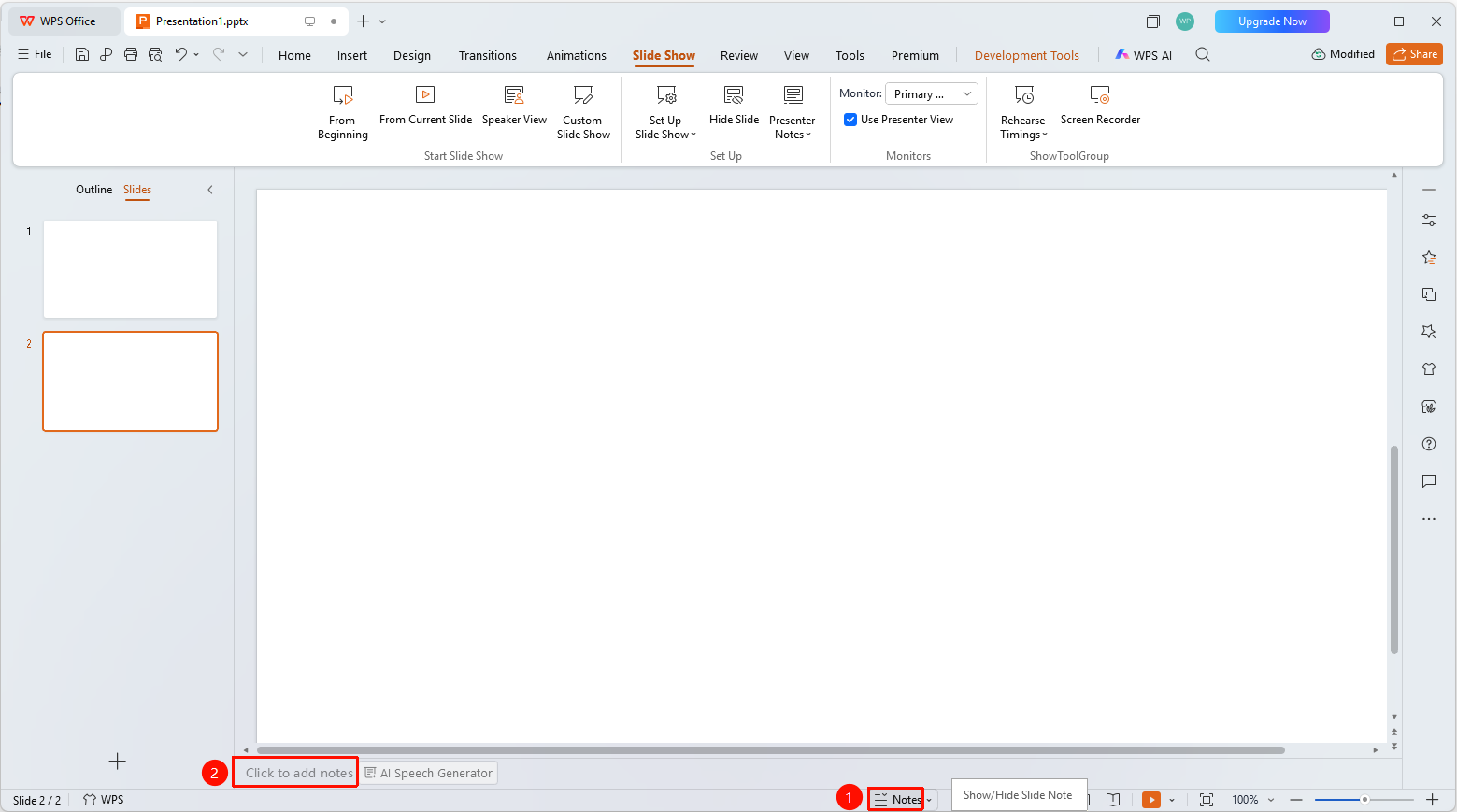
Normal View Notes Area
Feature Entry
Notes area below the slide in Normal view
- In Normal view, locate the notes area below the slide
- Click "Click here to add notes"
- Enter your speaker notes content
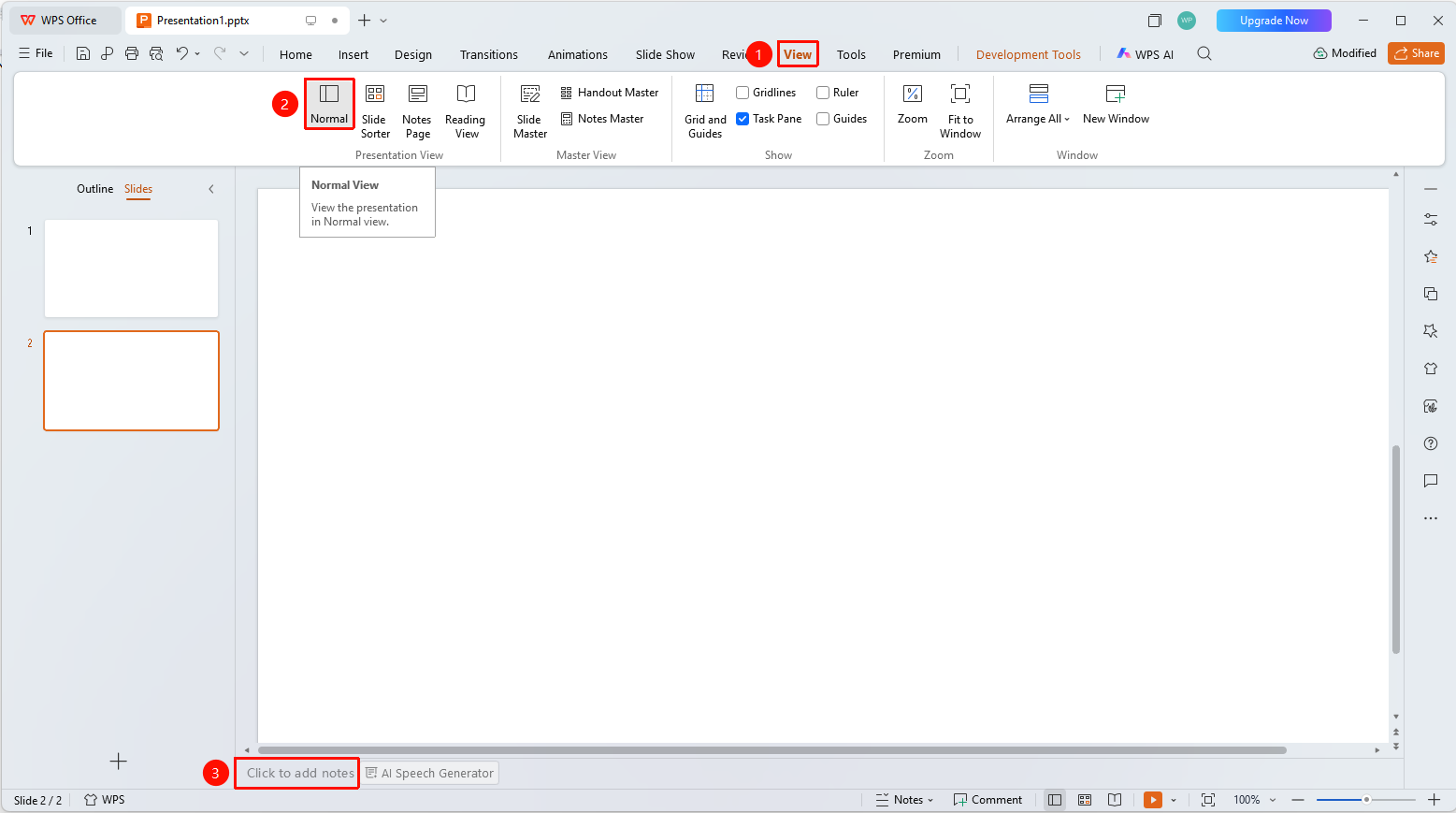
Notes Page View
Feature Entry
"View" tab → "Notes Page"
- Click the top "View" tab
- Find and click the "Notes Page" button
- Edit your notes content in Notes Page view
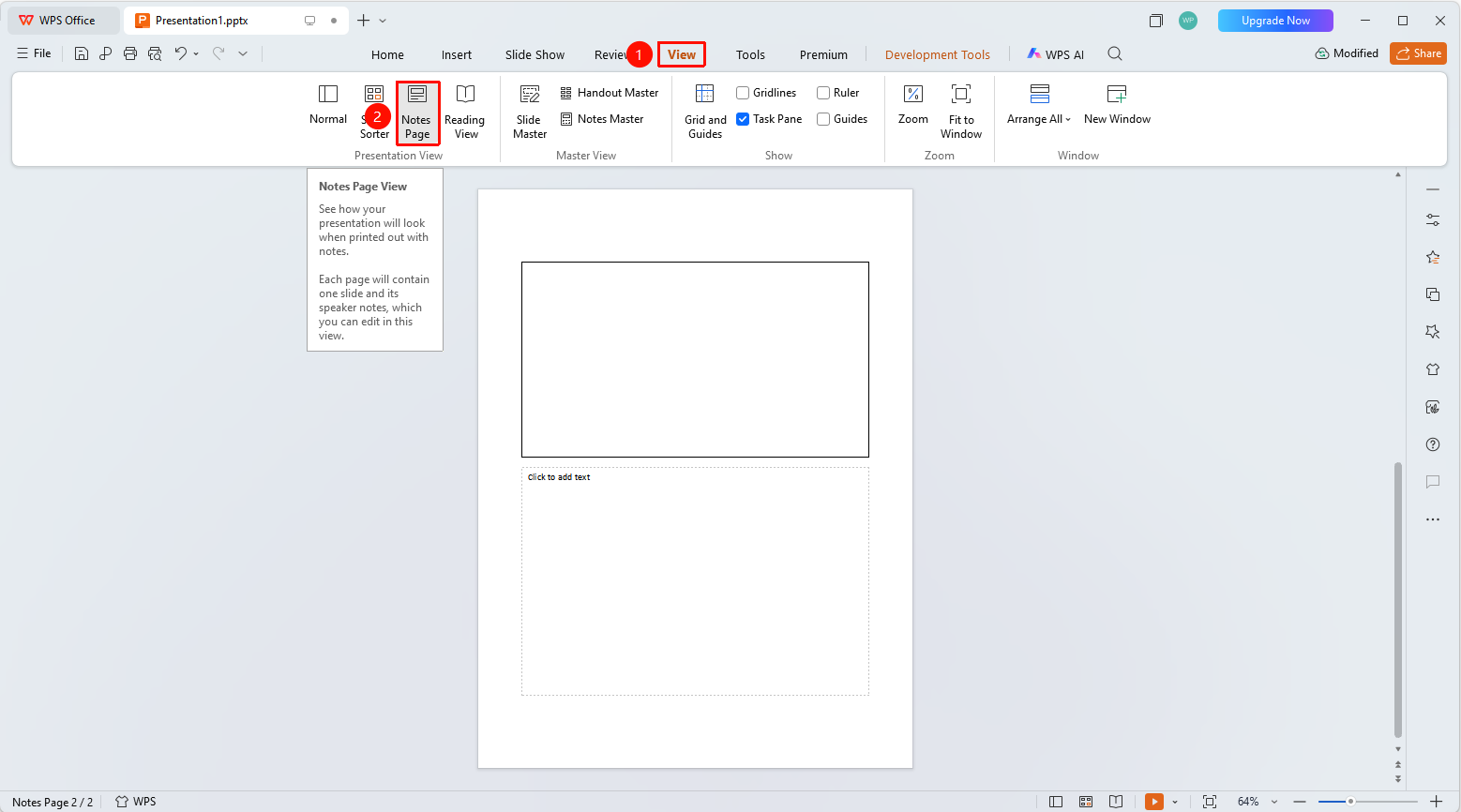
Adding Notes via the Slideshow Tab
Feature Entry
Slide Show" tab → "Presenter View
- Click the top "Slideshow" tab
- Find and click the "Speaker Notes" button
- View or edit your notes content in the pop-up dialog
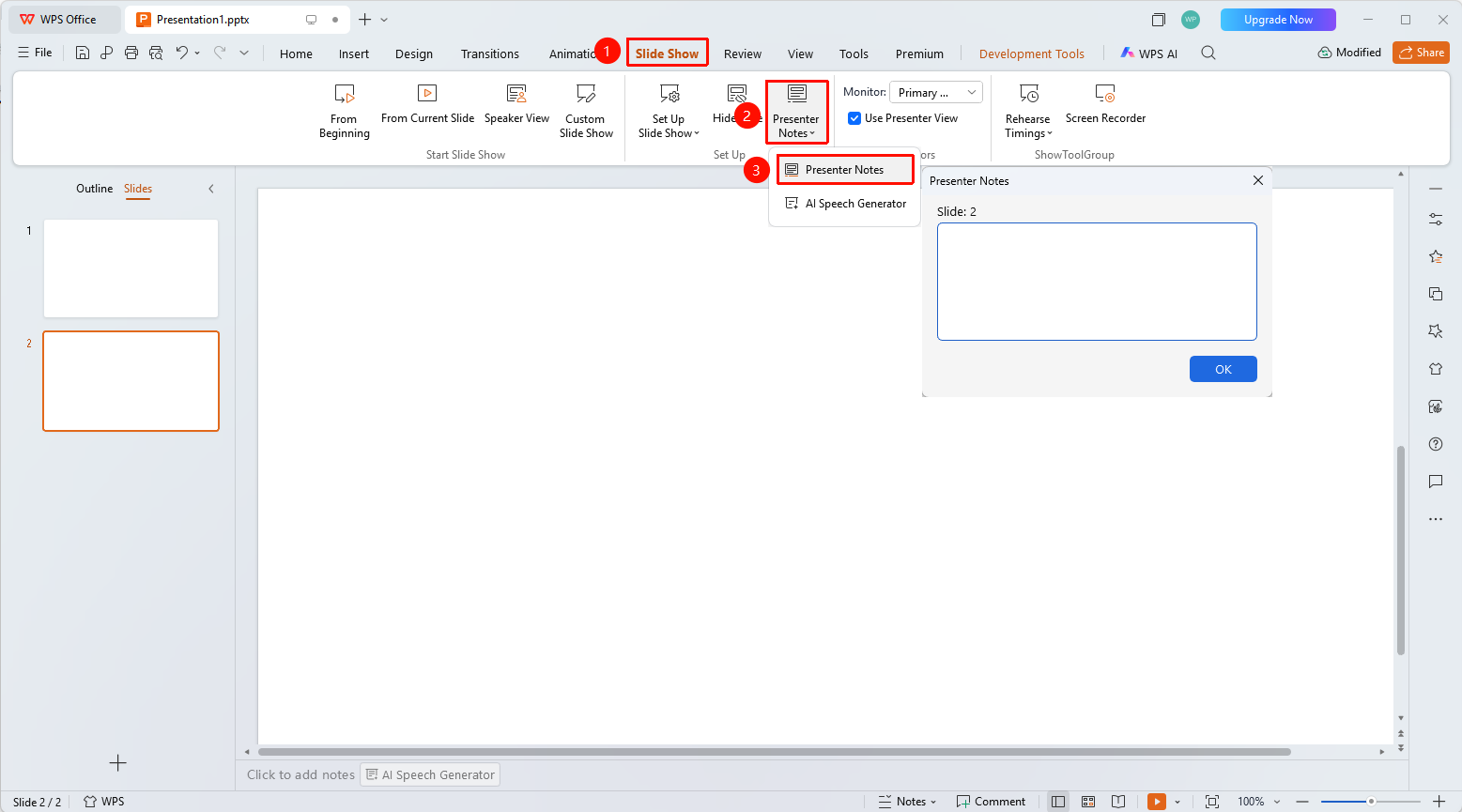
Viewing Notes During a Slideshow
Presenter View notes area
- Enter Slideshow mode
- Press Alt+Tab to switch to Presenter View
- View your speaker notes in the notes area on the right
FAQ
Q1: Where can I add speaker notes?
- Solution: You can add them by clicking the "Notes" button on the bottom status bar, in the notes area below the slide in Normal view, via "View" → "Notes Page", or via "Slideshow" → "Speaker Notes".
Q2: Can the audience see my speaker notes?
- Solution: No, the audience cannot see them. Speaker notes are only displayed in Presenter View.
Q3: How do I print speaker notes?
- Solution: Click "File" → "Print", and select "Notes Pages" in the print layout to print slides with notes.
Notes
- Speaker notes are visible only to the speaker
- It is recommended to add key prompts and time management cues in the notes