Feature Summary
The Presenter View feature is used to display a speaker-specific view during a slideshow, where you can view the current slide, next slide preview, notes, and a timer, making it convenient for reference while presenting.
Feature Description
| Feature Dimension | Description |
|---|---|
| Membership Restriction | No membership restriction |
| Version Restriction | No version restriction |
Steps
Using Presenter View
Feature Entry
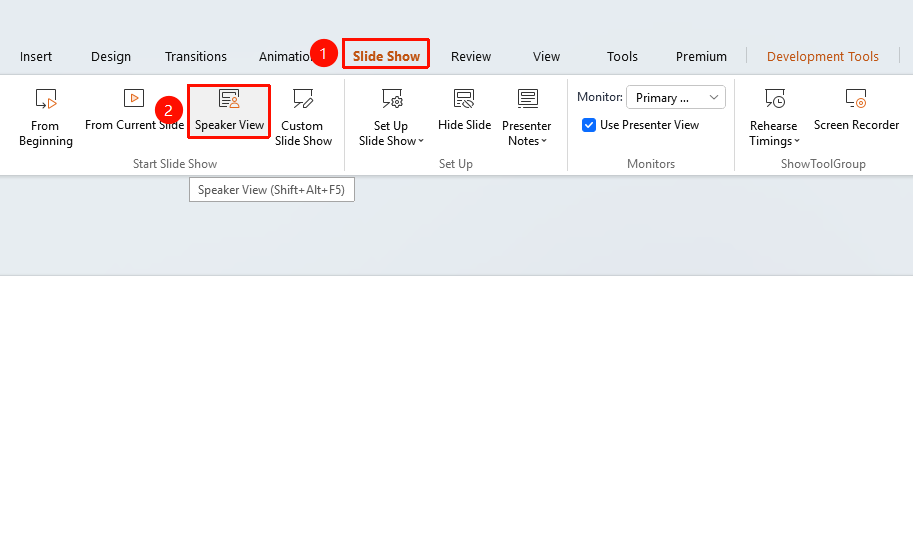
Slide Show" tab → Presenter View
- Click the top "Slideshow" tab
- Find and click the "Presenter View" option to enable Presenter View mode
- After entering Presenter View mode, you can view the following configurations:
- "Current Slide" : Displays the slide currently being shown
- "Next Slide Preview" : Previews the content of the next slide
- "Notes Area" : Displays the speaker notes for the current slide
- "Timer" : Displays the elapsed presentation time
- "Toolbar" : Provides tools such as pen, laser pointer, magnifying glass, etc.
After entering Presenter View mode, press Alt+Tab to switch to the normal slideshow mode, and click again to switch back to Presenter View
Shortcut
- "Alt+Tab" : Switch to Presenter View
- "B" : Black screen / Restore
- "W" : White screen / Restore
- "Ctrl+P" : Toggle pen
FAQ
Q1: How to set up so that the audience sees the normal slide content while the presenter sees the Presenter View
- Solution: A dual screen or projector is required, and you need to set the display destination in the "Slideshow" tab and check "Show presenter view" .
Notes
- Clicking the Presenter View feature directly allows you to rehearse
- Set the display destination in the "Slideshow" tab and check "Show presenter view" ; during the slideshow, the main screen projects normally, and the secondary screen automatically enters Presenter View
- It is recommended to add presentation cues in the Notes area in advance