Feature Summary
The Arrow Options feature is used to control the display state of the mouse pointer during a slideshow. You can choose to have the pointer appear automatically, remain visible, or stay hidden.
Feature Description
| Feature Dimension | Description |
|---|---|
| Membership Restriction | No membership restriction |
| Version Restriction | No version restriction |
Steps
Setting Arrow Options
Feature Entry
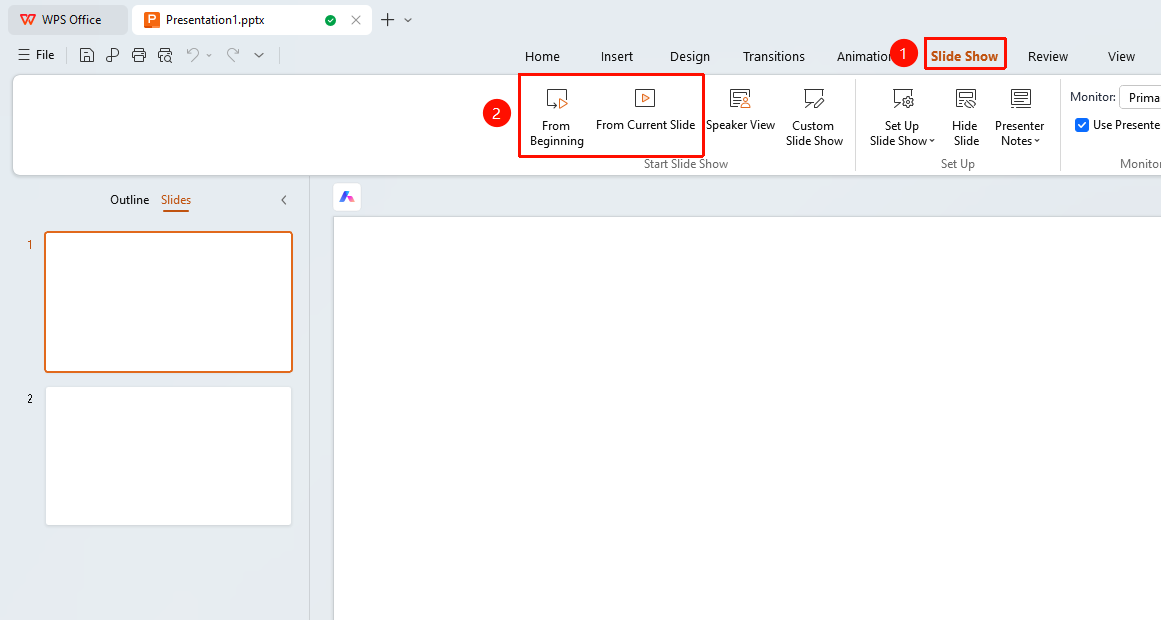
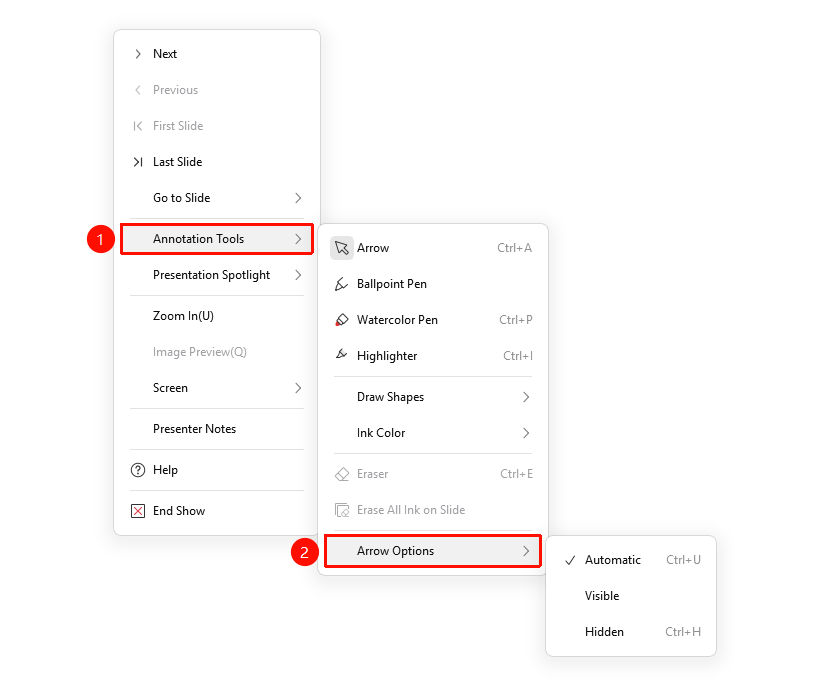
"Slideshow" tab → "From Beginning" / "From Current Slide" → Right-click menu → "Ink Tools" → "Arrow Options"
- Click the top "Slideshow" tab, select "From Beginning" / "From Current Slide" to enter slideshow mode
- Right-click the slide in slideshow mode
- Click "Ink Tools"
- Select "Arrow Options"
- Choose the desired option
- "Automatic" : The arrow is displayed when the mouse moves and automatically hidden when stationary (Shortcut Ctrl+U )
- "Visible" : The mouse arrow is always displayed
- "Hidden" : The mouse arrow is always hidden (Shortcut Ctrl+H )
Bottom Toolbar Settings
Feature Entry
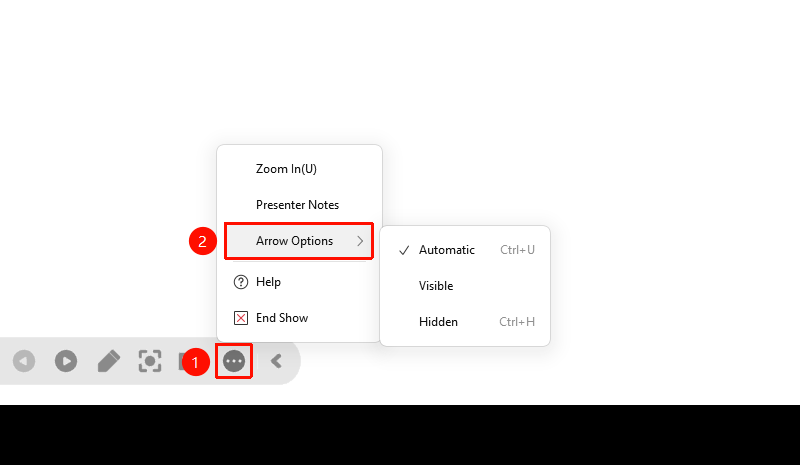
Bottom toolbar → "More" → "Arrow Options"
- Move the mouse in slideshow mode to display the bottom toolbar
- Click the "More" button
- Select "Arrow Options"
- Choose the desired option
FAQ
Q1: What is the difference between Automatic and Visible?
- Solution: "Automatic" automatically hides the arrow and shows it when the mouse moves; "Visible" always displays the arrow.
Q2: How to quickly hide the arrow?
- Solution: Press Ctrl+H to quickly hide the arrow, and press Ctrl+U to restore automatic display.
Notes
- Arrow Options are only available in slideshow mode
- After hiding the arrow, clicking the mouse can still trigger page turning