Feature Summary
The custom slideshow feature is used to create a custom slide show sequence. You can select specific slides to play in a specified order, to meet diverse presentation requirements.
Feature Description
| Feature Dimension | Description |
|---|---|
| Membership Restriction | No membership restriction |
| Version Restriction | No version restriction |
Steps
Open Custom Show
Feature Entry
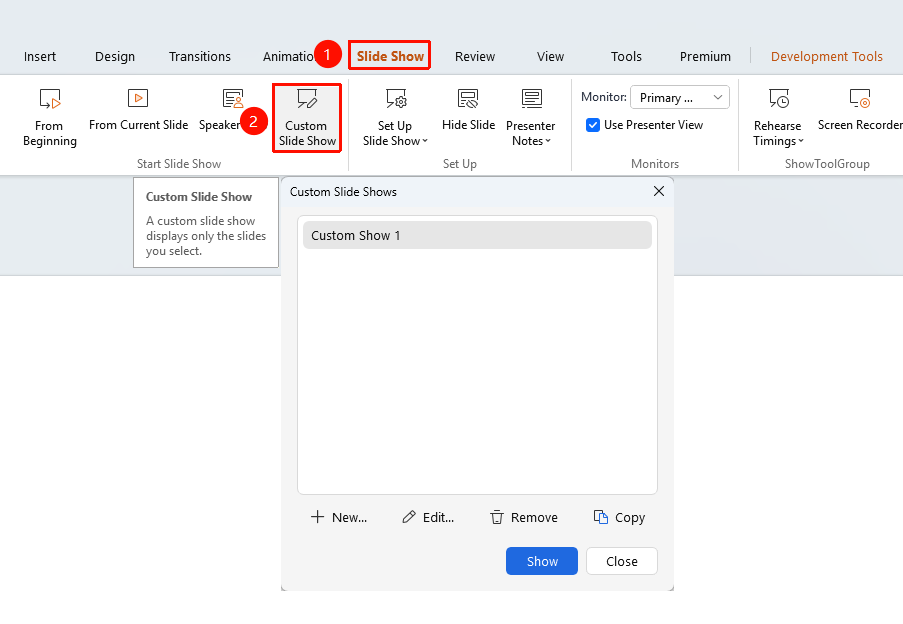
"Slide Show" tab → "Custom Show"
- Click the top "Slide Show" tab
- Find and click the "Custom Show" button
- Manage custom slideshows in the pop-up dialog
Create Custom Show
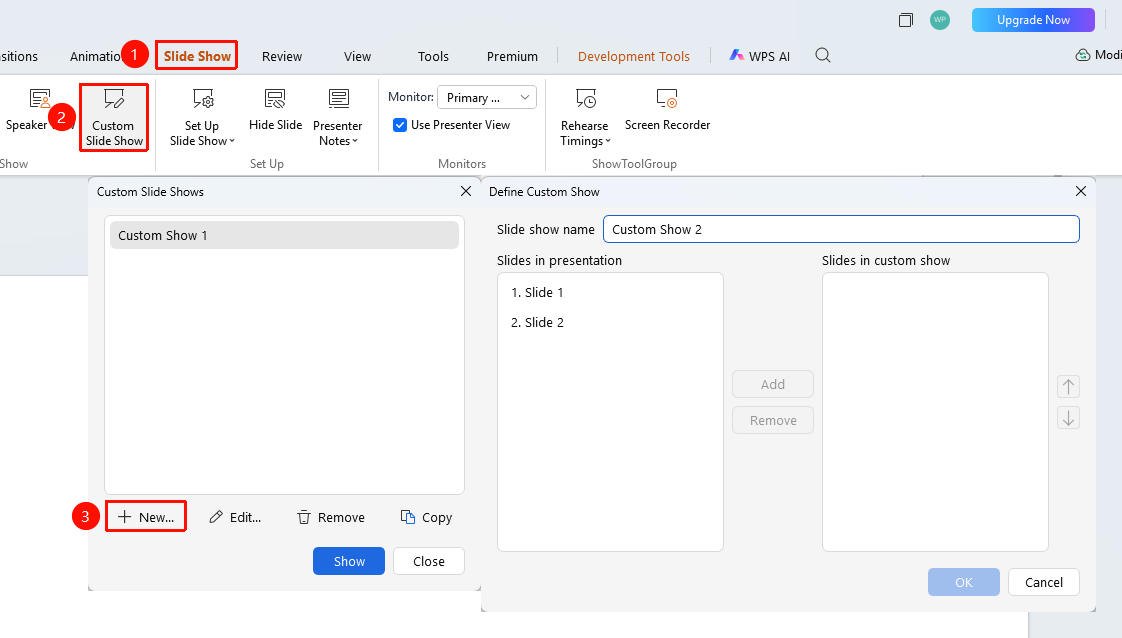
- Click the "New" button
- Enter a name for the Custom Show
- Select the slides you want to show from the slide list on the left
- Click the "Add" button to add slides to the right
- Use the side "↑↓" buttons to adjust the slide order
- To remove slides you do not want to show, select the slide and click the "Delete" button
- Click "OK" to save
The "Delete" button in custom slideshow only removes the slide from the show list; it does not actually delete the slide
Edit/Delete Custom Show
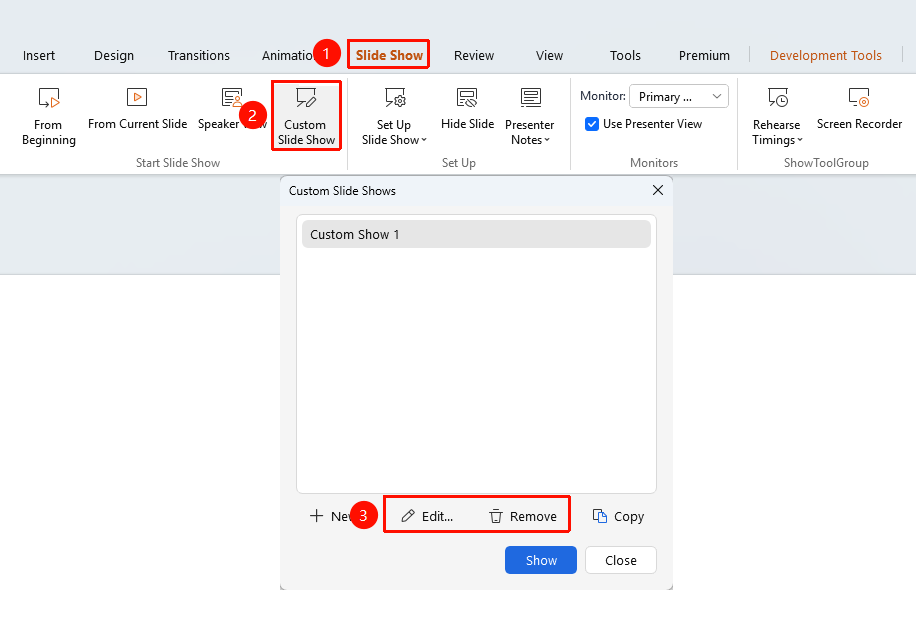
- In the Custom Show dialog, select the show you want to edit
- Click the "Edit" button to modify the show content
- Click the "Delete" button to delete the Custom Show
Play Custom Show
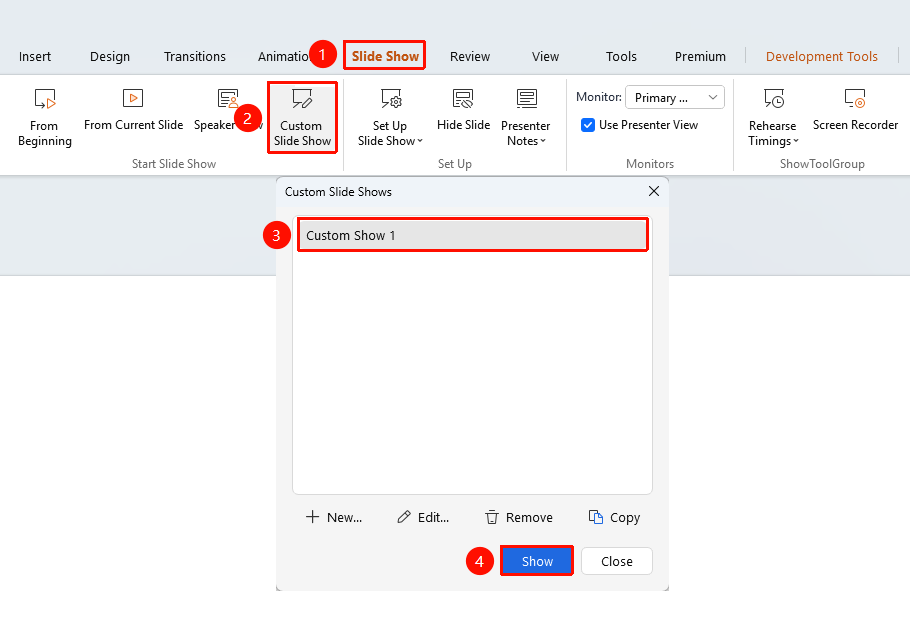
- In the Custom Show dialog, select the Custom Show you want to play
- Click the "Play" button
- The slides will play in the custom order
FAQ
Q1: Can the same slide be selected multiple times in a Custom Show?
- Solution: Yes, the same slide can be added to a Custom Show multiple times.
Q3: How to modify the order of a Custom Show?
- Solution: In the Custom Show dialog, select the show you want to edit, click "Edit", and then use the side "↑↓" buttons to adjust the order.
Notes
- Custom Show do not affect the original slide order
- You can create multiple different custom slideshows