Feature Summary
The Hide Slide feature is used to hide specific slides during a presentation. Hidden slides will not be displayed during the slideshow but remain in the presentation file.
Feature Description
| Feature Dimension | Description |
|---|---|
| Membership Restrictions | No membership restrictions |
| Version Restrictions | No version restrictions |
Steps
Hide Slide
Feature Entry
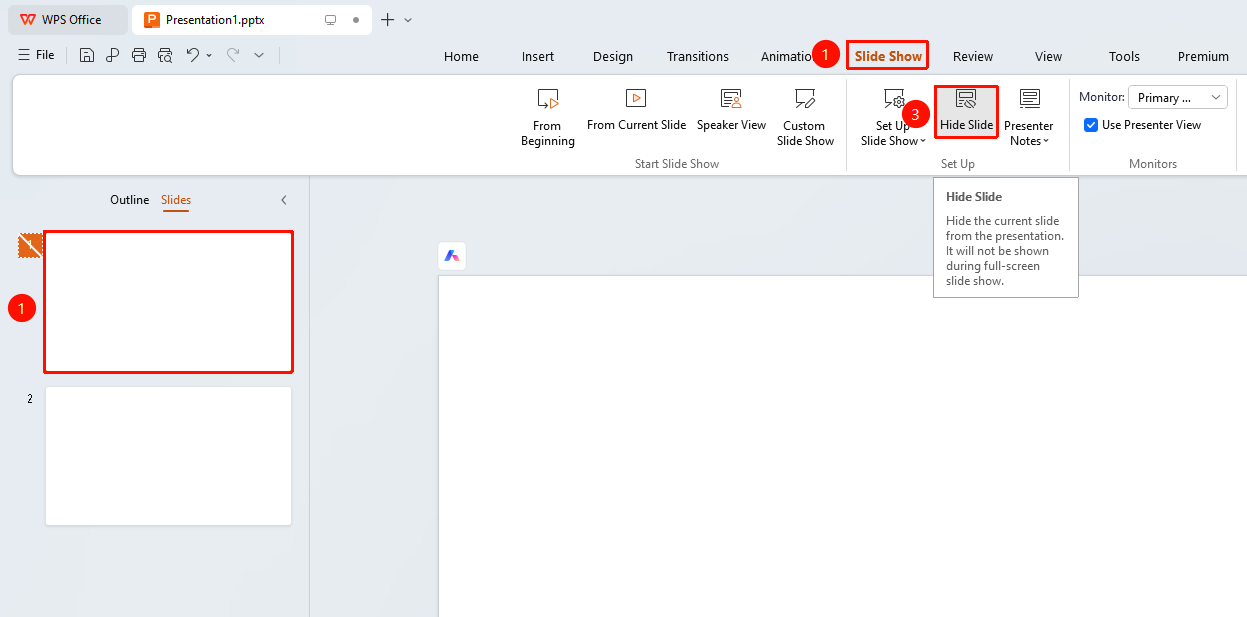
"Slide Show" tab → "Hide Slide"
- Select the slide you want to hide
- Click the "Slide Show" tab at the top
- Find and click the "Hide Slide" button
- The slide number will display a strikethrough mark
Hide via Right-Click Menu
Feature Entry
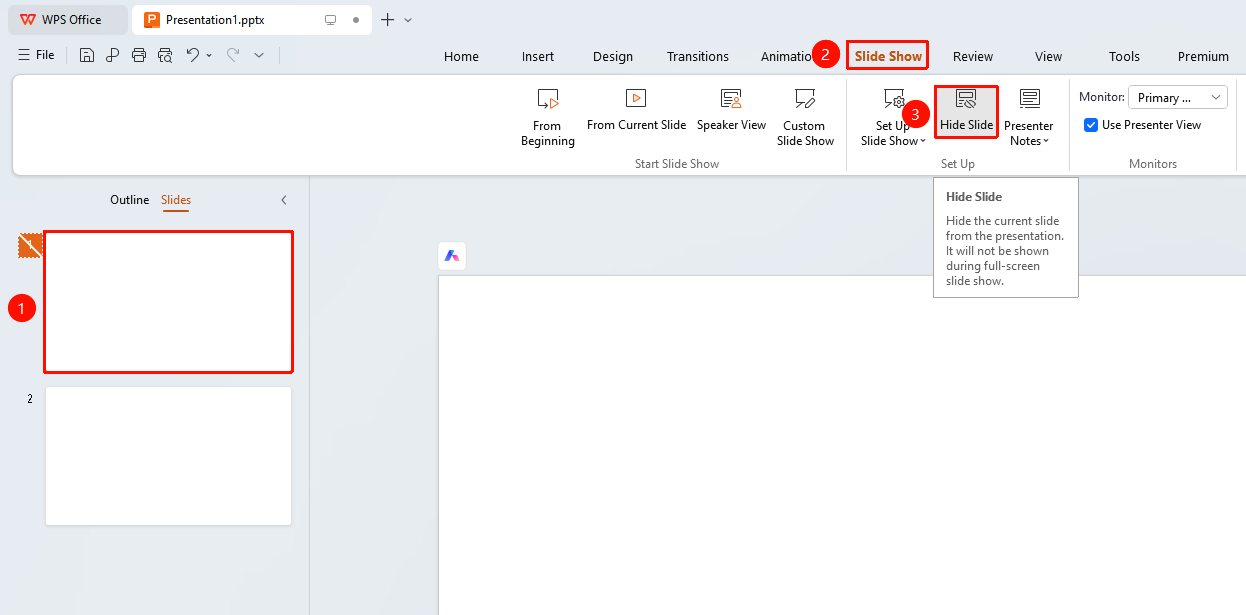
Right-click menu → "Hide Slide"
- Right-click on the slide thumbnail
- Select the "Hide Slide" option
- The slide will be hidden
Unhide Slide
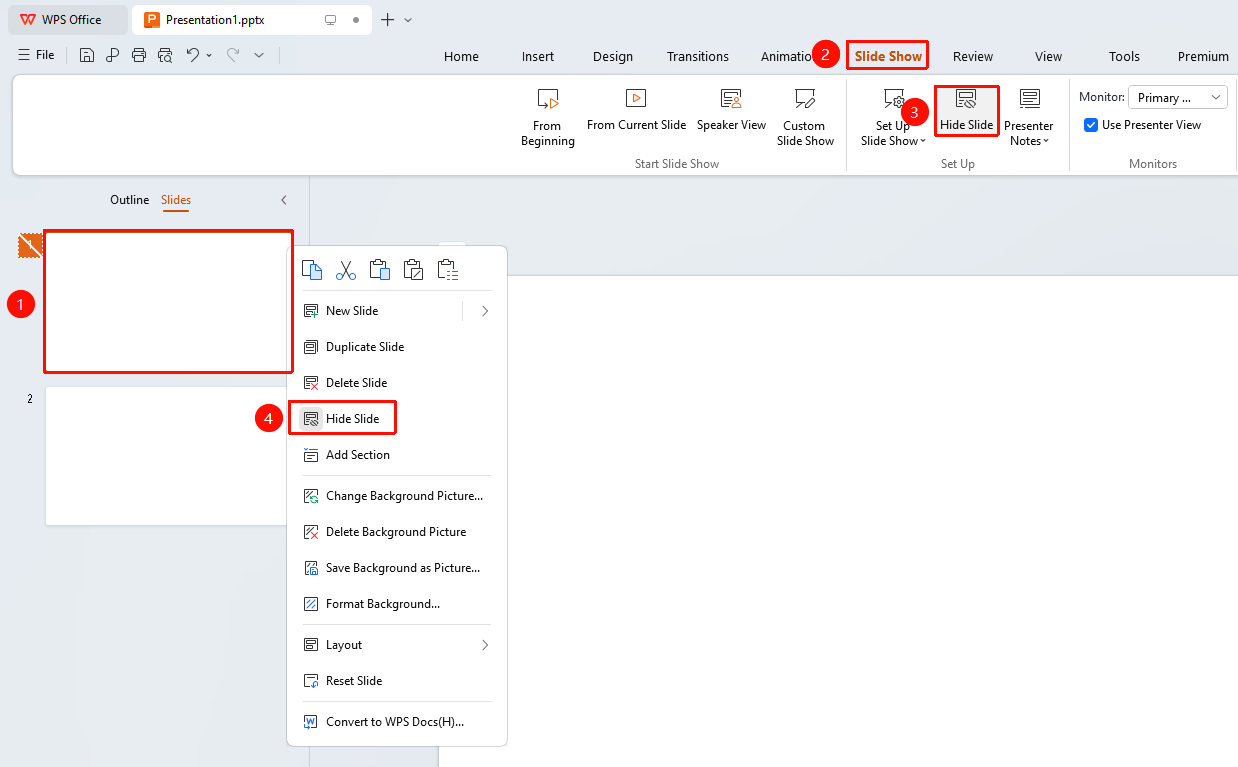
- Select the hidden slide
- Click the "Hide Slide" button again
- Or right-click and select "Hide Slide" to unhide
FAQ
Q1: Where is the Hide Slide feature?
- Solution: Select the slide, click the "Slide Show" tab → "Hide Slide", or right-click and select "Hide Slide".
Q2: Will hidden slides be deleted?
- Solution: No, hiding only prevents the slide from being shown during the slideshow. The slide remains in the presentation file.
Q3: How to hide multiple slides in batch?
- Solution: Hold down the Ctrl key to select multiple slides, then click the "Hide Slide" button.
Notes
- Hidden slide numbers will display a strikethrough
- Hidden slides can still be edited