Feature Summary
The black/white screen feature switches the display to full black or full white during a slideshow, ideal for pausing content and redirecting the audience's attention back to the presenter.
Feature Description
| Feature Dimension | Description |
|---|---|
| Membership Restriction | No membership restriction |
| Version Restriction | No version restriction |
Steps
Switch to Black Screen
Feature Entry
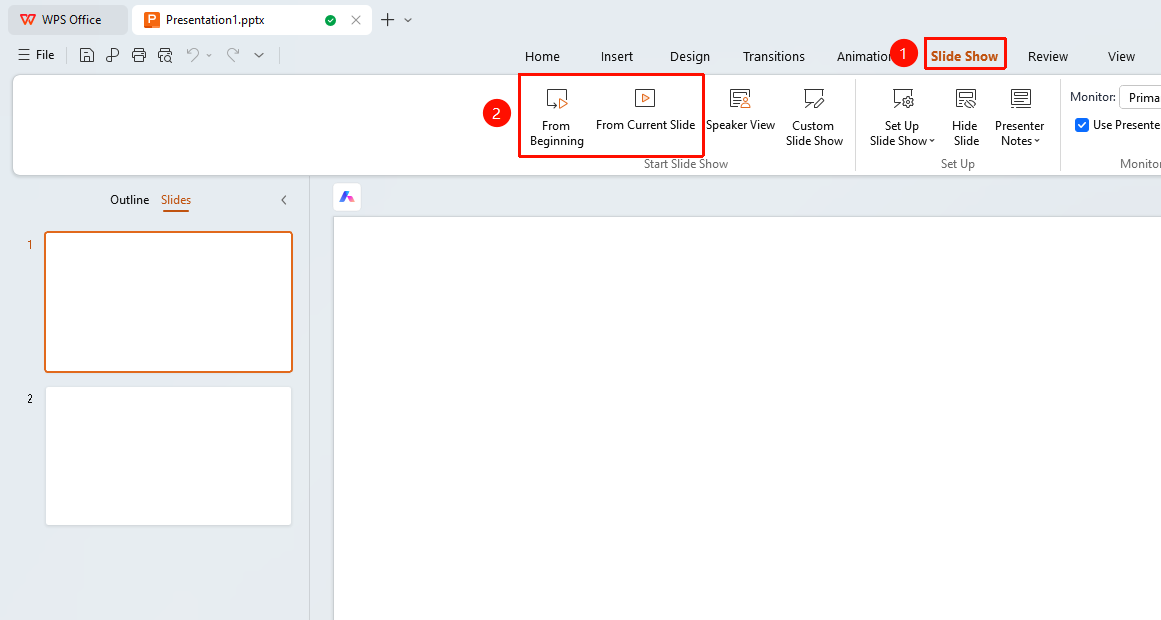
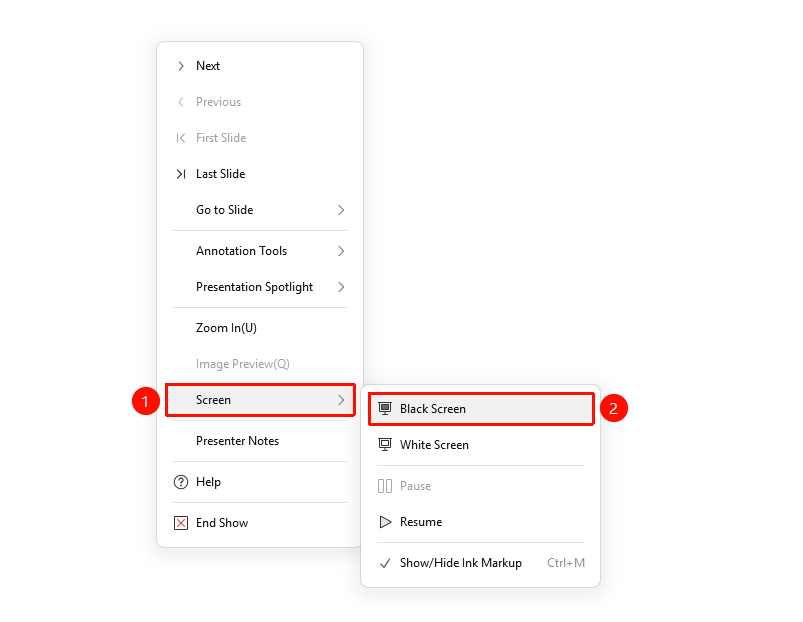
"Slideshow" tab → "From Beginning" / "From Current Slide" → Right-click menu → "Screen" → "Black Screen"
- Click the top "Slideshow" tab, select "From Beginning" / "From Current Slide" to enter slideshow mode
- Right-click the slide in slideshow mode
- Select "Screen" → "Black Screen"
- The screen turns completely black
Shortcut: B or .
Switch to White Screen
Feature Entry
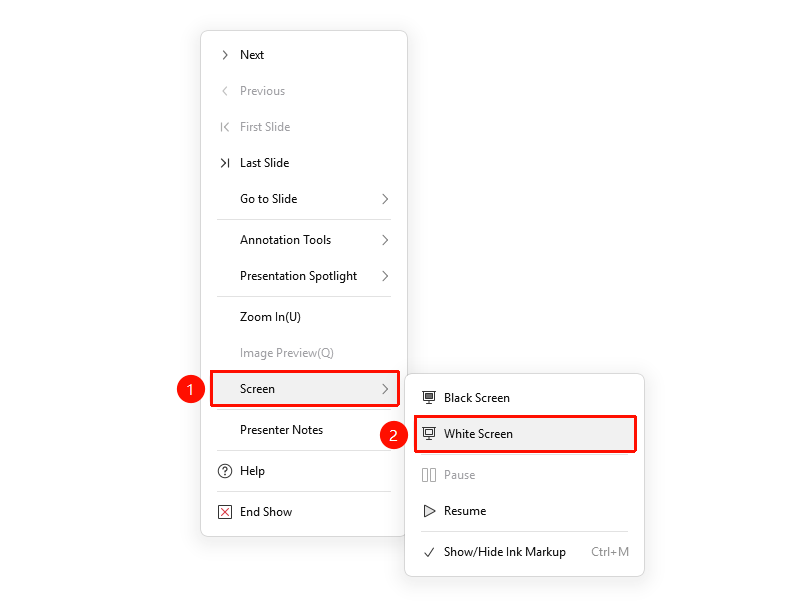
Right-click menu → "Screen" → "White Screen"
- Right-click the slide in slideshow mode
- Select "Screen" → "White Screen"
- The screen turns completely white
Shortcut: W or ,
Resume Display
- Press any key or click the mouse
- The screen returns to the original slide content
FAQ
Q1: Where is the black/white screen feature?
- Solution: In slideshow mode, right-click → "Screen" → "Black Screen"/"White Screen", or use the shortcut B (black screen)/W (white screen).
Q2: What is the black/white screen feature used for?
- Solution: It is ideal for pausing content during a presentation and redirecting the audience's attention back to the presenter.
Q3: How do I resume the original content?
- Solution: Press any key or click the mouse, and the screen will return to the original slide content.
Notes
- Black/white screen only temporarily hides content and does not exit the slideshow
- Pressing any key or clicking again will resume the display and continue the slideshow