Feature Summary
In WPS Slides collaboration mode, add an underline effect to selected text to emphasize or mark important information.
Feature Description
| Feature Dimension | Description |
|---|---|
| Membership Restriction | No membership restriction |
| Version Restriction | No version restriction |
Operation Steps
Add Underline via the Ribbon
Feature Entry
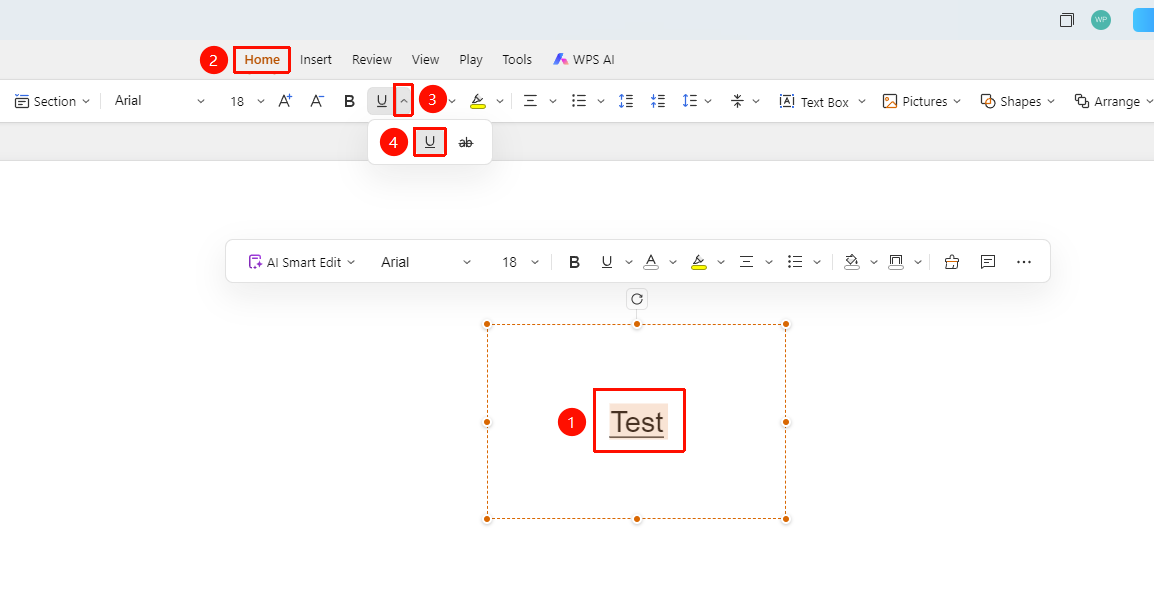
「Home」 tab → Font formatting area → 「Text Properties」 dropdown button → 「Underline」 icon
- Select the text you want to underline
- Click the 「Home」 tab at the top
- Find the 「Text Properties」 dropdown button in the font formatting area
- Click the 「Underline」 button (icon is U) to add an underline effect to the text
Shortcut: Ctrl + U
Add Underline via the Floating Toolbar
Feature Entry
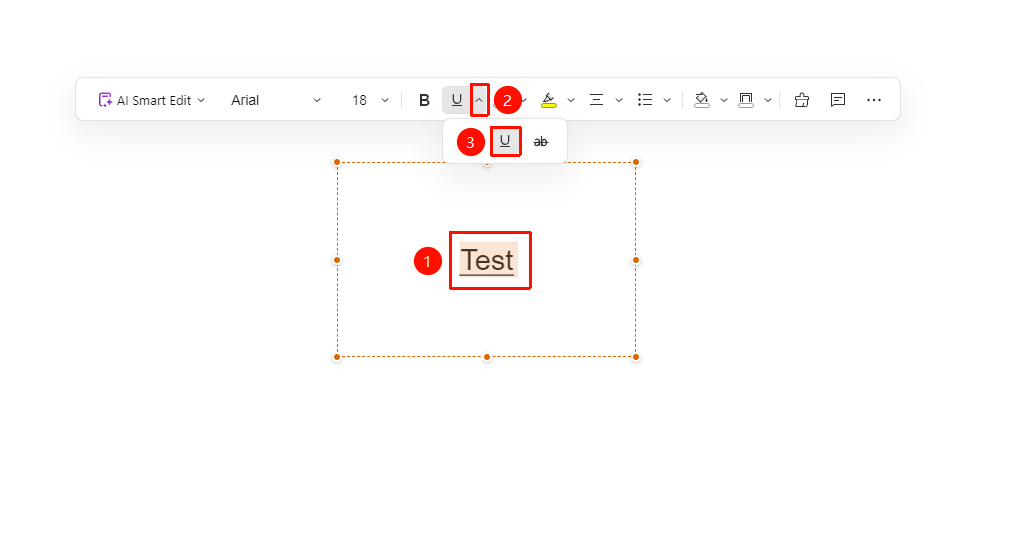
Floating toolbar → 「Text Properties」 dropdown button → 「Underline」 icon
- Select the text you want to underline to invoke the floating toolbar
- Click the 「Text Properties」 dropdown button on the floating toolbar
- Click the 「Underline」 button (icon is U) to add an underline effect to the text
Add Underline via the Sidebar
Feature Entry
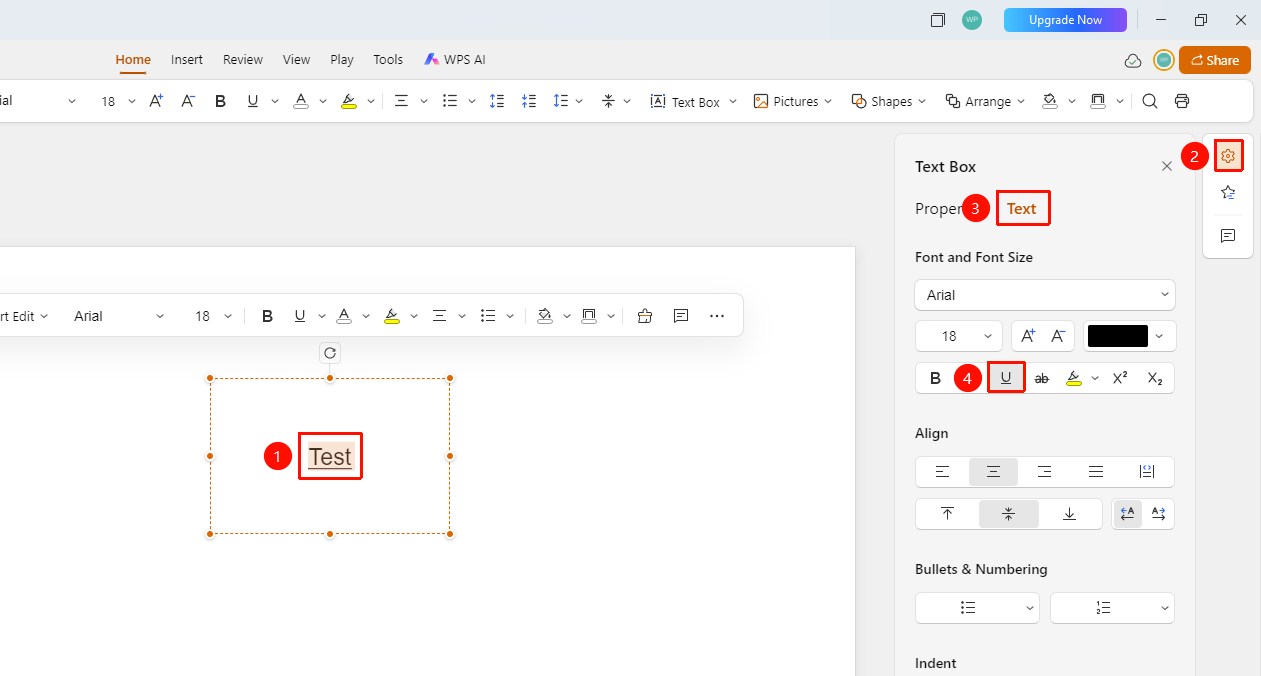
Right sidebar → Format → Text → 「Underline」 button
- Select the text you want to underline
- Click the 「Format」 option in the right sidebar
- Select the 「Text」 tab
- Find the 「Underline」 button in the font formatting area
- Click the button to add an underline effect to the text
FAQ
Q1: What should I do if the Underline button is grayed out?
- Solution: You need to select text content first before using the underline feature. Please confirm that the target text is selected.
Q2: How do I remove the underline effect?
- Solution: Select the underlined text, then click the Underline button again or press Command+U to remove it.
Q3: How do I change the underline color?
- Solution: The underline color follows the font color and cannot be changed independently.
Notes
- Underline only applies to the currently selected text
- It can be used in combination with other formatting such as bold and italic
- It is commonly used for content that needs emphasis, such as titles and link text