Feature Summary
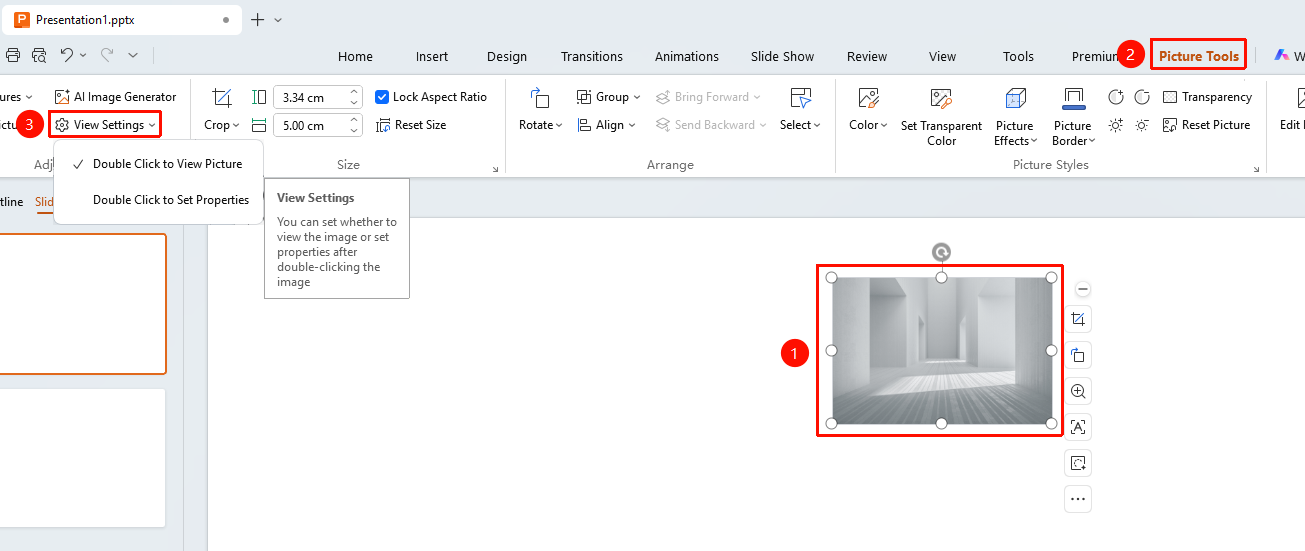
The View Settings feature is used to view and set detailed image properties, including parameters such as size and position. You can choose the behavior when double-clicking an image (view image or set properties) via a dropdown menu, allowing precise control over the image display effect.
Feature Description
| Feature Dimension | Description |
|---|---|
| Membership Restriction | No membership restriction |
| Version Restriction | No version restriction |
Operation Steps
View Settings via the Picture Tools Tab
Feature Entry
"Picture Tools" tab → "View Settings" dropdown button
- Select the image you want to view
- Click the "Picture Tools" tab
- Click the "View Settings" dropdown button
- Select from the dropdown menu:
- "Double-click to View Image": Double-click the image to zoom in and view it
- "Double-click to Set Properties": Double-click the image to open the image properties panel