Feature Summary
The Magnify Slide feature is used to zoom in on a specified area of a slide during a presentation. A navigation window appears in the lower-right corner for easy panning, making it ideal for displaying small text or detailed charts.
Feature Description
| Feature Dimension | Description |
|---|---|
| Membership Restriction | No membership restriction |
| Version Restriction | No version restriction |
Steps
Magnify the Screen
Feature Entry
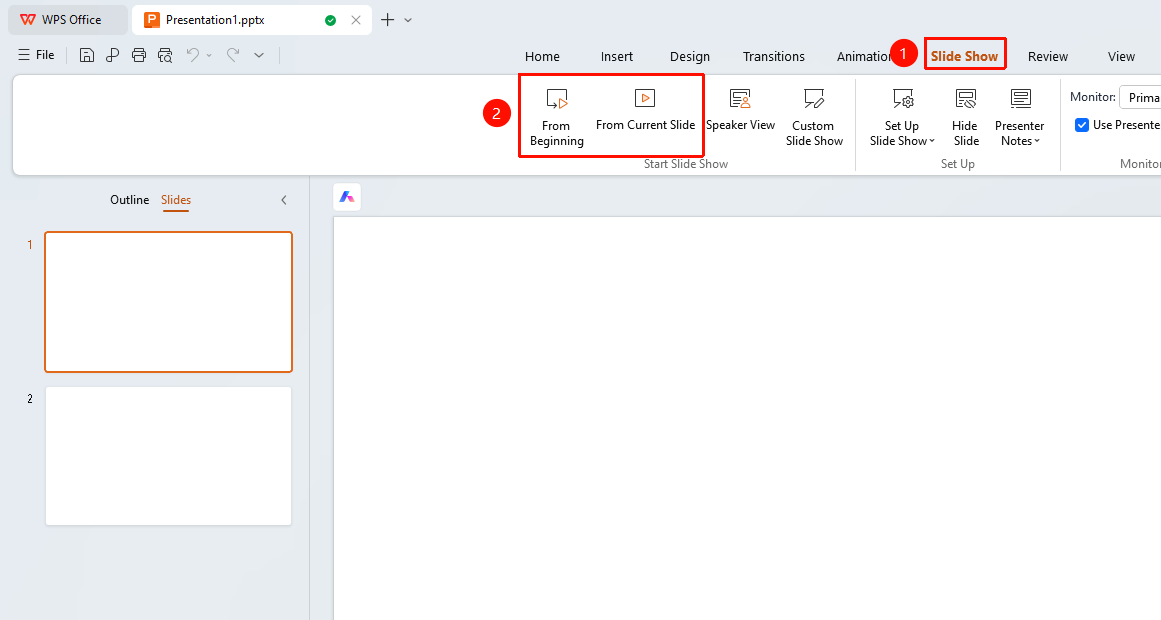
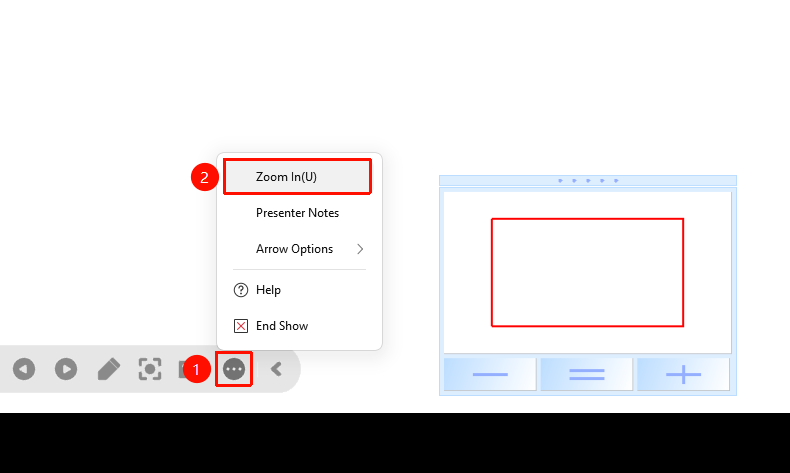
Bottom Toolbar → "More" → "Magnify"
- Click the top "Slideshow" tab, select "From Beginning" / "From Current Slide" to enter slideshow mode
- In presentation mode, move the mouse to display the bottom toolbar
- Click the "More" button
- Select "Magnify"
- The screen zooms in, and a navigation window appears in the lower-right corner
- Click the "+" button in the navigation window to zoom in further
- Click the "-" button in the navigation window to zoom out
- Click the "=" button in the navigation window to restore the normal size
- Drag the red border in the navigation window to move the viewing area
- Press the Esc key to exit magnify mode
FAQ
Q1: How to move the magnified area
- Solution: Drag the red border in the navigation window at the lower-right corner to move and view different areas.
Notes
- The magnify feature is only available in presentation mode
- The navigation window in the lower-right corner allows you to easily move the viewing area