Feature Summary
"Docs" is used to edit and send plain text messages in group chats or private chats. It is the most basic communication method. After sending, you can right-click to copy, reply, translate, AI Search, and more.
Feature Description
| Feature Dimension | Description |
|---|---|
| Membership Restriction | No membership restriction |
| Version Restriction | No version restriction |
| Operation Permission | All members can edit and send text messages |
Operation Steps
Edit Text Message
Feature Entry
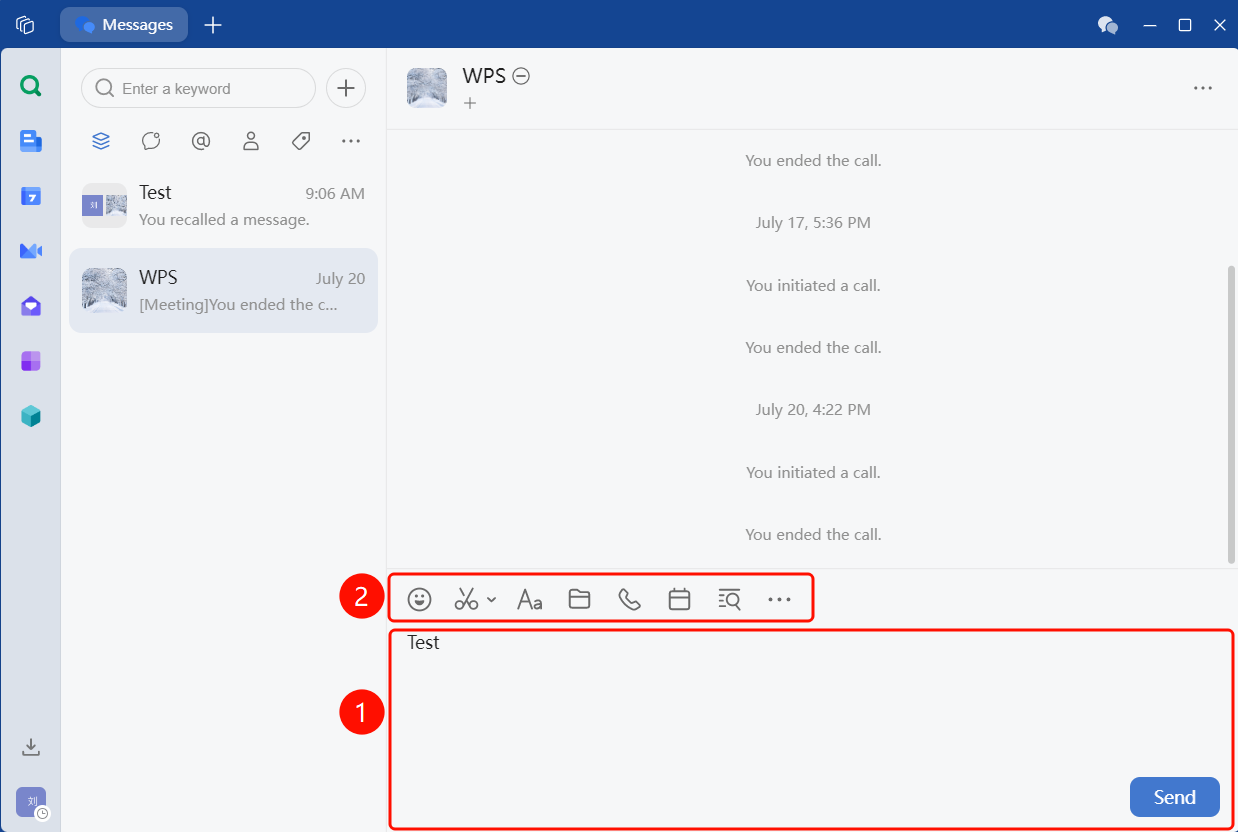
Message editing area → Text input box
- After entering a group chat or private chat, directly enter text content in the text input box of the message editing area.
- The toolbar at the top of the input box provides auxiliary features, including shortcut entries for emojis, cut, text format, files, events, etc.
Send Text Message
Feature Entry
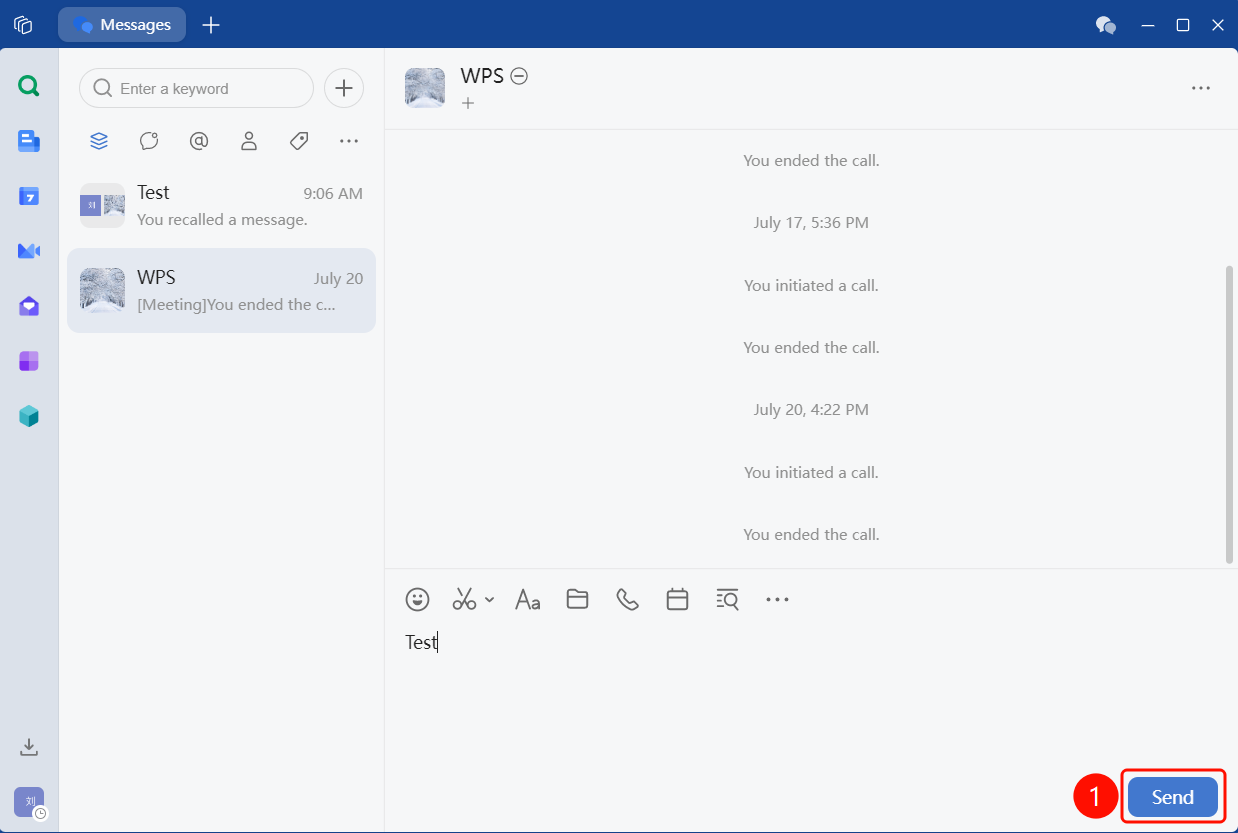
Message editing area → "Send" button
- After entering text content, click the "Send" button in the lower right corner, and the text message will be sent to the chat.
- After entering, you can also use the keyboard shortcut
Enterto send directly without clicking the button.
Right-click Operations on Text Messages
Feature Entry
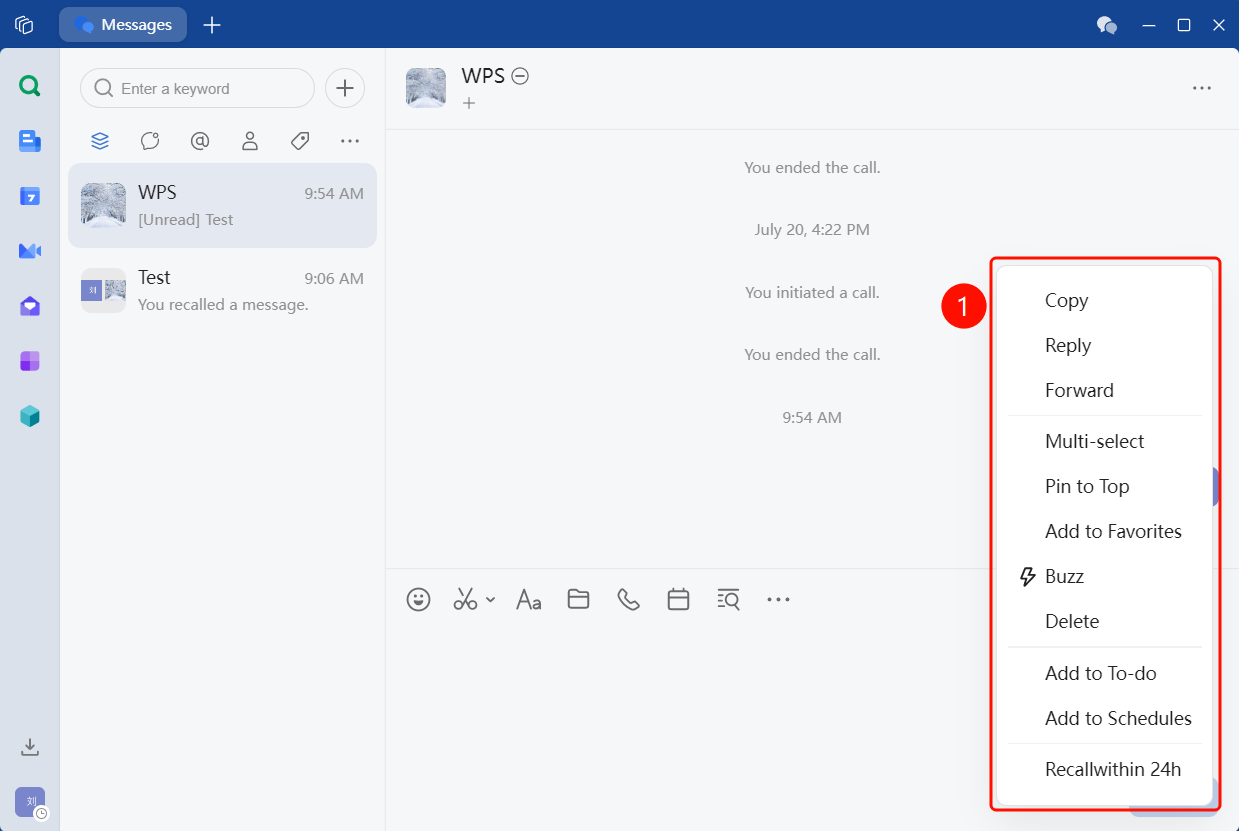
Sent text message → Right-click menu
For sent text messages, right-click to pop up the operation menu, providing the following features:
| Menu Option | Description |
|---|---|
| Copy | Copy the message text content to the clipboard |
| Reply | Quote the message to reply; the quoted message will be displayed above the input box |
| Forward | Forward the message to other conversations |
| Multi-select | Enter multi-select mode to batch select multiple messages for operations |
| Pin | Pin the message to the top of the group chat |
| Favorites | Add the message to the Favorites list |
| Urgent | Mark the message as urgent; the recipient will receive an urgent notification |
| Add to To-do | Add the message content to the personal To-do list |
| Add to event | Add the message content to an event |
| Delete | Delete the message (visible only to yourself) |
| Translate | Translate the message content into other languages |
| Online Search | Search the internet based on the message content |
| AI Search | Use AI to perform intelligent search and analysis on the message content |
| Recall (24 hours) | Recall the sent message; operable within 24 hours after sending |
FAQ
Q1: What is the difference between text messages and rich text messages?
- Solution: Plain text messages only support text content, with a simple and clear format; rich text messages support text styles such as bold and italic (corresponding to the "Text Message" feature). The sending entries are different. Plain text is sent through the current feature, while rich text is switched via the "Aa" button in the editing bar.
Q2: Is there a time limit for recalling messages?
- Solution: Yes, there is a time limit. The recall operation must be completed within 24 hours after the message is sent. After 24 hours, the recall option will be unavailable.
Q3: Which languages are supported for translation?
- Solution: Mutual translation between multiple mainstream languages is supported, including Chinese, English, Japanese, Korean, etc. The translation result will be displayed directly below the message.
Notes
- Text messages are the lightest message type with the fastest sending speed
- Before sending, please confirm the conversation target to avoid sending messages to the wrong group or contact
- Mistakenly sent messages can be recalled within 24 hours via right-click "Recall"