Feature Summary
Send system preset emoji or custom emoji images to enrich communication
Feature Description
| Feature Dimension | Description |
|---|---|
| Membership Restriction | No membership restriction |
| Version Restriction | No version restriction |
Operation Steps
Quick Emoji Selection
Feature Entry
Message editing bar → 「Emoji」 button → Select emoji
- Enter the WPS collaboration chat interface
- In the message editing bar, hover the mouse over the 「Emoji」 button
- Above the emoji button, recently used emoji and custom emoji images will be displayed
- Click to quickly select an emoji or custom emoji image
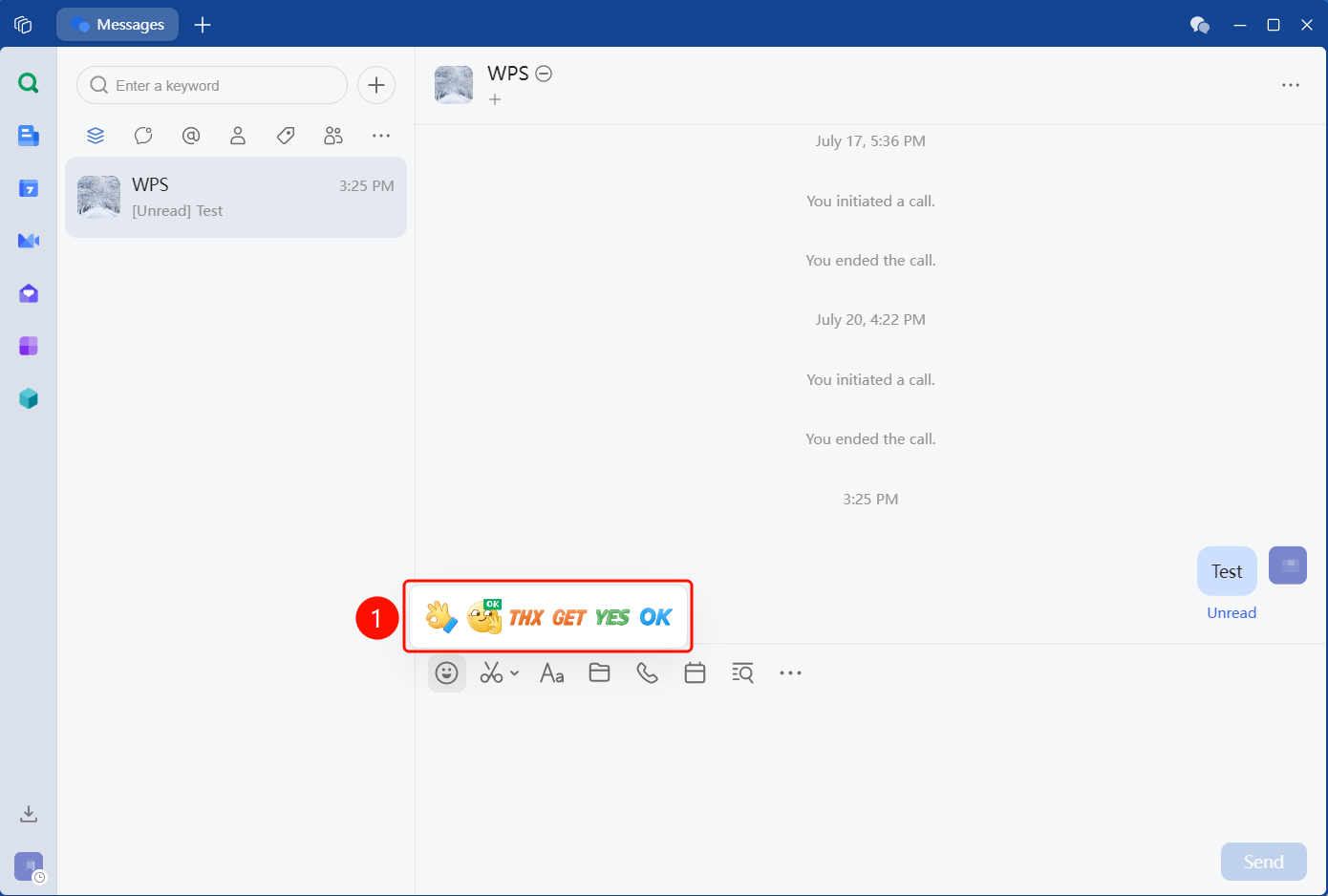
Emoji
Feature Entry
「Message editing bar」 → 「Emoji」 button → Select emoji
- Enter the WPS collaboration chat interface
- Click the 「Emoji」 button in the message editing bar
- At the bottom of the pop-up panel, select the first emoji tab
- Recent Emoji: Displays recently used emoji for quick reuse of the same emoji
- All Emoji: Displays all system preset emoji
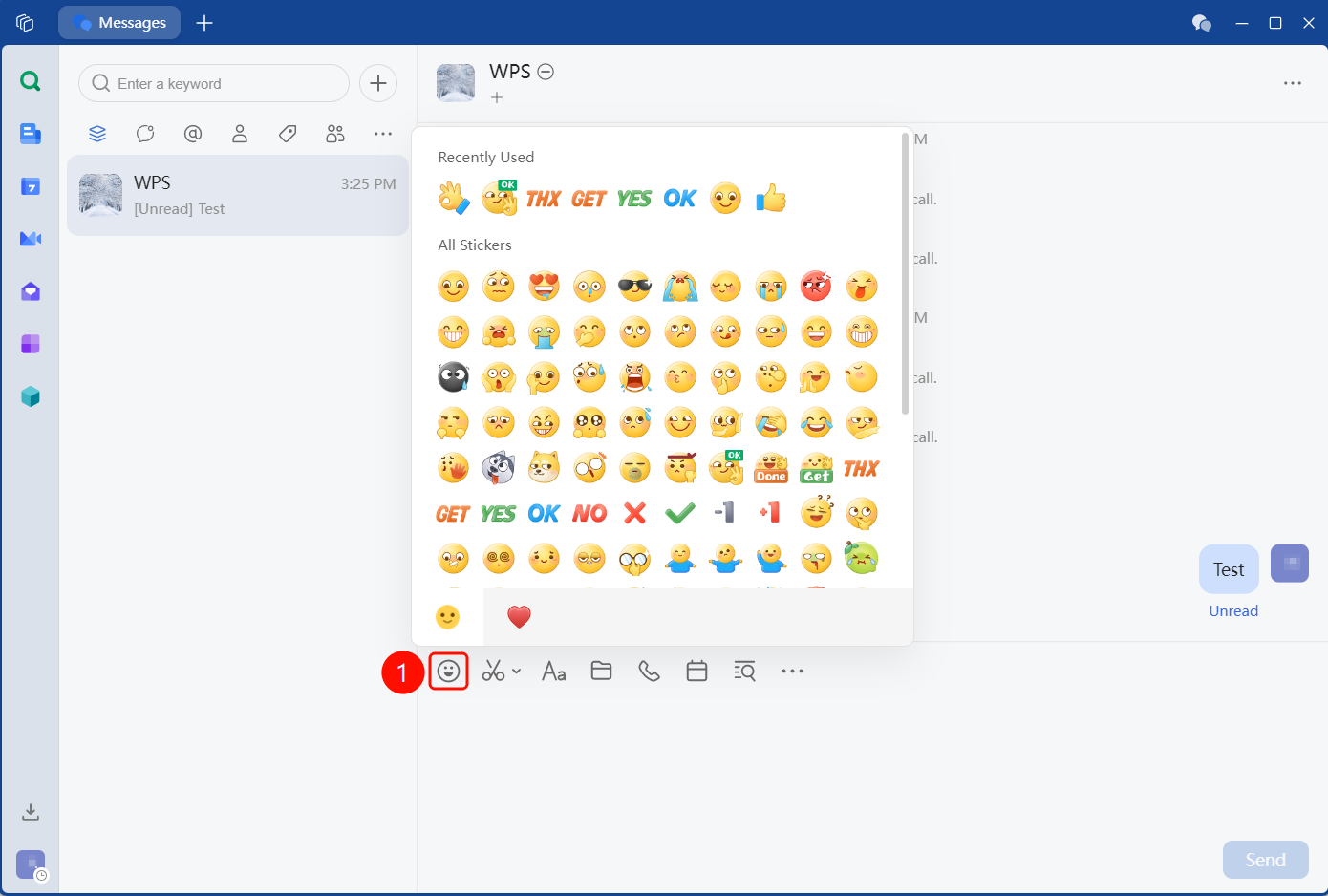
FAQ
Q1: How to add custom emoji?
- Solution: Click the 「+」 on the custom emoji panel to add a local image or GIF as a custom emoji.
Q2: Is there a limit on the number of custom emoji?
- Solution: The personal custom emoji limit is 500. If exceeded, you need to delete old ones before adding new ones.