Feature Summary
"Image Message" is used to send local images in group chats or private chats. It supports selecting images from the file picker and sending them directly after preview.
Feature Description
| Feature Dimension | Description |
|---|---|
| Membership Restriction | No membership restriction |
| Version Restriction | No version restriction |
| Operation Permission | All members can send image messages |
Operation Steps
Select Image
Feature Entry
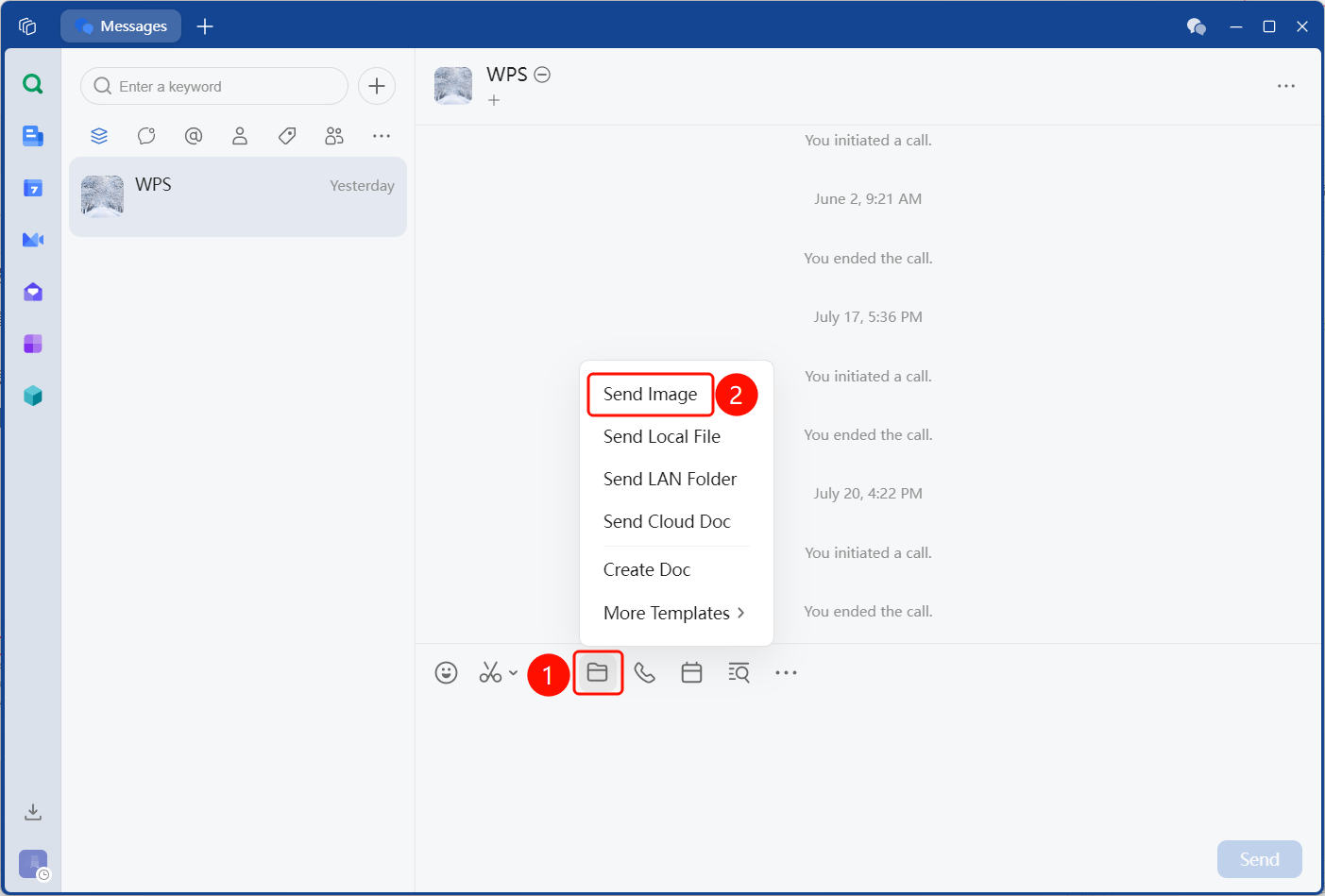
Message editing bar → "Send File" option → "Send Image" button
- After entering a group chat or private chat, click the "Send File" button (folder icon) in the message editing bar.
- Select "Send Image" from the pop-up menu to open the system file picker.
- Browse and select the image file you want to send in the file picker (supports common formats such as PNG, JPG), and click "Open".
Preview Image
Feature Entry
Message editing area → Image preview area
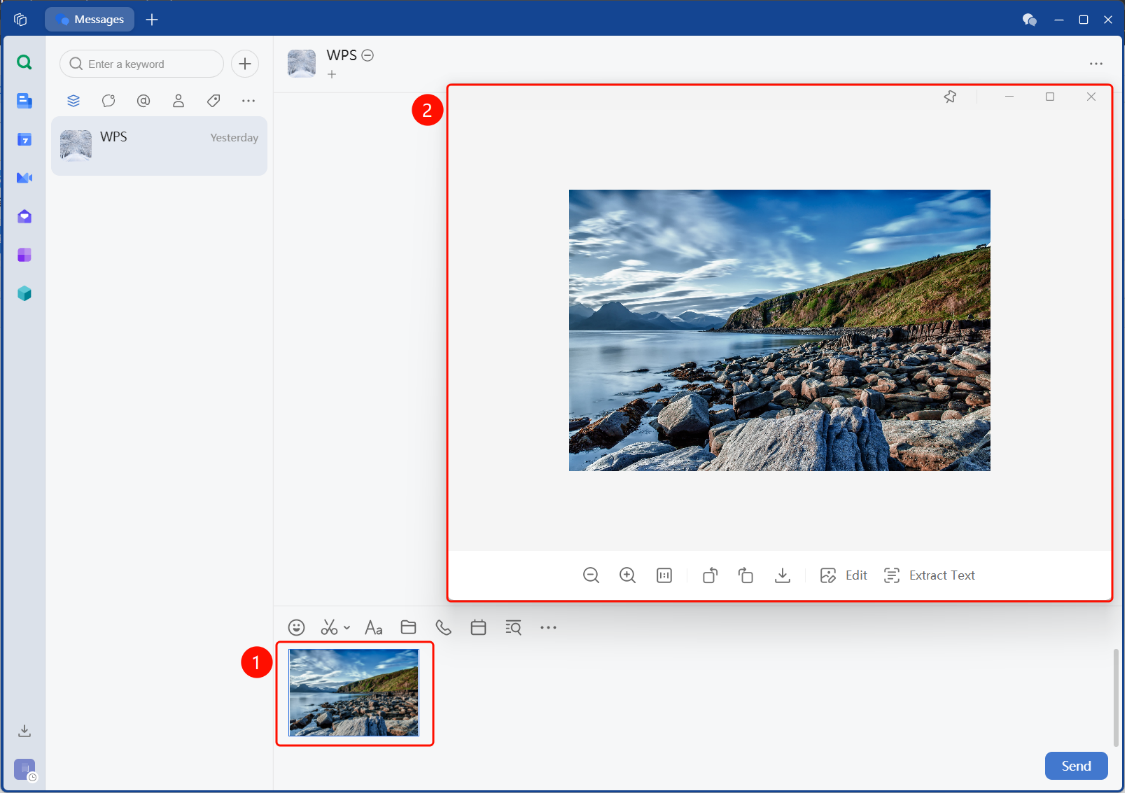
- After selecting an image, it is automatically loaded into the message editing area.
- Selected images are displayed as thumbnails in the editing area; double-clicking an image allows you to enlarge it to verify its content.
- If you need to change the image, you can operate in the editing area and re-select.
Send Image
Feature Entry
Message editing area → "Send" button
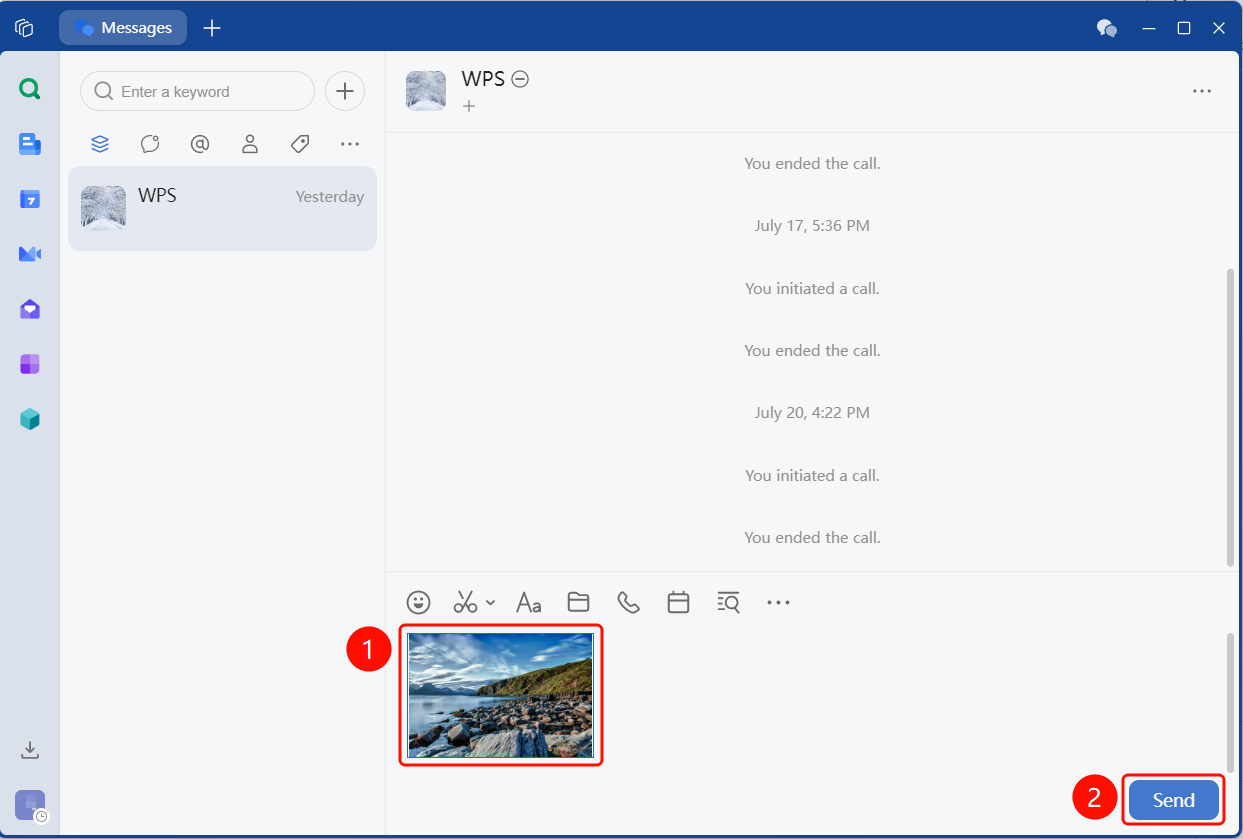
- After confirming the image content is correct, click the "Send" button in the lower right corner.
- The image will be sent to the chat as an image message.
When sending an image, you can also enter a text description. The image and text will be sent together as a graphic card.
FAQ
Q1: What image formats are supported?
- Solution: Common image formats such as PNG, JPG, JPEG, GIF, BMP are supported. If the file format is not supported, you can transcode it to PNG or JPG format before sending.
Notes
- Image messages are sent via the system file picker. Ensure the image file is accessible on the local disk.
- The image preview in the editing area is only for confirmation before sending and does not affect the original image file.
- After sending the image, the recipient can click the image in the chat to enter the full-screen viewer for viewing.