Feature Summary
Supports adding new members to a group chat via the "+ Add" button in the chat settings panel or the "Group Members" page. You can select from "Recent" contacts or the Contacts list.
Feature Description
| Feature Dimension | Description |
|---|---|
| Membership Restriction | No membership restriction |
| Version Restriction | No version restriction |
Steps
This feature supports two entry methods. The feature content is the same; only the entry points differ:
- Chat Settings Panel: Click "···" → Chat Settings window → "+ Add" icon
- Group Members Page: Click "···" → "View All Members" → "+ Add Members" icon
Adding via Chat Settings Panel
Feature Entry
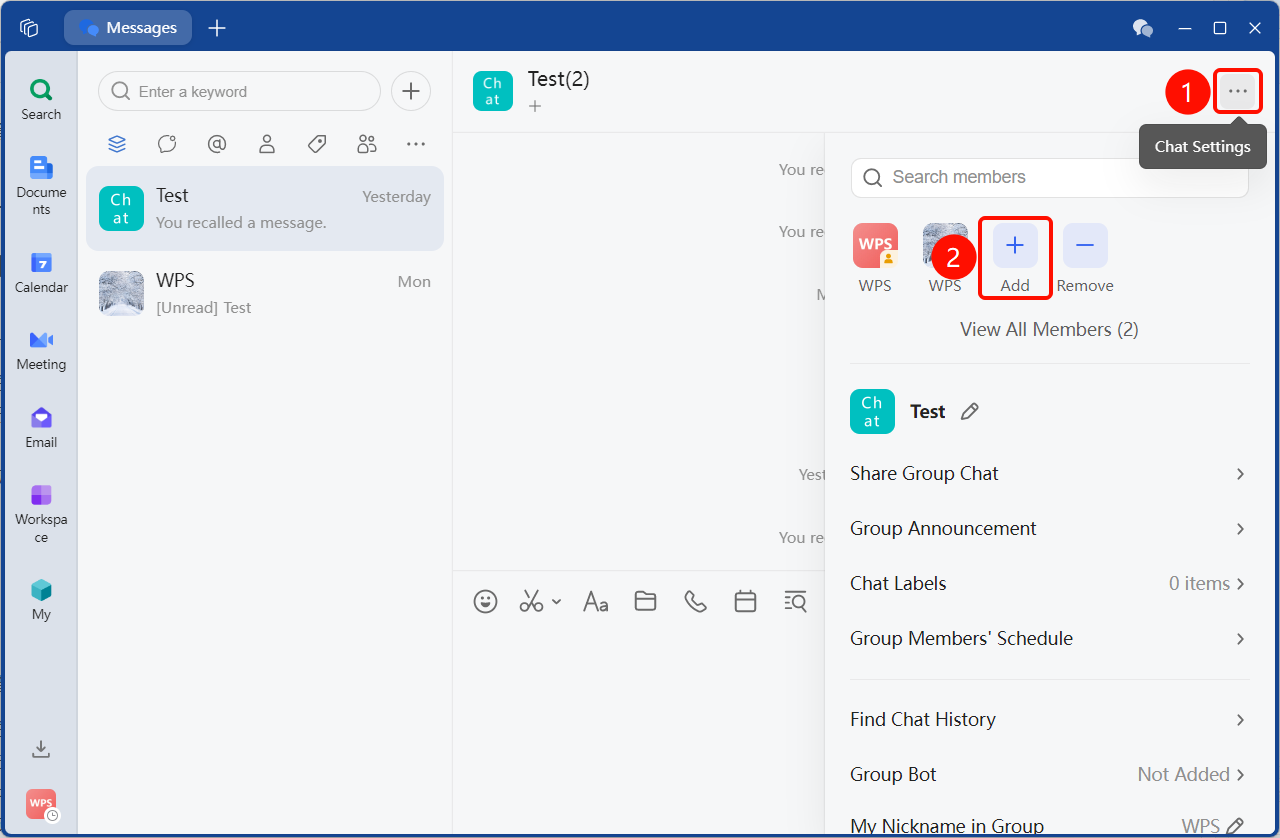
Group chat window → "···" icon → "+ Add" icon
- Enter the target group chat window and click the "···" icon in the upper right corner to open the chat settings panel.
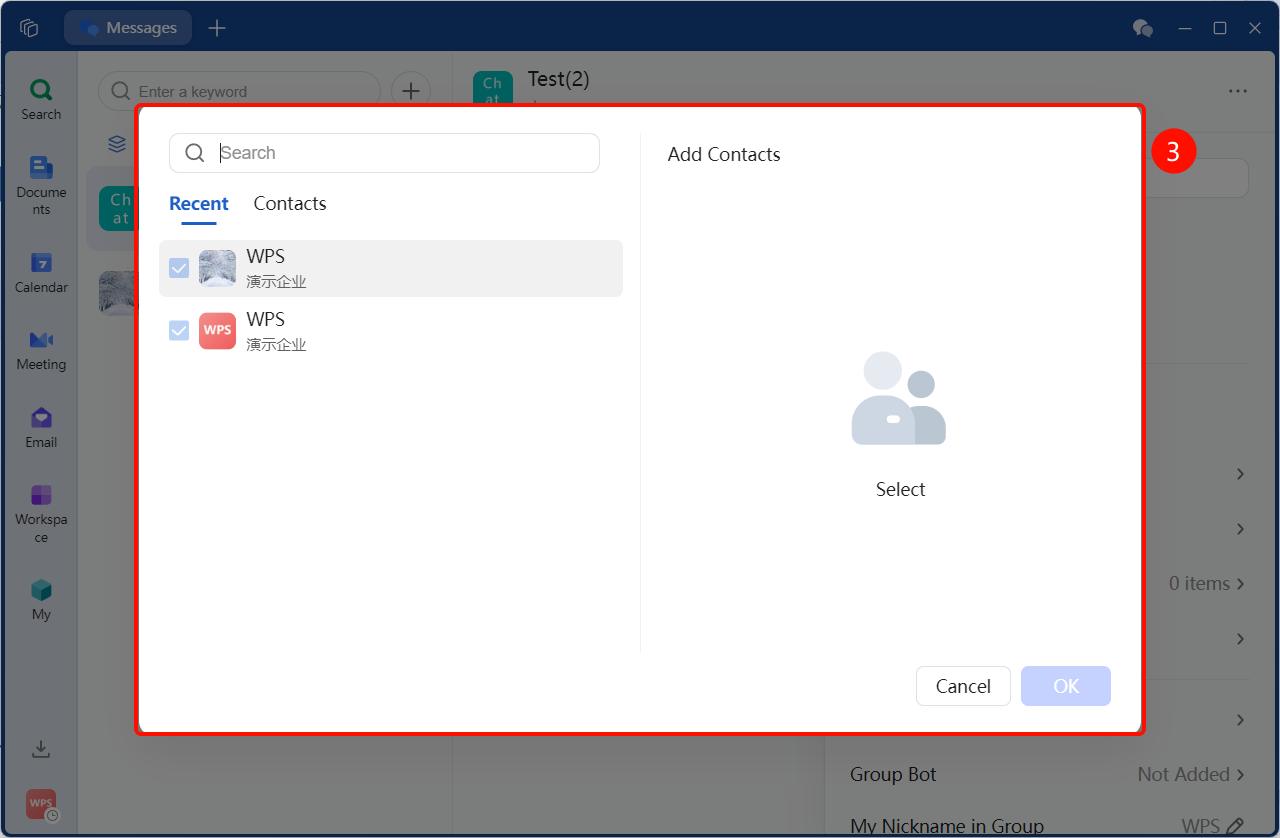
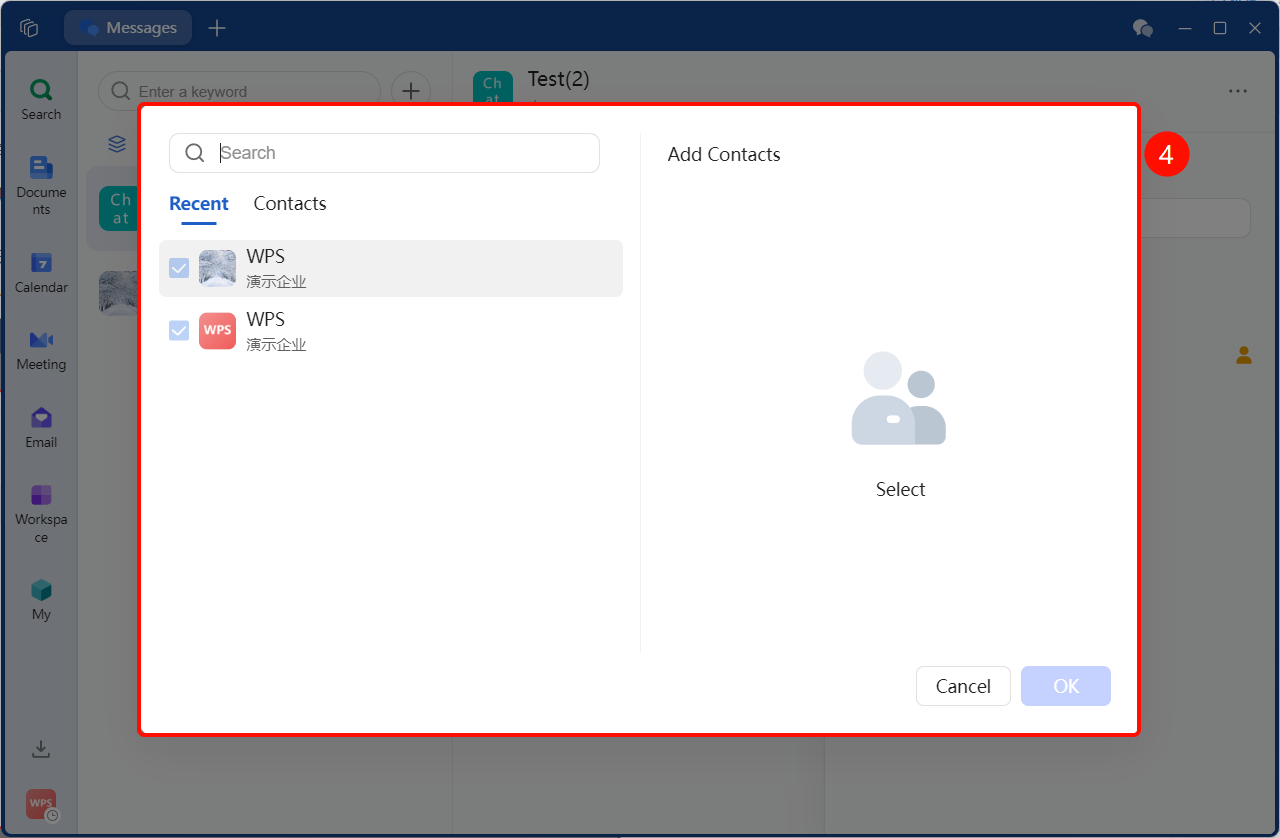
- In the chat settings panel, locate the member profile picture row and click the "+ Add" icon to open the "Select Contacts" pop-up window.
- The pop-up window displays the "Recent" contacts list on the left by default, showing member names and department information. Check the members you want to add.
- If you need to find non-recent contacts, switch to the "Contacts" tab and use the search box to search by name or department.
- After checking the desired members, click the "OK" button in the lower right corner. The selected members will be added to the group chat.
Adding via Group Members Page
Feature Entry
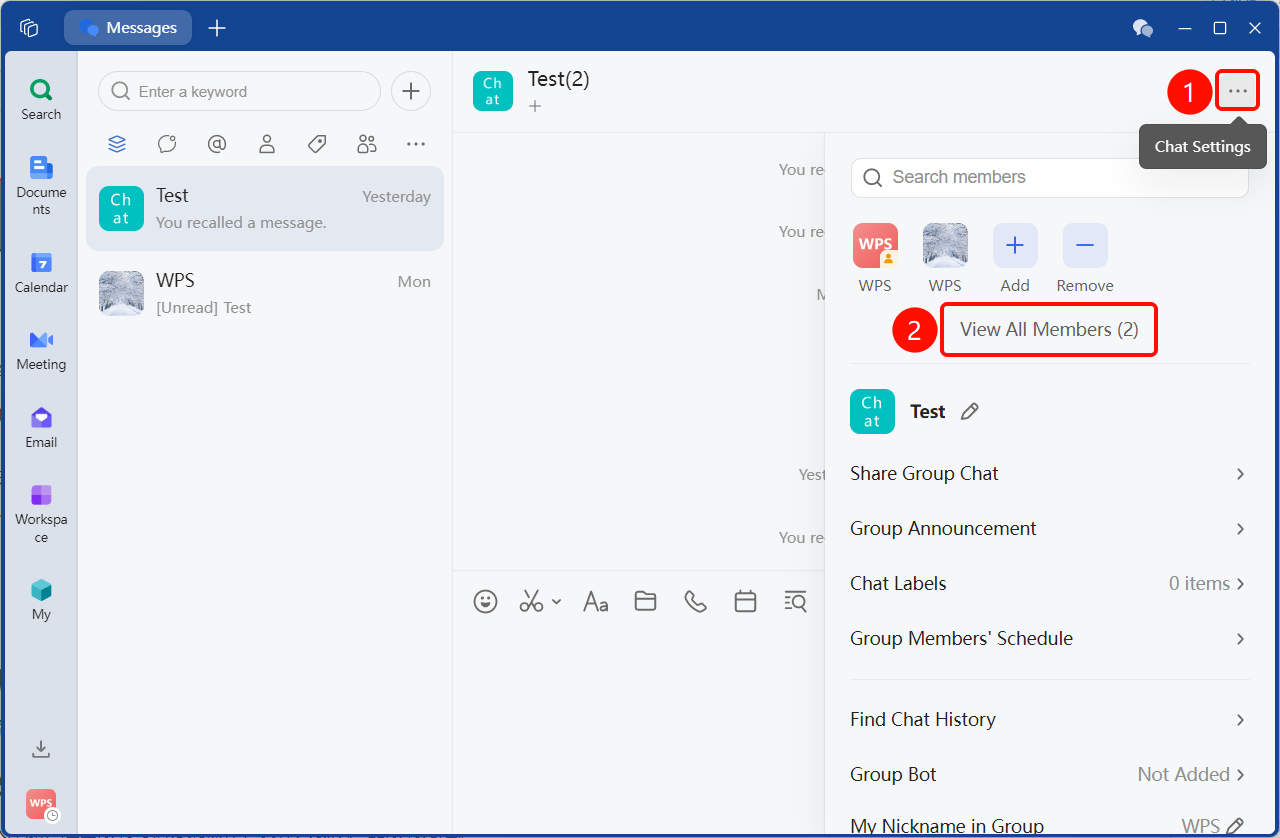
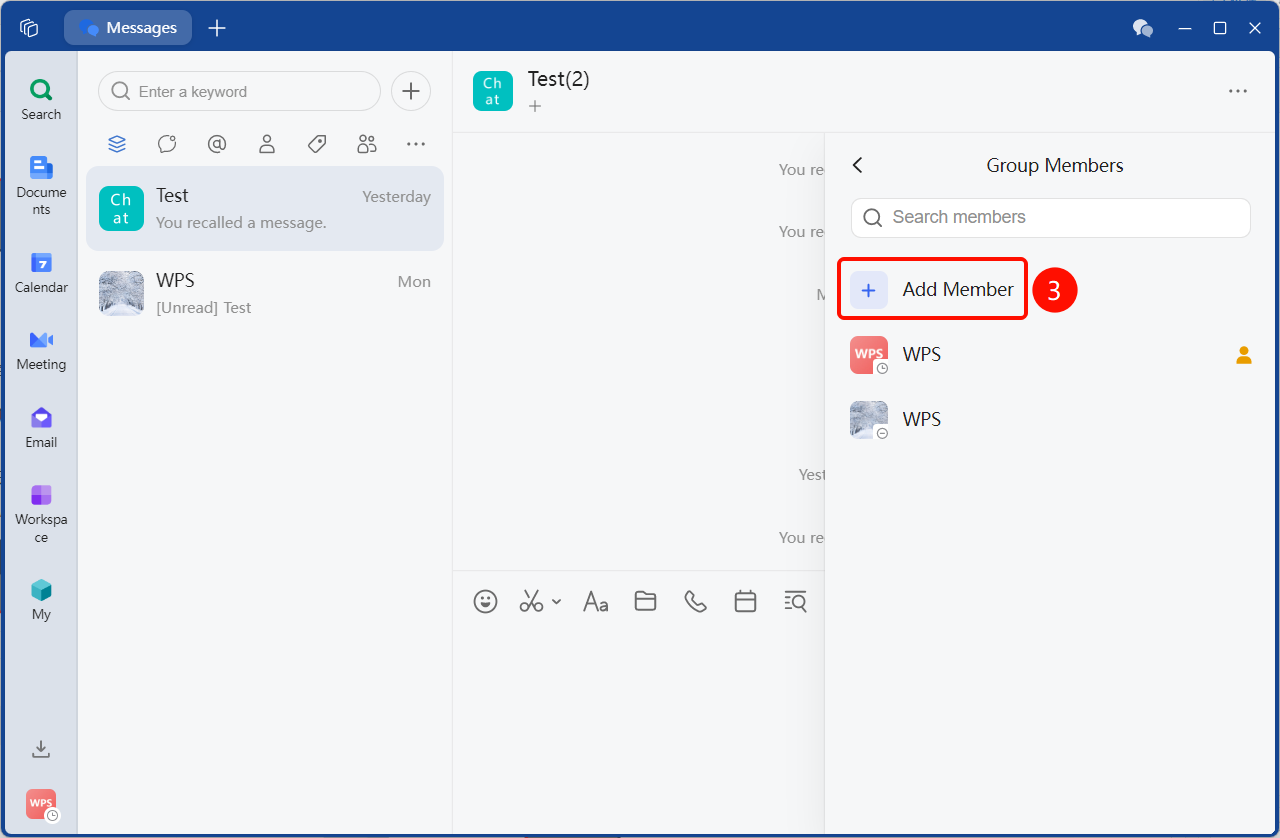
Group chat window → "···" icon → "View All Members" → "+ Add Members" icon
- Enter the target group chat window and click the "···" icon in the upper right corner to open the chat settings panel.
- Click "View All Members" to enter the "Group Members" page.
- At the top of the "Group Members" page, locate and click the "+ Add Members" icon to open the "Select Contacts" pop-up window.
- Select the members you want to add in the pop-up window. The operation process is the same as adding via the chat settings panel. After confirming, click "OK".
FAQ
Q1: Can regular members add new members?
- Solution: By default, all members can add new members. The Admin can restrict permissions in group settings.
Q2: How many people can be added at once?
- Solution: Selecting multiple people at once is supported. If the limit is exceeded, please add in batches. The specific number is subject to the product limit.
Q3: Will the added members receive a notification?
- Solution: New members will see the group message history after joining (depending on the pre-join history settings).
Notes
- In the "Select Contacts" pop-up window, checked members will display a blue check mark and be listed in the right panel.
- Members not visible in Contacts will not appear in the selection list.