Feature Summary
Supports removing a specified member from a group chat via the "Remove" button in the chat settings panel. After removal, the removed member will leave the group chat.
Feature Description
| Feature Dimension | Description |
|---|---|
| Membership Restriction | No membership restriction |
| Version Restriction | No version restriction |
Steps
Removing a Member
Feature Entry
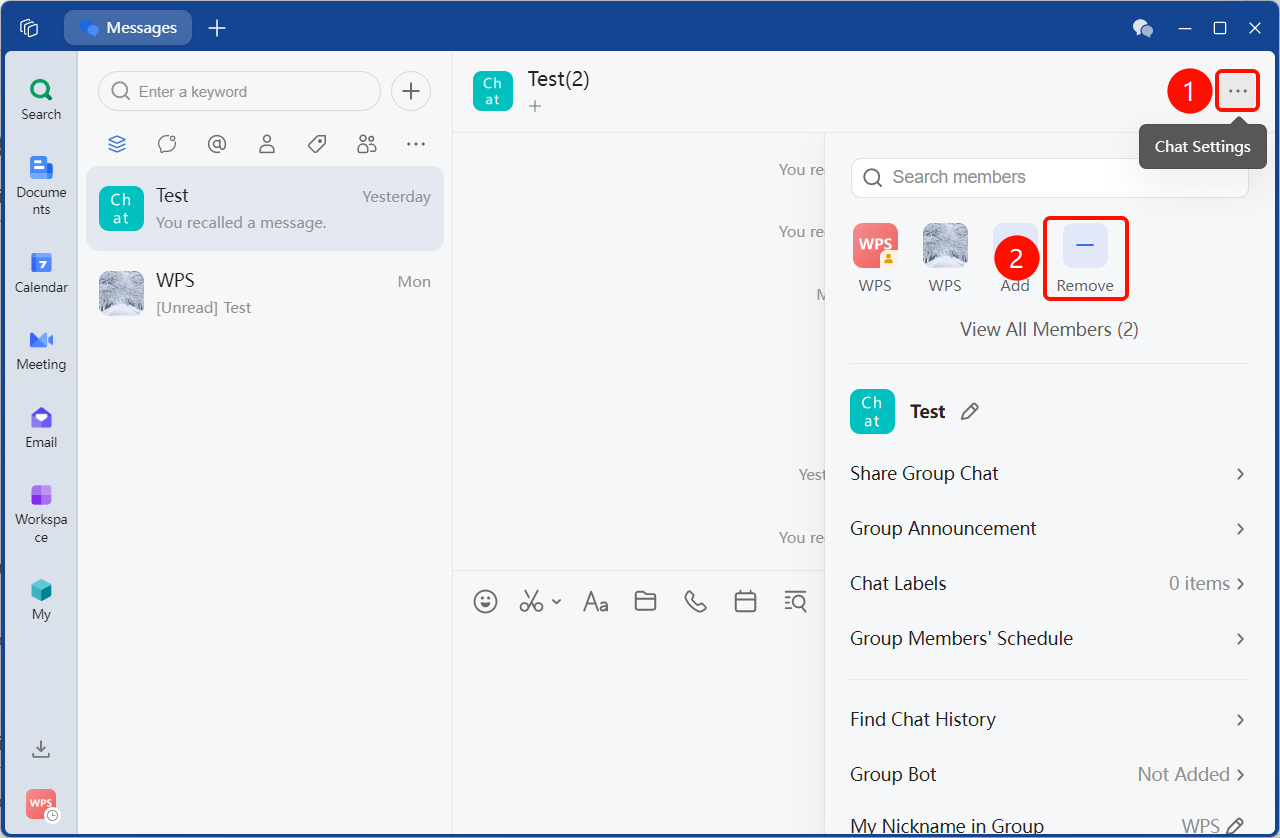
Group chat window → "···" icon → "Remove" icon
- Enter the target group chat window and click the "···" icon in the upper right corner to open the chat settings panel
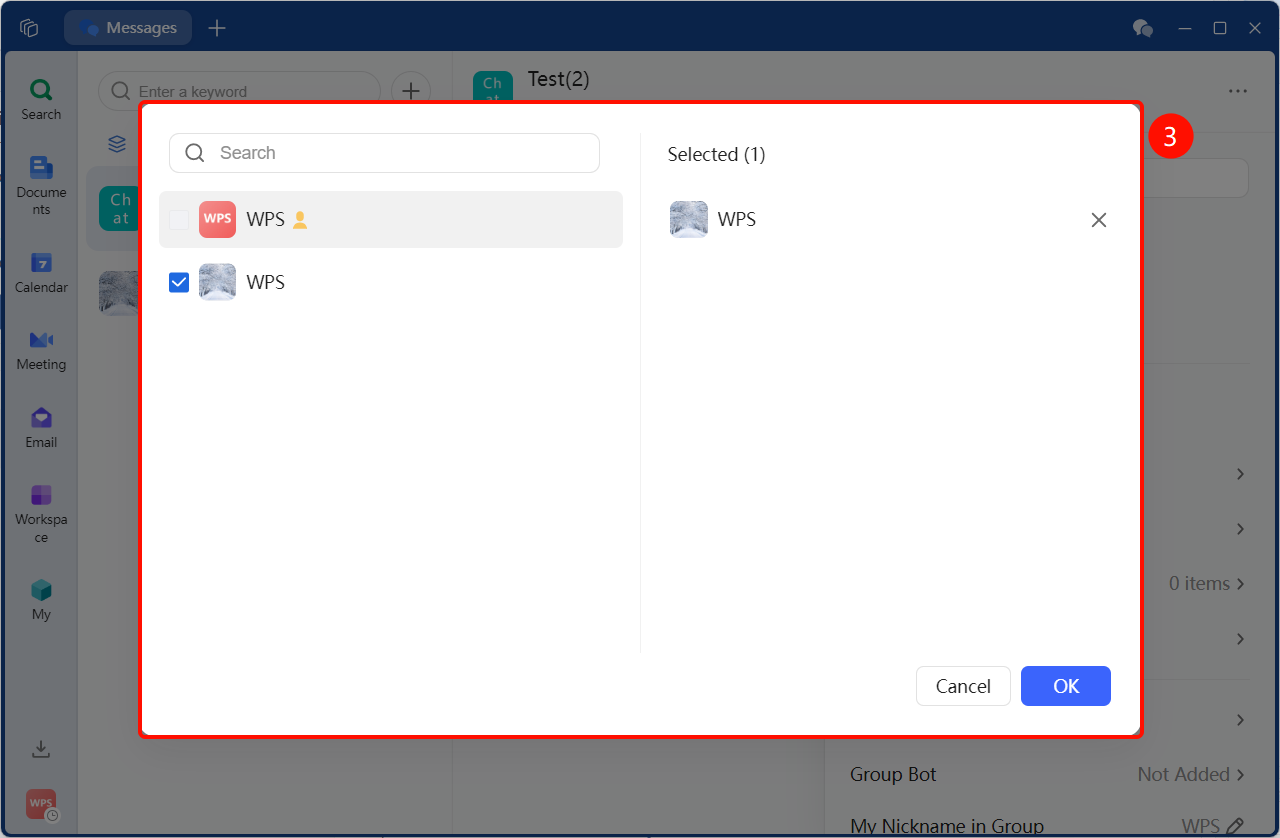
- In the member profile picture row of the chat settings panel, find and click "Remove" (the "—" icon) to open the "Select members to remove" dialog
- The left side of the dialog displays the current group member list. Check the members you want to remove
- Checked members will show a blue check mark and be listed in the right panel. After confirming, click the "OK" button to complete the removal
FAQ
Q1: Who can remove members?
- Solution: By default, only the group owner and Admin can perform this action. Regular members cannot see the "Remove" button.
Q2: Will the removed member be notified?
- Solution: The removed member will not receive a direct notification, but will leave the group chat.
Q3: Can a removed member rejoin?
- Solution: They can rejoin via an invitation from the group owner or a share link (depending on permission settings).
Notes
- The remove member action should be performed with caution. After the action, the removed member will immediately leave the group chat.
- The removed member's chat history will not be deleted.