Feature Summary
You can set a task as a group To-do via the right-click message menu option "Add to To-do" or the Calendar icon "To-do" in the bottom toolbar. You can assign a person responsible and a deadline to ensure team members follow up on the task.
Feature Description
| Feature Dimension | Description |
|---|---|
| Applicable Scenario | In a group chat, add a To-do and assign a person responsible via the right-click message menu or the Calendar icon in the bottom toolbar |
| Membership Restriction | No membership restriction |
| Version Restriction | No version restriction |
Operation Steps
Feature Entry
This feature supports two entry methods. The feature content is the same, but the entry points differ:
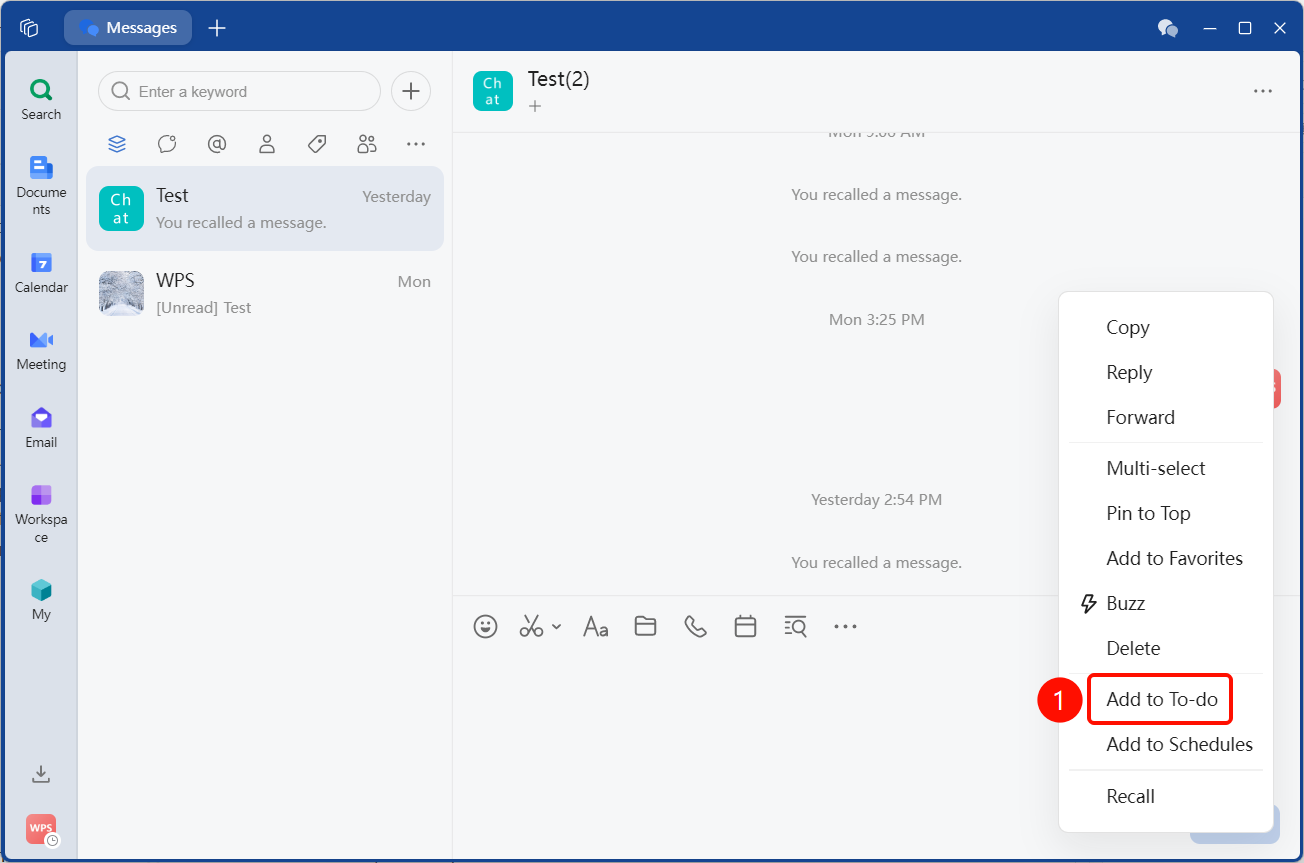
- Message Right-Click Menu: Right-click the target message → "Add to To-do" option
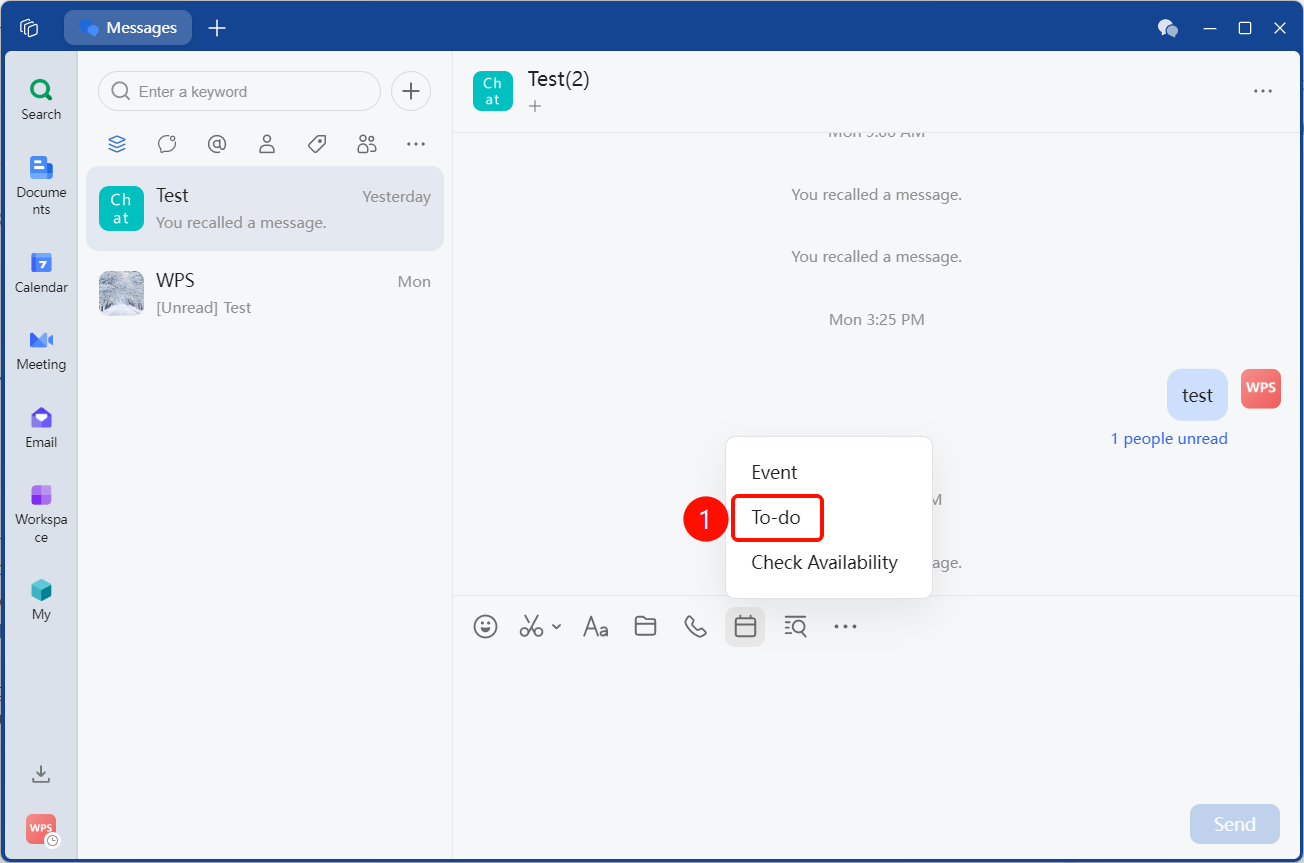
- Bottom Toolbar: Click the Calendar icon (hover tooltip shows "Event/To-do") → "To-do" option
Add a To-do via a Message
Feature Entry
Message right-click menu → "Add to To-do" option
- In the group chat window, right-click the message you want to set as a To-do, and find and click "Add to To-do" in the right-click menu.
- After clicking, the To-do editing panel pops up at the bottom of the chat window, displaying the message content and the assignee (defaults to the current user, modifiable).
- Select a due date in the bottom deadline bar. You can click "Today", "Tomorrow", or "Other Time" to customize the due date.
- After confirming everything is correct, click the "Create" button in the lower right corner. The To-do item is created successfully.
Add a To-do via the Toolbar
Feature Entry
Group chat window → Bottom toolbar → "Event/To-do" icon
- Enter the target group chat window, find the Calendar icon in the bottom toolbar (hovering over it displays the "Event/To-do" tooltip), and click it to open a drop-down menu.
- Select "To-do" from the drop-down menu to open the To-do editing panel.
- The input box at the top of the panel displays "Add a To-do (@ to quickly assign participants)". Enter the To-do content.
- Set the participants in the bottom assignee bar (defaults to the current user, modifiable). For the deadline, you can click "Today", "Tomorrow", or "Other Time" to customize.
- After confirming everything is correct, click the "Create" button in the lower right corner. The To-do item is created successfully.
FAQ
Q1: What is the difference between a group To-do and a personal To-do?
- Solution: A group To-do is visible to all group members, while a personal To-do is only visible to yourself.
Q2: Can a To-do be assigned to multiple people?
- Solution: Assigning one or more responsible persons is supported. Click the assignee bar to modify.
Q3: Will there be a reminder when a To-do is due?
- Solution: Notifications will be pushed when the deadline is approaching and when it is due.
Notes
- Group To-do permissions need to be enabled by the Admin.
- The assignee defaults to the current user and can be manually changed to other group members.
- The deadline supports selecting "Today", "Tomorrow", or a custom date.
- The drop-down menu of the Calendar icon in the bottom toolbar also supports the "Event" and "Schedule a Meeting" features.
- To-do supports status tracking and progress updates.