Feature Summary
Supports quickly creating shared events via the group chat bottom toolbar. All group members will receive event invitations and reminders synchronously, and can view existing events.
Feature Description
| Feature Dimension | Description |
|---|---|
| Membership Restriction | No membership restriction |
| Version Restriction | No version restriction |
Steps
Managing Group Events
Feature Entry
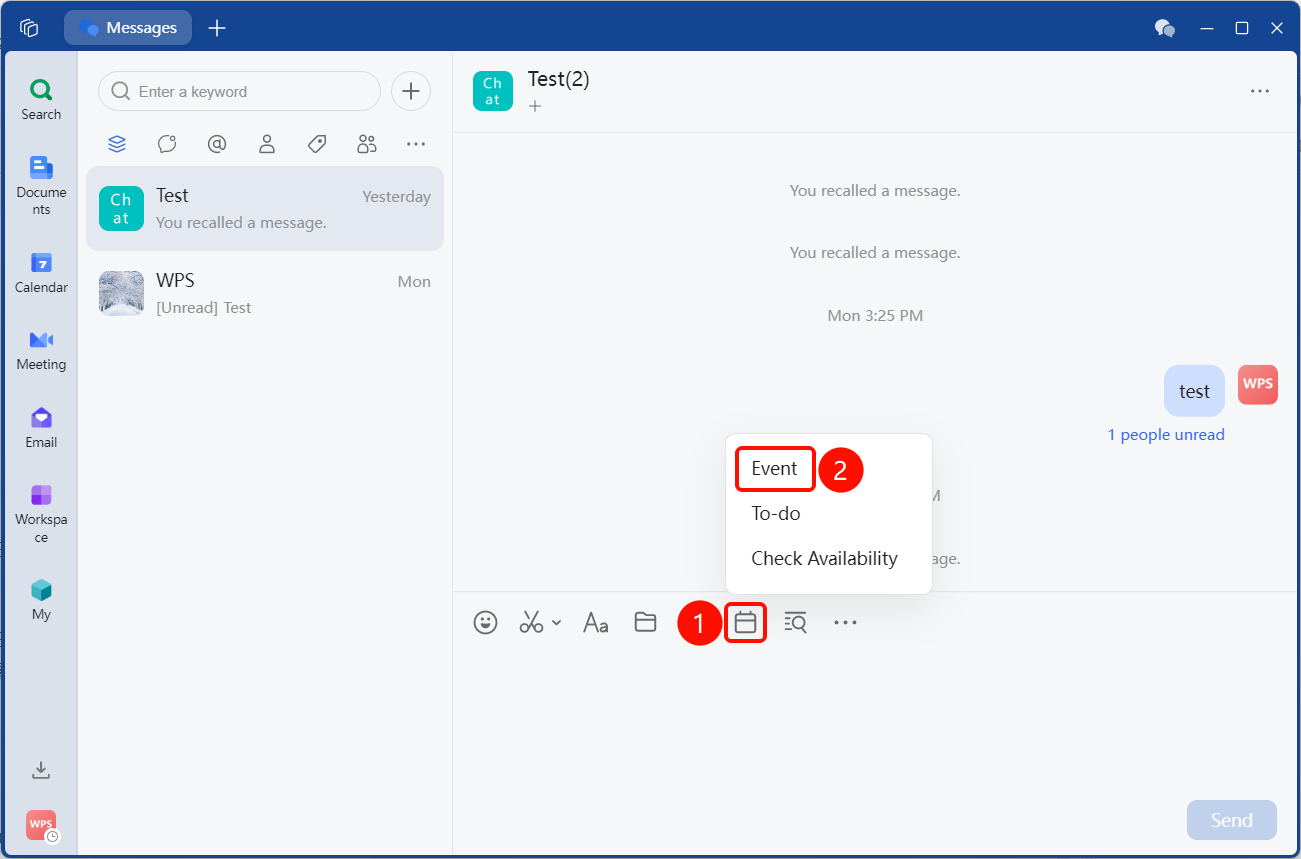
Group chat window → Bottom toolbar → "Event/To-do" icon
- Enter the target group chat window, find the calendar icon in the bottom toolbar (hovering the mouse displays the "Event/To-do" tooltip), and click it to pop up a drop-down menu
- Select "Event" from the drop-down menu to open the "New Event" pop-up window
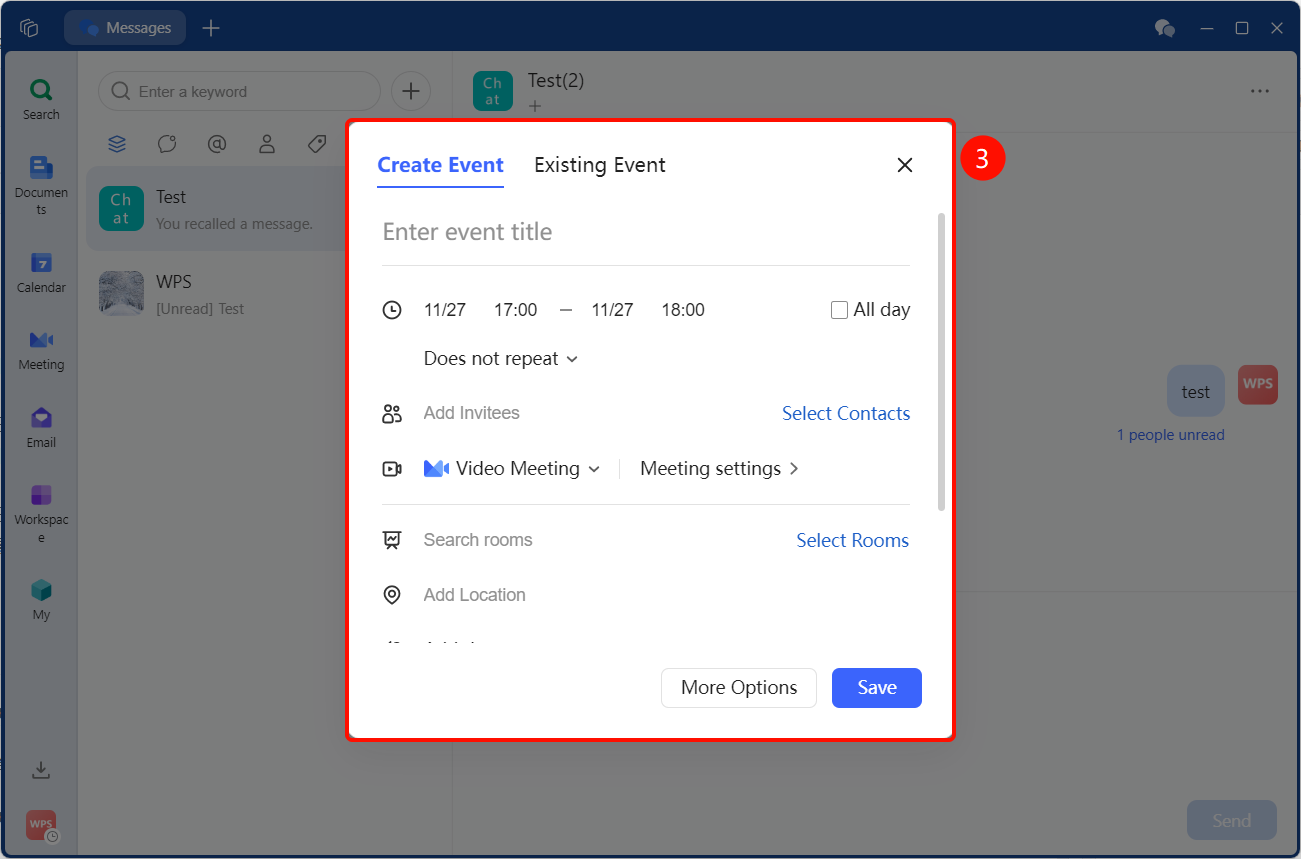
- In the "New Event" pop-up window, fill in the event subject, date/time (supports "All day" and "Does not repeat" settings), and add participants, video meetings, meeting rooms, location, meeting documents, and other information
- After filling in the details, click the "Save" button in the lower right corner, and the event will be synced to the Calendar of all group members
- Click the "Existing Events" tab at the top of the pop-up window to search and view the current group's existing events
FAQ
Q1: Do group events sync with personal Calendar?
- Solution: After creating a group event, it will automatically sync to the personal Calendar of all group members.
Q2: Can I set recurring group events?
- Solution: Supports setting one-time or recurring events in the New Event pop-up window.
Q3: Can I add a video meeting to an event?
- Solution: Yes. In the New Event pop-up window, you can configure the video meeting link and meeting settings, and enable AI Minutes.
Notes
- Creating an event requires the group member to have the corresponding permissions.
- At the bottom of the New Event pop-up window, you can set the organizer's status (Busy/Free), public scope, and reminder time.
- The drop-down menu of the calendar icon in the bottom toolbar also supports the "To-do" and "Find a Time" features.
- Existing events support searching by title keywords for quick location.