Feature Summary
Supports customizing the group chat profile picture by uploading a local image or editing text, making it easier to quickly identify groups in the conversation list.
Feature Description
| Feature Dimension | Description |
|---|---|
| Membership Restriction | No membership restriction |
| Version Restriction | No version restriction |
Steps
Changing the Group Profile Picture
Feature Entry
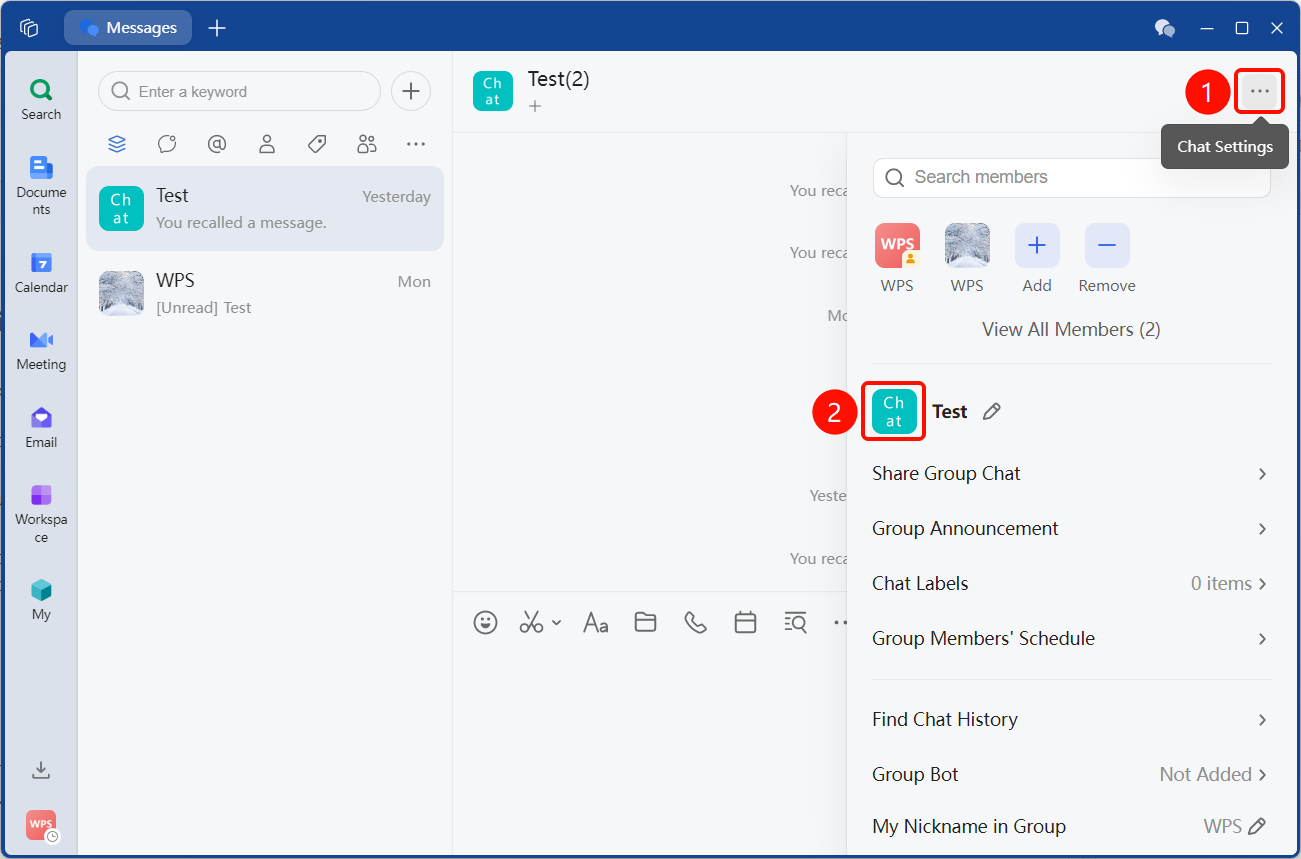
Group chat window → "···" icon → "Group Profile Picture" button
- Enter the target group chat window and click the "···" icon in the upper right corner to open the chat settings panel.
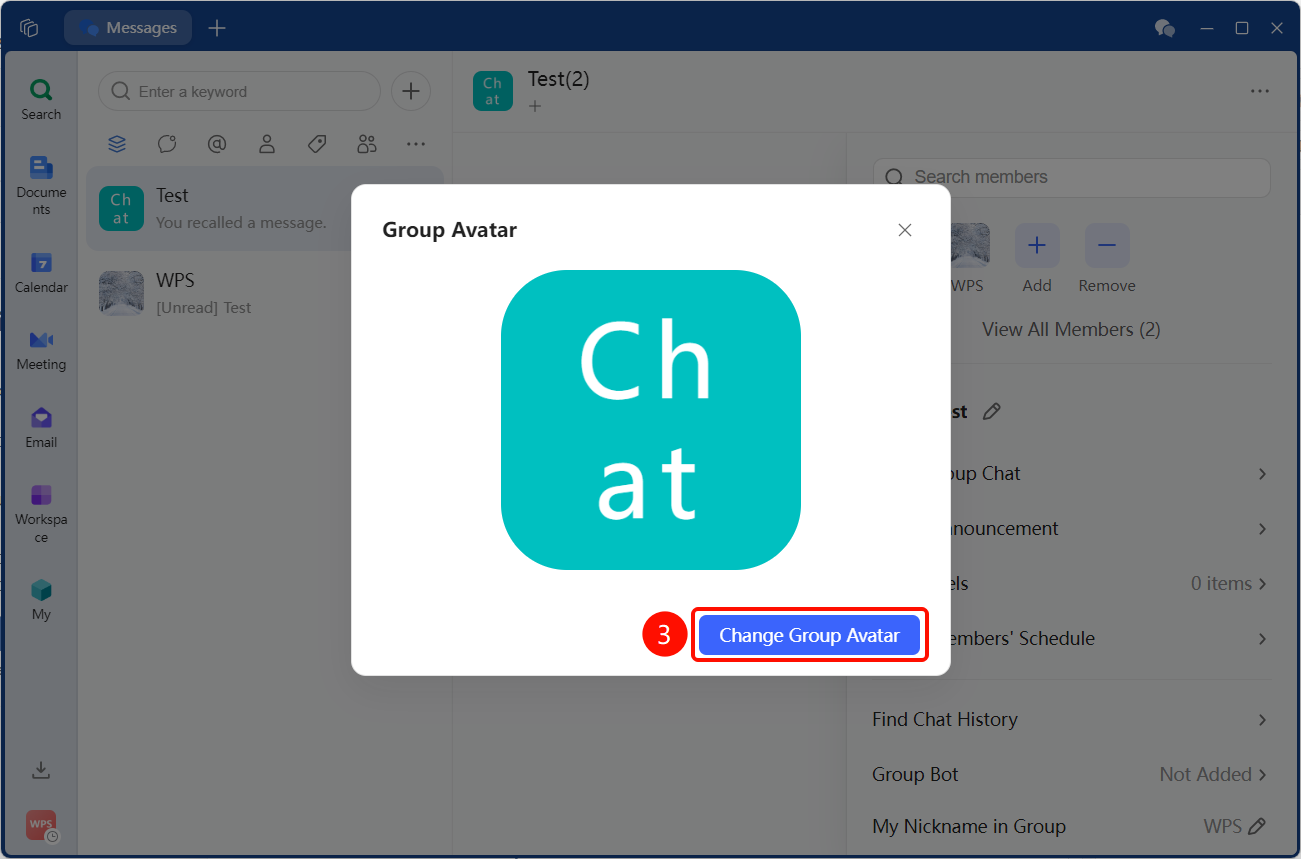
- In the chat settings panel, click the group profile picture icon to open the "Group Profile Picture" viewing page.
- On the "Group Profile Picture" page, click the "Change Group Profile Picture" button in the lower right corner to open the "Change Group Profile Picture" pop-up window.
Changing via Local Upload
Feature Entry
"Change Group Profile Picture" button → "Local Upload" option
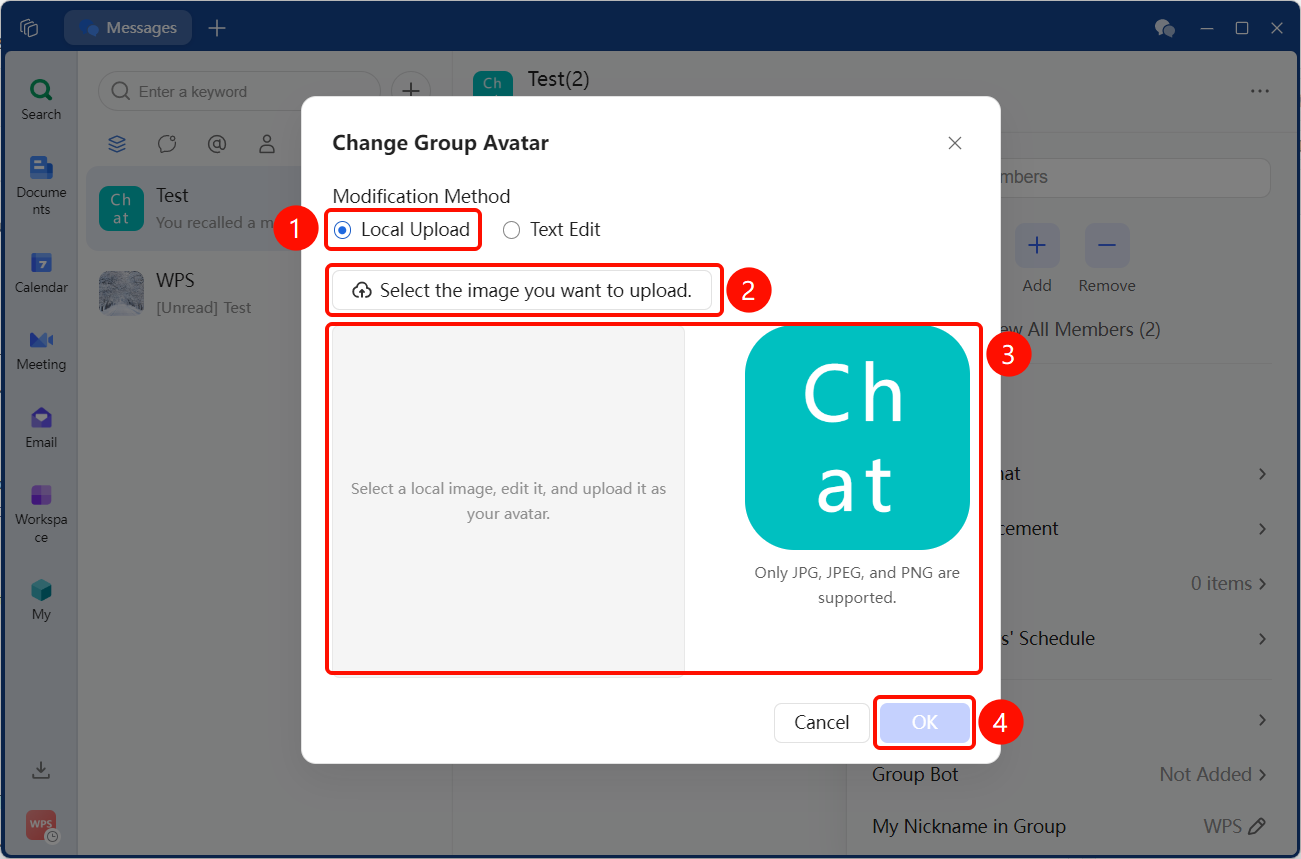
- Click the "Change Group Profile Picture" button to open the "Change Group Profile Picture" pop-up window.
- Select the "Local Upload" method.
- Click the "Select the image you want to upload." button and choose an image file from your local device (only JPG, JPEG, and PNG formats are supported).
- After selecting the image, the cropping preview is displayed in the left area, and the current group profile picture is shown on the right for comparison.
- After adjusting the cropping area, click the "OK" button in the lower right corner to update the group profile picture.
Changing via Text Editing
Feature Entry
"Change Group Profile Picture" button → "Text Edit" option
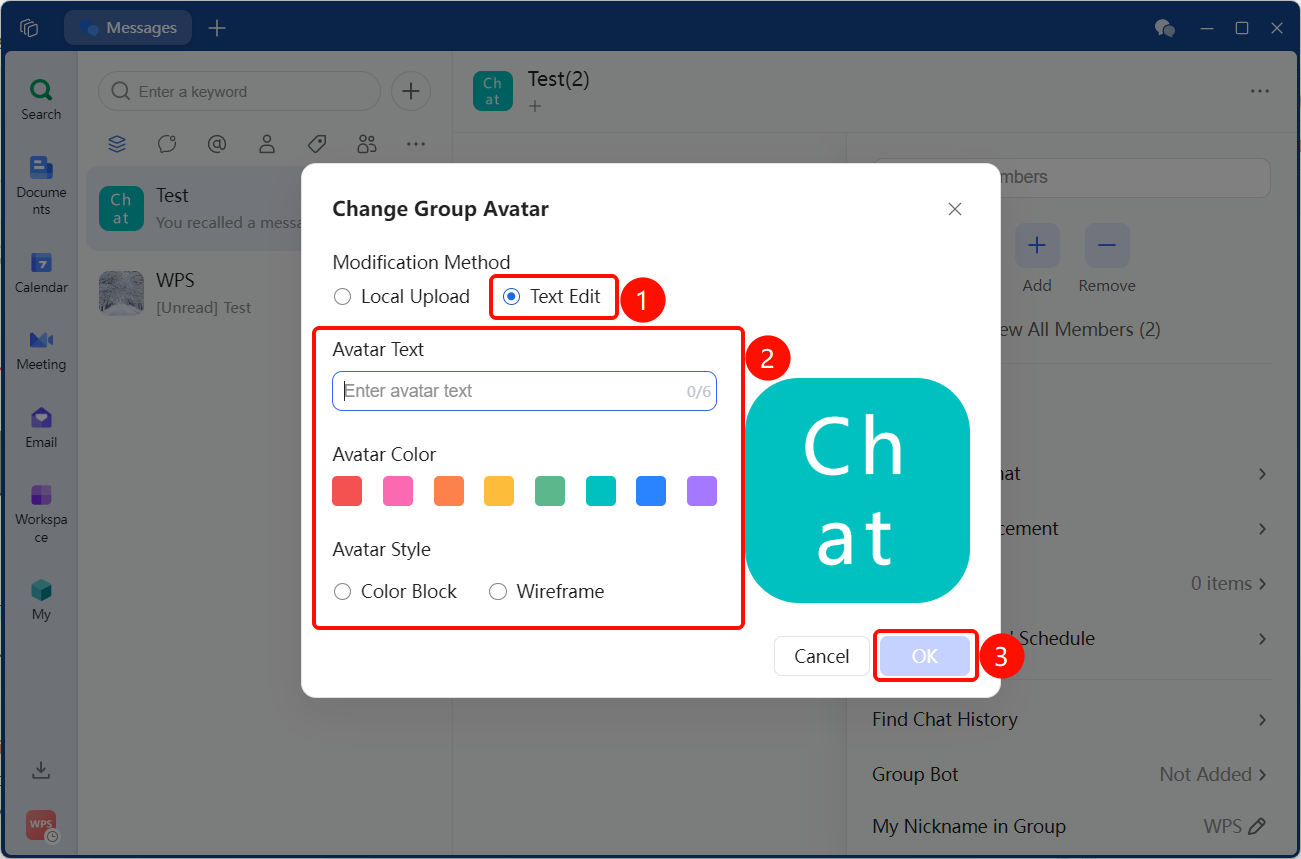
- Click the "Change Group Profile Picture" button to open the "Change Group Profile Picture" pop-up window.
- Switch to the "Text Edit" method.
- Enter the group name or identifier text in the "Profile Picture Text" input box (up to 6 characters).
- Select a background color in "Profile Picture Color", and choose either the "Color Block" or "Wireframe" style in "Profile Picture Style".
- The effect is previewed in real time on the right. Once satisfied, click the "OK" button to update the group profile picture.
FAQ
Q1: Who can change the group profile picture?
- Solution: By default, the group owner and Admin can change it. Member permissions can be adjusted in group settings.
Q2: Are there format requirements for the group profile picture?
- Solution: Local upload only supports JPG, JPEG, and PNG formats; text editing supports up to 6 characters and offers multiple colors and styles.
Q3: Can group members see the new profile picture immediately after it is changed?
- Solution: After the update, the new profile picture will be synced and displayed on group members' devices.
Notes
- Changing the group profile picture requires Admin authorization. Regular members cannot see the "Change Group Profile Picture" button.
- The initial group profile picture is composed of the group members' profile pictures and will no longer update automatically after being changed.
- Other group settings, such as "Only allow the above participants to join the event," will not change along with the profile picture modification.