Feature Summary
Supports modifying the group chat name via the chat settings panel, making it easier for members to identify the group's purpose and affiliation.
Feature Description
| Feature Dimension | Description |
|---|---|
| Membership Restriction | No membership restriction |
| Version Restriction | No version restriction |
Steps
Editing Group Name
Feature Entry
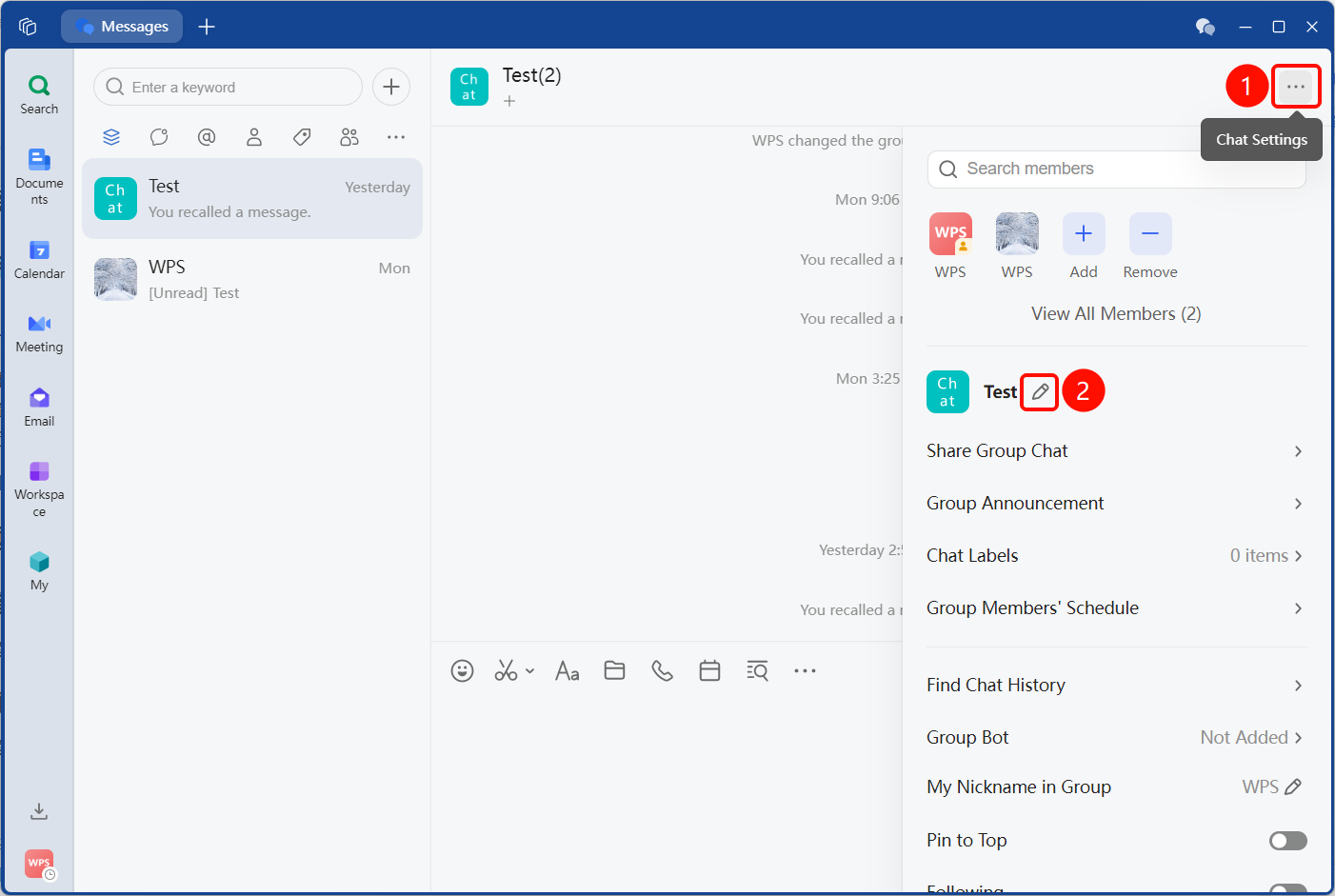
Group chat window → "···" icon → Group name edit icon
- Enter the target group chat window and click the "···" icon in the upper right corner to open the chat settings panel.
- At the top of the chat settings panel, a pencil icon is displayed to the right of the group name. Click it to enter editing mode.
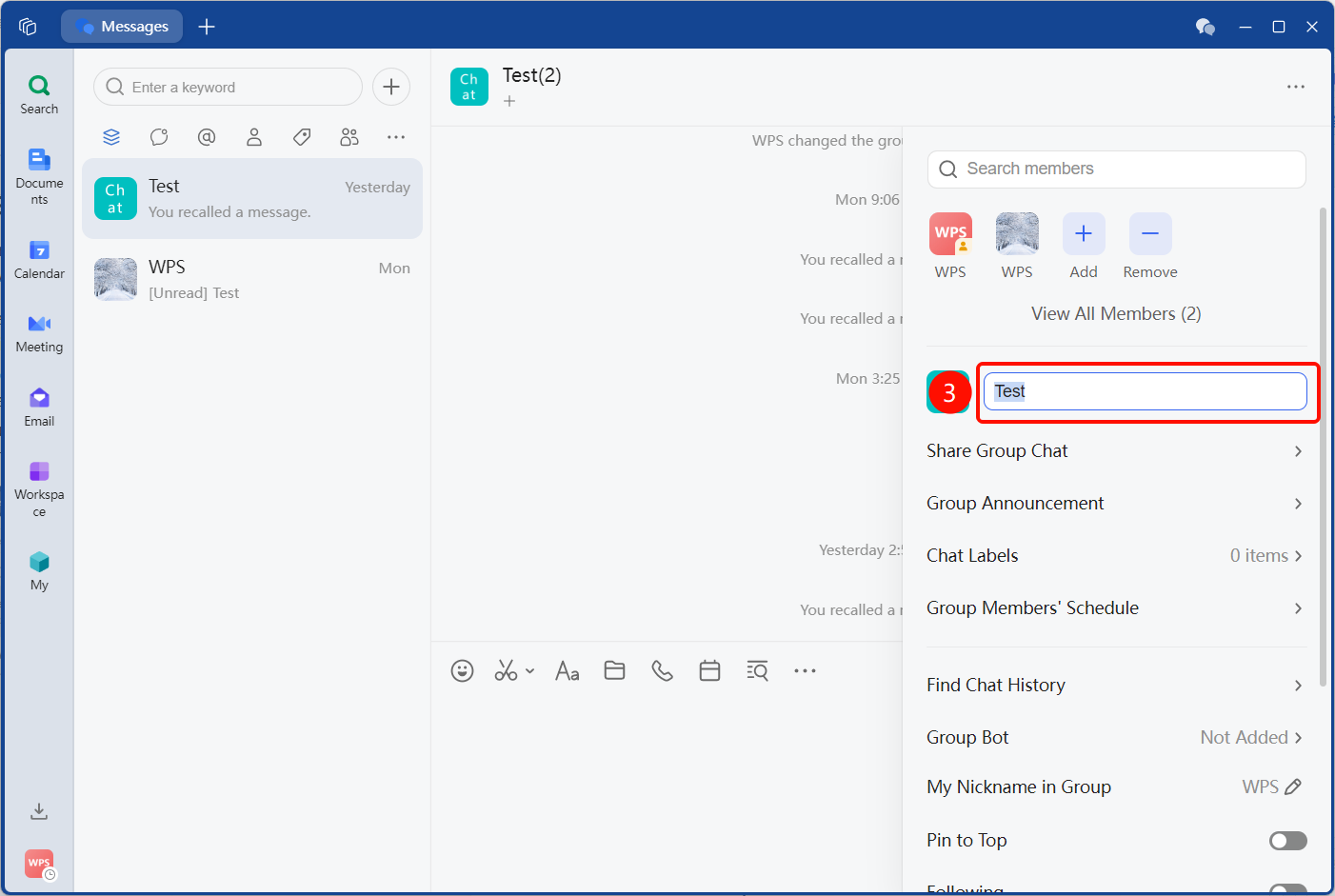
- The group name becomes an editable input field. After modifying the name, press Enter or click elsewhere to save.
FAQ
Q1: Will group members be notified after the group name is changed?
- Solution: After the change, a message saying "XX changed the group name" will appear below the group name, visible to all group members.
Q2: Who can modify the group name?
- Solution: Both the group owner and Admins can modify the group name. The editing permission for regular members is configured by the Admin.
Notes
- After modification, the group name is synced and displayed to all group members.
- The group name is used to identify the group in the conversation list; it is recommended to keep it concise and clear.
- The pencil icon is only visible to the group owner/Admin. When regular members do not have editing permission, this icon is not displayed.