Feature Summary
You can share a group chat by copying the group link or saving a QR code image, making it easy for others to join the group chat via the link or by scanning the QR code.
Feature Description
| Feature Dimension | Description |
|---|---|
| Membership Restriction | No membership restriction |
| Version Restriction | No version restriction |
Steps
Sharing a Group Chat
Feature Entry
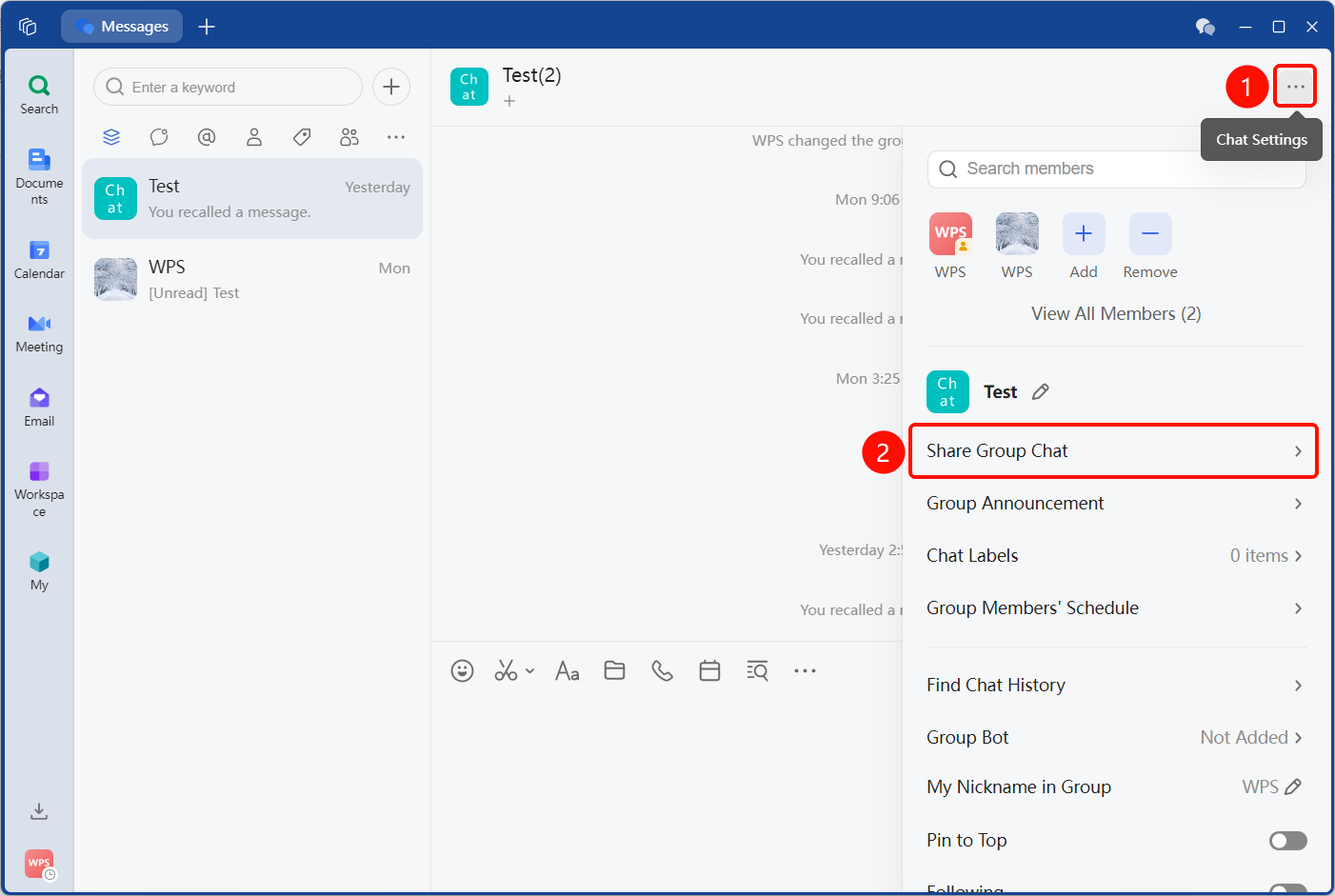
"Group Chat Window" → "···" icon → "Share Group Chat" option
- Enter the target group chat window and click the "···" icon in the upper right corner to open the chat settings panel
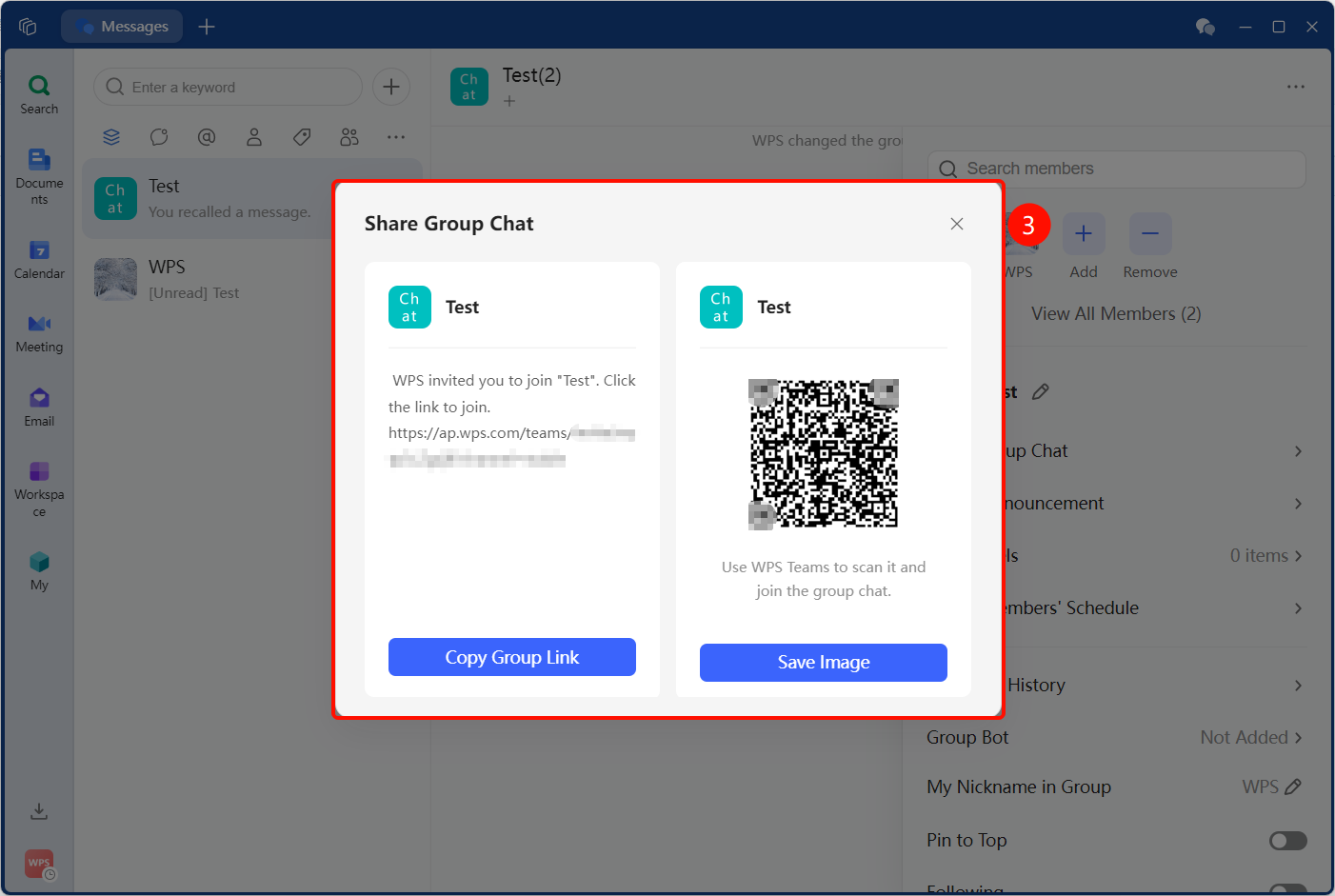
- In the chat settings panel, find and click "Share Group Chat" to open the Share Group Chat pop-up window
Sharing via Copying Group Link
Feature Entry
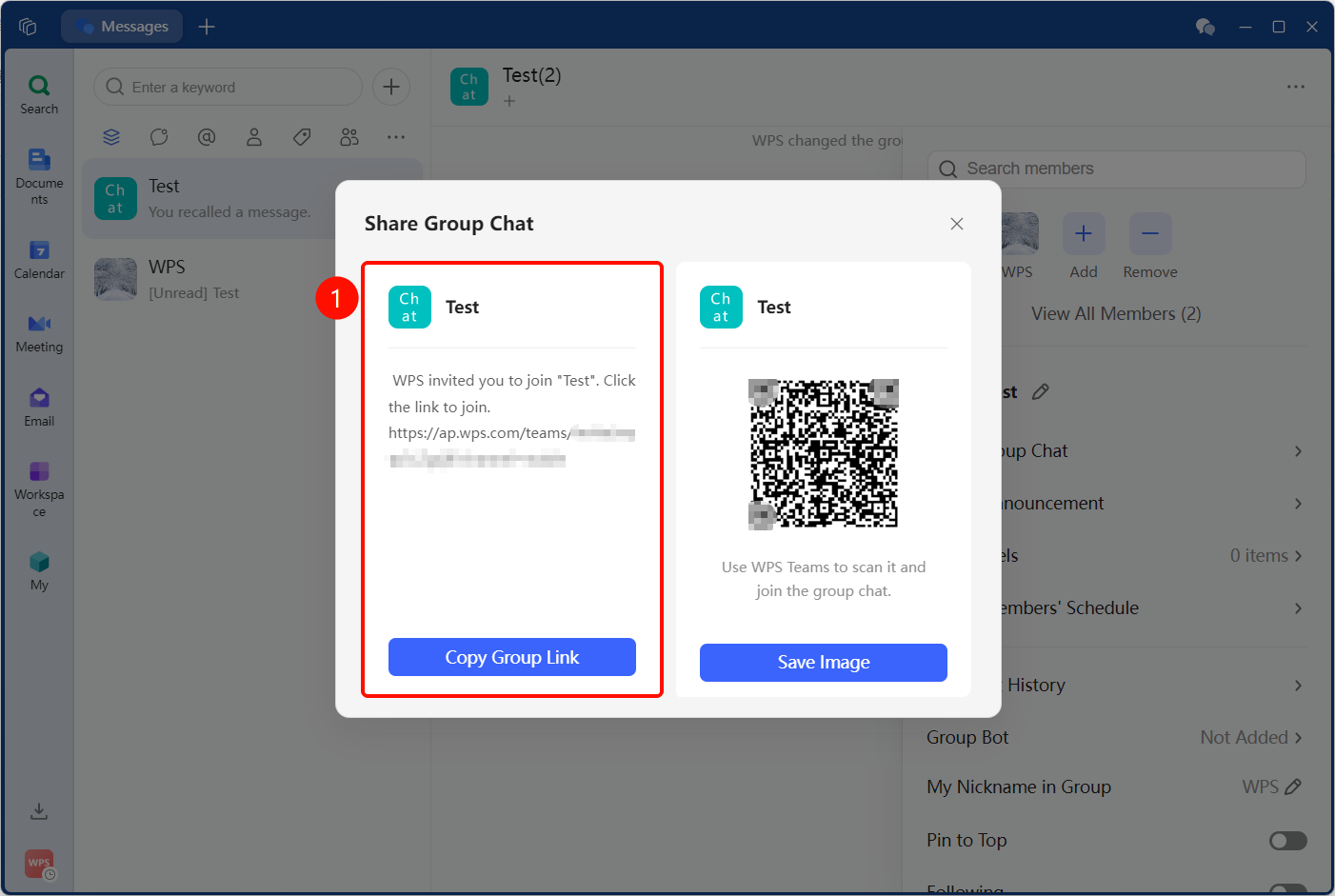
"Share Group Chat" pop-up window → "Copy Group Link" button
- On the left side of the Share Group Chat pop-up window, find the invitation information area, which contains the invitation message (displaying the sharer's name and group name) and the group invitation link
- Click the "Copy Group Link" button at the bottom, and the group invitation link will be copied to the clipboard
- Paste the link and send it to the person who needs to join. The recipient can click the link to join the group chat
Sharing via QR Code Image
Feature Entry
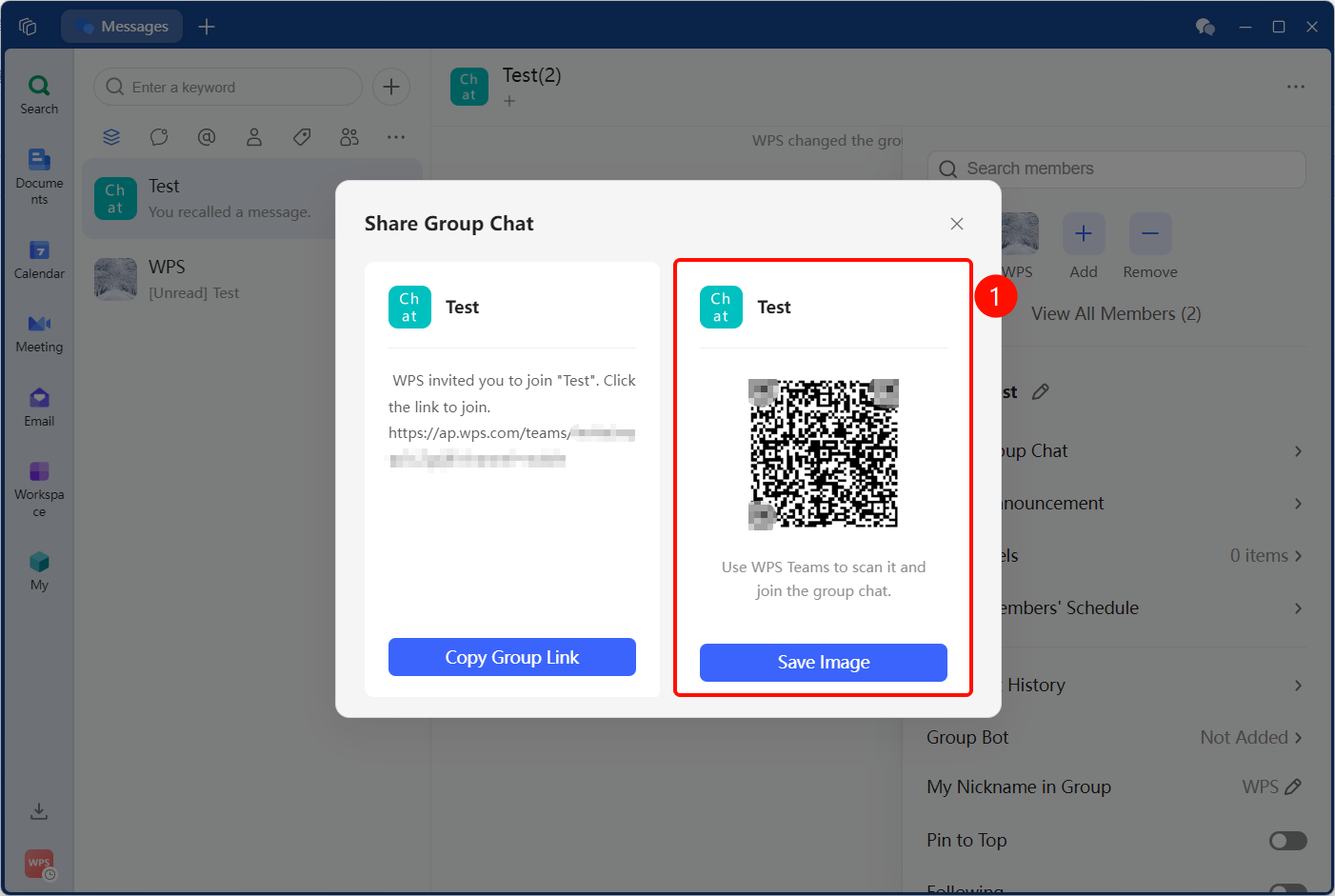
"Share Group Chat" pop-up window → "Save Image" button
- On the right side of the Share Group Chat pop-up window, the QR code image for the current group chat is displayed, with a prompt below reading "Scan QR Code with WPS Teams to join the group chat"
- Click the "Save Image" button at the bottom to save the QR code image locally
- Send the QR code image to the person who needs to join. The recipient can use WPS Teams Scan QR Code to join the group chat
FAQ
Q1: What does the generated link/QR code contain?
- Solution: The group link on the left contains the invitation message (displaying the sharer's name and group name) and the invitation link address; below the QR code on the right, there is a prompt reading "Scan QR Code with WPS Teams to join the group chat".
Notes
- The QR code image prompt indicates that you need to use WPS Teams to scan the code to join.