Feature Summary
Quickly view group members' free time on their calendars via the calendar icon in the group chat bottom toolbar. AI recommends available time slots and directly creates events, enabling efficient meeting time coordination.
Feature Description
| Feature Dimension | Description |
|---|---|
| Applicable Scenario | In the group chat window, quickly view group members' time and receive recommended free time slots via the calendar icon in the bottom toolbar |
| Membership Restriction | No membership restriction |
| Version Restriction | No version restriction |
Steps
Scheduling Time in Group Chat
Feature Entry
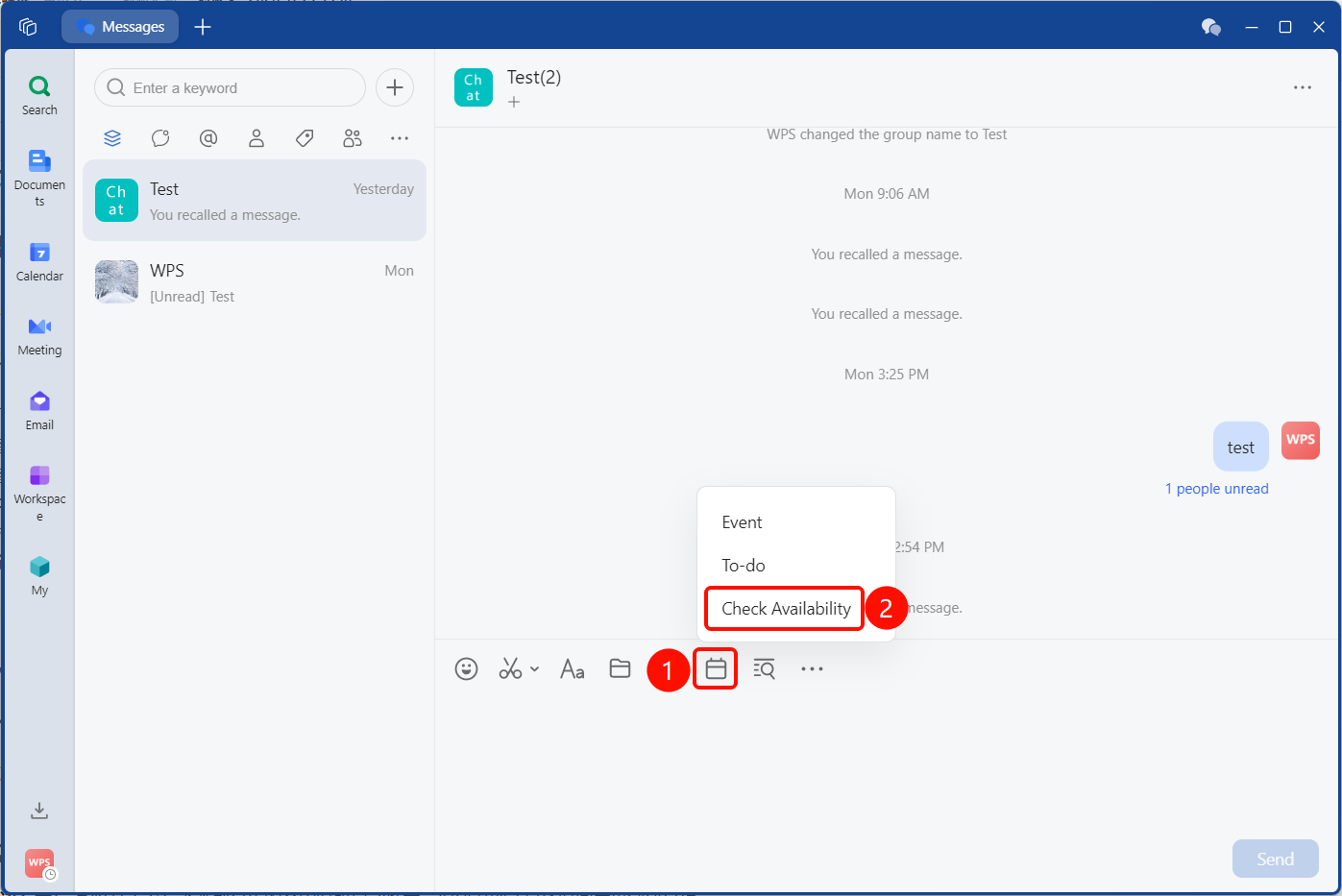
Group chat window → Bottom toolbar → "Event/To-do" icon
- Enter the target group chat window, find the Calendar icon in the bottom toolbar (hover over it to see the "Event/To-do" tooltip), and click it to open a dropdown menu.
- Select "Schedule Time" from the dropdown menu to open the participant time availability view.
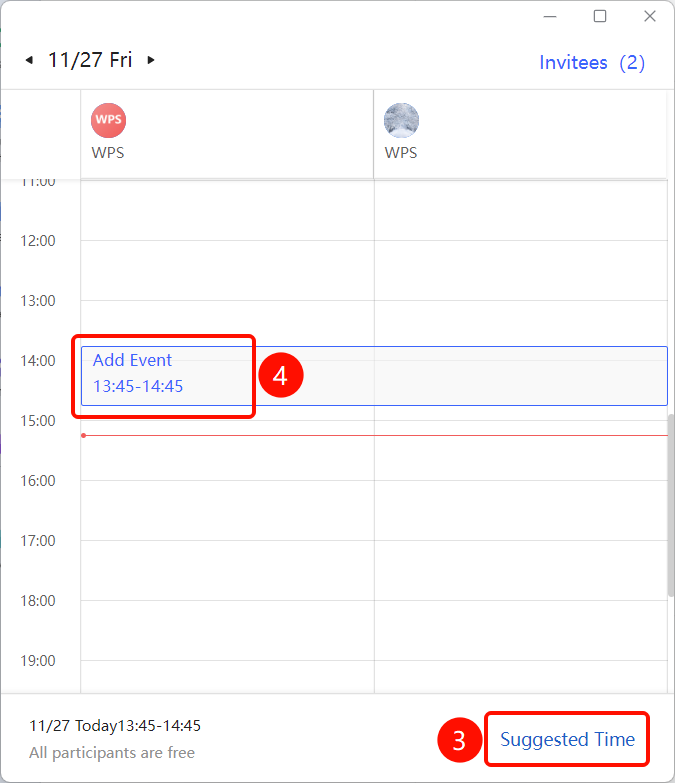
- The view uses dates as the main axis, with the horizontal axis showing each participant's profile picture and their current time slot availability, allowing you to intuitively see each member's busy status.
- Click "Suggest Time" in the lower right corner of the view, and the system will automatically recommend free time slots, displaying the currently suggested slot and the number of days until it (e.g., "Today 16:00" or "3 days later 09:00").
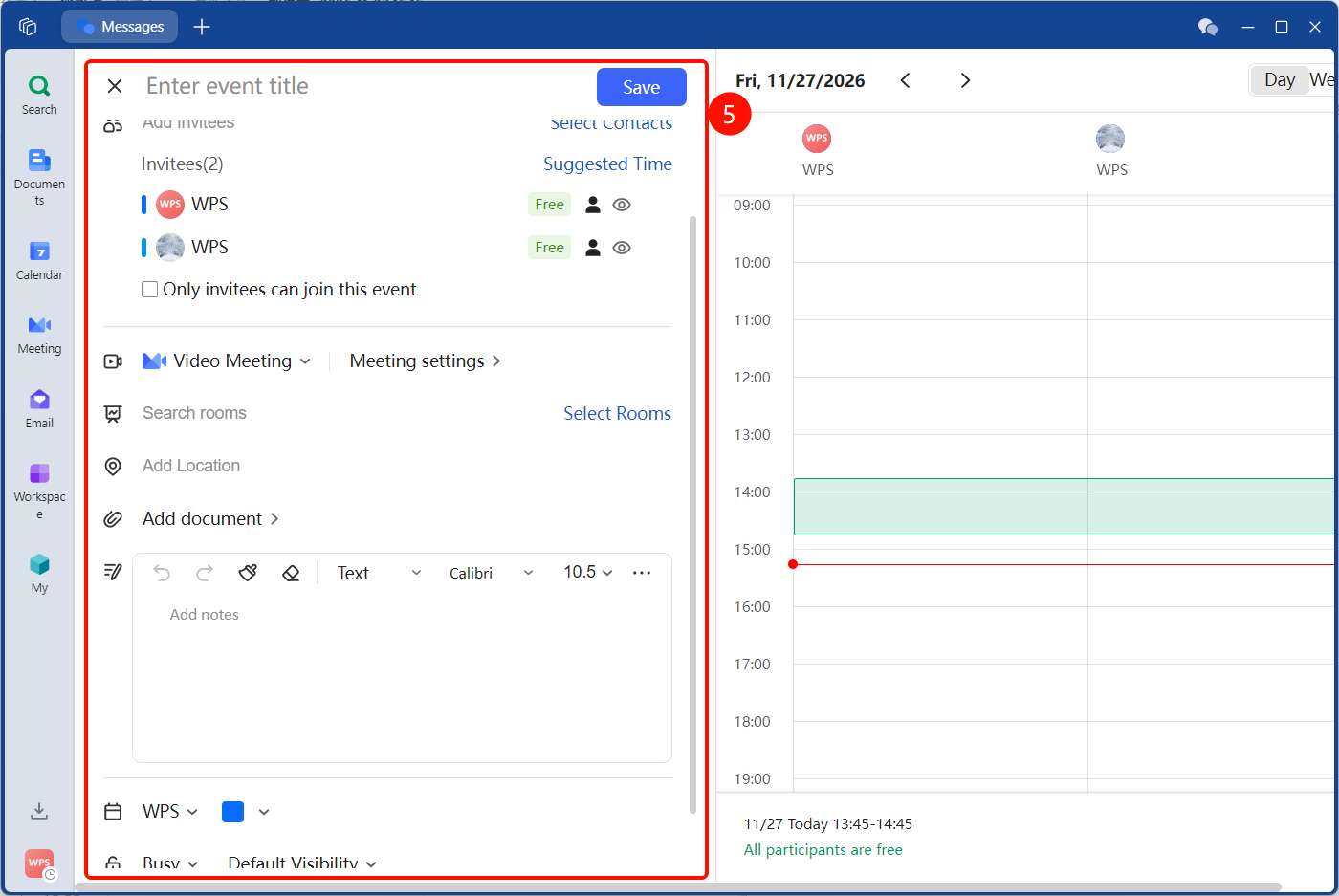
- After selecting a suitable time slot, click "Add Event" to jump to the new event pop-up window, where the subject is automatically filled with the selected time slot.
- In the new event pop-up window, add details such as the subject, video meeting, and meeting documents. After confirming, click "Save" to create the event.
FAQ
Q1: What information can I see in the Schedule Time view?
- Solution: The horizontal axis displays participants' profile pictures and their current time slot availability (busy periods are marked if any), and the bottom shows the currently recommended time slot along with prompts like "All participants are available."
Q2: Is the recommended time always the optimal slot?
- Solution: The system automatically recommends slots based on the participants' current Calendar free time, but it is recommended to confirm the specific time before creating the event.
Q3: What if participants are in different time zones?
- Solution: Currently, the Schedule Time view displays times in each participant's respective local time. When coordinating across time zones, the time difference must be manually confirmed.
Notes
- The Schedule Time feature only views event occupancy for the current day and future dates; it does not display historical events.
- Clicking a participant's profile picture expands their event details for convenient targeted adjustments.