Feature Summary
Supports switching to the "Contacts" tab via the global search bar and entering a name or department keyword to search for contact information in the organization's Contacts.
Feature Description
| Feature Dimension | Description |
|---|---|
| Applicable Scenario | In the global search bar at the top of WPS Collaboration, switch to the "Contacts" tab to search for contacts in the organization's Contacts |
| Membership Restriction | No membership restriction |
| Version Restriction | No version restriction |
Operation Steps
Search for Contacts
Feature Entry
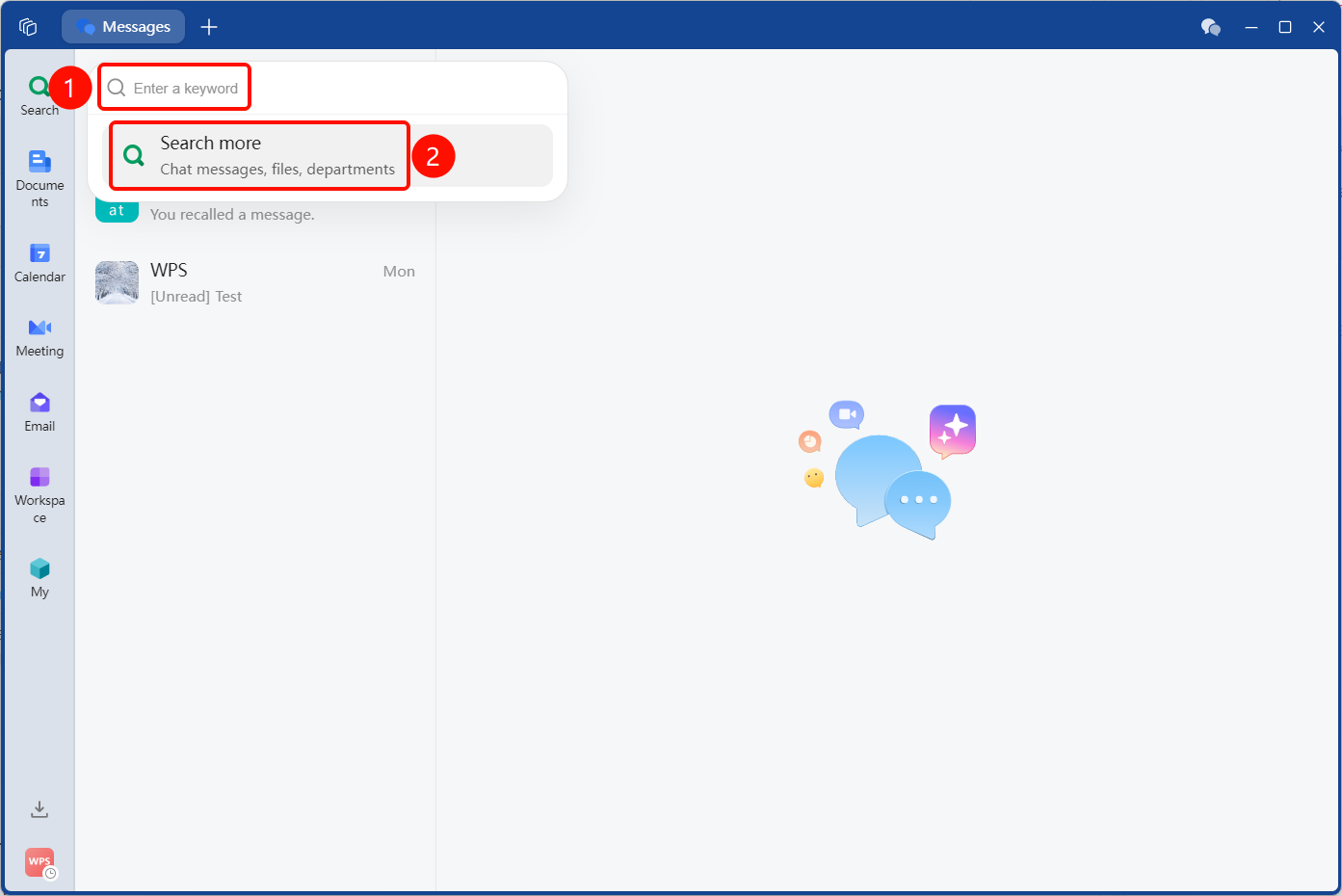
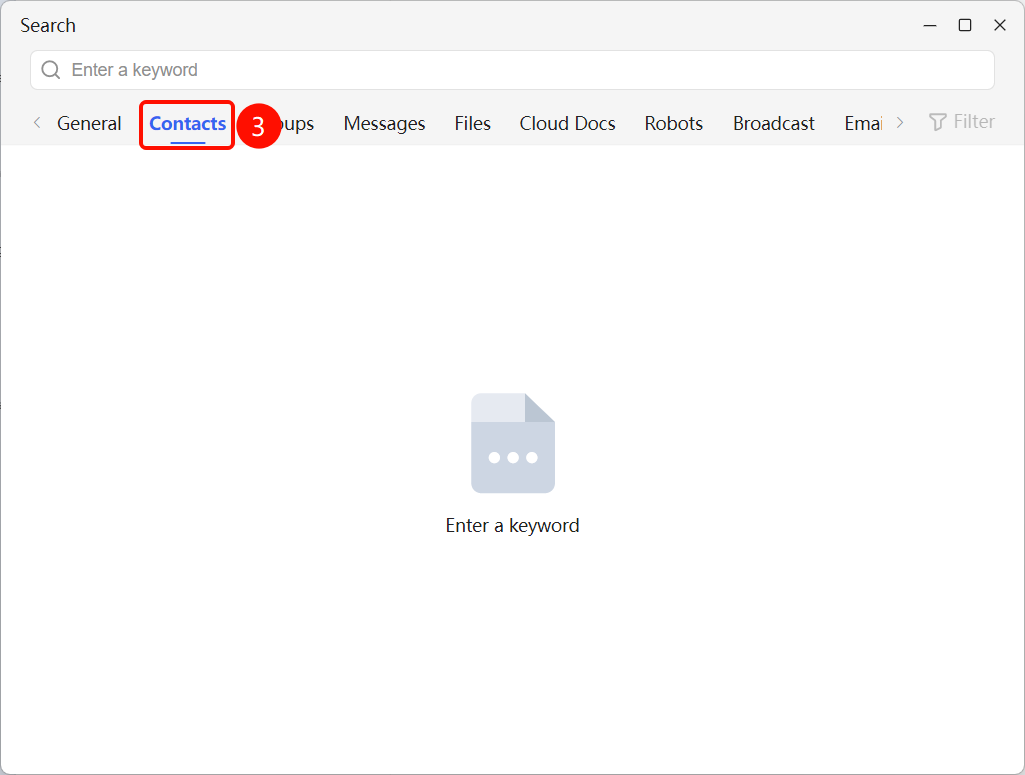
"Top Global Search Bar" input box → "Search More" option → "Contacts" tab
- Click the top search bar on the left
- In the drop-down menu, click "Search More" to enter the search page
- In the tab bar at the top of the search page, find and click the "Contacts" tab to switch to the contact search view
- Enter a contact name or department keyword in the search input box to search for contacts in the organization's Contacts
FAQ
Q1: What information can I see when searching for contacts?
- Solution: The search results display basic information such as the contact's name and department. The specific visible content is controlled by the visibility scope of the organization's Contacts.
Q2: What should I do if I cannot find a specific contact?
- Solution: The person may not be within the current user's Contacts visibility scope. Please contact the organization Admin to adjust the Contacts visibility scope permissions.
Notes
- Contact search results are controlled by the visibility scope of the organization's Contacts. Contacts who are not visible will not appear in the search results.
- Search supports fuzzy matching by contact name.
- A "Filter" feature is provided in the upper right corner of the search page to further refine search criteria.