Feature Summary
Supports real-time searching of cloud documents within the organization by title keywords via the "Cloud Documents" tab on the global search page. Click to directly open and view.
Feature Description
| Feature Dimension | Description |
|---|---|
| Membership Restriction | No membership restriction |
| Version Restriction | No version restriction |
Steps
Searching Cloud Documents
Feature Entry
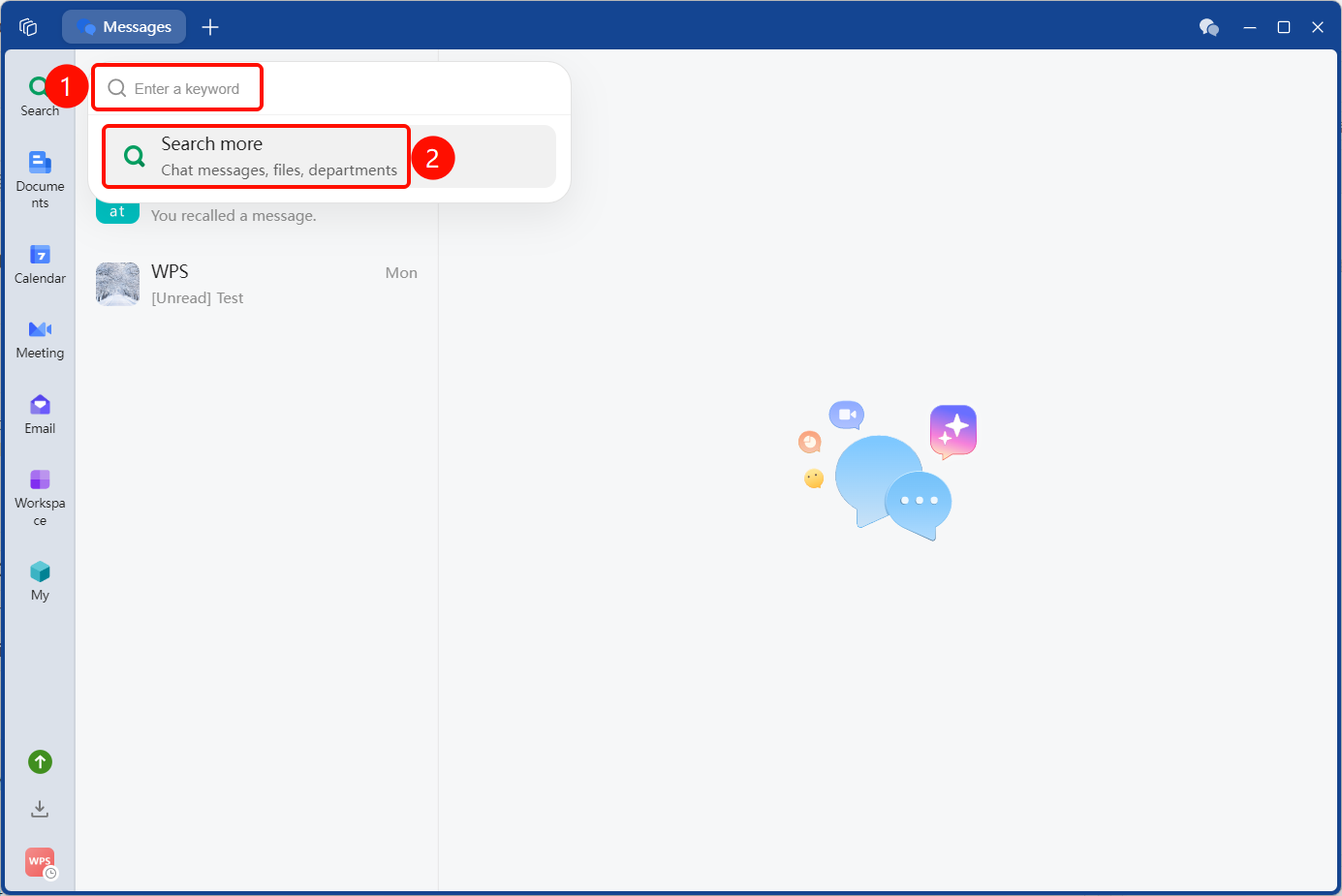
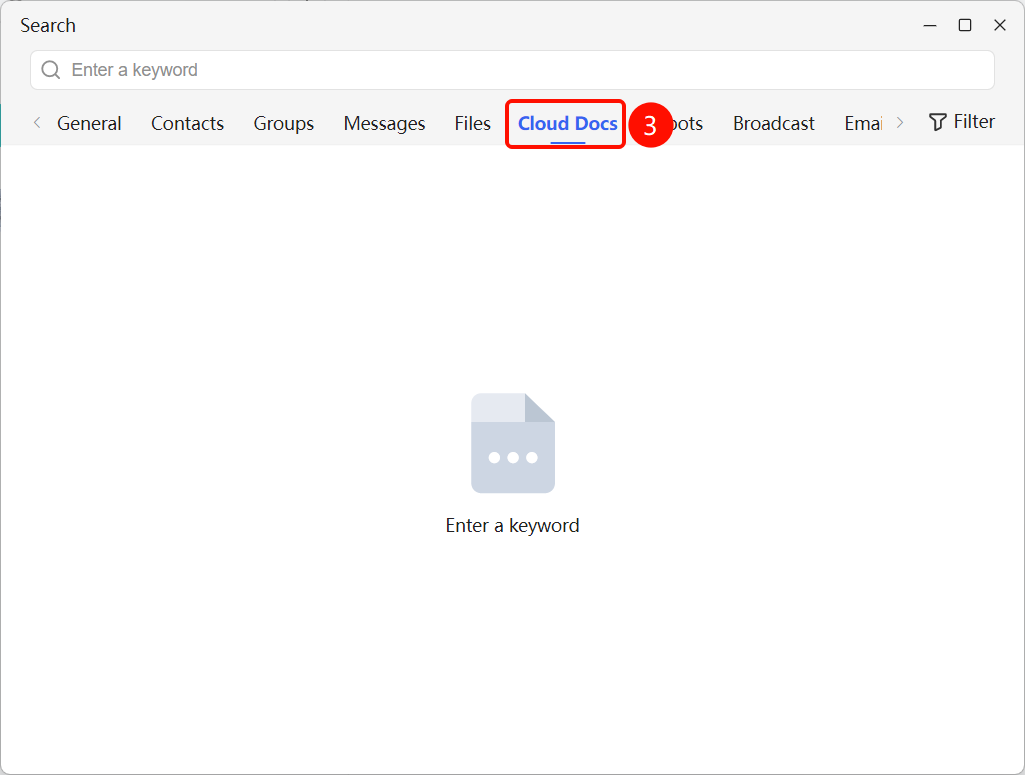
"Top Global Search Bar" input box → "Search More" option → "Cloud Documents" tab
- Click the search bar at the top left
- In the drop-down menu, click "Search More" to enter the search page
- On the search page, find and click the "Cloud Documents" tab in the top tab bar to switch to the cloud document search view
- Enter document title keywords in the search input box. Matching cloud documents will be displayed in a list. Click a document to open and view it.
FAQ
Q1: What cloud documents are included in the search scope?
- Solution: All cloud documents visible to me.
Q2: What operations can be performed on the searched documents?
- Solution: Supports directly clicking to open and view, as well as operations such as Forward, Favorites, and copying links.
Q3: How are the search results sorted?
- Solution: Sorted by relevance by default.
Notes
- Search results are controlled by document sharing permissions; only documents you have access to are displayed.
- The "Filter" button on the right side of the search page can further refine the search scope based on conditions such as document type and time.