Feature Summary
「Group Management」is used to custom the display content and arrangement order of the message list category tab bar. It supports hiding unwanted group tabs, adjusting tab order, and restoring hidden groups.
Feature Description
| Feature Dimension | Description |
|---|---|
| Membership Restriction | No membership restriction |
| Version Restriction | No version restriction |
Operation Steps
Open Group Management
Feature Entry
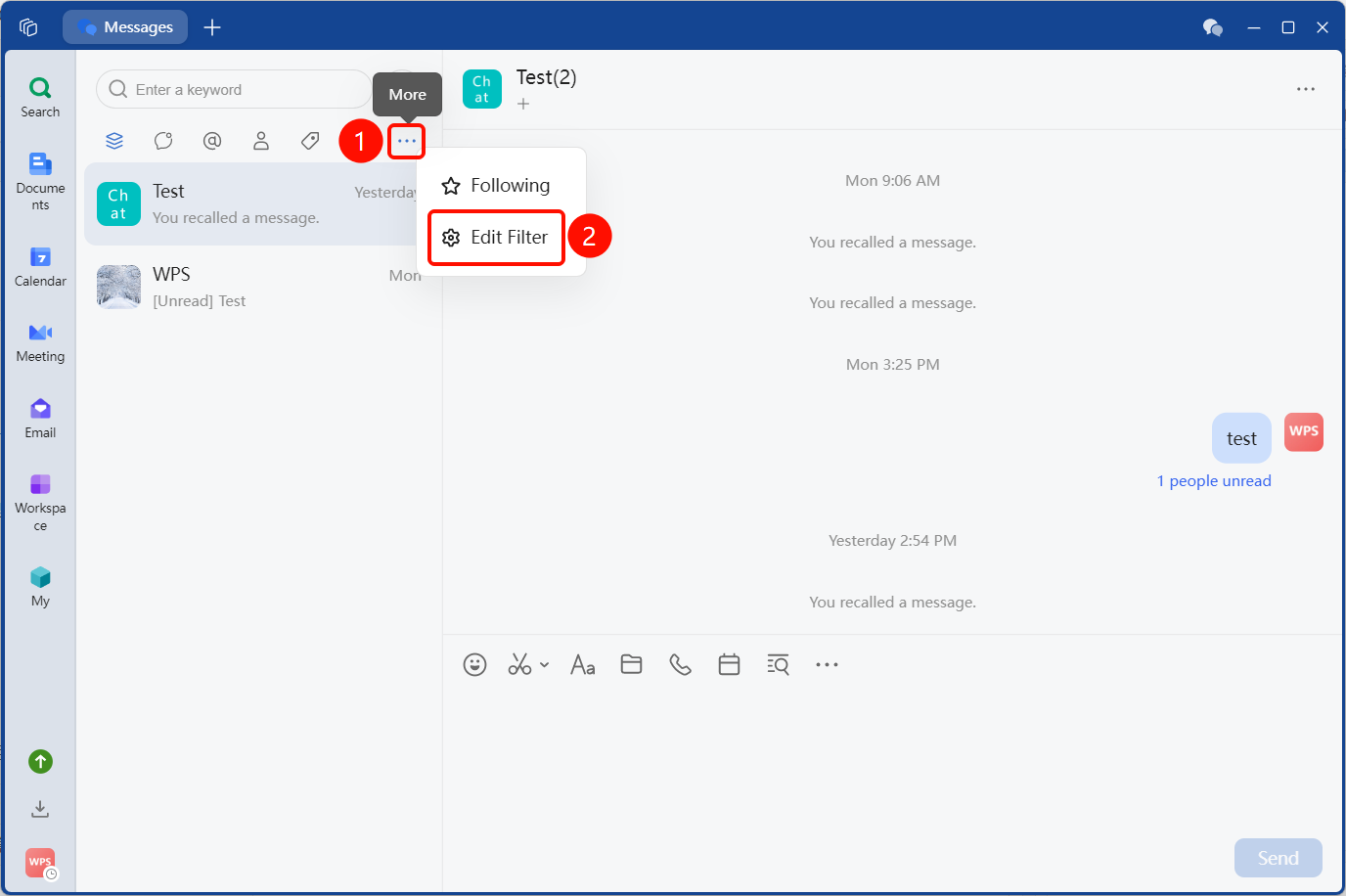
Message List → Category Tab Bar → 「More (...)」→ 「Edit Filter」
- In the category tab bar at the top of the message list, click the 「... (More)」 button on the right.
- Select 「Edit Filter」 from the pop-up menu to open the Group Management dialog.
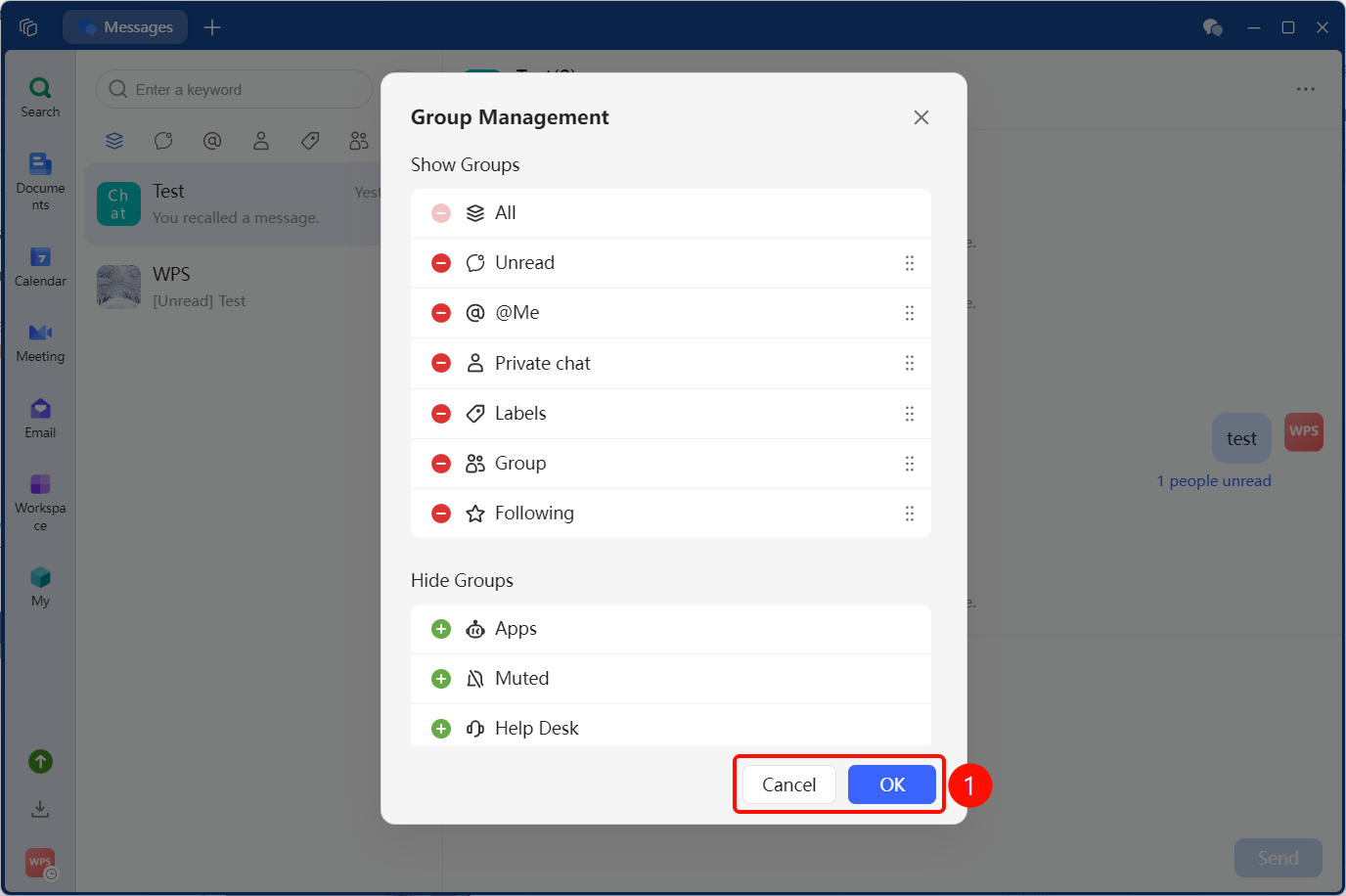
Group Management Dialog
The Group Management dialog is divided into two areas:
Displayed Groups
Shows the group tabs currently displayed in the category tab bar. Each group contains the following elements:
| Element | Description |
|---|---|
| Red 「−」 Icon | Click to hide this group from the display bar |
| Group Icon and Name | The icon and text name of the group |
| Six-dot Drag Handle (⋮⋮) | Located on the right. Long press and drag to adjust the group's arrangement order in the tab bar |
Currently displayed default groups and their arrangement order:
| Position | Group Name | Description |
|---|---|---|
| 1 | 🔲All | Display all conversations (Fixed display, cannot be hidden) |
| 2 | 🔔**@Me** | Only display conversations where someone @mentioned you |
| 3 | 👤Private Chat | Only display one-on-one private chat conversations |
| 4 | 📄Document | Only display conversations related to documents |
| 5 | 🏷Tags | Browse conversations grouped by tags |
「All」 is the system default group. There is no red 「−」 icon on its left, and it cannot be hidden or removed.
Hidden Groups
Shows the groups currently hidden from the tab bar. Each hidden group contains the following elements:
| Element | Description |
|---|---|
| Green 「+」 Icon | Click to restore this group to the displayed groups |
| Group Icon and Name | The icon and text name of the group |
Hidden groups are not visible in the tab bar at the top of the message list, but the group filtering feature is still retained and can be accessed through the 「More」 menu.
Save Settings
Feature Entry
Group Management Dialog → 「OK」 Button
- After completing the hide/restore/reorder operations for groups, click the 「OK」 button in the lower right corner to save the settings and make them effective immediately.
- If you need to undo this operation, click the 「Cancel」 button, and all changes will not take effect.
FAQ
Q1: Who will be affected after adjusting the group order?
- Solution: The Group Management settings only take effect for the current user and will not affect the message list display of other colleagues or members. Each user's group configuration is managed independently.
Q2: Why can't the 「All」 group be hidden?
- Solution: 「All」 is the system's default basic group, permanently displayed in the first position of the tab bar. It is not allowed to be hidden or deleted, ensuring that users can always view all conversations.
Q3: Will conversations within a group disappear after hiding the group?
- Solution: No. Hiding a group only removes the group entry from the tab bar. Conversations within that group still appear normally in the 「All」 group. When needed, they can be accessed through the group filter in the 「More」 menu.
Notes
- The 「All」 group is a fixed display item and cannot be hidden, removed, or reordered
- Group names are system presets and do not support custom modification of names
- After dragging to adjust the order, you must click 「OK」 to save. Closing without saving will restore the original order