Feature Summary
Supports pinning specified conversations in the conversation list. Once pinned, the conversation will be fixed at the top area of the sidebar for quick access.
Feature Description
| Feature Dimension | Description |
|---|---|
| Membership Restriction | No membership restriction |
| Version Restriction | No version restriction |
Operation Steps
This feature supports two operations: pin a conversation and unpin a conversation.
Pin a Conversation
Feature Entry
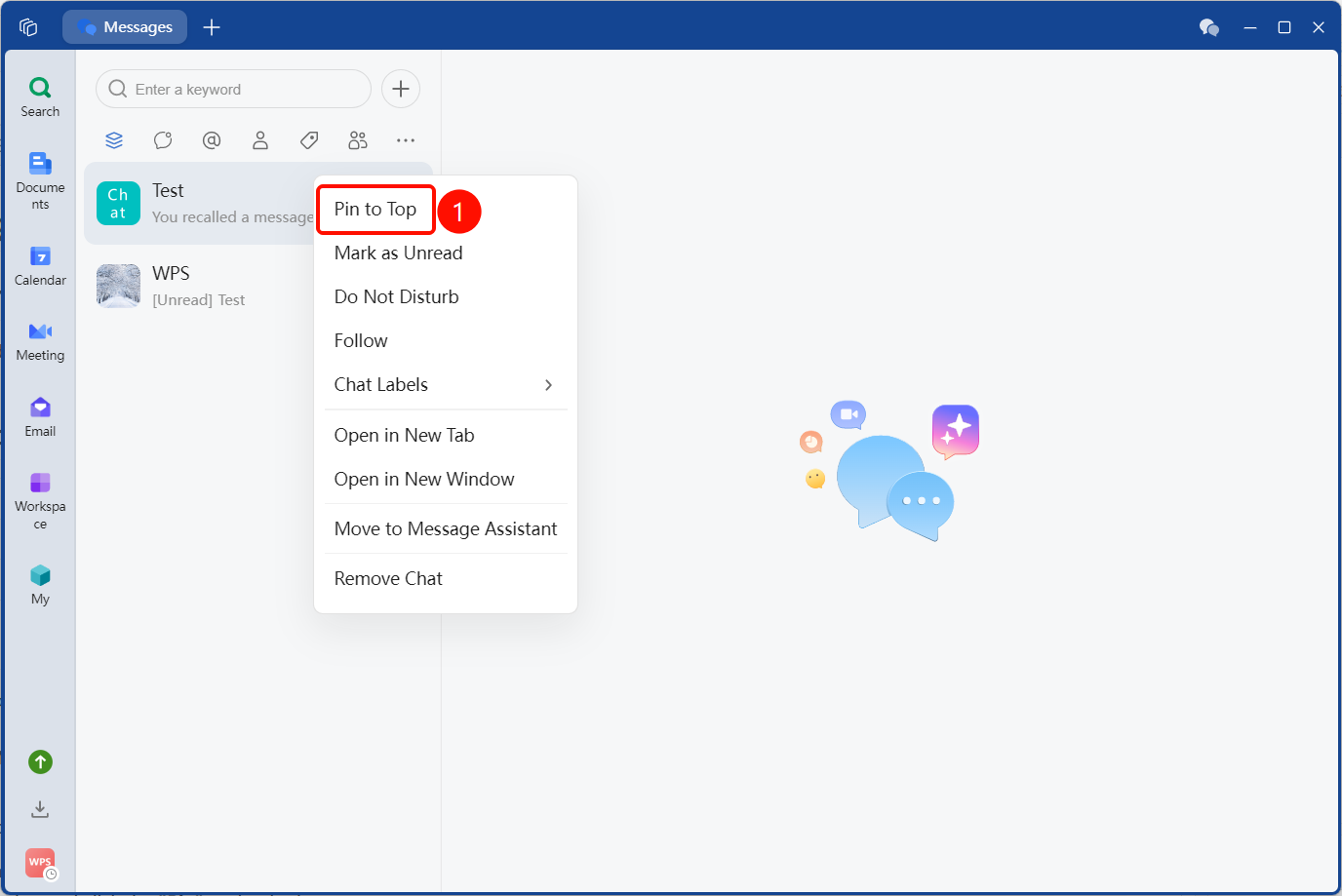
Conversation list → Right-click the target conversation → "Pin" option
- In the left conversation list, find the conversation you want to pin.
- Right-click the conversation and click the "Pin" option in the pop-up menu.
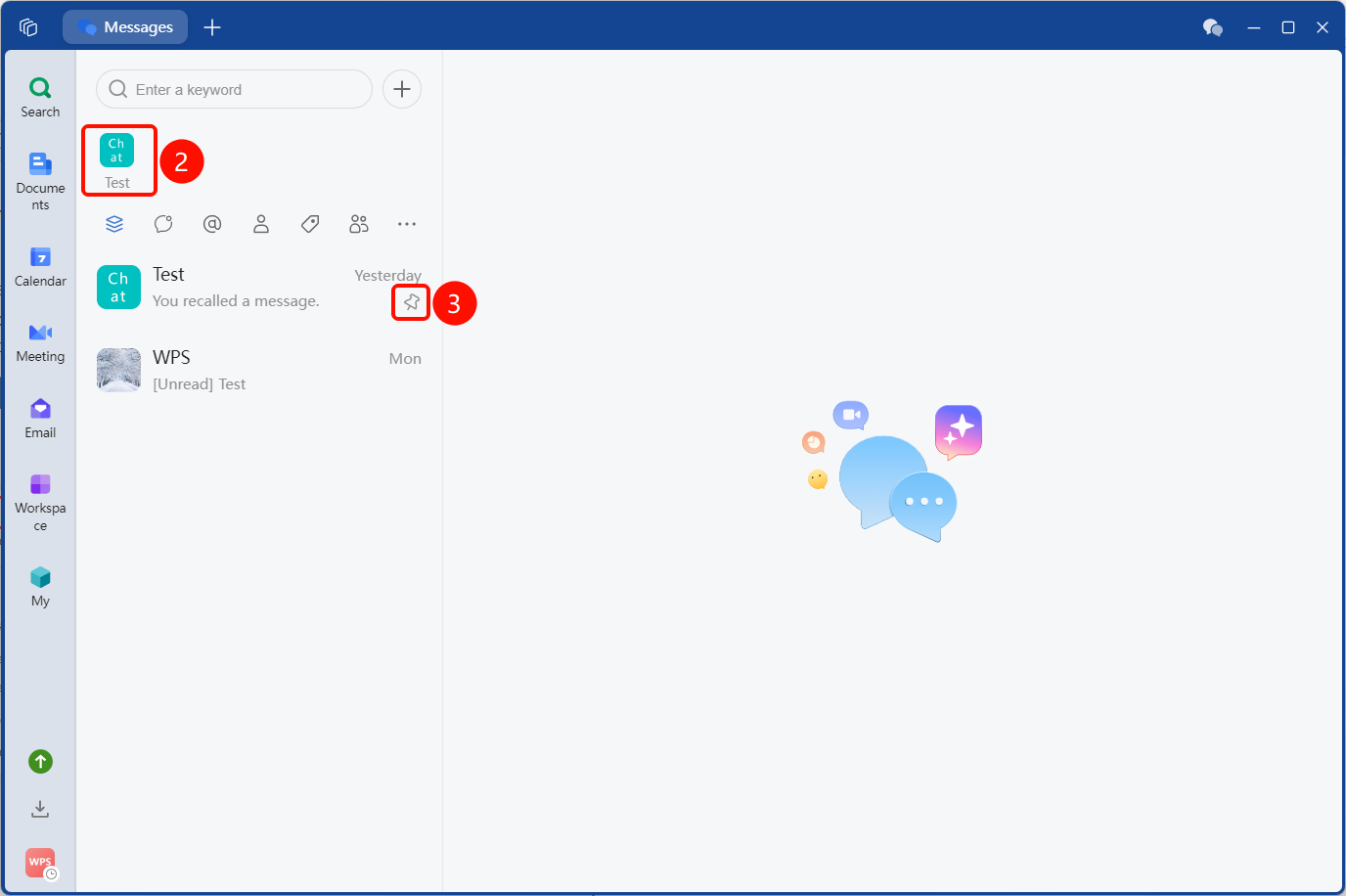
- The conversation will move to the pinned area at the top of the sidebar and be fixed there. A pin icon will appear to the right of the conversation name to indicate its pinned status.
Unpin a Conversation
Feature Entry
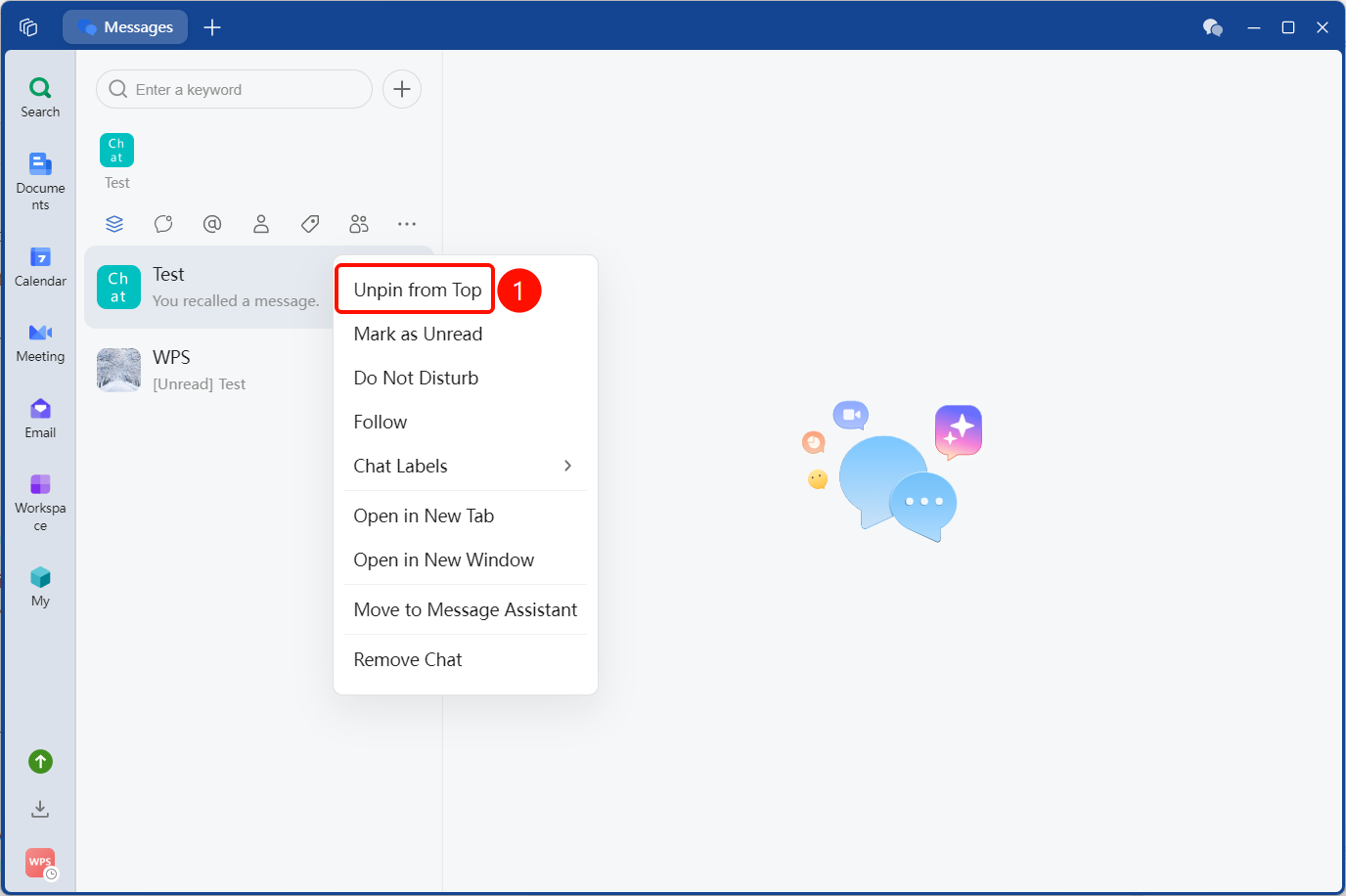
Conversation list → Right-click the pinned conversation → "Unpin" option
- In the left conversation list, find the conversation you want to unpin (identified by the pin icon).
- Right-click the conversation and click the "Unpin" option in the pop-up menu.
- The conversation will be removed from the top pinned area and restored to its original order in the conversation list.
FAQ
Q1: Where does a conversation appear after being pinned?
- Solution: Pinned conversations are displayed together in the pinned area at the top of the sidebar, arranged by profile picture and name.
Q2: How can I tell if a conversation is pinned?
- Solution: A pinned conversation displays a pin icon to the right of its name, and the conversation is fixed in the top pinned area.
Notes
- Pinning only affects your own conversation list view and does not affect other members.
- The pinned area supports displaying multiple conversations simultaneously. Click to quickly switch and enter a conversation.