Feature Summary
The "Message Assistant" is used to move infrequently viewed conversations from the main list to the Message Assistant, streamlining the conversation list display. You can view and move them back at any time.
Feature Description
| Feature Dimension | Description |
|---|---|
| Membership Restriction | No membership restriction |
| Version Restriction | No version restriction |
Steps
Move to Message Assistant
Feature Entry
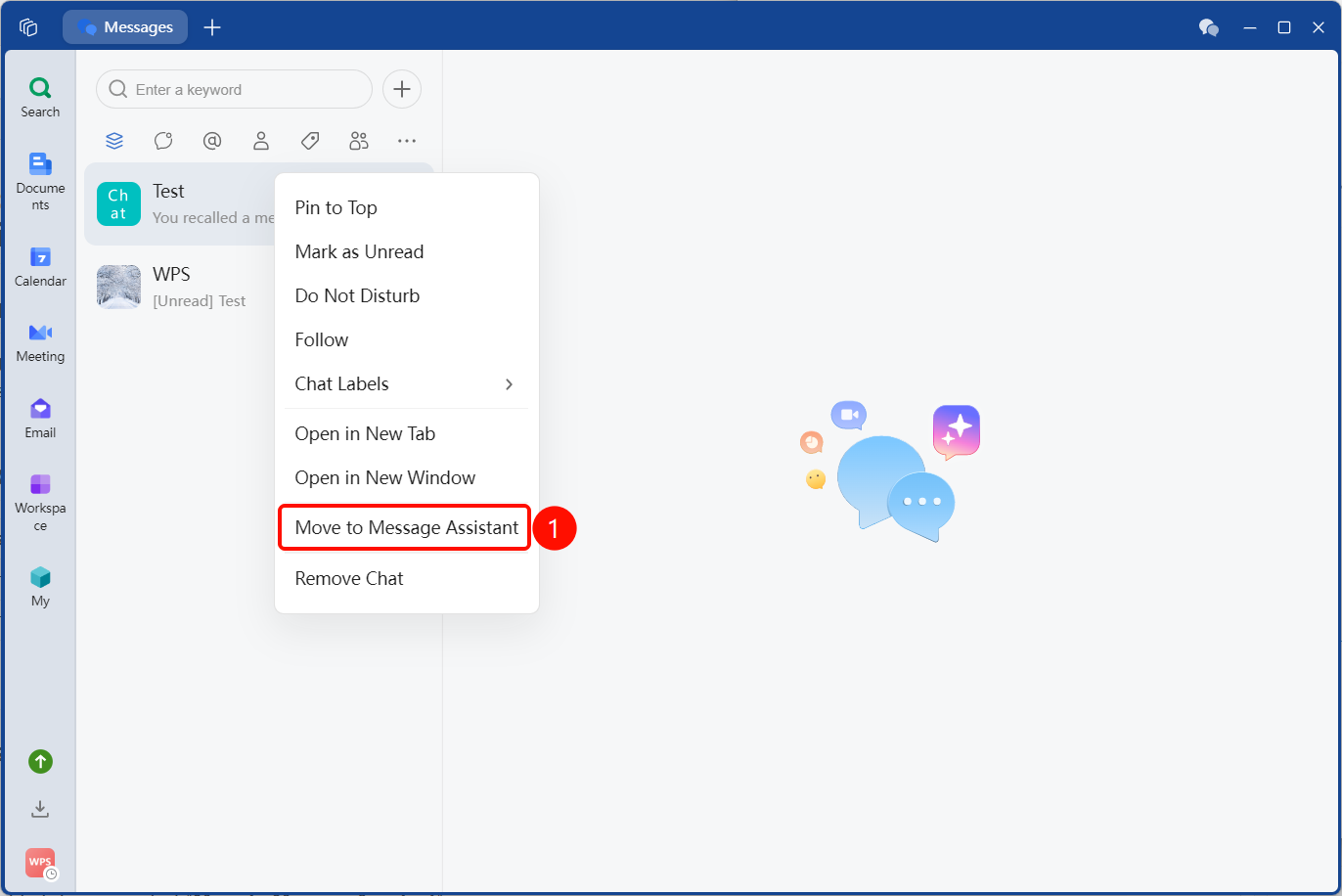
Conversation List → Right-click Conversation → "Move to Message Assistant"
- In the left conversation list, find the conversation you want to collapse, and right-click it.
- In the pop-up right-click menu, select "Move to Message Assistant".
- The conversation will be removed from the main conversation list and automatically placed into the Message Assistant list.
View Message Assistant List
Feature Entry
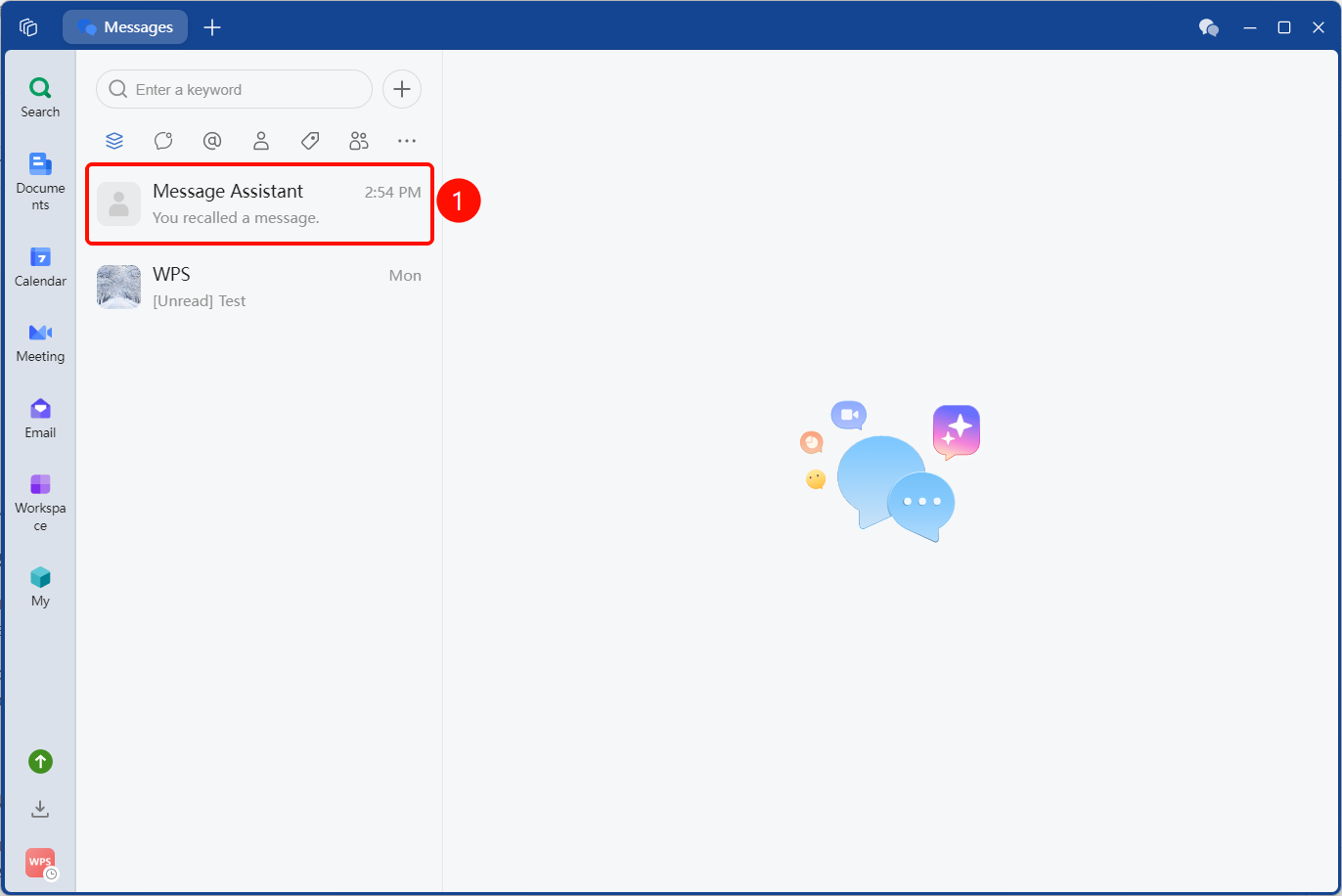
Above the left conversation list → "< Message Assistant" button
- After moving conversations to the Message Assistant, a "** Collapsed conversations will not be displayed in the main conversation list, and are only visible within the Message Assistant subpage.
Move out of Message Assistant
Feature Entry
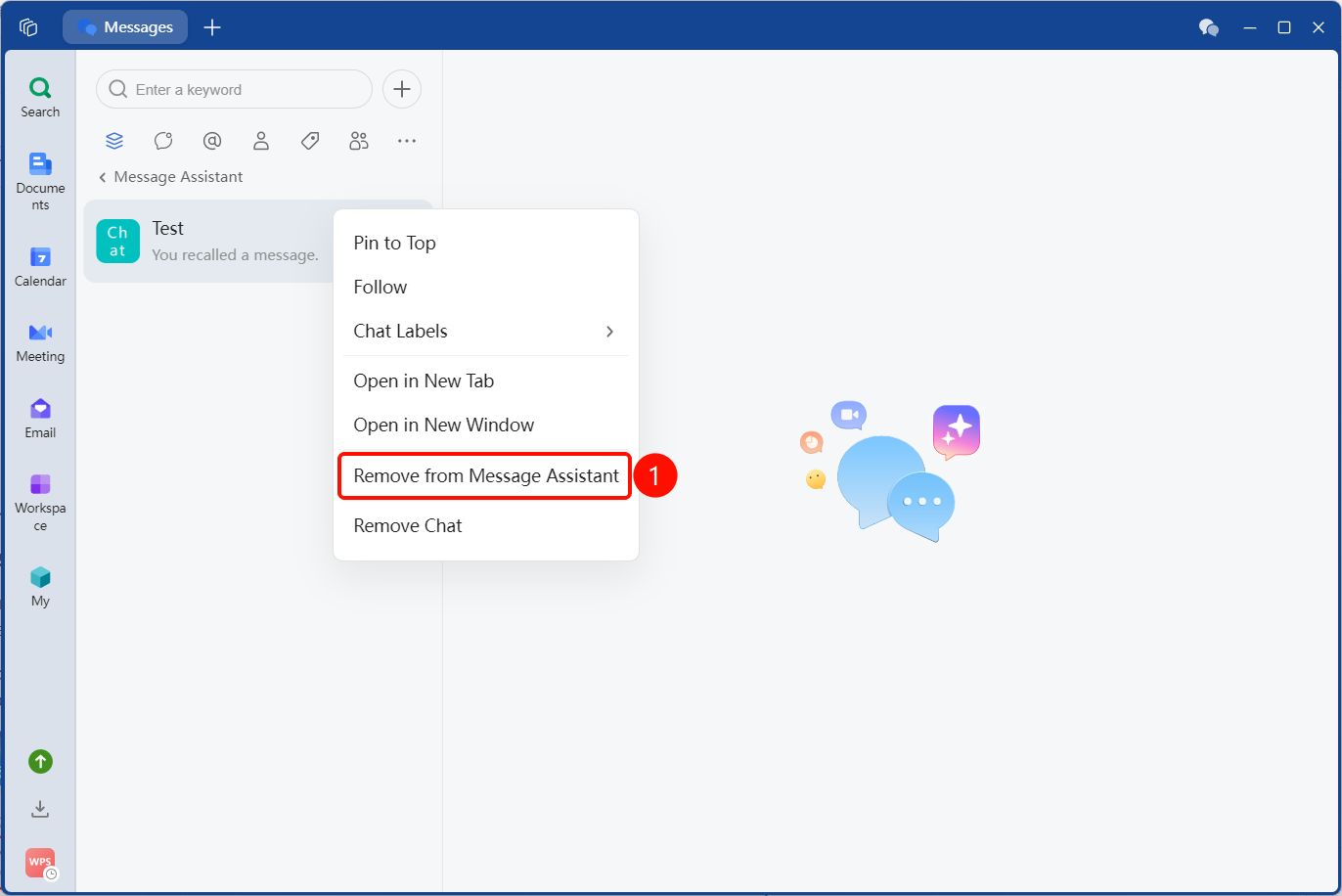
Message Assistant List → Right-click Conversation → "Move out of Message Assistant"
- In the Message Assistant subpage, right-click the conversation you want to move out.
- In the pop-up right-click menu, select "Move out of Message Assistant".
- The conversation will be removed from the Message Assistant list and return to the main conversation list.
FAQ
Q1: How many conversations can the Message Assistant list display?
- Solution: There is no upper limit to the number of conversations in the Message Assistant list. All collapsed conversations will be displayed in this list sorted by time, and the unread message count will still be indicated by a badge.
Q2: Will a conversation return to its original position after being moved out of the Message Assistant?
- Solution: After being moved out, the conversation will reappear in the main conversation list, but the sorting may change (re-sorted by the time of the most recent message). It will not automatically restore to its original position before being collapsed.
Notes
- Moving a conversation to the Message Assistant only hides its display position; it does not mean leaving or blocking the conversation.
- Collapsed conversations can still receive messages and notifications normally. If you need to block notifications, you must enable "Mute Notifications" separately.