Feature Summary
Through the Document entry in the left navigation bar of the WPS Collaboration PC client, you can access the cloud document interface to centrally manage recently accessed, starred, shared, cloud documents, Team Space, Wiki Spaces, and other document resources, allowing you to quickly locate and open the desired collaboration documents.
Feature Description
| Feature Dimension | Description |
|---|---|
| Membership Restriction | No membership restriction |
| Version Restriction | No version restriction |
Operation Steps
Accessing the Document Feature Entry
Feature Entry
「Left Navigation Bar」→「Document」icon
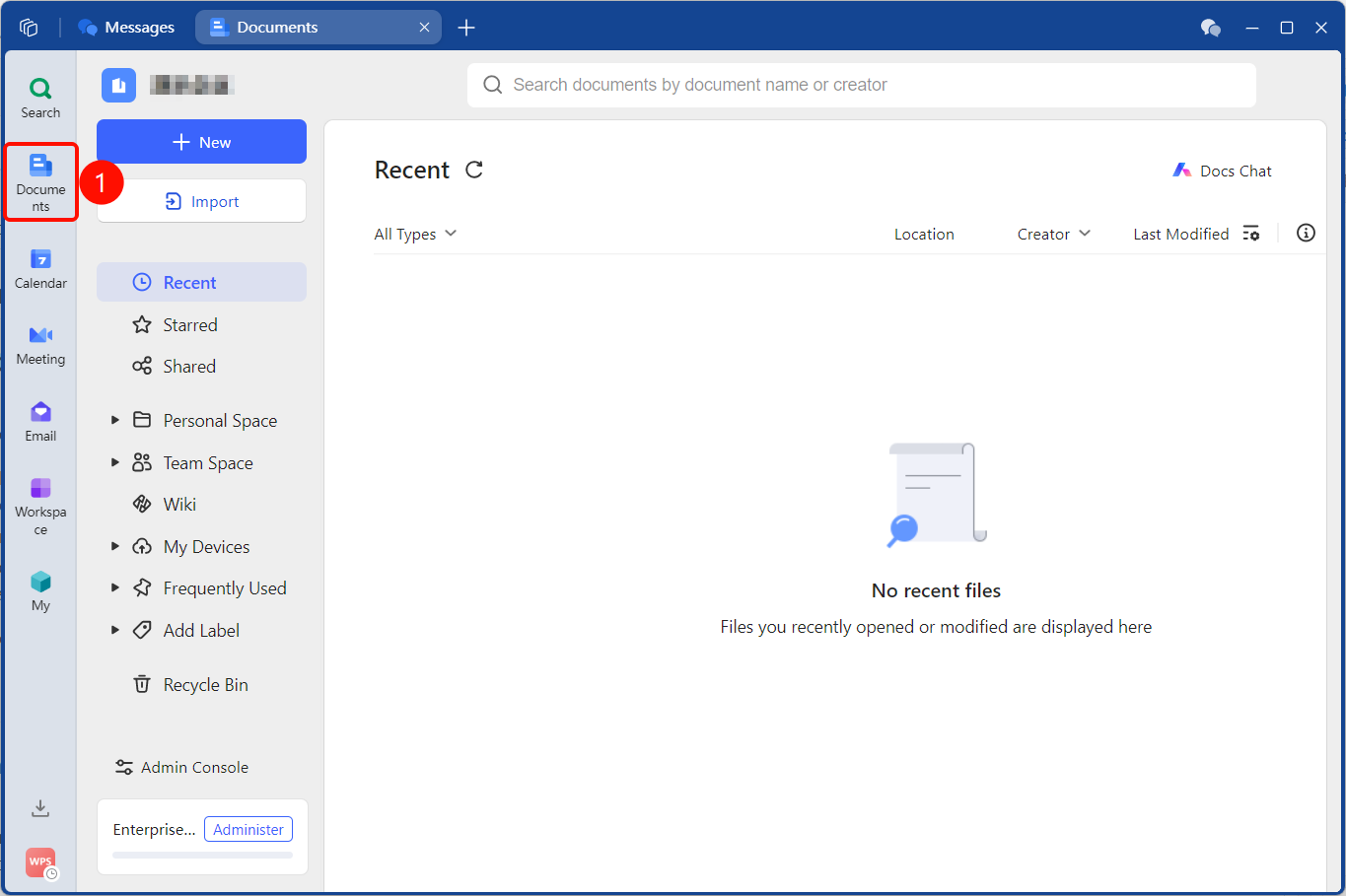
- Open the WPS Collaboration PC client, and find the 「Document」 icon (folder style) in the left navigation bar
- Click the icon to enter the cloud document interface
- The current organization name is displayed at the top of the page, with the function navigation panel on the left and the document content area on the right
FAQ
Q1: What are the ways to access the Document entry?
- Solution: On the PC client, the cloud document interface is mainly accessed through the 「Document」 icon in the left navigation bar. In addition, cloud document cards sent in chats can also be used to directly open the corresponding documents.
Q2: How to check the update time of documents in the recent list?
- Solution: The file location, creator, and last update time are displayed on the right side of the document list, making it easy to quickly confirm the document status.
Q3: What is the organization space displayed at the bottom?
- Solution: The cloud storage usage of the current organization is displayed in the lower left corner of the page, where you can view the organization's cloud space capacity information.
Notes
- The location of the Document feature entry may vary slightly due to version updates.
- You must sign in to an organization account to access the corresponding personal and Team Space documents.
- The organization space capacity depends on the organization plan configuration.