Feature Summary
The Cloud Document interface consists of the left navigation bar, the left feature panel, and the right document content area. The left panel is organized into categories such as Recent, Import, Personal Space, and Team Space, making it easy to quickly locate and manage documents.
Feature Description
| Feature Dimension | Description |
|---|---|
| Membership Restriction | No membership restriction |
| Version Restriction | No version restriction |
Steps
Cloud Document Interface
Feature Entry
「Left Navigation Bar」→「Documents」icon
- Open the WPS Collaboration PC client and click the 「Documents」 icon in the left navigation bar to enter the Cloud Document interface.
- The page is divided into two areas:
- Left Navigation Bar: Displays the category navigation of the Cloud Document interface, arranged by functional groups.
- Right Cloud Document List: Displays the list of documents under the currently selected category, showing file name, type, file location, creator, last modified time, and file size.
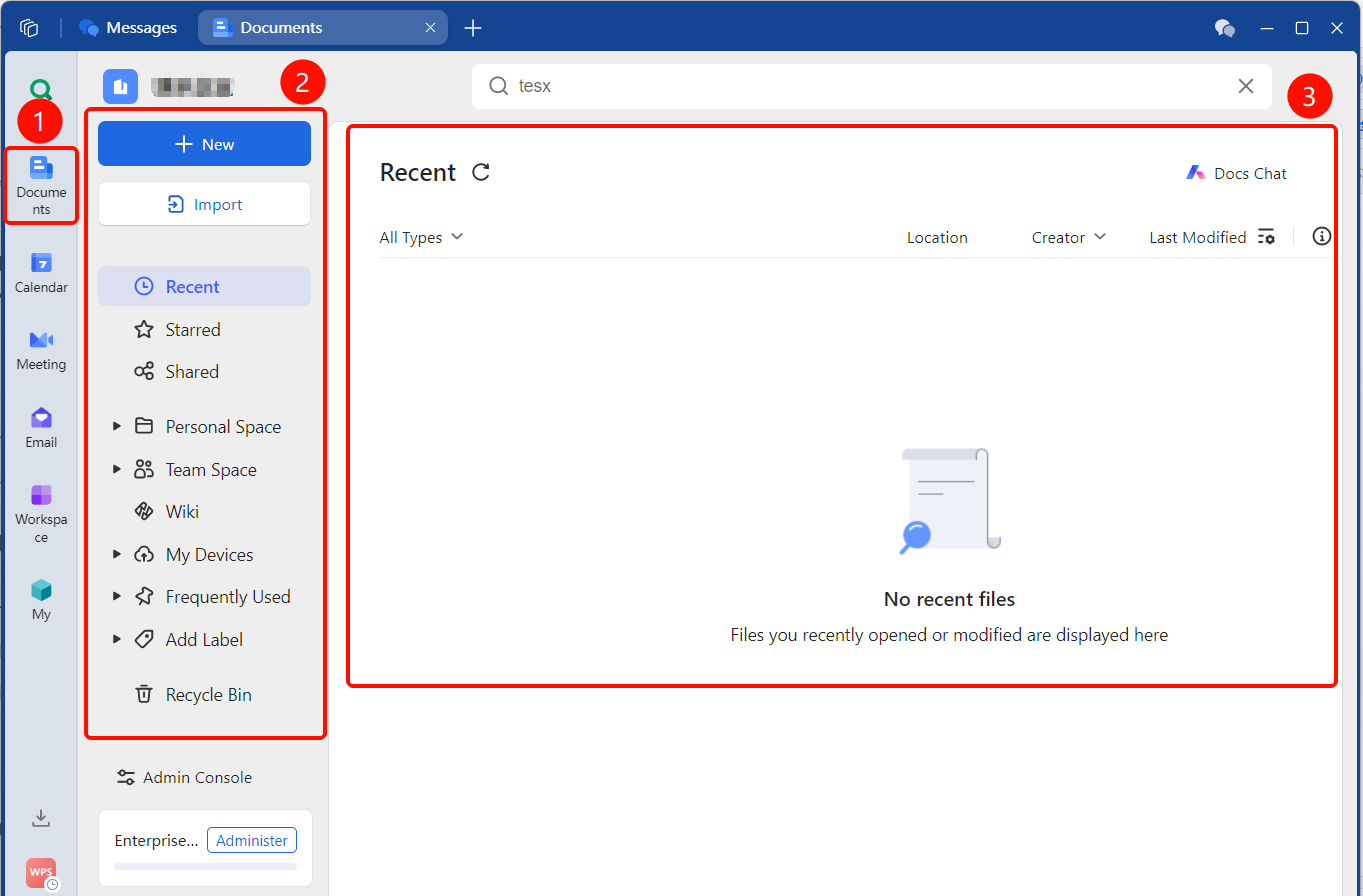
Left Navigation Bar
Feature Entry
Cloud Document Interface → Left Navigation Bar
- After entering the Cloud Document interface, the left panel provides the following functional sections:
| Feature | Description |
|---|---|
| Recent | Lists recently accessed documents grouped by time |
| Import | Import documents from local or other sources |
| Shared | View collaboration documents shared with you |
| ☆ Starred | View starred favorite documents |
| Personal Space | Personal cloud storage document space |
| Team Space | Team-shared collaboration document space |
| My Devices | Documents synced across multiple devices |
| ☆ Frequent | Frequently and quickly accessed documents |
| Tags | Manage documents by tag classification |
| Trash | View deleted documents that can be restored |
| Office Document | Enter the organization admin console to configure organization cloud services (this entry is only displayed for organization super admins or organization admin accounts) |
- Click any category label, and the right Cloud Document list will display the corresponding document list.
Viewing the Right Cloud Document List
Feature Entry
Cloud Document Interface → Right Cloud Document List
- After selecting a category in the left panel, the right Cloud Document list displays the corresponding document list.
- Above the document list, the All Types dropdown filter is provided to filter by file type. You can also switch sorting dimensions such as File Location, Creator, and Last Modified.
- Each document Record displays: file type icon, file name, file location, creator, last modified time, and file size.
FAQ
Q1: What is the purpose of 'Office Document' in the left panel?
- Solution: 「Office Document」 is used to enter the organization cloud service admin console, where you can configure organization-level settings such as organization space capacity and member permissions. This entry is only displayed for organization super admin and organization admin accounts.
Q2: What is the difference between 'Recent' and 'Frequent'?
- Solution: 「Recent」 automatically lists all recently accessed documents, grouped by time; 「Favorites」 requires users to manually add documents or the system automatically identifies them based on high-frequency access, making it easy to quickly access the most commonly used documents.
Q3: What file formats does the "All Types" filter in the document list support?
- Solution: Supports filtering by document type, such as workbook (.xlsx), Docs (.docx), Slides (.pptx), PDF, and other common formats.
Notes
- The categories and sorting in the left panel may vary slightly across different organization versions.
- The organization space usage is displayed at the bottom left of the page. Click 「Manage」 to view details.
- Documents in Trash can be restored within the validity period and will be permanently deleted after expiration.