Feature Summary
Enter keywords in the search bar at the top of the cloud document interface to search and filter documents by file name, body, type, creator, time, location, and other criteria, quickly locating the documents you need.
Feature Description
| Feature Dimension | Description |
|---|---|
| Membership Restriction | No membership restriction |
| Version Restriction | No version restriction |
Operation Steps
Using the Top Search Bar
Feature Entry
「Cloud Document Interface」→「Top Search Bar」
- Click 「Docs」 in the left navigation bar to enter the cloud document interface
- The 「Search Bar」 is displayed at the top of the page
- Enter keywords in the search box and press
Enterto send; the system will automatically retrieve matching documents
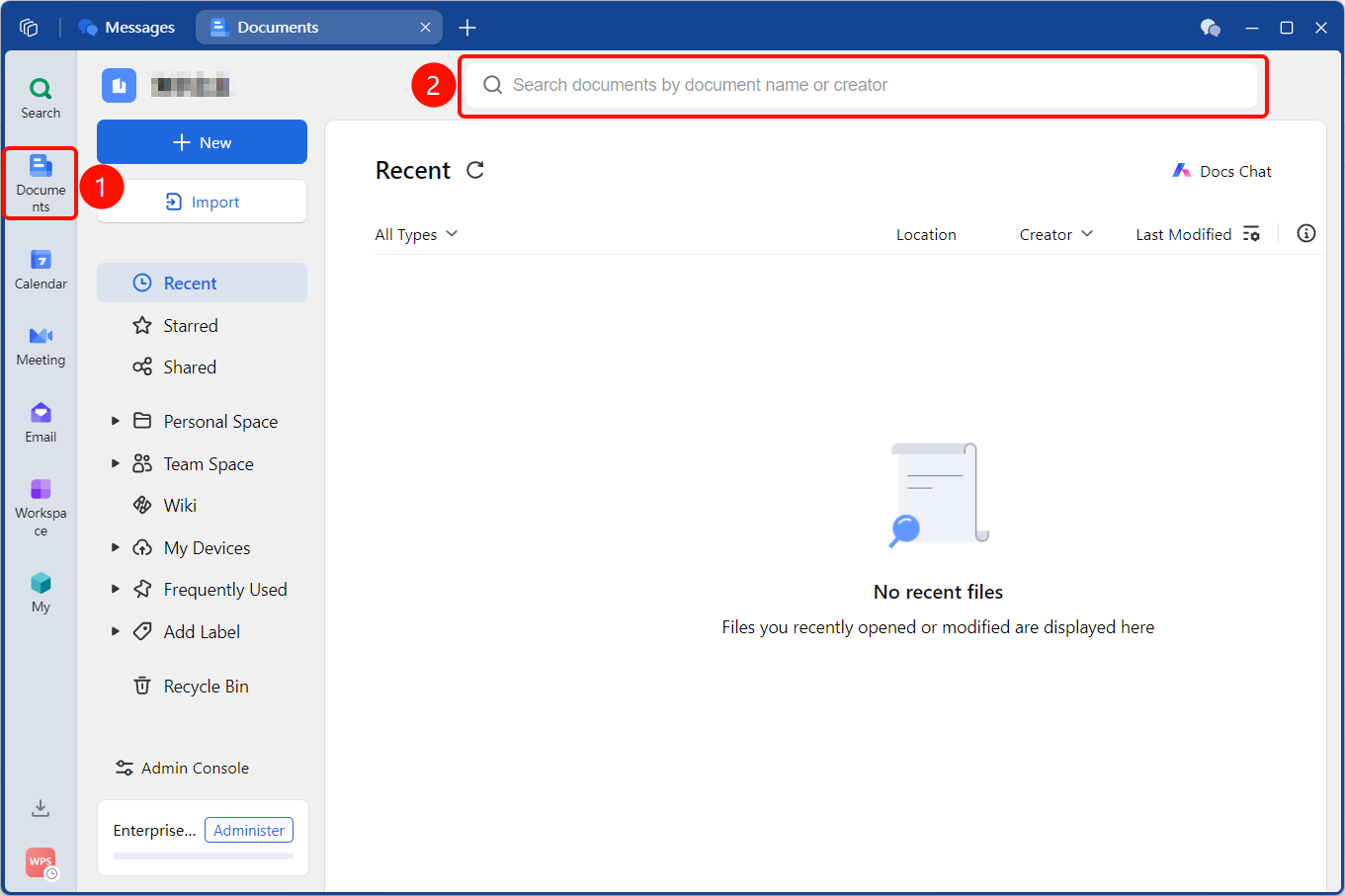
Finding Documents by Search Criteria
Feature Entry
「Cloud Document Interface Search Bar」→「Search Dropdown Panel」
- Click the search box or enter keywords to expand the search dropdown panel
- The category tab area at the top of the panel provides the following search criteria:
| Search Criteria | Description |
|---|---|
| File Name | Matches keywords against document names |
| Body | Searches for documents whose body content contains the keywords |
| Type | Filters by document format (e.g., workbook, Document, etc.) |
| Creator | Filters by document creator |
| Time | Filters by document last modified time |
| Location | Filters by document storage location (e.g., Personal Space, Team Space, etc.) |
- Click the corresponding category tab to switch to that search criterion
- Enter keywords in the search input box; the 「Enter keyword to search」 prompt is displayed below, and the system automatically filters matching results after input
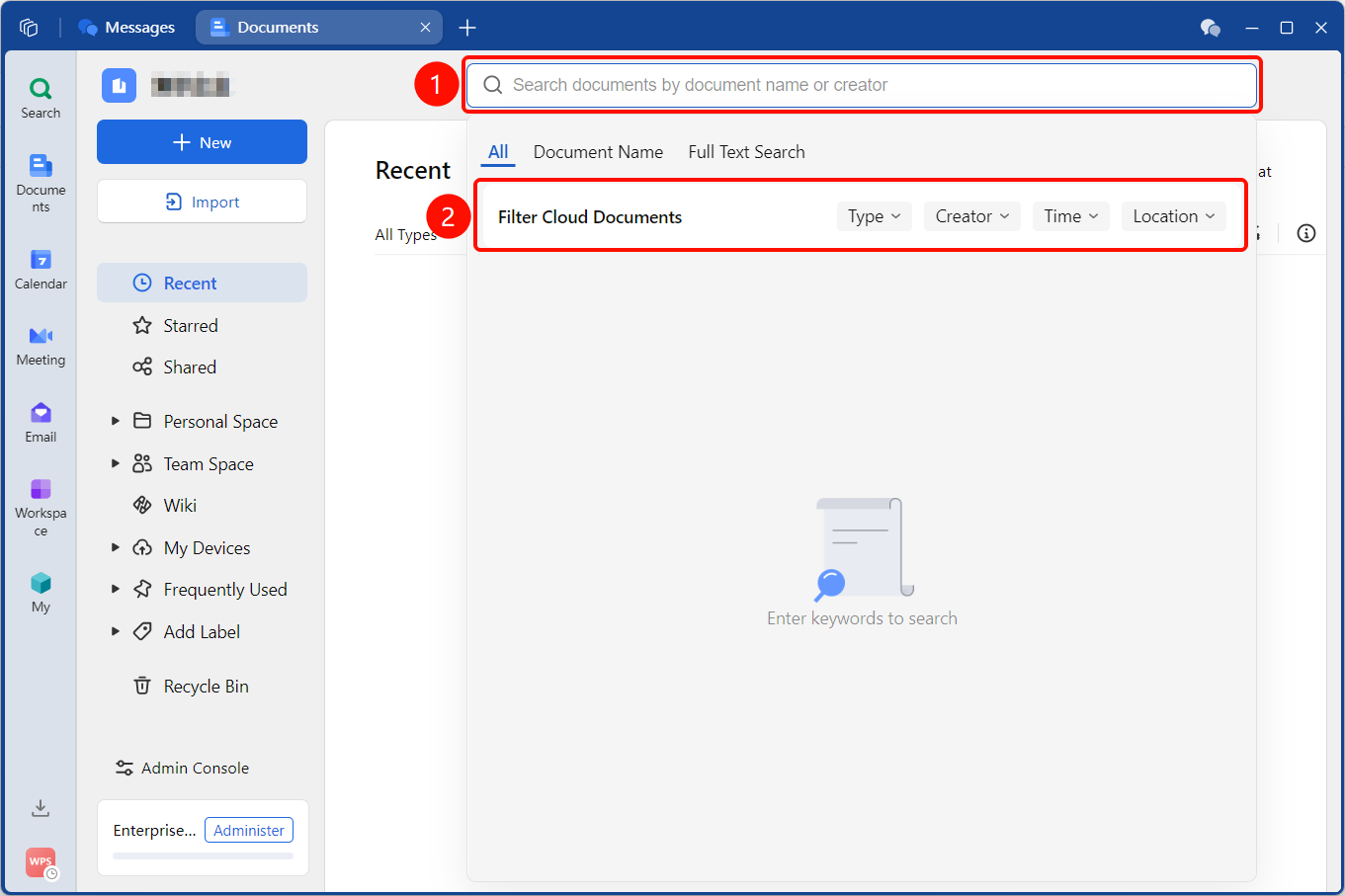
Viewing Search Results
Feature Entry
「Cloud Document Interface」→「Document List」area
- After searching or filtering, the matching document list is displayed in the right content area
- Each document Record displays: file type icon, file name, file location, creator, last modified time, file size
- Search results are grouped by time (e.g., Earlier), making it easy to quickly locate documents
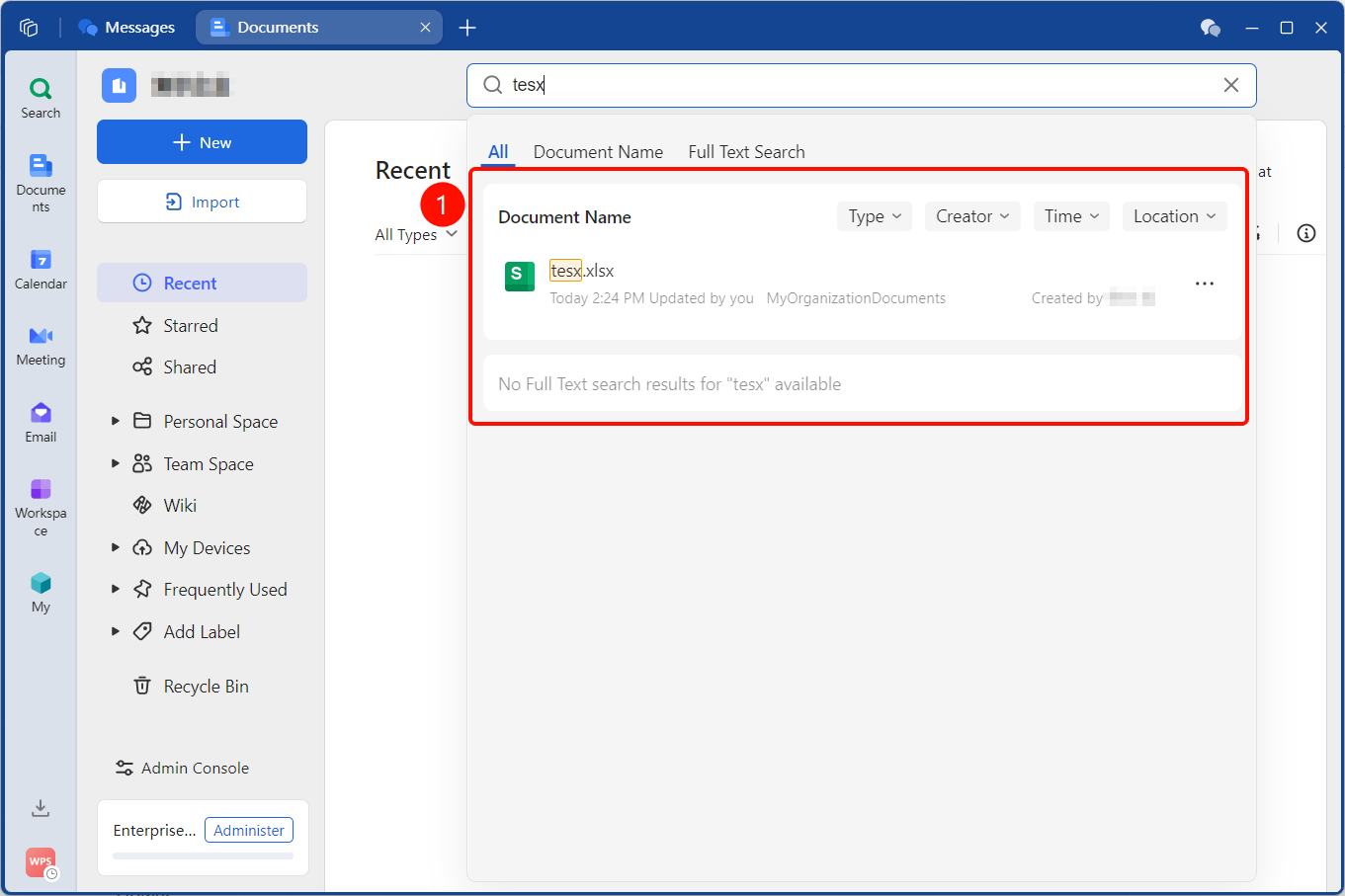
FAQ
Q1: What is the difference between searching by file name and searching by body?
- Solution: Searching by file name only matches keywords in the document title; searching by body retrieves keywords from the document body content, which has a broader scope but is relatively slower.
Q2: What should I do if no documents are found?
- Solution: Please confirm that the keywords are spelled correctly and check if other filter criteria have been selected, narrowing the scope. Due to permission controls, only documents you have access to can be searched.
Q3: What is the default sorting order for search results?
- Solution: Search results are sorted in reverse chronological order by last modified time by default, with the most recently modified documents appearing first.
Notes
- The search scope is limited to documents that the current account has permission to access.
- Full-text search (searching by body) only indexes document body content; text within images is not included in the search scope.
- When multiple search criteria are used simultaneously, the results are the intersection of those criteria.