Feature Summary
Supports sharing collaborative documents with users, groups, or departments via the sharing entry on the cloud document interface or by clicking the share button inside a document, and setting link permissions.
Feature Description
| Feature Dimension | Description |
|---|---|
| Membership Restriction | No membership restriction |
| Version Restriction | No version restriction |
Steps
Share a Document from the Cloud Document Interface
Feature Entry
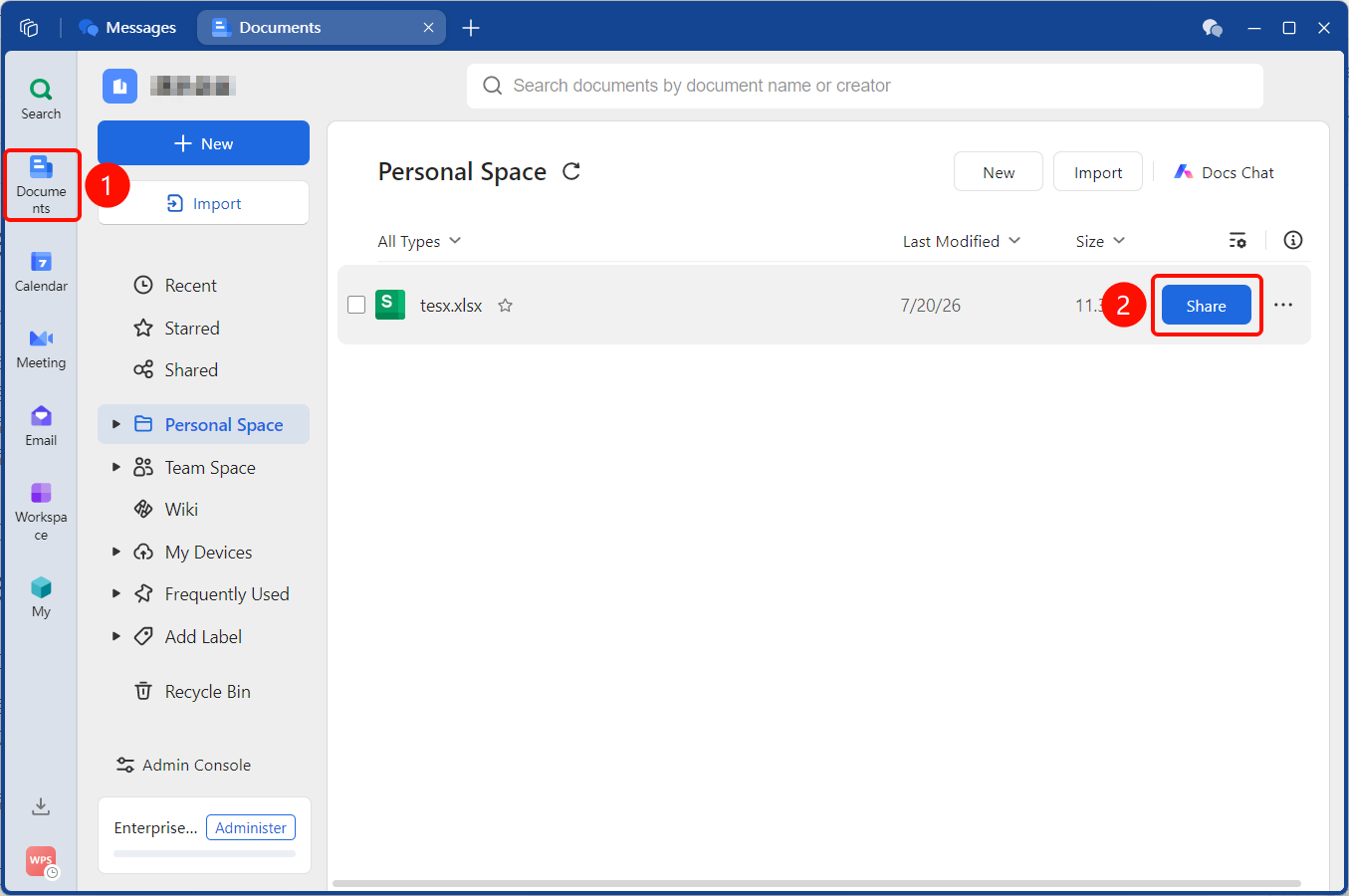
「Left Navigation Bar」→「Docs」Button→「Share」Entry of the Target Document
- Click 「Docs」 in the left navigation bar to enter the cloud document interface
- Find the target document you want to share, click the 「Share」 icon on the right side of the document, or right-click and select Share
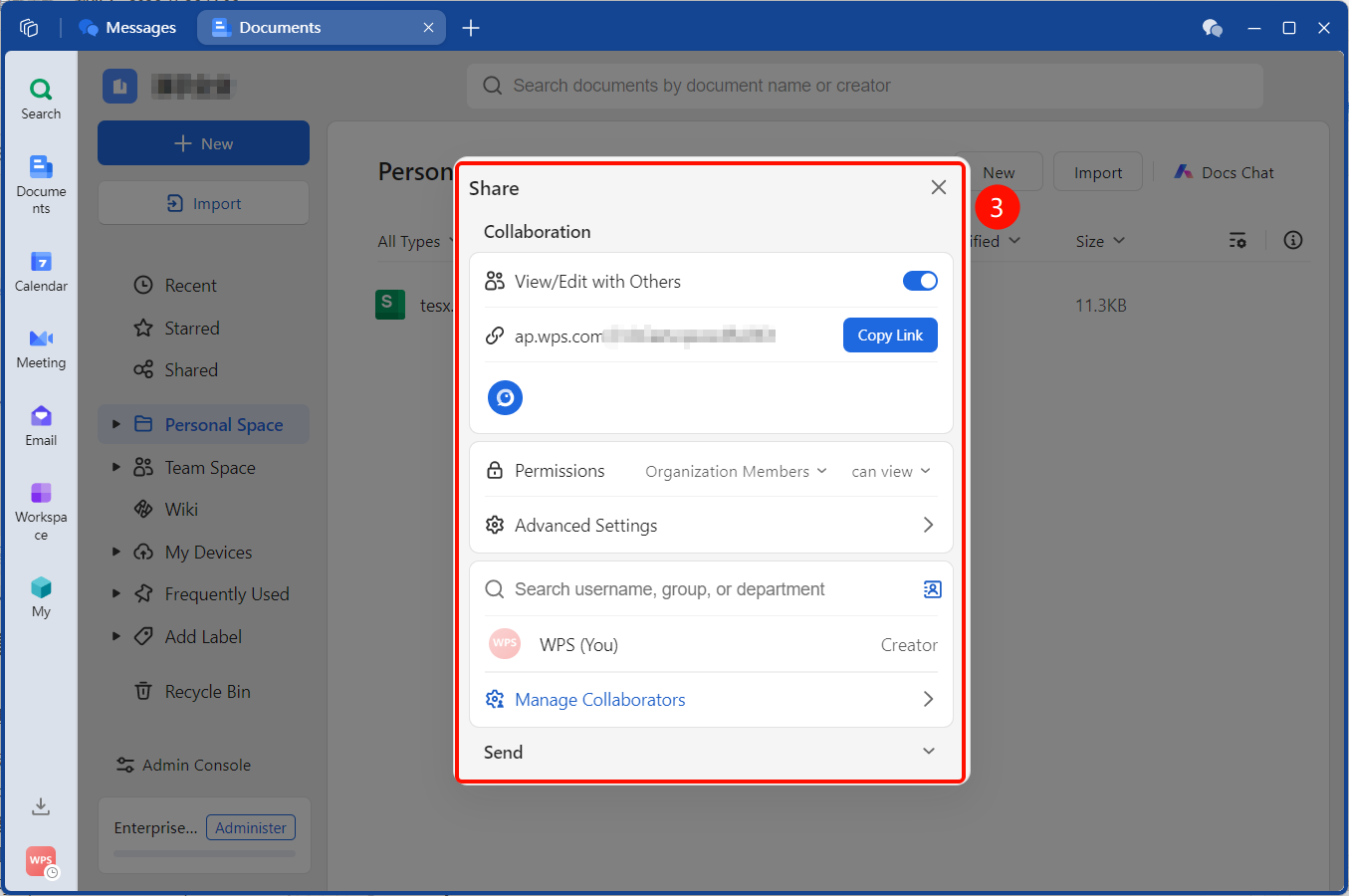
- In the pop-up sharing dialog, click 「Enable Collaboration to Get Cloud Document Link」
- After collaboration is enabled, the dialog displays the cloud document link. You can click 「Copy Link」 to copy the document sharing link
- Set access permissions in the 「Link Permissions」 drop-down menu (e.g., Anyone can edit), or click 「Advanced Settings」 to configure more permission options
Share Directly Inside a Document
Feature Entry
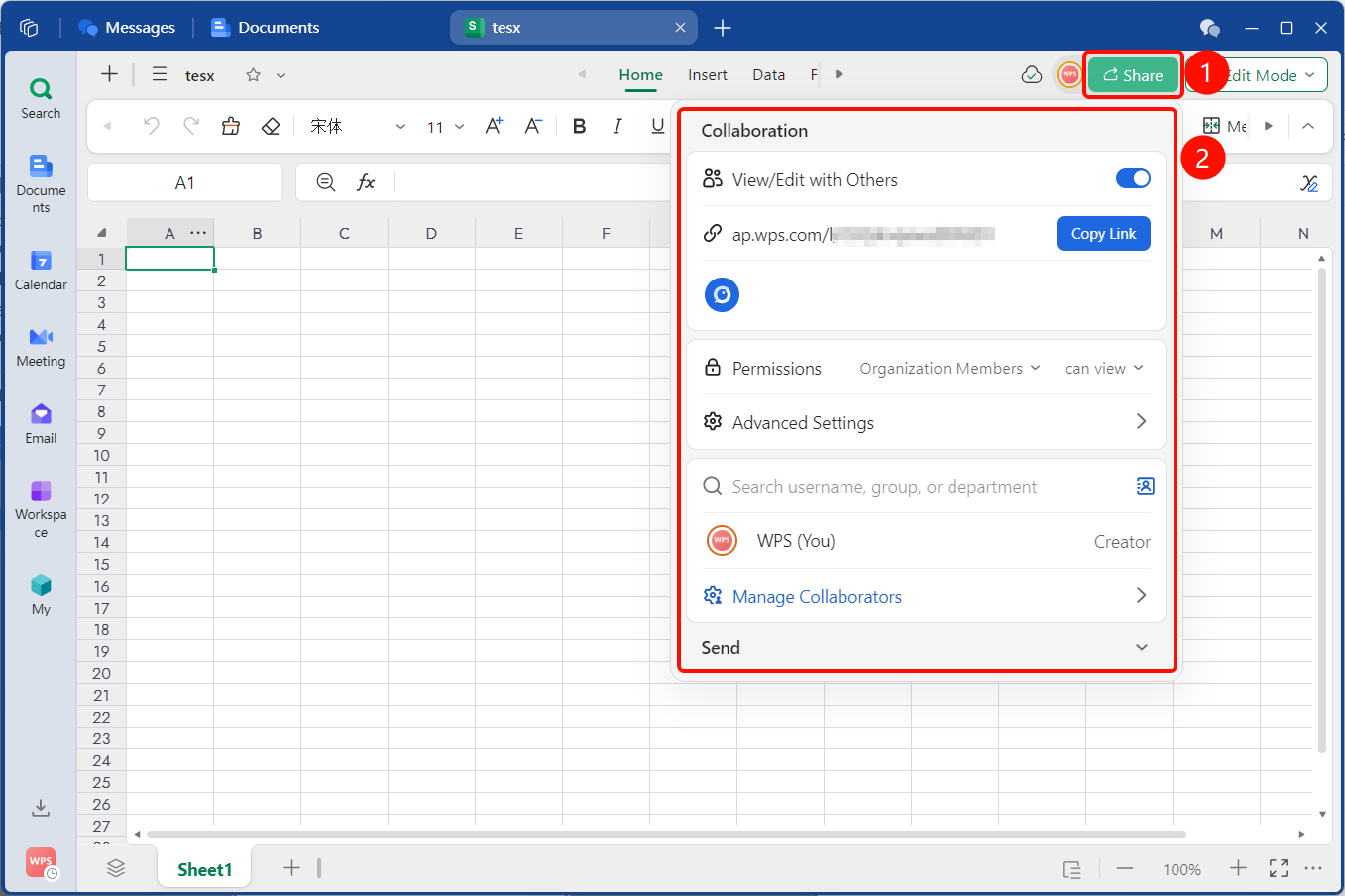
「Top Toolbar in Document Editing Interface」→「Share」Button
- Open the target document you want to share (e.g., Sheets, Docs, etc.) and enter the editing interface
- Find the 「Share」 button on the right side of the top toolbar and click it to open the sharing dialog
- Click 「Enable Collaboration to Get Cloud Document Link」
- After collaboration is enabled, the dialog displays the cloud document link. You can click 「Copy Link」 to copy the document sharing link
- Set access permissions in the 「Link Permissions」 drop-down menu, or click 「Advanced Settings」 to configure more permission options
FAQ
Q1: What is the difference between the two sharing methods?
- Solution: Sharing from the cloud document interface allows you to share without opening the document; sharing inside a document allows you to share the current document at any time during editing, which is more convenient. The final sharing features and permission settings are exactly the same for both methods.
Q2: Can I revoke permissions after sharing?
- Solution: You can modify or cancel the permissions of shared members at any time in the document's collaboration management.