Feature Summary
Supports clicking the "+ New" button in the Cloud Document interface to create various types of documents online through a visual panel, such as AirPage, Office Document, and DBSheet, or to upload local files and create new folders.
Feature Description
| Feature Dimension | Description |
|---|---|
| Membership Restriction | No membership restriction |
| Version Restriction | No version restriction |
Steps
Enter the New Document Page
Feature Entry
Cloud Document interface → "+ New" button
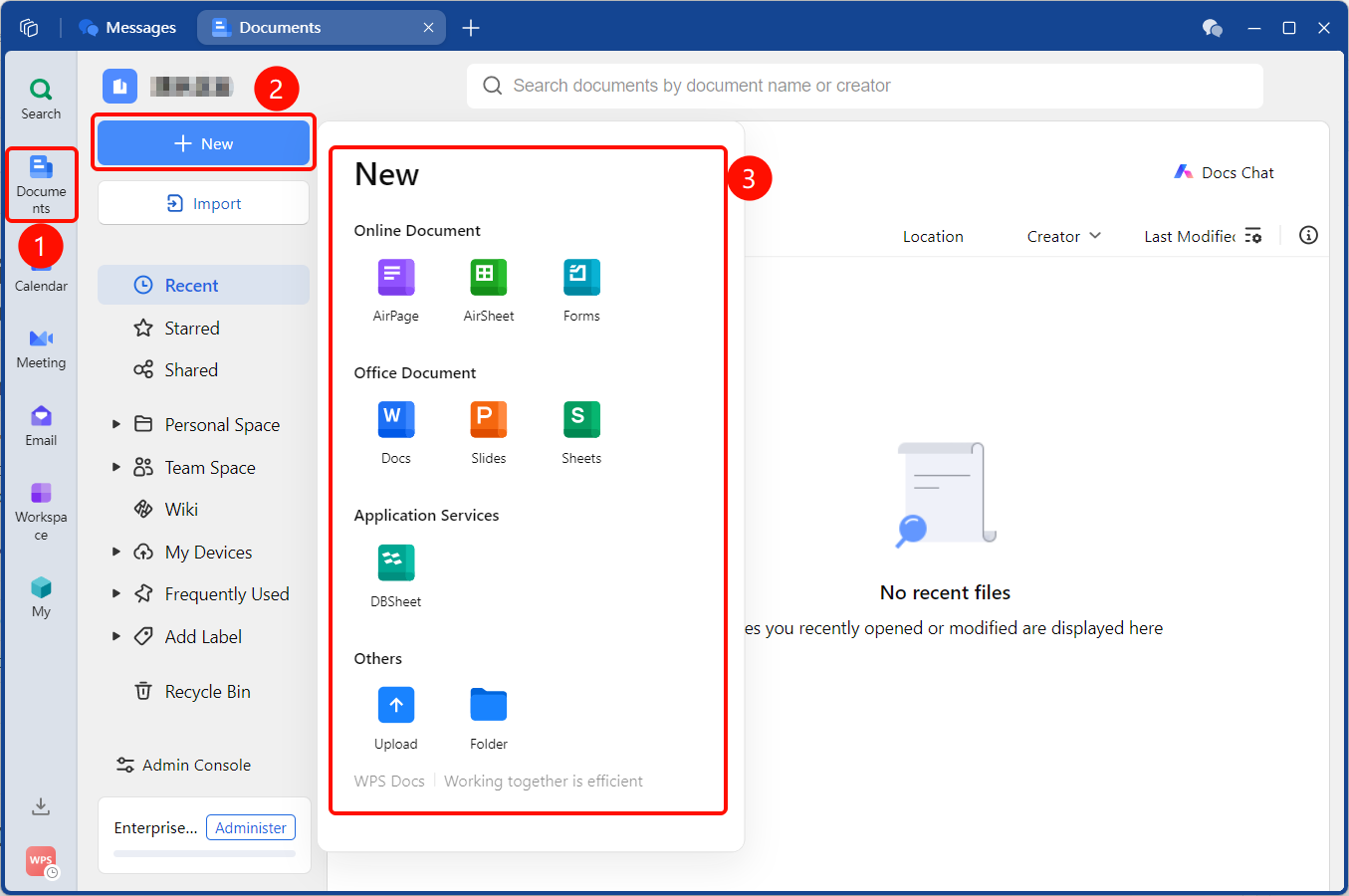
- Click "Docs" in the left navigation bar to enter the Cloud Document interface
- Click the "+ New" button at the top left of the page or the top of the left panel
- The right content area switches to the new document page, displaying all available document type options
Select Document Type and Create
Feature Entry
"New" button → "Document Type" icon
- The new document page displays the following document types in an icon grid. Click to create:
| Document Type | Description |
|---|---|
| AirPage | Create a WPS AirPage (.otl format) |
| AirSheet | Create an AirSheet, supporting data processing and collaboration |
| Forms | Create an online form for information collection and data statistics |
| Docs | Create a WPS Docs document (.docx format) |
| Slides | Create a WPS Slides presentation (.pptx format) |
| Sheets | Create a WPS Sheets workbook (.xlsx format) |
| DBSheet | Create a DBSheet, supporting structured data management and view switching |
| Upload | Upload local files to the Cloud Document interface |
| Folder | Create a new folder in the Cloud Document interface for categorizing and managing documents |
- Click the corresponding document type icon, and the system will automatically create a blank document and open the editing interface
- The newly created document is automatically saved to the current directory in the Cloud
Upload Files and Create New Folders
Feature Entry
"Cloud Document Interface New Page" → "Upload" or "Folder"
- Click "Upload", select a local file in the pop-up file picker, and it will be automatically stored in the current document directory after uploading
- Click "Folder", enter a folder name, and create a new category directory in the Cloud Document interface
FAQ
Q1: Where are created documents saved by default?
- Solution: Newly created documents are saved in the current document directory by default (such as "Personal Space"). You can adjust the storage location using the move feature after creation.
Q2: What are the size limits for uploading files?
- Solution: The size limit for uploading files depends on the plan configuration of the organization's cloud service.
Notes
- After creating a new document, it is automatically saved and synced to the Cloud.