Feature Summary
Supports creating a dedicated service desk in the workspace, suitable for various scenarios such as IT, HR, administration, and finance. Once you configure the service desk name, icon, and description, it can be enabled to provide a one-stop intelligent service for the organization.
Feature Description
| Feature Dimension | Description |
|---|---|
| Membership Restriction | No membership restriction |
| Version Restriction | No version restriction |
Operation Steps
Enter the Service Desk Page
Feature Entry
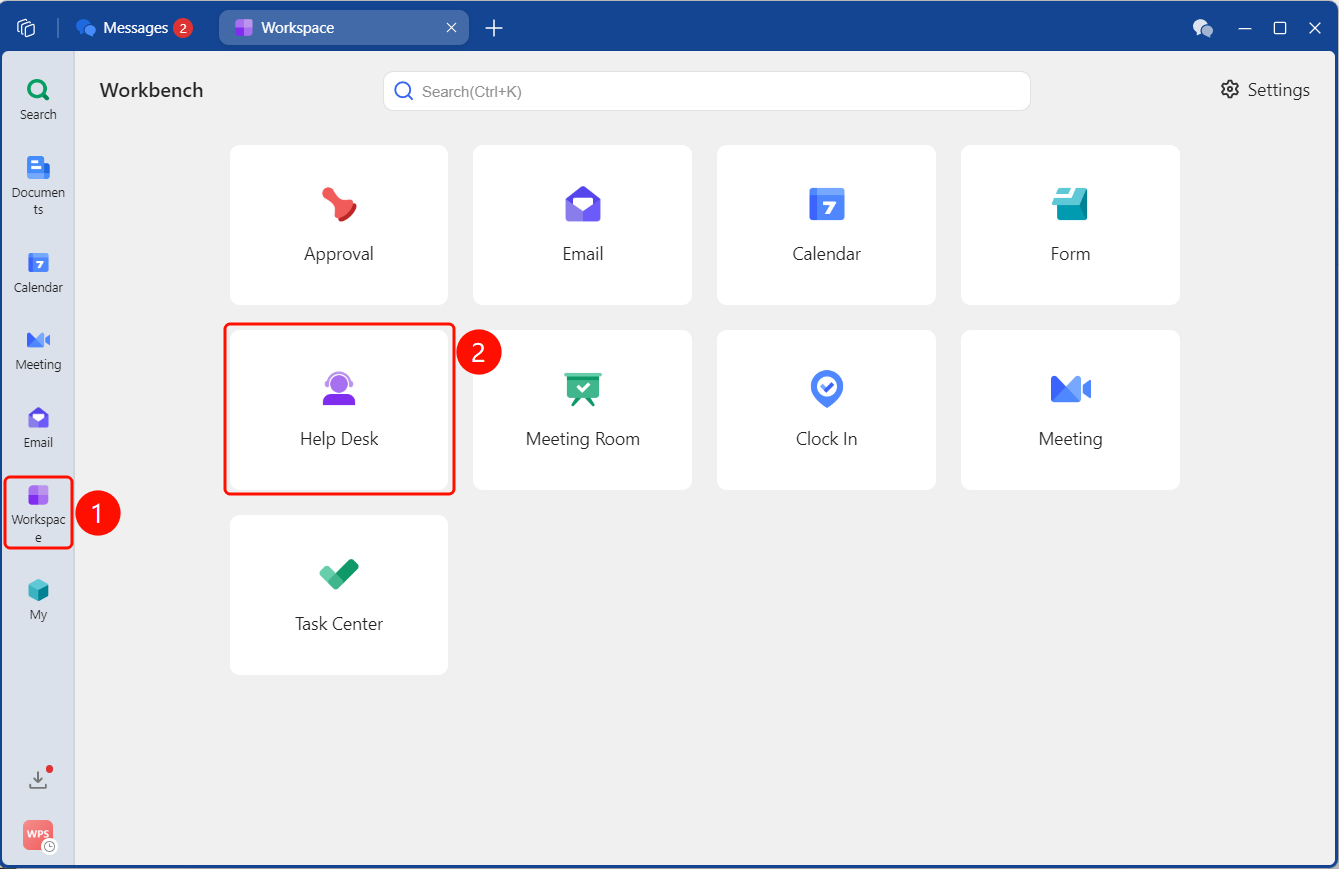
「Left Navigation Bar」 Page → 「Workspace」 Icon → 「Service Desk」 Icon
- Click the 「Workspace」 icon in the left navigation bar to enter the workspace page.
- In the application list of the workspace, find and click the 「Service Desk」 icon to enter the service desk homepage.
Fill in Service Desk Information
Feature Entry
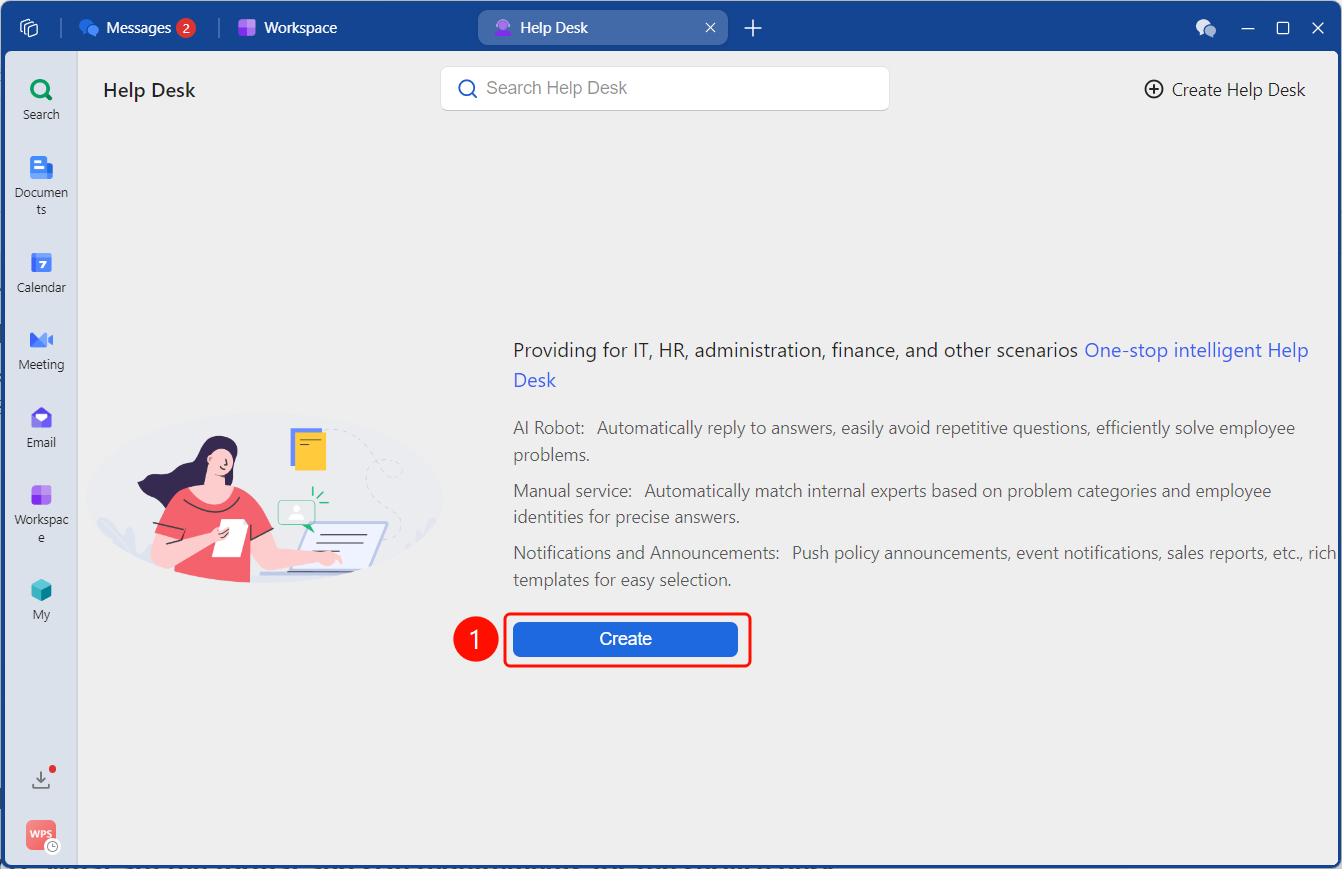
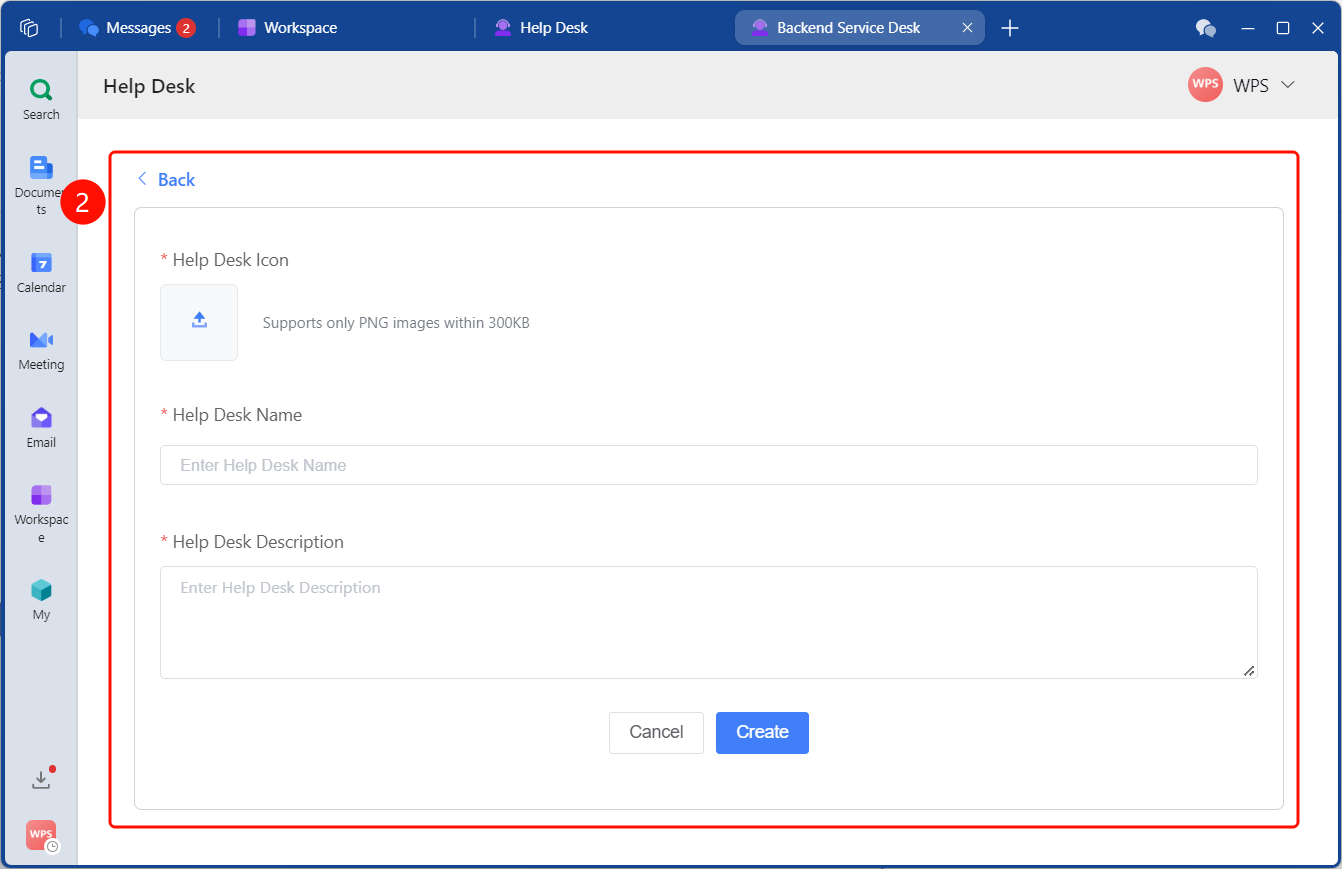
Service Desk Page → 「Create」 Button → Service Desk Creation Form
- Click the 「Create」 button to enter the service desk information filling page.
- Configure the service desk icon:
- Click the 「Service Desk Icon」 area to upload a service desk icon image.
- Only PNG format images within 300KB are supported.
- Fill in the 「Service Desk Name」 input box with the service desk name.
- Fill in the 「Service Desk Description」 input box with the purpose description of the service desk.
- After confirming the information is correct, click the 「Create」 button to complete the creation of the service desk.
FAQ
Q1: What are the format and size requirements for the service desk icon?
- Solution: Only PNG format images are supported, with a size not exceeding 300KB. It is recommended to use simple, highly recognizable icons to facilitate quick identification by employees.
Q2: Can the service desk name and description be modified?
- Solution: After creation, the service desk name and description information can be modified in the service desk Office Document.
Q3: Can one organization create multiple service desks?
- Solution: Creating multiple service desks is supported, suitable for different departments or different business scenarios (such as IT support, HR consulting, financial Q&A, etc.). Each service desk is managed independently.
Q4: How to start using the service desk after creation?
- Solution: After creation, employees can initiate conversations through the service desk entry. It is recommended to first configure the AI robot Wiki Spaces and human agent assignment rules in the Office Document to fully leverage the service desk capabilities.
Notes
- Before creation, please prepare a service desk icon that meets the requirements (PNG format, within 300KB).
- The service desk name is recommended to be concise and clear for easy searching and identification by employees.
- Basic settings after creation (such as AI Wiki Spaces, agent assignment rules) need to be further configured in the service desk Office Document.